$5,000 on the 1st of every month.
Available frequencies:
- Daily
- A specific day of the week (Monday through Sunday)
- 1st of the month
Note:The standard maximum allowed balance on a single PEX card is
$50,000. There is no required minimum balance on a card. (If a card is not being actively used, we recommend setting the balance to $0 in order to reduce the possibility of fraud.)Frequency
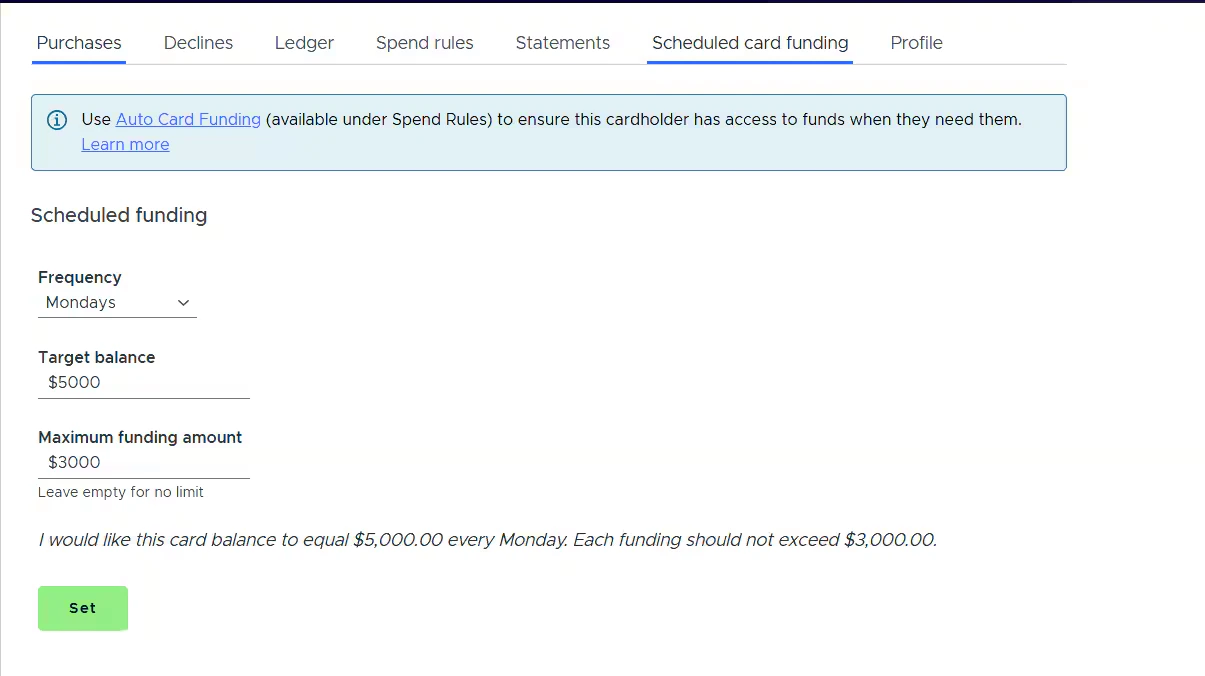
Select how often the card should be funded. Options include Daily, a specific day of the week (Monday–Sunday), or the 1st of the month.Target balance
Enter the balance you want the card to reach after each scheduled funding event. The system calculates the difference between the card’s current balance and the target balance, then funds that difference. For example, if the Target balance is set to$5,000 and the card’s current balance is $3,200, the system will fund $1,800 to bring the balance up to $5,000.
Maximum funding amount (optional)
This field is available under “More options” and lets you cap the amount that can be transferred to the card in a single scheduled funding event. When set, the system will fund whichever is less: the amount needed to reach the Target balance, or the Maximum funding amount. Leave this field empty for no limit — the card will always be topped up to the full Target balance.How to schedule card funding
Administrators can easily schedule regular funding of card balances:Enter the desired amount in the Target balance field. This is the balance the card will be topped up to on each scheduled funding date
(Optional) Click “More options” to reveal the Maximum funding amount field. Enter a value to cap the amount funded per event, or leave it empty for no limit
Review the summary text displayed below the form to confirm your settings (for example: I would like this card balance to equal
$5,000.00 every 1st of the month. Each funding should not exceed $2,000.00)