How to Install the Funding Scheduler
To install the Funding Scheduler:Log in to http://dashboard.pexcard.com/
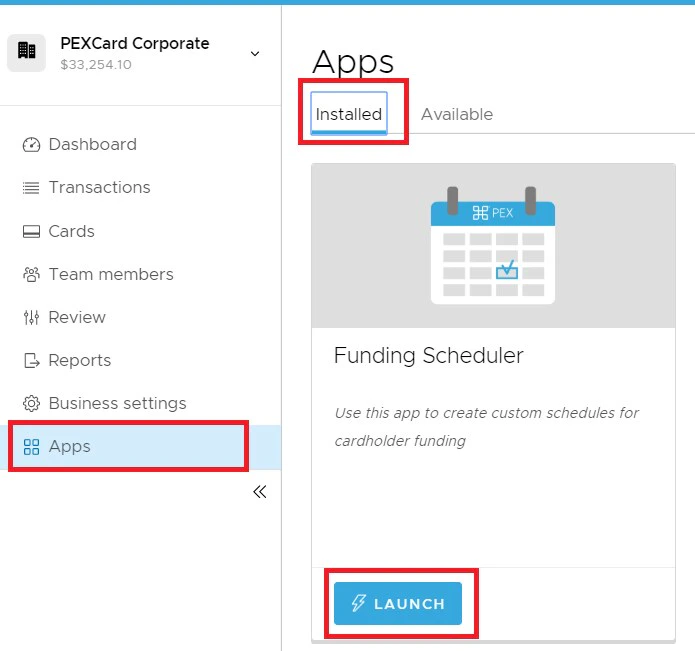
Note:To install the app, you need to enable the following permission: Edit business settings & apps. You can enable it in My Profile -> Permissions.
How to Schedule a Funds Transfer
To schedule a funds transfer:- Select the appropriate cardholder(s) from your PEX account. Find the cardholder by applying a filter:
- Include all cardholders
- Only include cardholders with Schedules
- Only include cardholders without Schedules
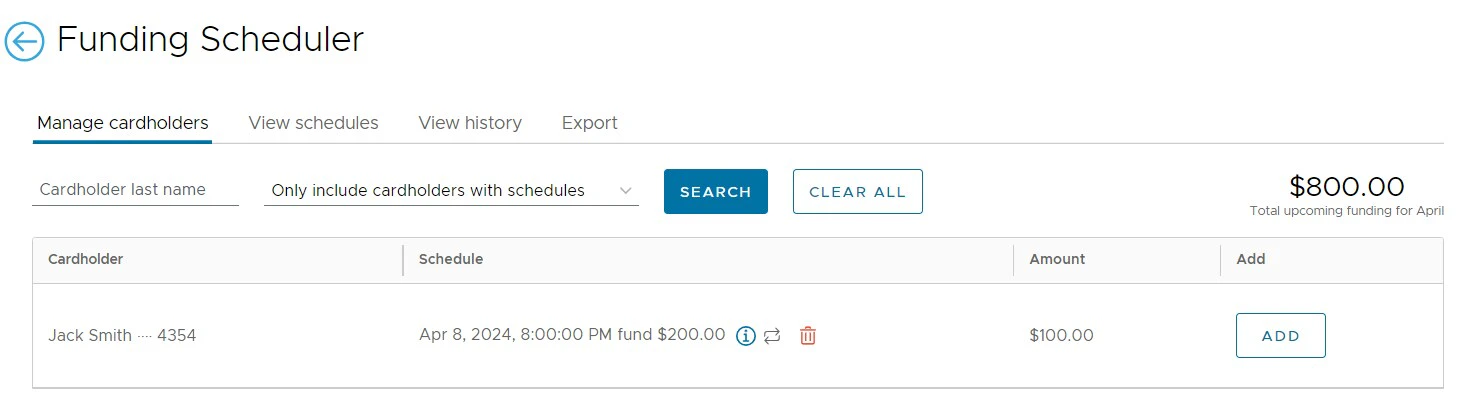
- Specify the last name of the cardholder to narrow the search criteria.

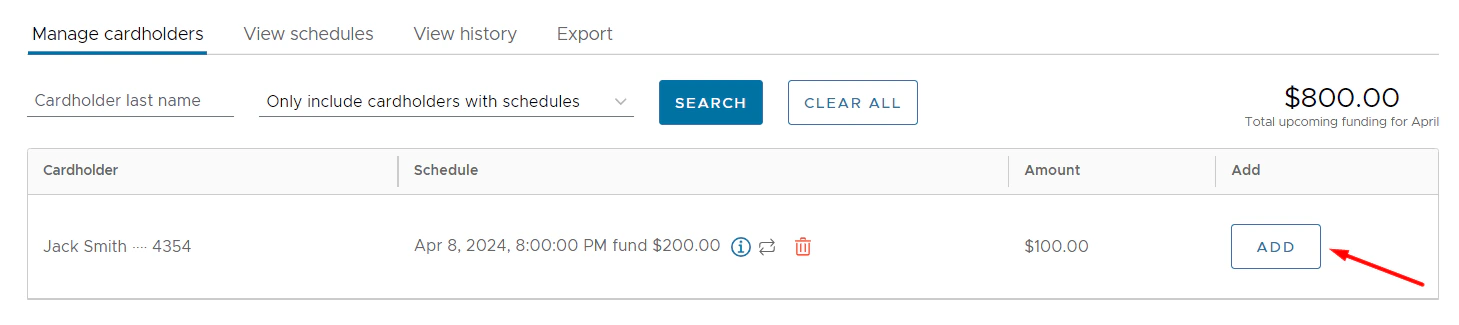
- Click on the “Add” button in front to each cardholder name to set the funding schedule for that cardholder.
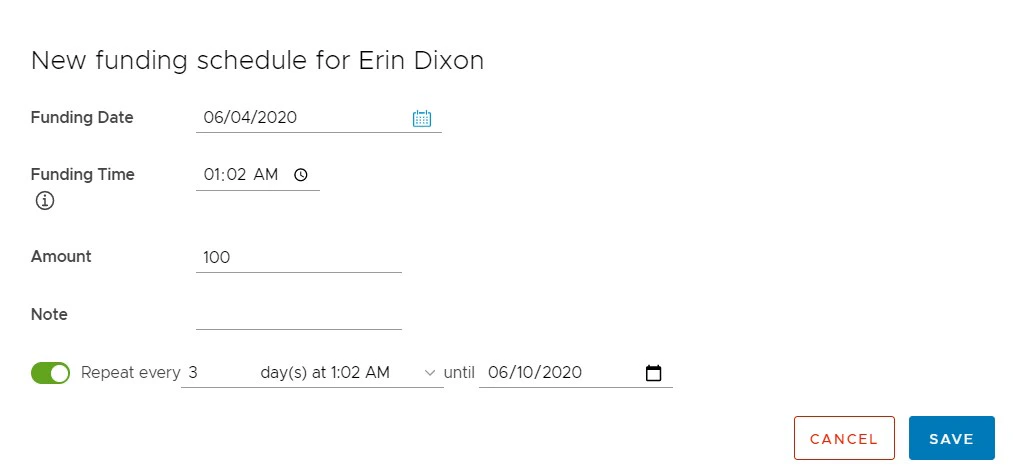
- Input details for the funding event:
- Funding Date - Date on which card will be funded.
- Funding Time - Time of funding on the funding date.
- Amount - Dollar amount for funding.
- Note - optional note for funding.
- You can choose to repeat the funding schedule. Toggle the switch and select:
- Number of days/weeks/months after which the funding schedule is expected to repeat.
- Date until which the schedule is expected to repeat. Note: If the funding date is set for the 31st of the month, all months following that do not have 31 days will post on the preceding day of the month to ensure funding on the last day of any given month.
- Click “Save” to save the schedule.
View schedules
The View schedules tab allows you to view active funding for a cardholder. You’ll be able to see the time of funding, cardholder name and last 4 digits of their card, amount, schedule details and confirmation #.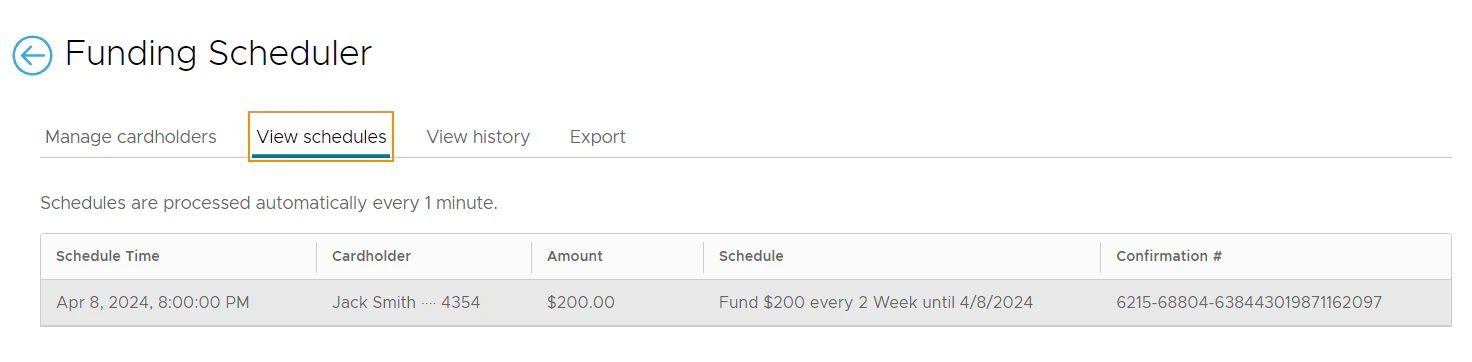
View history
The History tab allows you to view past funding for a cardholder. You’ll be able to see the time of funding, cardholder name and last 4 digits of their card, amount, status of the funding and transaction ID.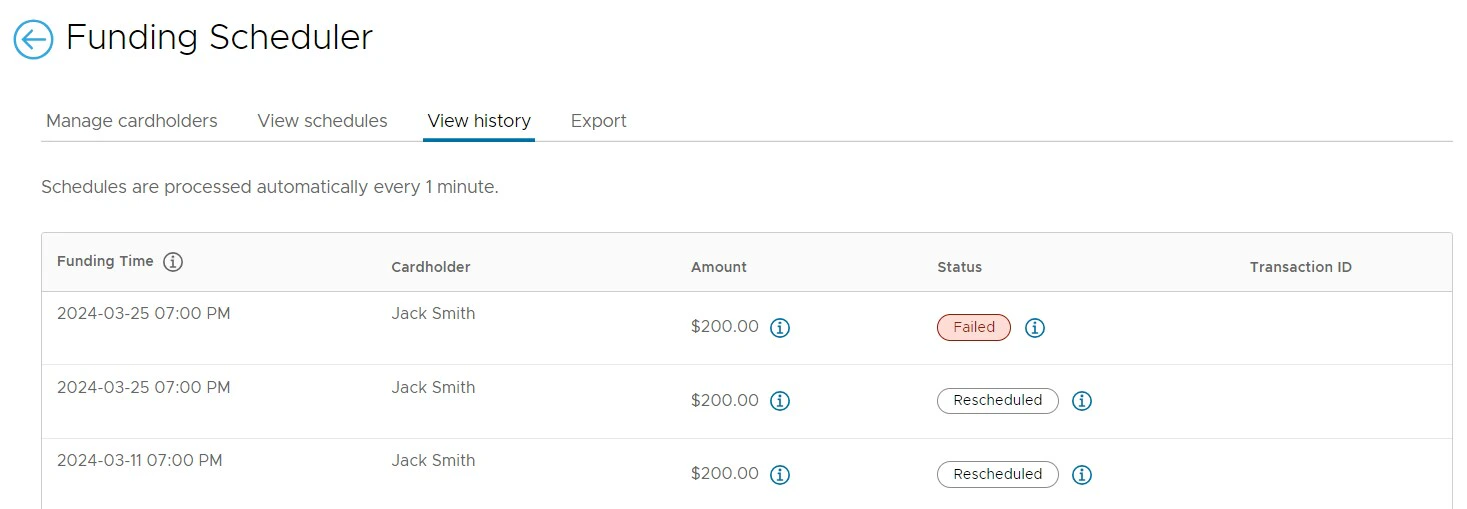
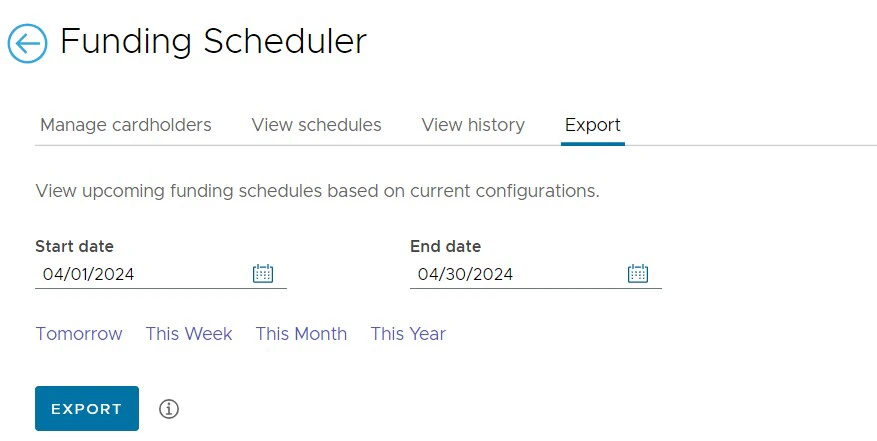
Export
The Export tab allows you to view upcoming funding for all cardholders in a downloadable csv. Select within a date range, or leverage a preconfigured report of “Tomorrow”, “This Week”, “This Month”, or “This Year”. Within the report, you can view one time funding requests and ongoing funding requests.