How to update a cardholder profile through the Web App / Dashboard

1
Log in to dashboard.pexcard.com
2
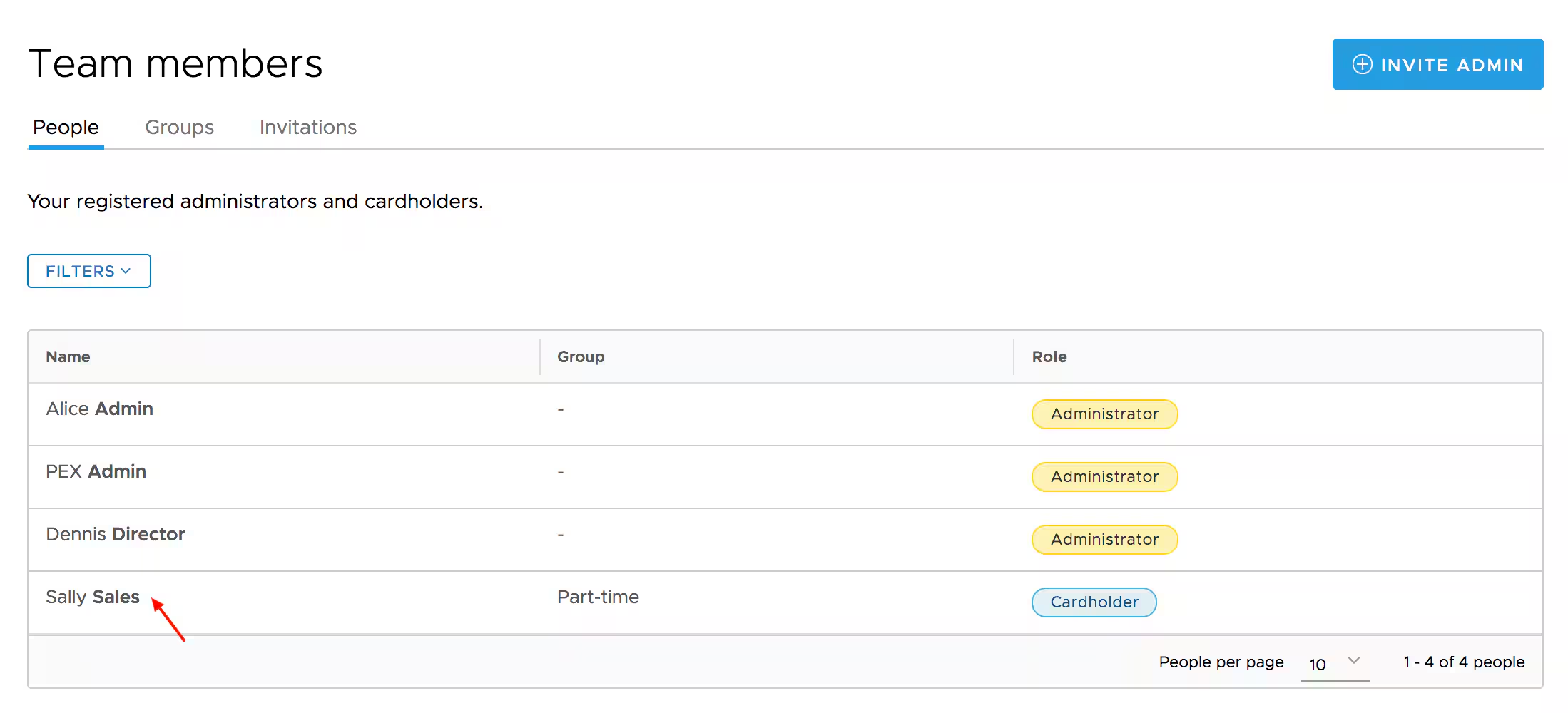
Click the “Team Members” tab
3
Locate the cardholder
4
Click on the cardholder’s name
5
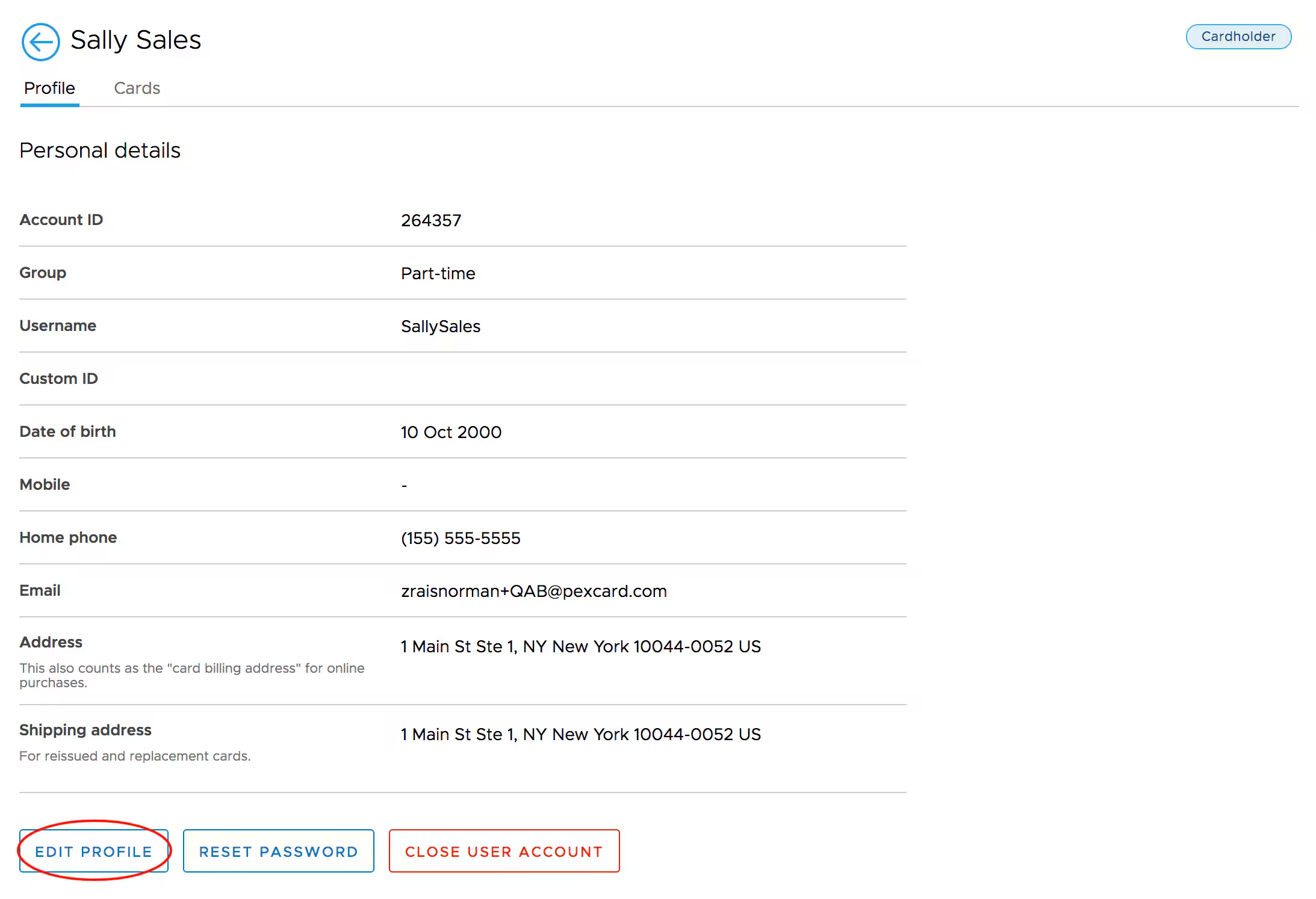
Click the “Edit Profile” button at the bottom
6
Edit “Personal address” (this also counts as the “Card Billing Address” for online purchases)
7
Edit “Shipping Address” (for reissued and replacement cards)
8
Click the “Update” button to save changes

How to update a cardholder profile through the Mobile App

1
Log in to the Mobile App
2
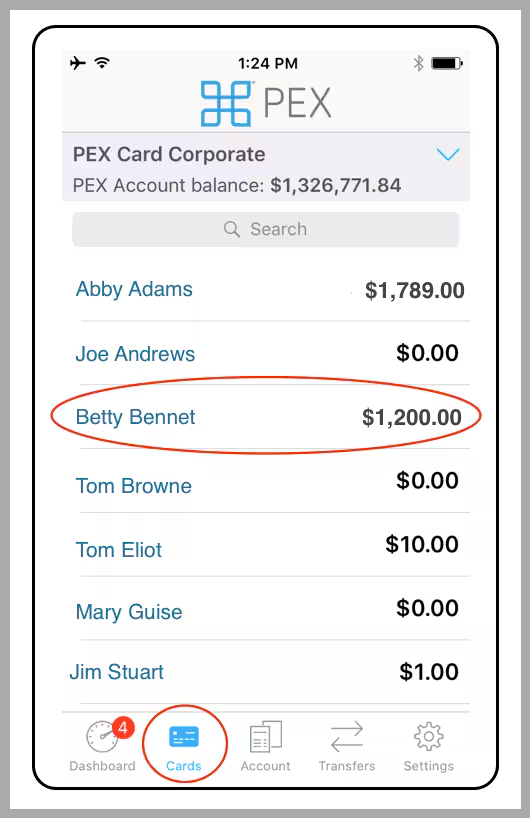
Click the “Cards” icon at the bottom of the screen
3
Click on the cardholder’s name
Click the “Cards” icon. Click on the cardholder’s name.
4
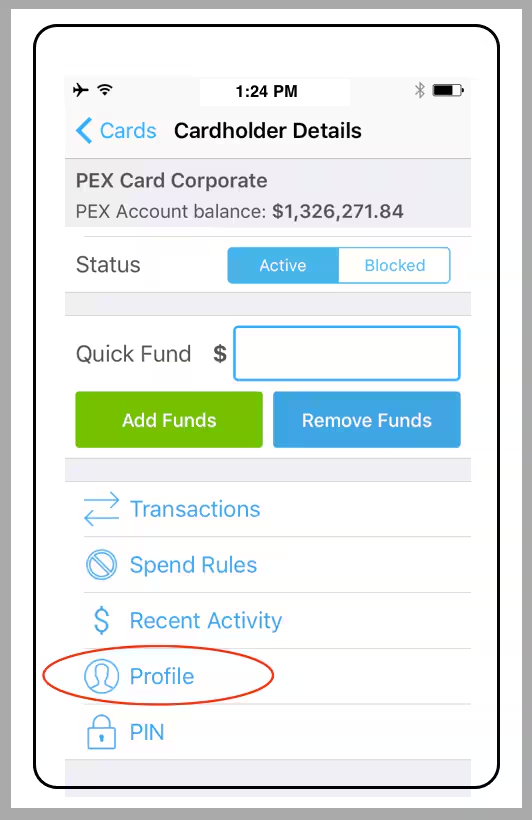
Click on “Profile” in Cardholder Details
Click on “Profile”
5
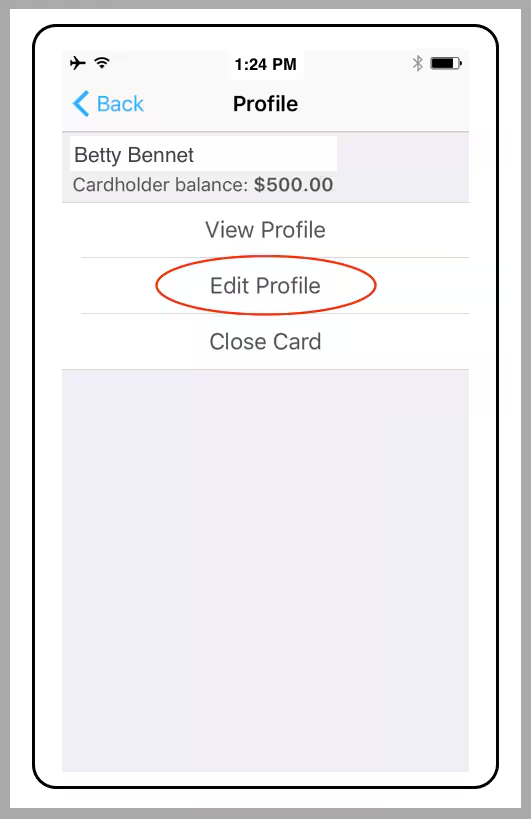
Click on “Edit Profile”
6
Make changes to the Profile
7
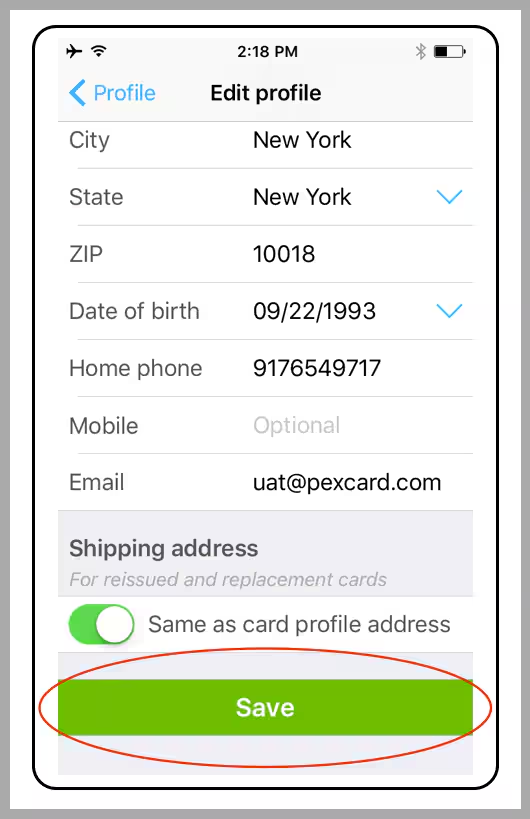
Click the green “Save” button at the end of the Edit Profile section
Click the green “Save” button
Last modified on April 22, 2026