Some POS terminals offer a “Bypass PIN” option when inserting a card. To bypass a pin at the POS, follow the prompts to proceed with the purchase using credit. This option allows the transaction to proceed without a PIN, but may not be available at all merchants. If the bypass pin option is not available, you may try using your Mobile Wallet or speak to the cashier for assistance in processing the payment as credit. Only Administrators with “Add/Edit/Terminate Card” permission can set or change a cardholder PIN.
Note:
  • PEX Customer Service can not recover a cardholder PIN
  • PEX Customer Service can not reset a cardholder PIN
  • If a cardholder forgets the PIN, he/she must call the Administrator for a new PIN
  • An administrator can give the cardholder permission to change the PIN directly
Adding a PIN does not give the cardholder access to cash:
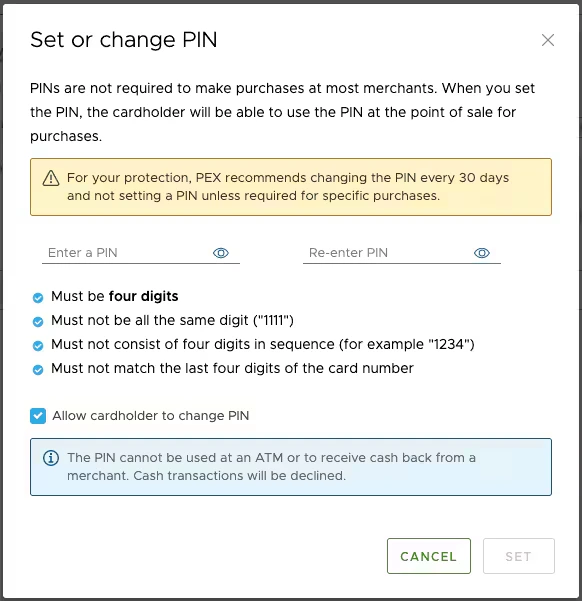
  • Not at an ATM
  • Not at point-of-sale as “Cash Back”
The Administrator can set or change the cardholder PIN: Instructions for the PEX website | Instructions for the mobile app

How to set or change the cardholder PIN

2
Click “Cards”
3
Locate and click on an individual cardholder’s name
4
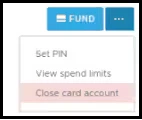
Click the 3 dots on the far right side of the details page.
5
Select “Set PIN” from the dropdown option
6
Enter and re-enter the 4-digit PIN in the fields provided, following the required PIN rules
7
Check the box if you wish to let the cardholder change the PIN directly
8
Click the blue “Set” button

How to set or change the cardholder PIN through the Mobile App

1
Log in to the Mobile App
2
Tap the “Cards” icon at the bottom of the screen
3
Tap on the cardholder’s name
4
Tap on “PIN”
5
Enter and re-enter the 4-digit PIN, following the required PIN rules
6
Tap “Save” to set the PIN
Last modified on April 22, 2026