- Use for one-off supplier payments and subscriptions
- Prevent overspending or overbilling
- Simplify reconciliation
- Eliminate late payments
Watch a step-by-step demonstration here!
How to create a vendor card
Click the dropdown on the ‘Order Cards’ button and select ‘Vendor’.Card settings
Enter the name of the vendor to appear on the card (will appear on the virtual card as VENDOR [Vendor name])
Share with cardholder
- This option will allow you to grant a cardholder full access to vendor card details as a “card owner”. This cardholder will be able to view the card number and all card transactions. Only one cardholder can be assigned to a vendor card.
Funding
Select which funding option you would like to use for the card.
- Use Auto Card Funding — Set funds to be automatically pulled from the business account balance so that no funding is needed ahead of payment.
- You can also set up time-based spend limits to restrict the amount that can be spent on a card in a given period.
- Add funds to card — Set funds to be transferred to the card upon creation.
- Enter the initial balance that you would like to set for the card.
- You can also set the cards to be funded automatically on a recurring basis by selecting a funding frequency.
- Add funds later — create the card now without funding. Funding can be set up later on the Card Details page or the Cards page.
Vendor locking (optional)
Vendor card FAQs
Can I create a physical vendor card?
Can I create a physical vendor card?
- No — Vendor cards are virtual-only cards that can be used for payments towards a specific vendor.
Can I use a Vendor card for in-store purchases?
Can I use a Vendor card for in-store purchases?
- No — Vendor cards can only be used online.
Can I add a vendor card to my digital wallet (Apple Pay, Google Pay, Samsung Pay)?
Can I add a vendor card to my digital wallet (Apple Pay, Google Pay, Samsung Pay)?
- No — Vendor cards cannot be added to digital wallets.
How do I share vendor card information with cardholders?
How do I share vendor card information with cardholders?
Can I change which cardholder has access to a vendor card?
Can I change which cardholder has access to a vendor card?
- Yes — On the ‘Card owner’ tab on the ‘Card details’ page, you can edit or delete the cardholder that has access.
How does vendor locking work?
How does vendor locking work?
- Vendor locking limits cards to only allow spend from a single selected vendor.
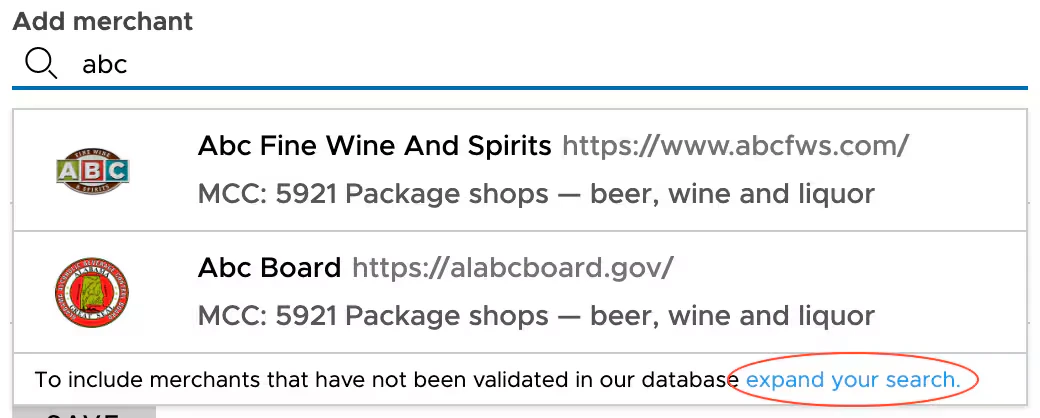
- You can search our database to find the vendor you are looking for.
- The vendors in our database are normalized, so for example, you can just search “Amazon” instead of “AMZN MTKP…”.
Do I have to lock card spend to a specific vendor?
Do I have to lock card spend to a specific vendor?
- No, it is not required. However, it is recommended so that you can prevent charges from unauthorized vendors and make reconciliation easier.
What if I can't find the vendor I'm looking for?
What if I can't find the vendor I'm looking for?
- If you are still unable to find the vendor you want, you can choose to expand your search (see below). However, the merchant results that appear from an expanded search have not been validated in our database and it is up to your discretion to use them for your card restrictions. (See Tips for Searching for Merchants)