Note:Any geographical or state specific spend rules only apply to “card present” use.
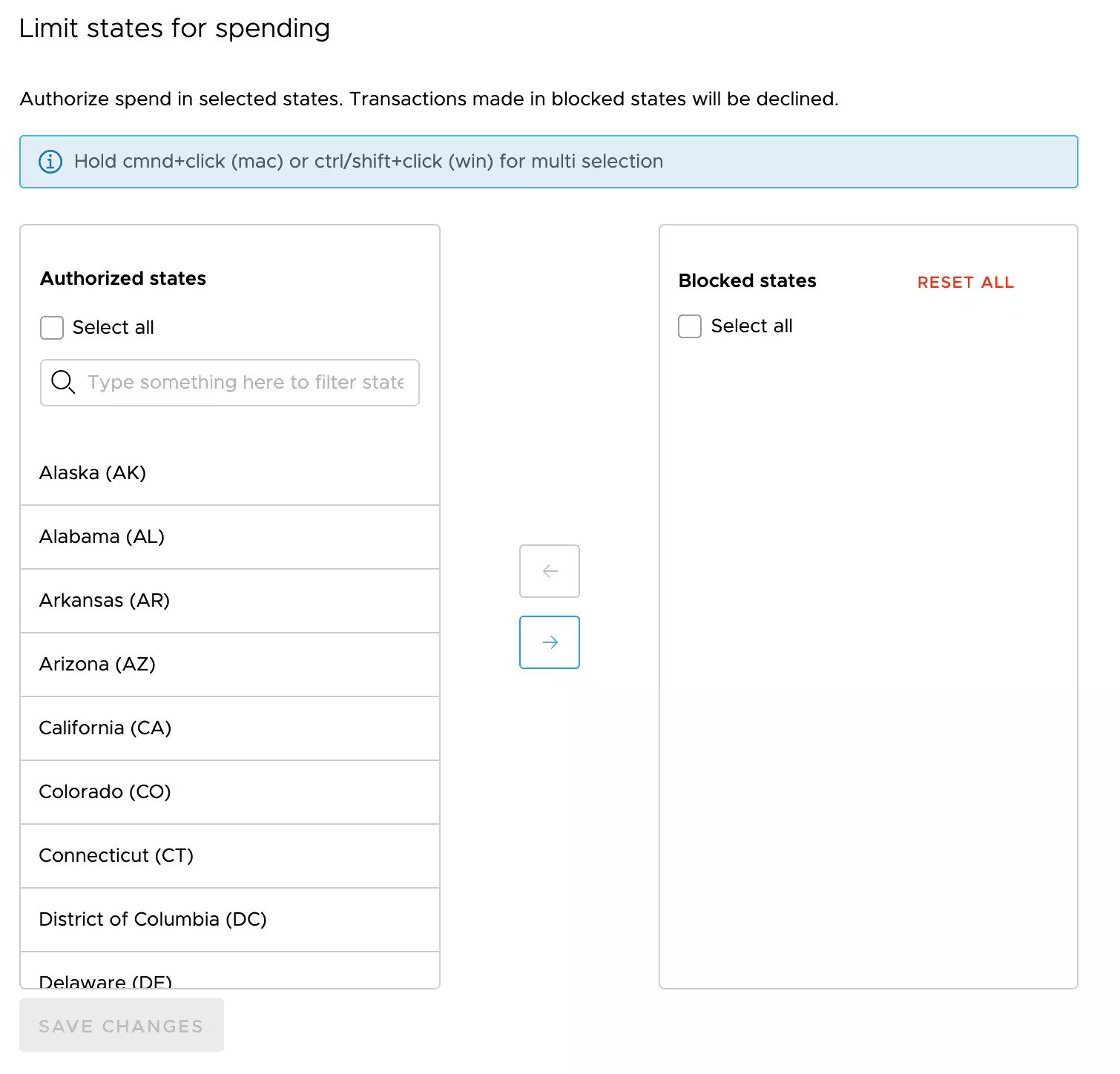
How to limit spend by state
Customers on selected plans can also limit spend by state as part of a spend policy.
For organizations with limited geographical operations, you can reduce your risk of fraud by limiting spend by state. For example, if your organization primarily operates in California, you may wish to prevent spend in other states, especially those on the East Coast. Spend that takes place out of permissible state(s) will be automatically declined.