The PEX system gives Administrators powerful tools for controlling cardholder spending — by setting limits on how much a cardholder can spend in a certain period of time:
  • Daily (24 hour period — Midnight to Midnight ET)
  • Weekly (Sunday to Saturday)
  • Monthly (1st to 31st)
  • Annual (Jan 1st to Dec 31st)
  • Lifetime
Note:Different Plans have different features. Please check your PEX Plan (contact your Account Manager for details):
  • CORE
  • PRO
  • INFINITE

How to set time-based spend limits through the Administrator Site

2
Click the “Cards” tab on the left side of the page
3
Locate and click on the cardholder’s name to open the card details page
4
Click on “Spend Rules” on the card details page
5
Click on the “Add Per-Time Limit” button to select from a dropdown menu the time period(s) where you will limit spending (as your Plan allows):
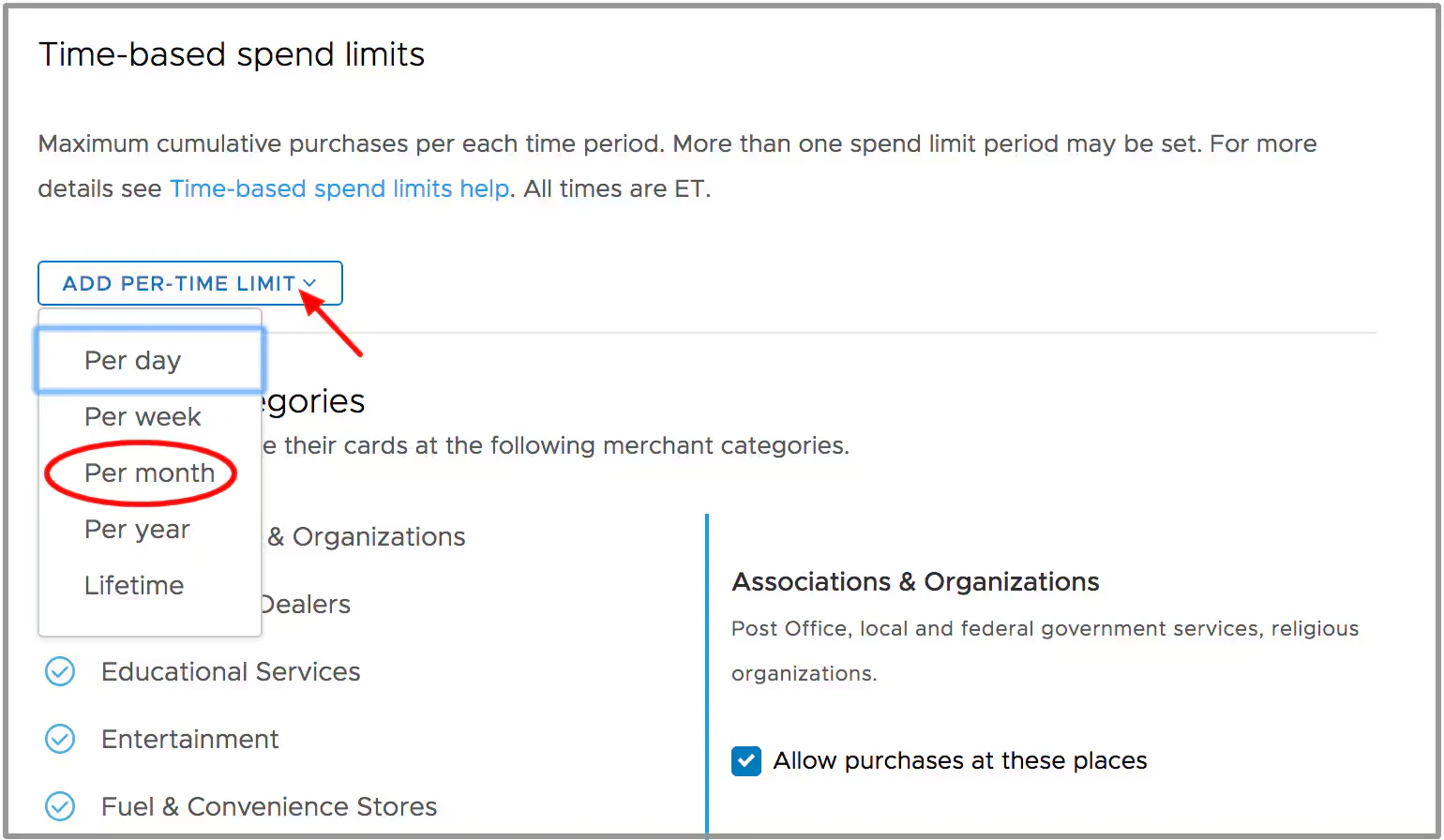
  • Daily
  • Weekly
  • Monthly
  • Annual
  • Lifetime
6
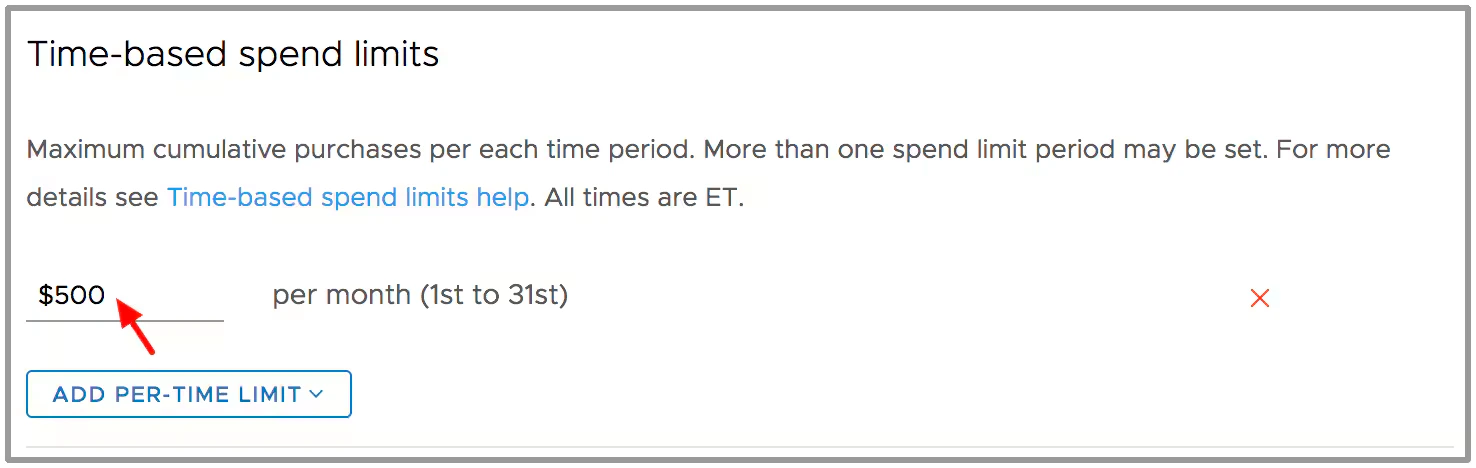
Enter a value in the field and hit enter.
7
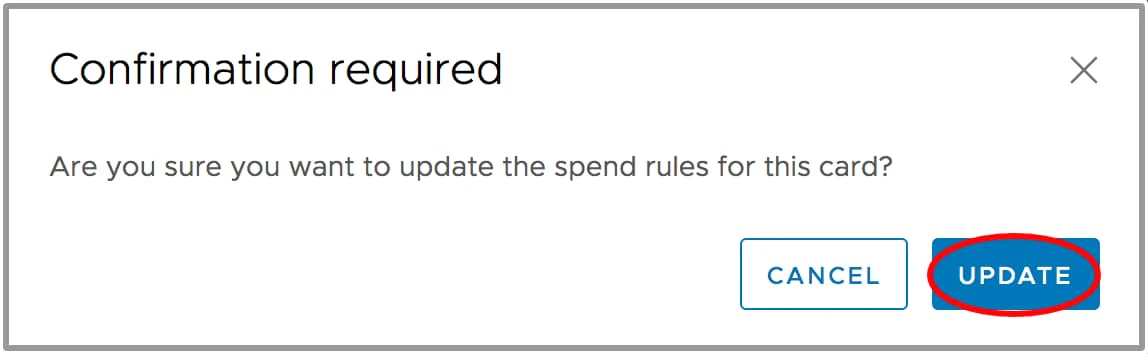
A confirmation window will open for you to confirm the update to the cardholder spend rules.
Note:a Time-Based Spend Limit can be deleted by clicking the red “X” next to the rule.
Last modified on April 22, 2026