

Install
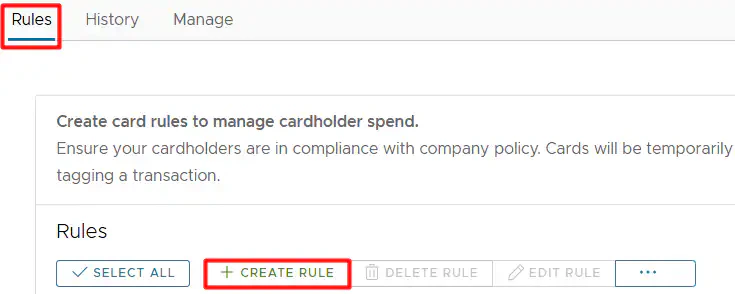
To use the app:Create rules
To create a card rule: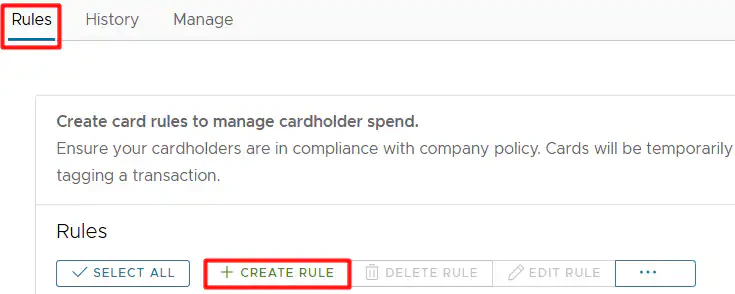
- Add a name.
- Select one of the following to require submission from:
- Group
- Note: Your business must have Groups set up to use the Group functionality. For questions on set up, please reference this support article or contact adminsupport@pexcard.com
- Cardholder
- Group
- Team member vs. Vendor cards: if you would like to create rules for employee cards only, deselect the “Show vendor cards” checkbox.
- Select a group(s) or cardholder(s) you want to auto create a card rule. The following example is provided for a cardholder, but it is also applicable to a group.
-
To select a cardholder(s) click on a cardholder name in the “All cardholders” list. Use hold cmnd+click (mac) or ctrl/shift+click (win) for multi selection. If you want to select all cardholders, check the “Select All” button. Note: as a best practice you may want to exclude executives from this list.
- To search for a cardholder, start typing the name in the Search bar of the “All cardholders” list. Note, only active cards will show. If a desired cardholder is not in the “All cardholders” list, then the cardholder is inactive or does not exist in your PEX account.
-
Once you select cardholder(s) you want to create a card rule for in the “All cardholders” list, click on the right-arrow button to add them to the “Rule members” list.
- To remove a pre-selected cardholder from the list, click on the cardholder name and the left-arrow button. The cardholder will disappear from the “Rule members” list and appear again in the “All cardholders” list.
- To clear the “Rule members” list, click “Reset all”.
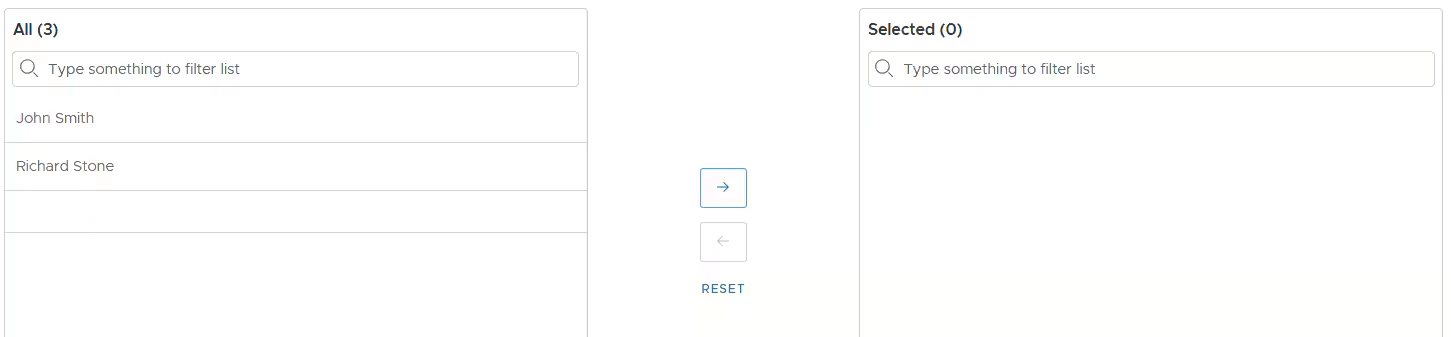
Note:- The system will create cardholder cards only for cardholders that are in the “Rule members” list.
- If you select a “Group” on the previous step then the system will show only cardholder groups, not Admin groups.
- Input a minimum $ transaction amount to fall under this rule.
-
If left empty then the rule will apply to every transaction.

- Skip reviewing purchase reversals and vendor credits.
- If enabled, Auto Enforcer will not check purchase reversal and vendor credit transactions for rule compliance.

-
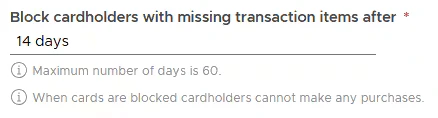
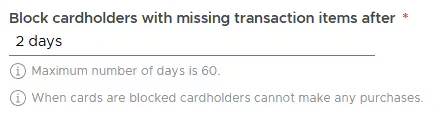
Enter # of days to auto-block cards with missing transaction items.
- If a cardholder does not add the missing transaction items within the inputted number of days after the transaction is made, the card will be auto-blocked.
- You can set any amount of days in the range of 1 to 60 days.
-
Enter which admin email address should be notified when cards are blocked for this rule.
- Emails include a list of transactions along with their missing items.
- You can be add multiple emails separated by commas (without spaces).

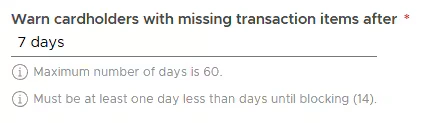
- Enter # days to warn cardholders before blocking.
- You can set any amount of days in the range of 1 to 60 days.
-
Enter which admin email address should be notified when cards are warned for this rule.
- Emails include a list of transactions along with their missing items.
- You can be add multiple emails separated by commas (without spaces).

- Enable/disable “Require a receipt” toggle.
- If enabled then a cardholder must attach a receipt to every new transaction they make.
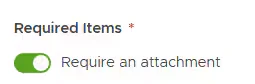
- If enabled then a cardholder must attach a receipt to every new transaction they make.
- Enable/disable “Require a cardholder note” toggle.
- If enabled then a cardholder must leave a note for every new transaction they make.
- Notes automatically added by the system (e.g., “Synced to Aplos”) and notes added by an Admin will not satisfy the “Require a cardholder note” condition. The note must be added by a cardholder.

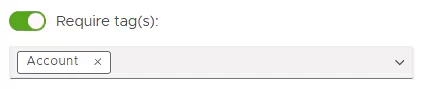
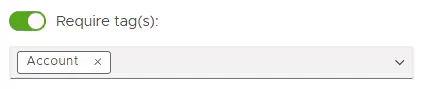
- Enable/disable “Require a tag(s):” toggle.
-
If enabled then a cardholder must tag every new transaction with a selected tag(s).
- Make sure you create tags first so that you can select them from a dropdown list. See “How to setup and create tags with Tag manager” if you have no tags created yet.
- You can add more than one required tag by clicking “Add PEX Tag”.
- Remove a tag if you don’t require it from your group(s)/cardholder(s).
-
If enabled then a cardholder must tag every new transaction with a selected tag(s).
-
Enable/disable rule on creation.
- If enabled, the card rule will take effect immediately after you click “Create”.
- If disabled, the card rule will not take effect after you click “Create”. It will only be saved as a draft until you enable it.
- Cards will remain temporarily blocked until a cardholder adds the missing required items or you manually unblock the card. During the block period, the cardholder won’t be able to make any transactions.
- The split tag functionality is supported by Auto Enforcer. If you use split tags, make sure to tag each split.
Run rules
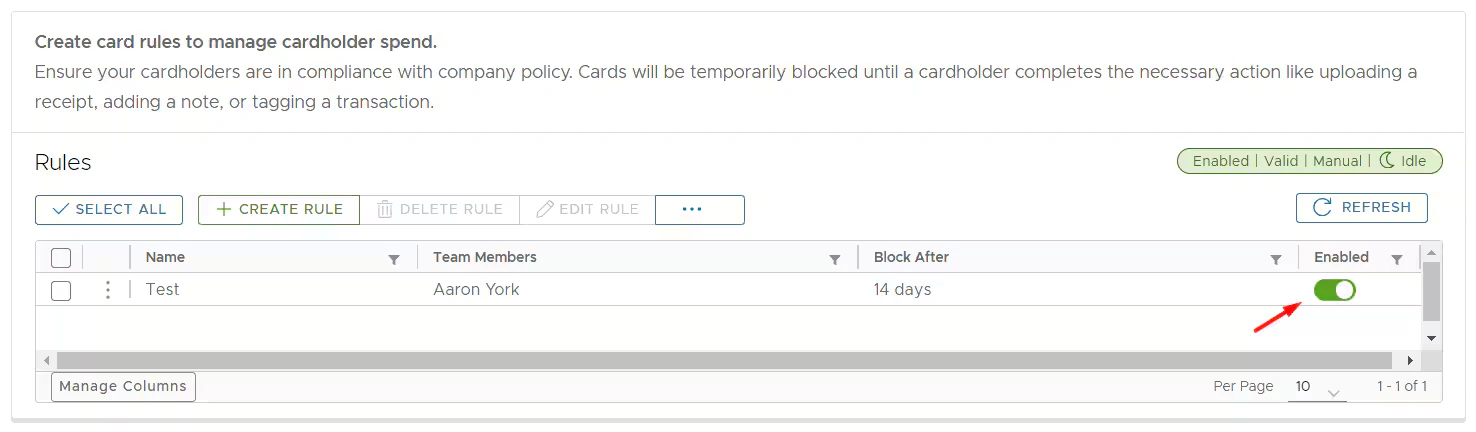
You have created the card rule. Now let’s set up Auto Enforcer to run the rule(s) against transactions:- Ensure the rule is enabled.
- If it is not, click the toggle to enable it.
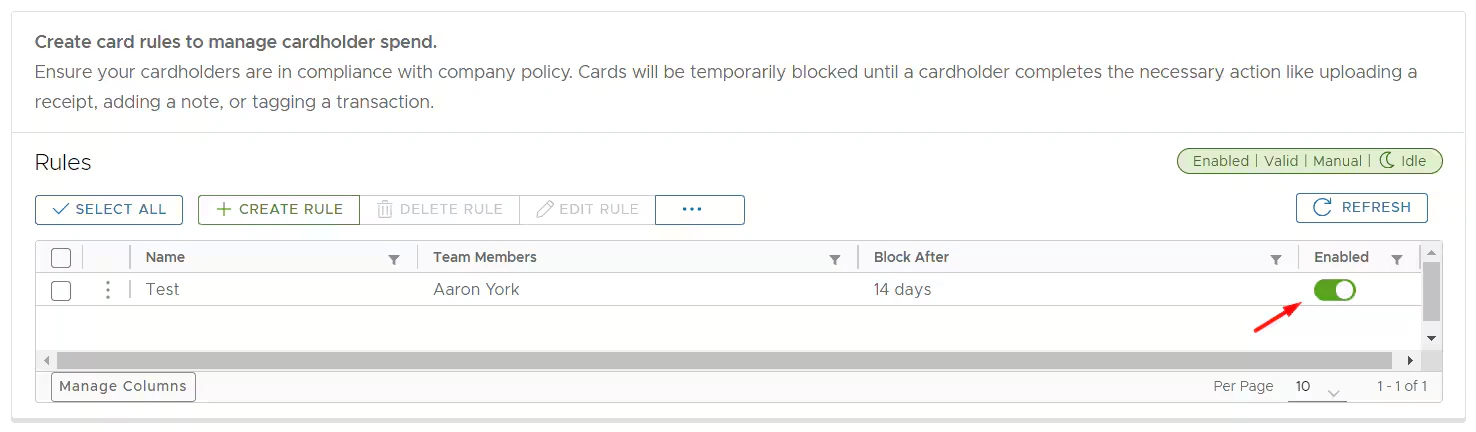
- If it is not, click the toggle to enable it.
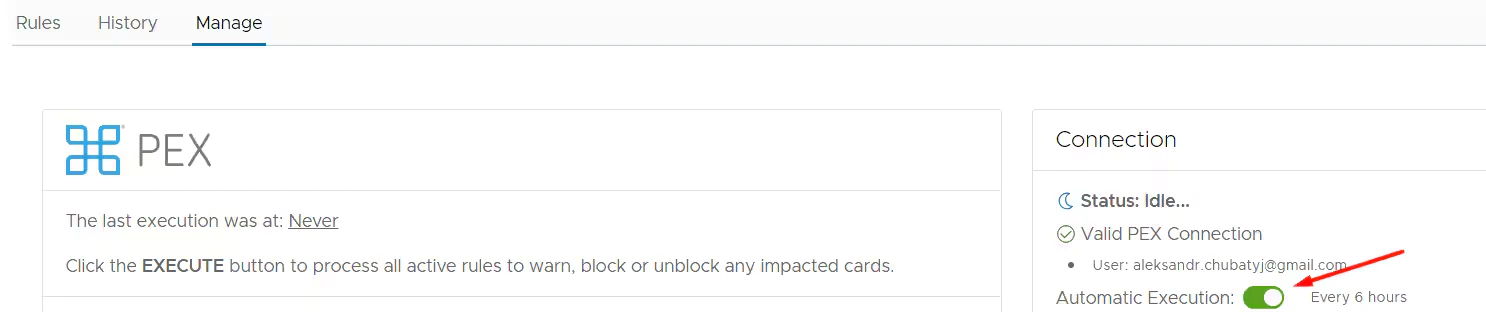
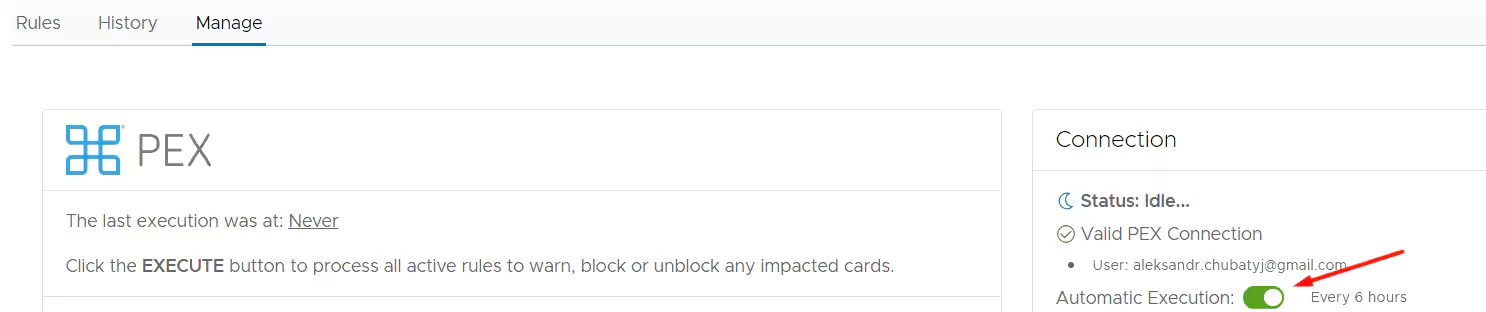
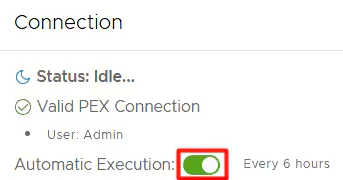
- Enable automatic execution of rules.
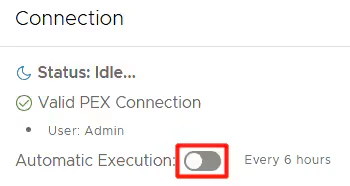
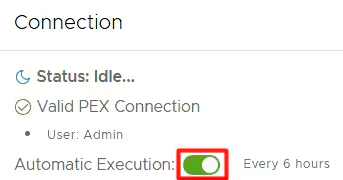
- When enabled, Auto Enforcer will run rules against transactions every six hours. If disabled, Auto Enforcer will not run rules against transactions automatically.
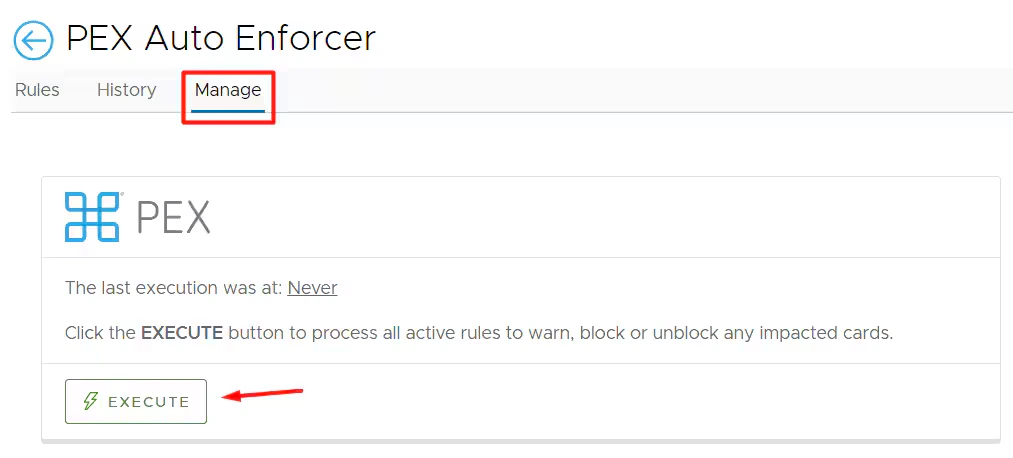
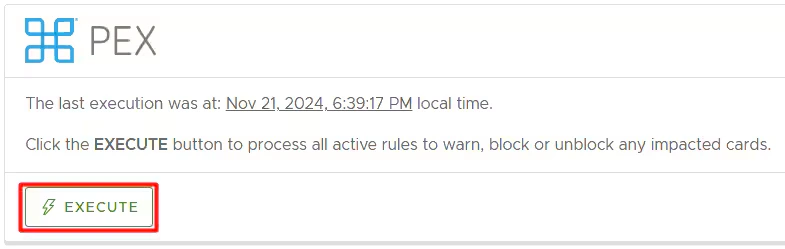
- For testing purposes or to run the rule(s) against transactions immediately, click the “Execute” button under the Manage tab.
- When enabled, Auto Enforcer will run rules against transactions every six hours. If disabled, Auto Enforcer will not run rules against transactions automatically.
View rules
The “Card rules” page lists the card rules that your company has created. Every rule shows:- Card rule name
- Team members
- If there are multiple team members, click on the number to view the others.
- Days
- A number of days after which a card with missing transaction items will be auto-blocked.
- Status
- Create a card rule by clicking ”+ Create rule”.
- Edit a card rule:
- In the table, check the card rule you want to edit.
- Click “Edit”.
OR
- Click on the three-dot menu.
- Select “Edit”.
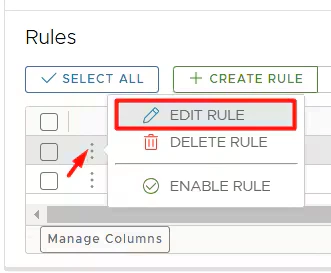
- If there is at least one blocked by Auto Enforcer card then clicking “Edit” will prompt a confirmation message.
- Click “No” if you would like to leave the cards blocked until the rule is satisfied or you manually unblock the cards.
- Click “Yes” if you would like to unblock the cards blocked within six hours for cardholders to use.
- In the table, check the card rule you want to edit.
- Delete a card rule:
- In the table, check the card rule you want to delete.
- Click “Delete”.

- If there are no blocked by Auto Enforcer cards at the moment then the card rule will be deleted and no longer applied to any group or cardholder.
- If there is at least one blocked by Auto Enforcer card then clicking “Delete” will prompt a confirmation message.
- Click “No” if you would like to leave the cards blocked until the rule is satisfied or you manually unblock the cards.
- Click “Yes” if you would like to unblock the cards blocked within six hours for cardholders to use.
You can recover deleted rules. Here’s how:
- Click on the three-dot menu -> select “Show deleted”.
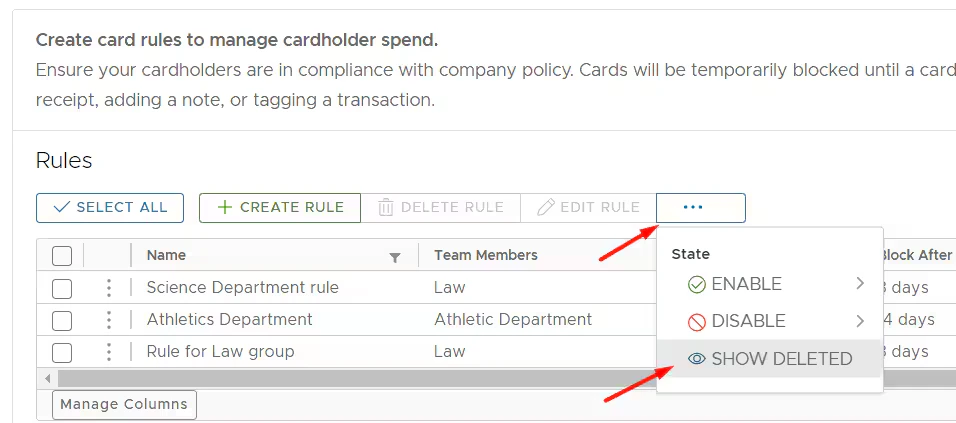
- Select a deleted rule that you want to recover.
- Click “Edit rule”.
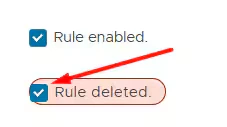
- Uncheck “Rule deleted”.
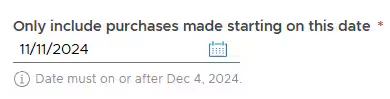
- Adjust the date.
- Click “Update”.
- Click on the three-dot menu -> select “Show deleted”.
- In the table, check the card rule you want to delete.
- Enable a card rule:
- Click on the three-dot menu.
- Select “Enable”.
OR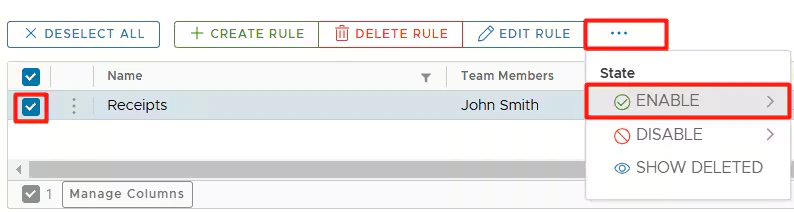
- Go to the “Enabled” column and turn on the rule.

- Click on the three-dot menu.
- Disable a card rule:
- Click on the three-dot menu.
- Select “Disable”.
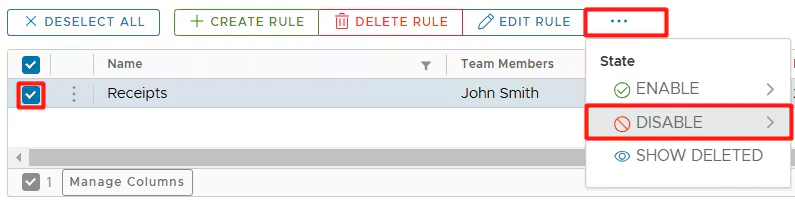
- If there is at least one blocked by Auto Enforcer card then clicking “Disable” will prompt a confirmation message.
- Click “No” if you would like to leave the cards blocked until the rule is satisfied or you manually unblock the cards.
- Click “Yes” if you would like to unblock the cards blocked within six hours for cardholders to use.
- Click on the three-dot menu.
- Sort the card rules by name.
History
The “History” tab shows a history of auto-blocked and unblocked cards. Note that the list incudes cards that have been blocked/unblocked by Auto Enforcer only. If you manually unblock the card, it will not be on this list. In the “Cards” table, you can review details, including the affected card, the time of the event, whether the card was blocked or activated, the rule it violated, and the missing items that its transactions lacked. Clicking on the card name will redirect you to a card details page.Manage
On the Manage page you can:- View the time of last execution.
- Execute now.
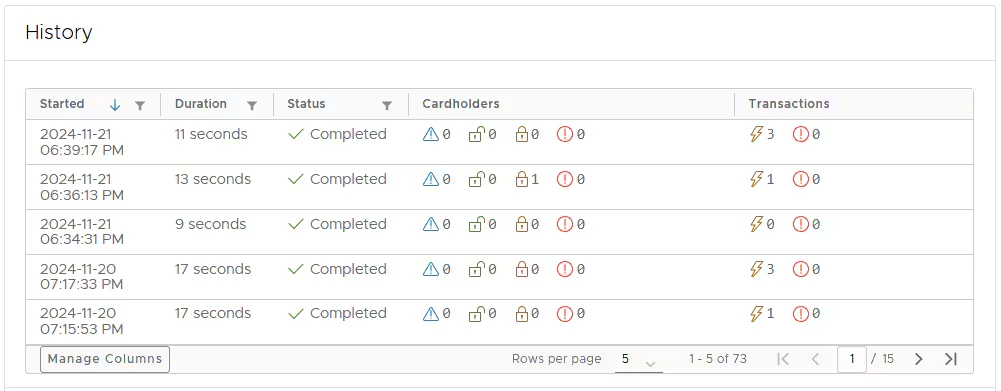
- View execution history.
- Sort by the Started column.
- Filter items in the Started, Duration and Status columns.
- View number of cards blocked/unblocked.
- Click on the cell to review details.
- View number of non-compliant transactions.
- Click on the cell to review details.
- Customize which columns are visible or hidden.
- Refresh history data.
- Sort by the Started column.
- Enable/Disable automatic execution. If enabled, Auto Enforcer will run rules against transactions every six hour
- Disconnect.
- If you disconnect the app then:
- All cards that are blocked by Auto Enforcer at the moment will remain blocked until you manually unblock them.
- Auto Enforcer will only check for transactions, not fees or transfers/bill payments
- If you disconnect the app then:
FAQ
What transactions does Auto Enforcer run my rules against?
What transactions does Auto Enforcer run my rules against?
- Active cards’ transactions.
- Settled transactions.
- Auto Enforcer uses the transaction settlement time to determine the date and time for sending warnings and applying blocks.
- Transactions in the Not Reviewed and Rejected statuses.
- Purchase transactions.
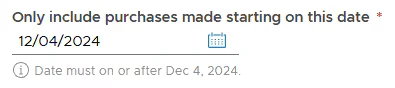
- Transactions on a go forward basis (excluding transactions made prior to the cardholder/group inclusion to the rule).
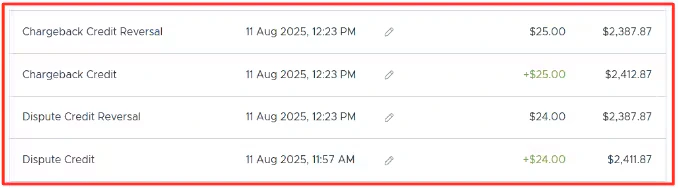
Does Auto Enforcer run my rules against fraud credits and fraud credit reversals?
Does Auto Enforcer run my rules against fraud credits and fraud credit reversals?
When will Auto Enforcer send warning messages if "Automatic Execution" is enabled?
When will Auto Enforcer send warning messages if "Automatic Execution" is enabled?
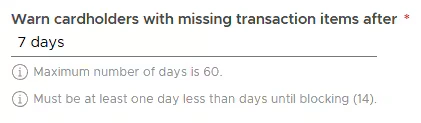
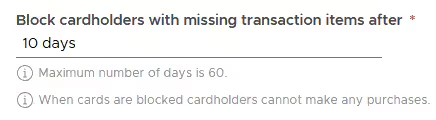
- On Dec 10th, you set the rule to warn cardholders with missing transaction items after 7 days
and block cardholders with missing transaction items after 10 days.
- The rule requires a cardholder to add a receipt within 10 days of the transaction.
- “Automatic Execution” is enabled.
- The cardholder makes two transactions on Dec 11th:
- Transaction A at 8AM
- Transaction B at 3PM
- The cardholder does not add a receipt to either transaction.
- On Dec 18th (7 days later), both transactions are non-compliant, and the cardholder receives a warning message.
- Even though the transactions occur at different times, the cardholder will receive only one warning on Dec 18th (for example, at 10 AM), including both transactions. At that time:
- Transaction A will be 7 days and 2 hours old.
- Transaction B will be 6 days and 19 hours old.
- PEX does not send a separate warning for each transaction to avoid excessive emails.
- Even though the transactions occur at different times, the cardholder will receive only one warning on Dec 18th (for example, at 10 AM), including both transactions. At that time:
- On Dec 19th and 20th, the cardholder continues to receive warning messages as both transactions remain non-compliant.
- One warning message per day.
- On Dec 21st, Auto Enforcer will block the card if at least one transaction remains non-compliant.
When will Auto Enforcer send warning messages and block the card if "Automatic Execution" is disabled and I do not run manual execution daily?
When will Auto Enforcer send warning messages and block the card if "Automatic Execution" is disabled and I do not run manual execution daily?
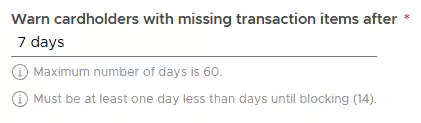
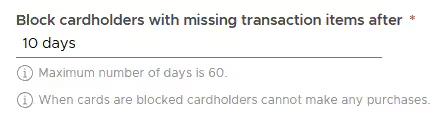
- On Dec 10th, you set the rule to warn cardholders with missing transaction items after 7 days
and block cardholders with missing transaction items after 10 days.
- The rule requires a cardholder to add a receipt within 10 days of the transaction.
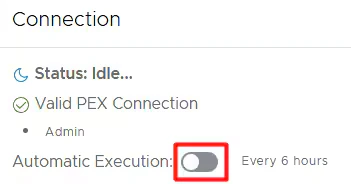
- “Automatic Execution” is disabled.
- The cardholder makes two transactions on Dec 11th:
- Transaction A at 8AM
- Transaction B at 3PM
- The cardholder does not add a receipt to either transaction.
- On December 22nd (11 days later), both transactions remain non-compliant, and you run a manual execution.
- Even though 10 days have passed and the card should be blocked, Auto Enforcer will not block it immediately, as no warning message has been sent yet to give the cardholder a chance to add the missing items.
- The cardholder will receive a warning on December 22nd (for example, at 10 AM), including both transactions.
- On December 23rd, 24 hours after the warning is sent, Auto Enforcer will block the card if at least one transaction remains non-compliant and you run a manual execution.
- If you do not run a manual execution on December 23rd, the card will not be blocked that day.
Why did Auto Enforcer not block the card?
Why did Auto Enforcer not block the card?
- A rule(s) is disabled.
- Ensure the rule is enabled.
- Automatic rule execution is disabled.
- Ensure that the automatic rule execution is enabled. When enabled, Auto Enforcer will run rules against transactions every six hours. If disabled, Auto Enforcer will not run rules against transactions automatically.
- Every transaction is compliant with a rule.
- Auto Enforcer does not block a card immediately if no warning message has been sent first. Refer to the next question for details.
- The timeframe after which Auto Enforcer will verify transaction compliance hasn’t elapsed yet. You can set any amount of days in the range of 1 to 60 days.
Will a card be blocked immediately if a transaction is non-compliant?
Will a card be blocked immediately if a transaction is non-compliant?
- Your rule requires blocking cardholders with missing transaction items after 10 days.
- You don’t run execution daily.
- It is already the 11th day.
- You run a manual execution.
- Even though 10 days have passed and the card should be blocked, Auto Enforcer will not block it immediately. A warning message must be sent first to give the cardholder a chance to add the missing items.
What happens if I manually unblock the card blocked by Auto Enforcer?
What happens if I manually unblock the card blocked by Auto Enforcer?
- Your rule requires blocking cardholders with missing transaction items after 10 days.
- You don’t run execution daily.
- It is already the 11th day.
- You run a manual execution.
- Even though 10 days have passed and the card should be blocked, Auto Enforcer will not block it immediately. A warning message must be sent first to give the cardholder a chance to add the missing items.
- The cardholder does not add the missing items to all non-compliant transactions.
- It is now the 12th day.
- You run a manual execution.
- Auto Enforcer blocks the card.
- On the 13th day, you manually unblock the card.
- It is now the 14th day.
- You run a manual execution again.
- Auto Enforcer rechecks the transactions that caused the initial block on the 12th day and finds that they are still missing items.
- However, Auto Enforcer will not block the card immediately. Instead, the cardholder will receive a warning.
- On the 15th day, 24 hours after the warning is sent, Auto Enforcer will block the card if at least one transaction remains non-compliant and you run a manual execution.
- If you do not run a manual execution on the 15th day, the card will not be blocked that day.
What happens to transactions that were previously below the amount threshold but now fall under it due to a rule change?
What happens to transactions that were previously below the amount threshold but now fall under it due to a rule change?
- Apply a rule if the transaction amount is
<$30.00 - Transaction A amount is $20.00
- Transaction A is not checked by Auto Enforcer.
- The rule is changed to apply to all transactions with amount
<$15.00 - Auto Enforcer will check transaction A for compliance.
When will the card be blocked?
When will the card be blocked?
Why is my cardholder's card still blocked?
Why is my cardholder's card still blocked?
- Cardholder made 5 transactions.
- 2 out of 5 transactions violate a rule: transaction A and transaction B.
- Auto Enforcer blocks the card.
- Cardholder adds missing items to transaction A.
- Card remains blocked as long as transaction B still lacks missing items.
When will the card be unblocked?
When will the card be unblocked?
- Within six hours after a cardholder added missing items to a transaction(s) responsible for the initial block.
- After 60 days. Auto Enforcer will check the card for a rule compliance only up to 60 days included from a time when Auto Enforcer blocked the card because it violated the rule. Consider this example:
- Rule A requires a cardholder to upload a receipt and tag a transaction within 20 days after a transaction is made.
- A cardholder makes a transaction A, tags it, but fails to upload a receipt.
- After 20 days, Auto Enforcer blocks the card because transaction A is missing the required receipt.
- 60 days later, the cardholder still hasn’t added a receipt for transaction A.
- The card will be automatically unblocked, though, it still has a non-compliant transaction.
Are there any other ways to unblock the card sooner?
Are there any other ways to unblock the card sooner?
- Manually unblock the card by changing the status from Blocked to Active.
- Edit a rule on a card and confirm that you would want to unblock the blocked card(s) instantly for cardholders to use.
- Disable a rule on a card and confirm that you would want to unblock the blocked card(s) instantly for cardholders to use.
- Delete a rule and confirm that you would want to unblock the blocked card(s) instantly for cardholders to use.
What happens if I disconnect the app?
What happens if I disconnect the app?
- All cards that are blocked by Auto Enforcer at the moment will remain blocked until you manually unblock them.
- Auto Enforcer will not run rules against any transactions.
Can I CC more than one email address?
Can I CC more than one email address?
What happens if a cardholder loses their receipt?
What happens if a cardholder loses their receipt?