Connect PEX and Google Drive
To connect your PEX and Google Drive from the PEX Marketplace follow these steps:Log in to http://dashboard.pexcard.com/
Navigate to Apps > Available
Note:To install the connector, you need to enable the following permissions: Edit business settings & apps, Manage cardholder, View card transactions. You can enable them in My Profile -> Permissions.
Click “Allow” to give PEX permission to access your Google Drive for the following data fields:
- Permission to get information about the connected user:
userinfo.emailSee your primary Google Account email address.userinfo.profileSee your personal info, including any personal info you’ve made publicly available.- Permissions for Google Drive:
drive.readonlyAllows read-only access to file metadata and file content. PEX requires this in order to LIST the shared drives.drive.filePer-file access to files created or opened by the app.
Configure settings
Select the preferred parameters for each field: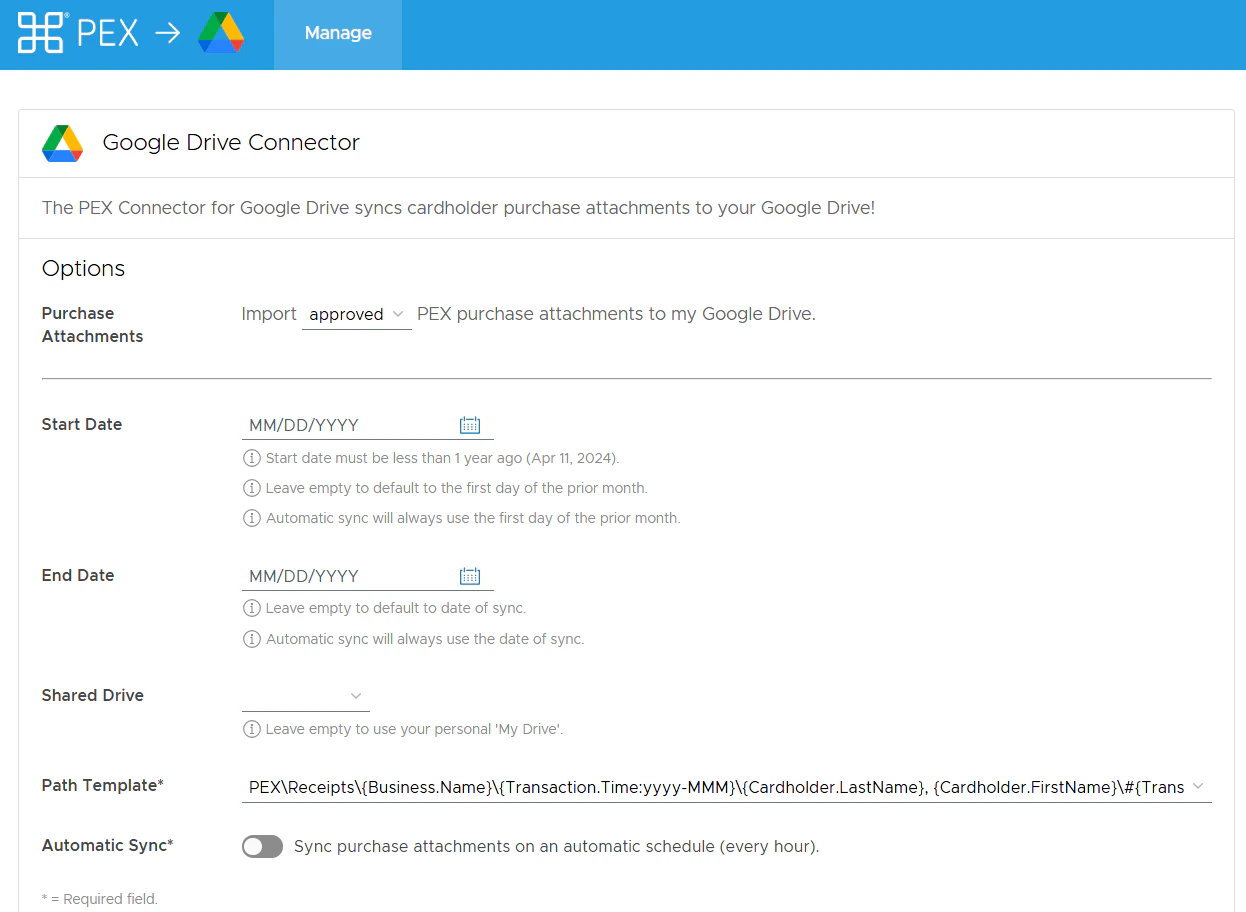
- Purchase Receipts - Choose Approved or All transactions.
- Start Date - The first date to sync.
- End Date - The final date to sync.
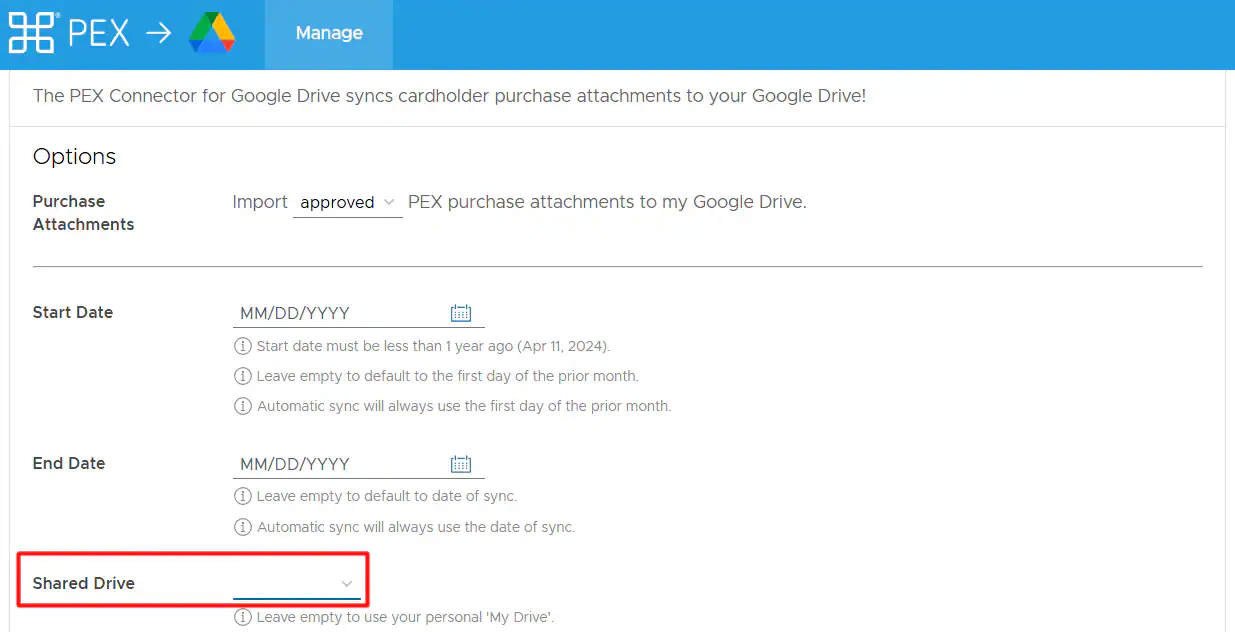
- Shared Drive - If you have multiple shared drives available you can select them here, or leave it blank to sync your personal “My Drive”.
- Path Template - Click the arrow on the right side to choose between different file hierarchy options.
- Automatic Sync - Enable if you want to sync purchase attachments on an automatic schedule (every hour).
Click “Save Options” to save your sync settings and then click “Sync Attachments” to begin downloading data to your Google Drive.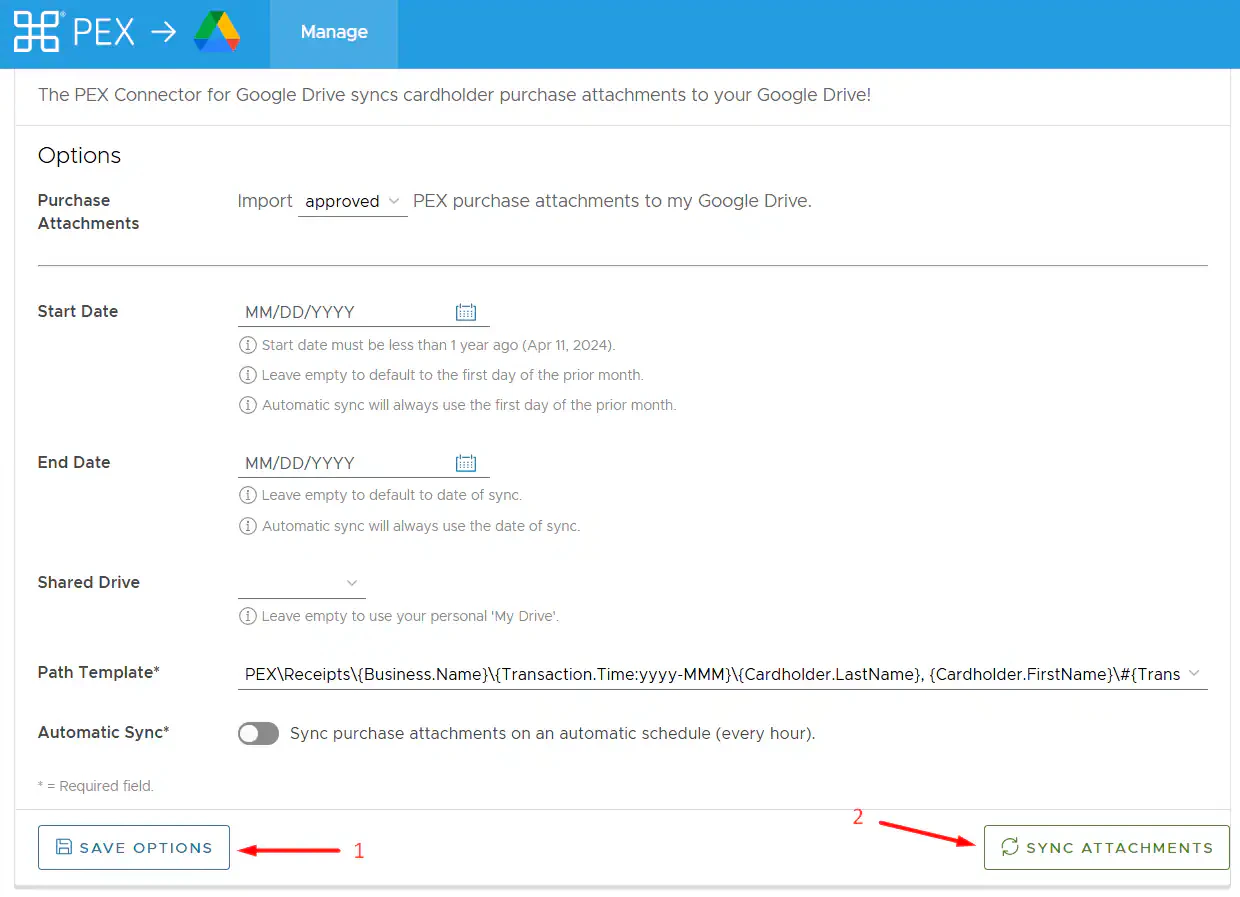
FAQ
How often does it sync if you don't enable the auto sync to sync hourly?
How often does it sync if you don't enable the auto sync to sync hourly?
It will sync every time you click the “Sync Attachments” button.
Are there any limitations for the start date?
Are there any limitations for the start date?
The Start Date is max 1 year in the past.
Does the sync end date have any limitations if an Admin wants to sync back only, say, a specific period of time in the past?
Does the sync end date have any limitations if an Admin wants to sync back only, say, a specific period of time in the past?
The only limitation is up to 1 year in the past. The user could do however June 15 - December 15 2024 if they wanted to (assuming today is June 15, 2025).
Where does the Path Template come from?
Where does the Path Template come from?
We’ve incorporated feedback to come up with the most common types of configurations. Let us know if you have another preferred way to store receipts and we can update accordingly.
How do I re-download receipts?
How do I re-download receipts?
Previously synced receipts will not re-download if the file is already present in the PEX Receipts file hierarchy or if it has a sync note from being previously downloaded.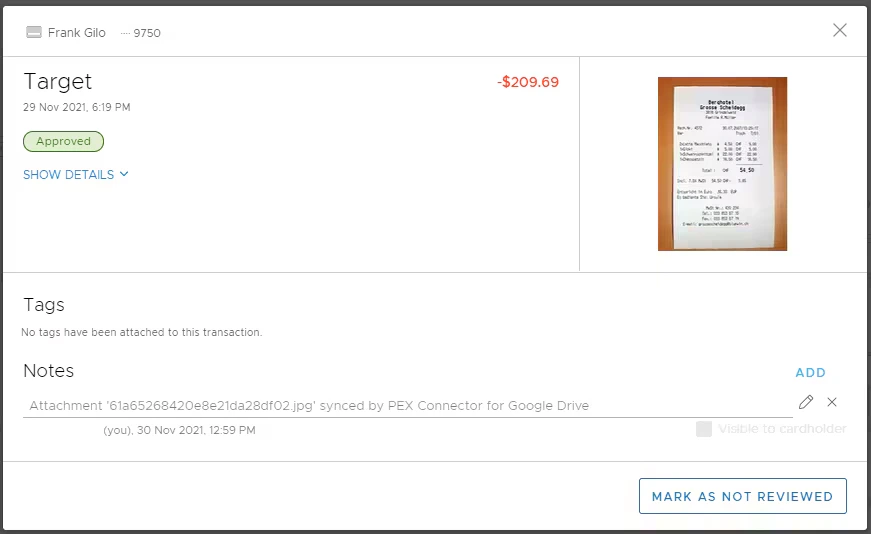
How does PEX share data with Google Drive?
How does PEX share data with Google Drive?
The sync between PEX and your Google Drive account is required to send transaction receipt images into your personal My Drive or Shared Drive folders. All transaction receipt images created by PEX will begin with a PEX\Receipts prefix or a custom file location created by you or your company’s Admin. The Connector for Google Drive will only read and write data to the PEX\Receipts or the custom file location. Additionally, the Connector for Google Drive requires read-only access to the full drive to populate the “Shared Drive” drop down list. For more information on the PEX Privacy Policy, please navigate here.