

Access App
To access the app:- Log in to http://dashboard.pexcard.com/
- Navigate to Apps > Available
- Locate Expense Envelope.
- Click More info > Install > Launch.
Configure
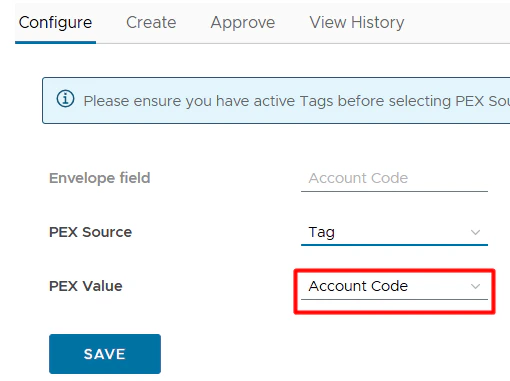
To configure your settings select your Envelope Account Code value:- PEX Source. The source can be:
- Tag. It is recommended if you have multiple Accounts. Tags are based on your business’ active PEX tags.
- To get started, navigate to Business Settings > Tag Manager
- Click Add Tag.
- Name it Account Code.
- Choose whether or not this tag is “Required”.
- If the “Required” checkbox is checked, cardholders must tag a transaction with it.
- Select Dropdown as the Type.
- Click Add a New Option.
- Enter your account name and code in the Display as and Option value fields.
- Every new option is a new account.
- Check the Enabled? box to enable the option.
- Click Create tag to finish. More details on how to create a tag can be found here.
- Text is recommended if you only have 1 account. This will essentially be a hard coded number used for all transactions made on your PEX cards.
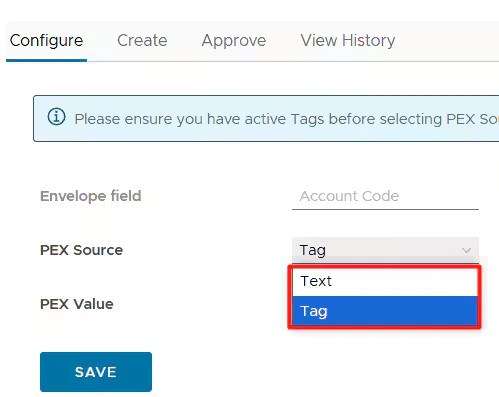
- PEX Value. Depending on the selected Source, you can select/enter the PEX Value.
Create
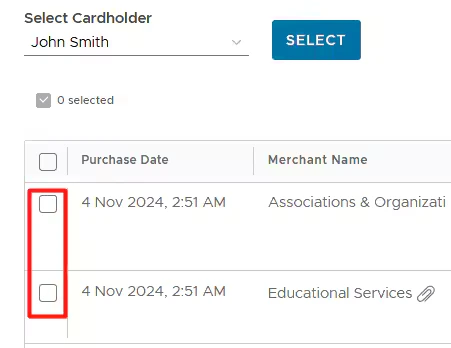
A date range (one month) and approval status (approved) are prepopulated by default. Feel free to edit the dates and approval status as needed. Next, select the cardholder name from the dropdown and click Select. Note: only one cardholder can be selected at a time.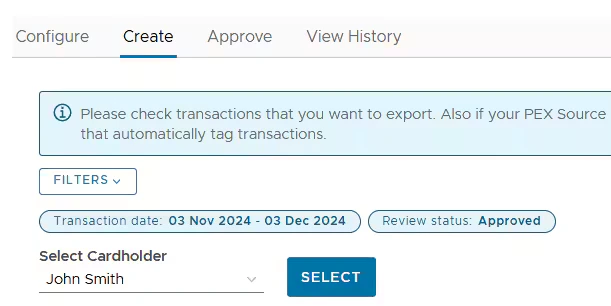
- Purchase Date - when the transaction was made.
- Merchant Name - where the transaction was made.
- Paper clip - whether or not a receipt was attached to the transaction. No paper clip means no receipt attached.
- Amount - how much the transaction is.
- Account Code - the account corresponding to the transaction.
- Click it to update if necessary.
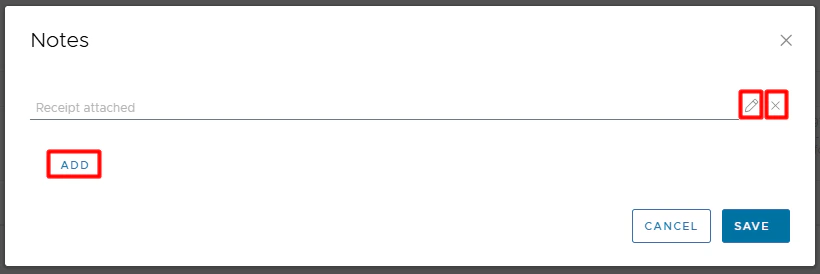
- Notes - any notes on the transaction.
- Click on the pencil icon
to add, edit or delete a note.

- Click on the pencil icon
- Settled cardholder transactions.
- New (not exported yet) purchase transactions: we’ve added in logic so you do not have to worry about duplicate transactions showing up in the export.
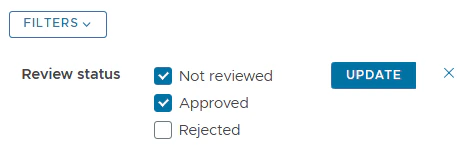
- Review status (Not reviewed; Approved; Rejected).
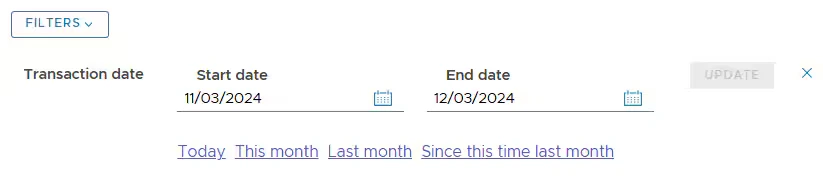
- Transaction date. The limit is up to 1 year. You might use predefined filters: Today, This month, Last month, Since this time last month.
Approve Cardholder Envelope
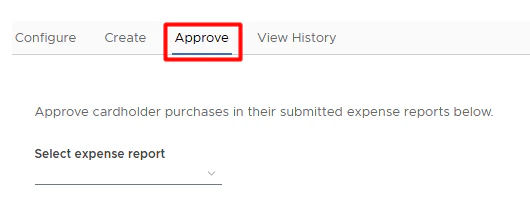
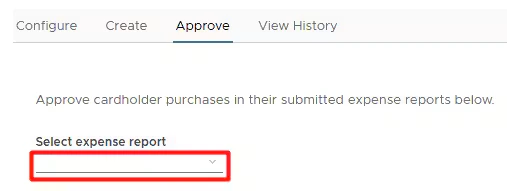
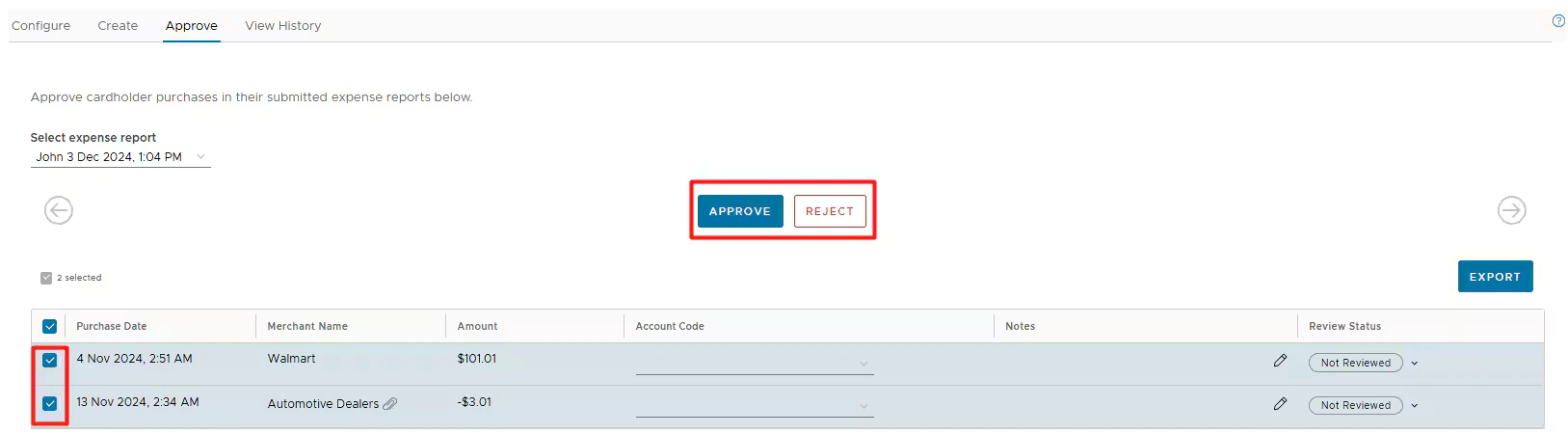
- Purchase Date - when the transaction was made.
- Merchant Name - where the transaction was made.
- Paper clip - whether or not a receipt was attached to the transaction. No paper clip means no receipt attached.
- Amount - how much the transaction is.
- Account Code - the account corresponding to the transaction.
- Ensure that the account code is selected.
- Click it to update if necessary.
- Notes - any notes on the transaction.
- Click on the pencil icon
to add, edit or delete a note.
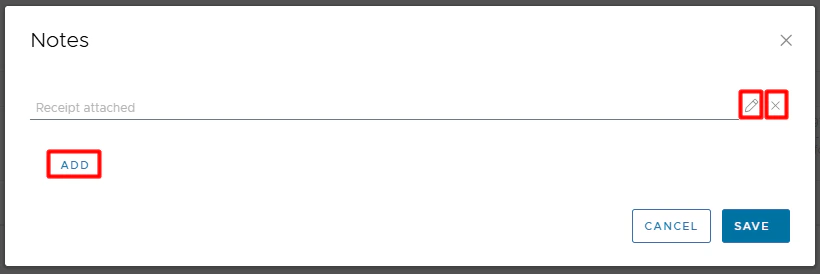
- Review Status - status of the transaction.
- Settled purchases.
- Purchases with a status of Not Reviewed or Rejected.
- New (not exported yet) purchases: we’ve added in logic so you do not have to worry about duplicate transactions showing up in the export.

View History

- Export time
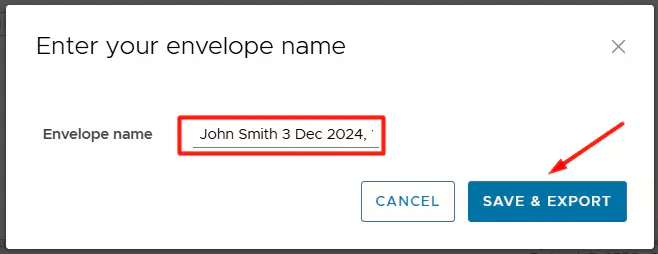
- Envelope name
- Status
- Transactions
- Exported transactions categorized by the status.
- Total amount
- Total $ amount of all transactions included in an envelope.

View PDF
Within the PDF you will see a summary view showing the cardholder, last 4 digits of the card and a summary of the transactions included in the envelope. Later pages show a detail of each transaction including receipt images where available.Support & Inquiries
Do I need to do anything before my cardholders can start creating envelopes?
Do I need to do anything before my cardholders can start creating envelopes?
My cardholder gets an error 'Set up incomplete. Please contact your admin to set up Account Codes to begin creating expense reports' when trying to create an envelope.
My cardholder gets an error 'Set up incomplete. Please contact your admin to set up Account Codes to begin creating expense reports' when trying to create an envelope.
How can I confirm which transactions have been exported?
How can I confirm which transactions have been exported?
<name> (<Envelope ID>)”. This note can be edited and deleted. Be aware that if it is deleted or edited then this transaction will re-appear in the transaction list and can be exported again.Will the same transaction show up in a future export?
Will the same transaction show up in a future export?
I can't find the transaction in the transaction table when creating an envelope.
I can't find the transaction in the transaction table when creating an envelope.
- It meets your search criteria (status, date).
- It either has a receipt attached, a tag added, or both; otherwise, it wouldn’t have a “Not Reviewed” status.
- It is already settled. There is no “Pending” label next to the merchant name.
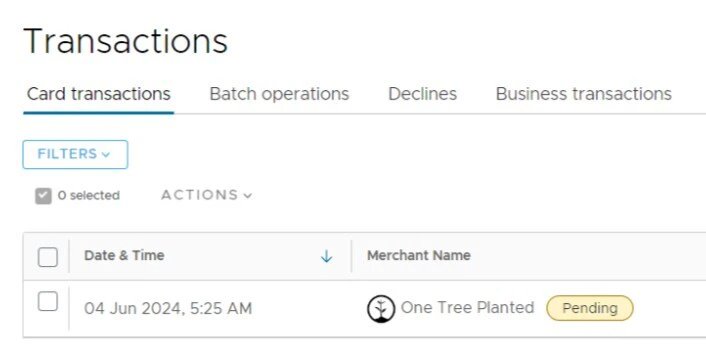
- It has not been exported yet.
- Exported transactions will not be shown in the transaction table.
When will I be able to download the envelope?
When will I be able to download the envelope?
Does the export file include all receipts attached to a purchase?
Does the export file include all receipts attached to a purchase?
Why aren't all my receipts included in the export file?
Why aren't all my receipts included in the export file?
What notes does the export file include?
What notes does the export file include?
What tags does the export file include?
What tags does the export file include?
Does the export file include split purchases?
Does the export file include split purchases?
How to re-export the purchase?
How to re-export the purchase?
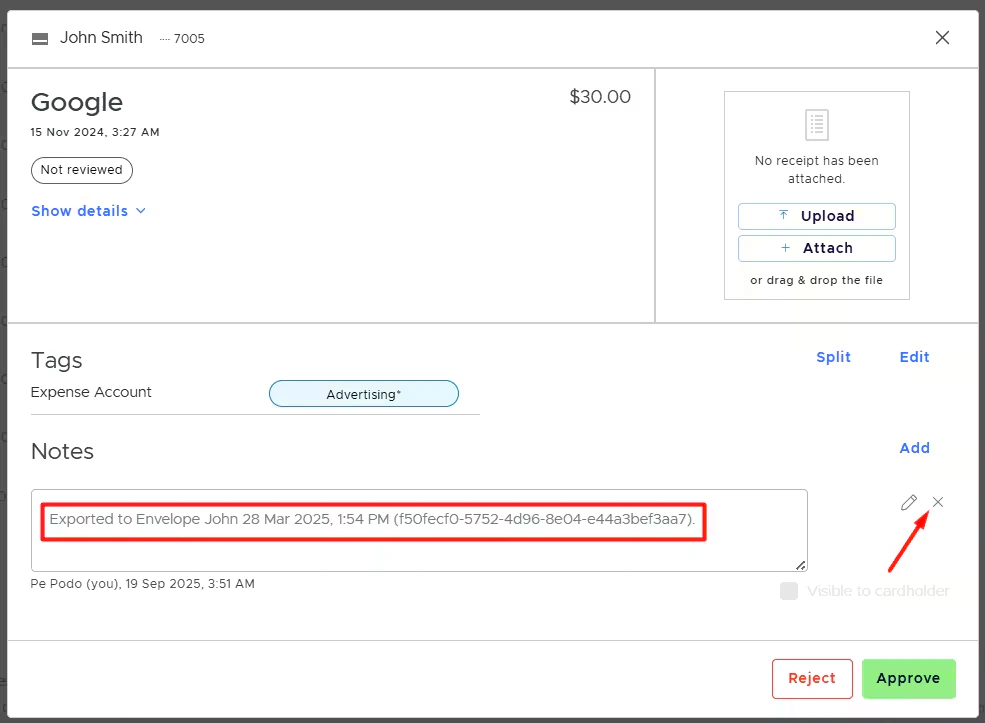
Is it possible to make receipts inside envelopes larger?
Is it possible to make receipts inside envelopes larger?