

Setting up Tags in PEX
PEX Tag manager is your one stop shop to sync Aplos fields with PEX tags. Each PEX tag corresponds to an Aplos field. Tags are essential to make the PEX Connector for Aplos functional. PEX purchases must have an Account and Fund assigned in PEX before syncing into Aplos. The following explains how to add two required tags: Account and Fund.Account Tag
- Log in to http://dashboard.pexcard.com/
- Go to Business Settings -> Tag manager
- Click Add Tag.
- Select Dropdown as the type.
- Enter a name: Account.
- Optionally, add a description like “Expense Accounts”.
- Check Enabled to make this tag visible on transactions.
- Select the box to make this field required (Account is required).
- If the “Required” checkbox is checked, cardholders must tag a transaction with it.
- Click Save tag to finish.
- The new tag will appear on the Tag Manager page.
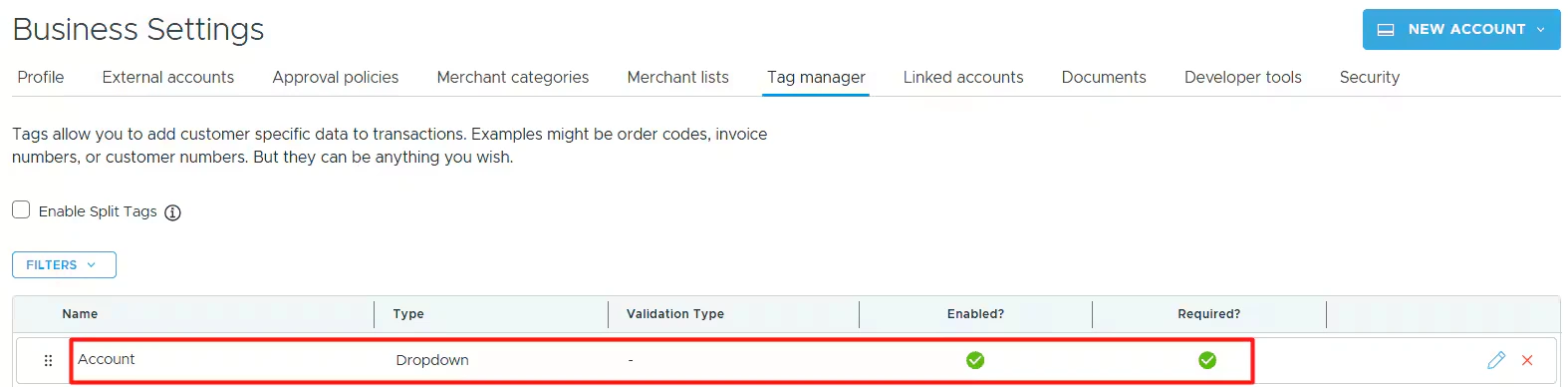
Fund Tag
- Log in to http://dashboard.pexcard.com/
- Go to Business Settings -> Tag manager
- Click Add Tag.
- Select Dropdown as the type.
- Enter a name: Fund.
- Optionally, add a description like “Funds”.
- Check Enabled to make this tag visible on transactions.
- Select the box to make this field required (Fund is required).
- If the “Required” checkbox is checked, cardholders must tag a transaction with it.
- Click Save tag to finish.
- The new tag will appear on the Tag Manager page.
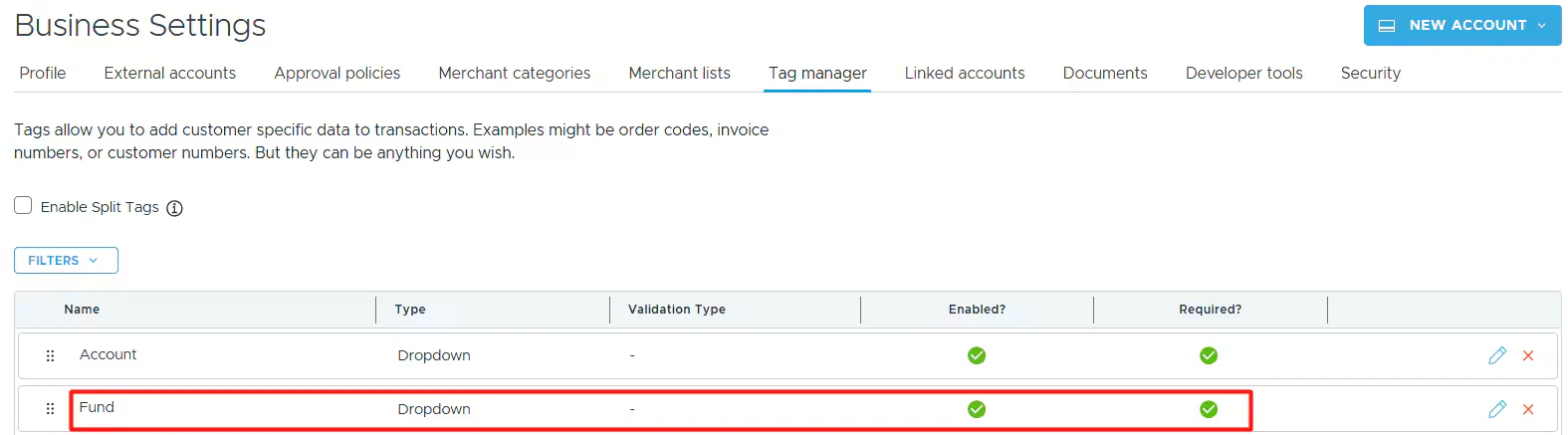
OTHER TAGS
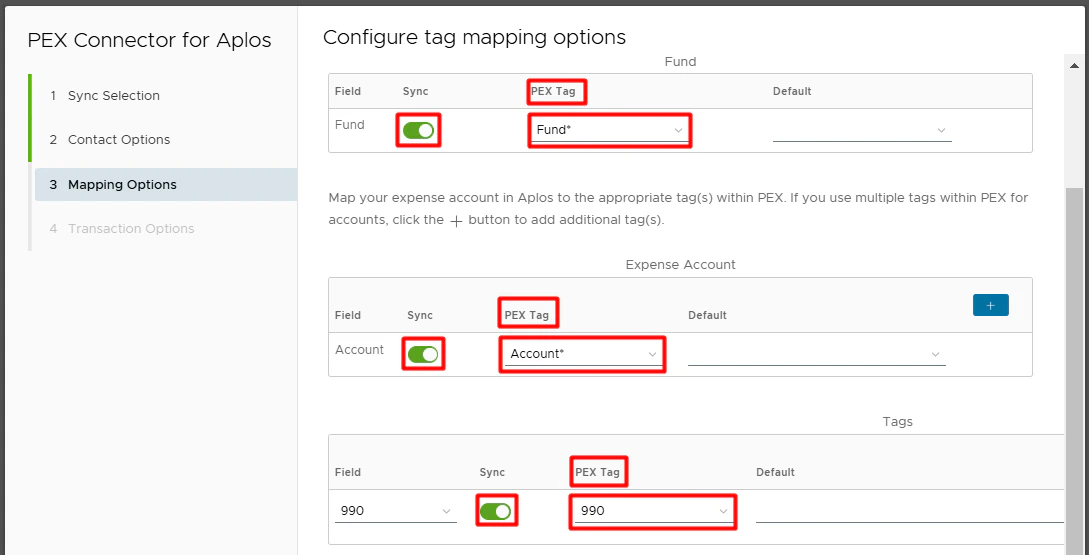
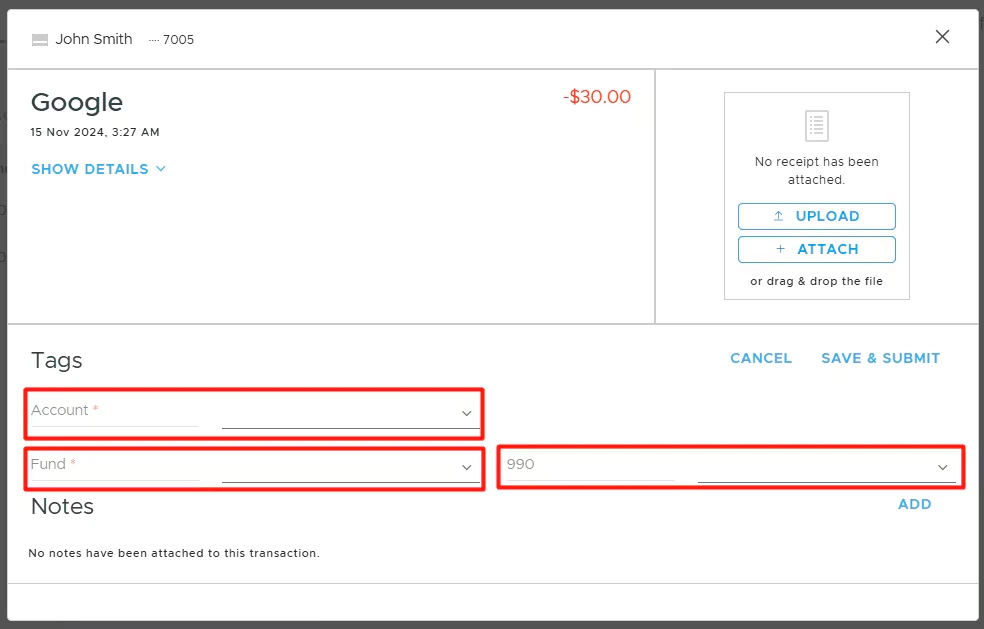
Optionally, you can also add other tags like 990 Tag following the same steps as described for the Account Tag and Fund Tag above. Once the tags are set up, you will also see them:- In the PEX Tag dropdown lists in connector setup steps.
- On the PEX transaction details screen, so you and your Cardholders can tag transactions.
Configuring the PEX Connector in Aplos
1. Create PEX as a Contact
- Navigate to People > Contact List
- Press the green (+) on the top right
- Select “Company” as the Contact Type at the top of the list
- Enter “PEX” under the Company field
- Click Save & Close.
2. Create PEX as a Register
This will be the place where your PEX transactions are stored.- Navigate to Fund Accounting > Accounts > Account List
- Scroll to find Current Assets and click the (+) button
- Enter a Number not currently in use
- Enter “PEX PREPAID CARDS” as the Name
- Ensure Status is enabled
- Select “Use as a register” for Type
- Keep Activity set to “Cash”
- Press Save.
3. Authorize PEX and Aplos to Communicate
This will allow your transactions to sync automatically once you set up the PEX Connector for Aplos on the PEX side.- Navigate to Fund Accounting > Prepaid Cards
- Select Log Into PEX
- Enter your PEX email address (used during the PEX Application) and password
- Click Login
- Click Allow.
Configuring PEX Connector for Aplos
For details on how to configure the PEX Connector for Aplos on the PEX side, please visit:- Connector-for-Aplos-Prepaid article if you are a prepaid business.
- Connector-for-Aplos-Charge article if you are a credit business.