

Prerequisites
- QuickBooks Desktop credit card account to track PEX card spending. You can create a new one specifically for PEX (e.g., “PEX Credit Card Account”) or use an existing one. See How To Add PEX to Your QuickBooks Desktop Account for instructions.
- (Optional) PEX tags created and ready. To ensure purchases sync to the correct accounts or items right away, create tags beforehand. See Create tags for QuickBooks Desktop for instructions.
Setup
1. Install the Connector
Follow the steps:- Log in to dashboard.pexcard.com and go to Apps → Available.
- Find PEX Connector for QuickBooks Desktop and click Install, then Launch.
Note:Requires the following permissions: Edit business settings & apps, Manage cardholder, View card transactions. Enable them under My Profile -> Permissions.
2. Configure Sync Options
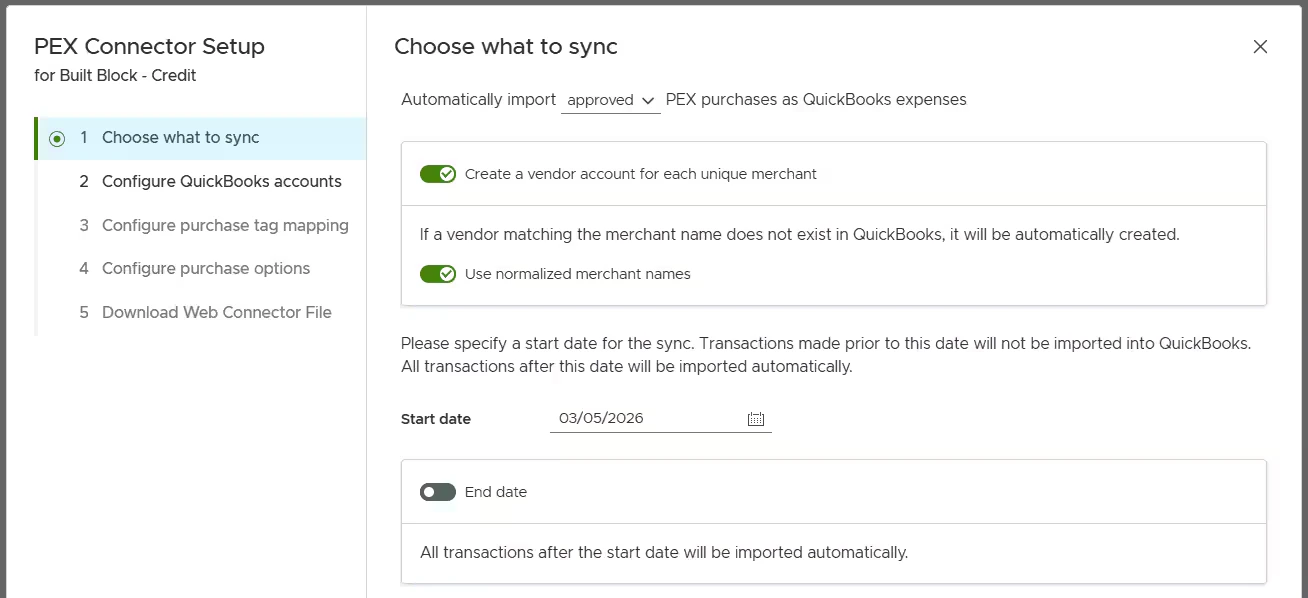
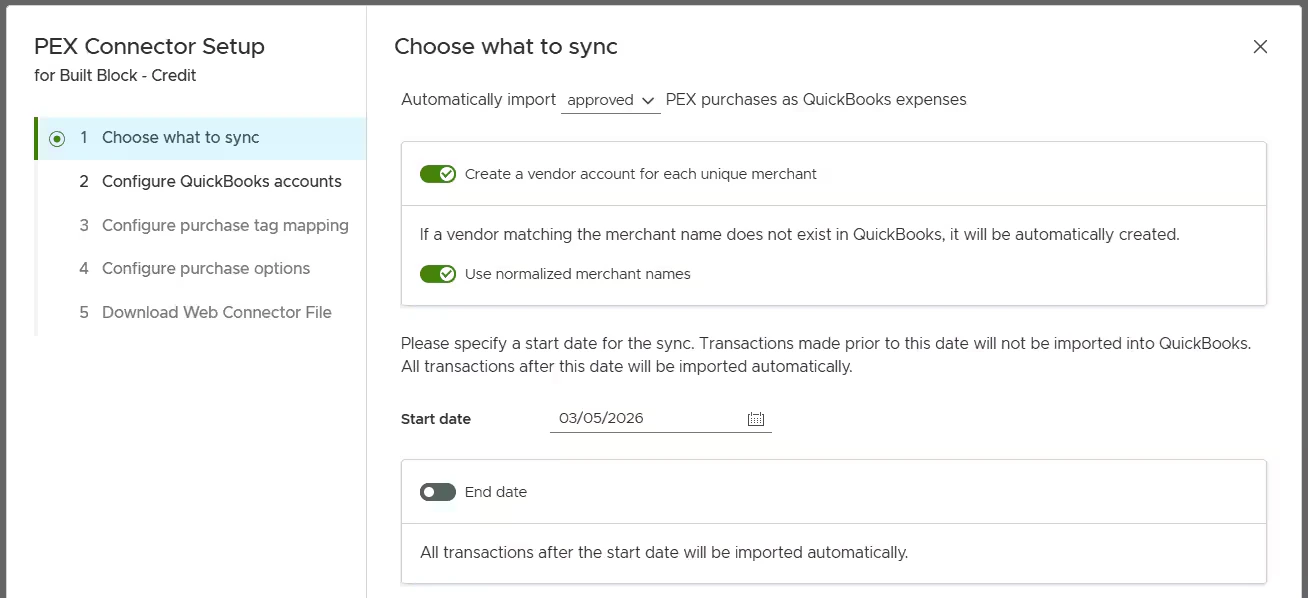
- Purchases to sync — choose all PEX purchases (regardless of approval status) or approved only. For details on transaction review, see How to Review Transactions.
- Vendor — enable Create a vendor account for each unique merchant to match PEX transaction merchants to existing vendors in your QuickBooks company file. If no matching vendor is found, one will be automatically created.
- Optionally, enable Use normalized merchant names to standardize merchant names — for example, “Walmart23455” and “Walmart-brooklyn223” will both be recorded as “Walmart” in QuickBooks.
- If Create a vendor account for each unique merchant is disabled, enter a default vendor name in the Vendor name field — all PEX transactions will be booked against that vendor. Consider creating a vendor called “PEX” in QuickBooks for this purpose.
- Optionally, enable Use normalized merchant names to standardize merchant names — for example, “Walmart23455” and “Walmart-brooklyn223” will both be recorded as “Walmart” in QuickBooks.
- Start date — transactions after this date will be synced. Cannot be more than one year in the past. For automatic ongoing sync, set a start date only and leave the end date blank.
- End date — optionally set an end date to sync a specific period. Ideal for a one-time manual sync.
3. Configure QuickBooks Accounts
Enter the credit card account to track PEX card spending that you created in the Prerequisites section.- Purchases in PEX will be charged to this account.
- Fees in PEX will be charged to this account.
- Bill payments to PEX will reduce the amount owed on this account.
PEX Main:PEX Credit Card Account).
Then enter the bank account used to pay down your PEX balance. The name entered must match exactly the bank account name in your QuickBooks company file.
4. Map PEX tags
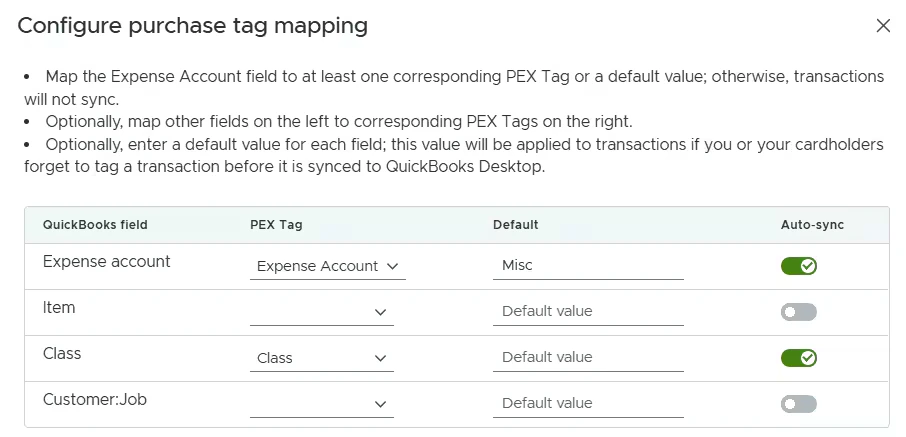
Map up to four QuickBooks fields to PEX tags. Tags must be created beforehand — see Create tags for QuickBooks Desktop.- Expense Account
- Item
- Class
- Customer:Job
5. Configure Purchase Options
Optionally configure how purchase notes are mapped in QuickBooks:- Copy notes to expense — copies the PEX transaction note to the expense memo in QuickBooks.
- Copy notes to expense lines — copies the PEX transaction note to individual expense lines in QuickBooks.
6. Download Web Connector File
Click Download Connector File and save it to your machine.
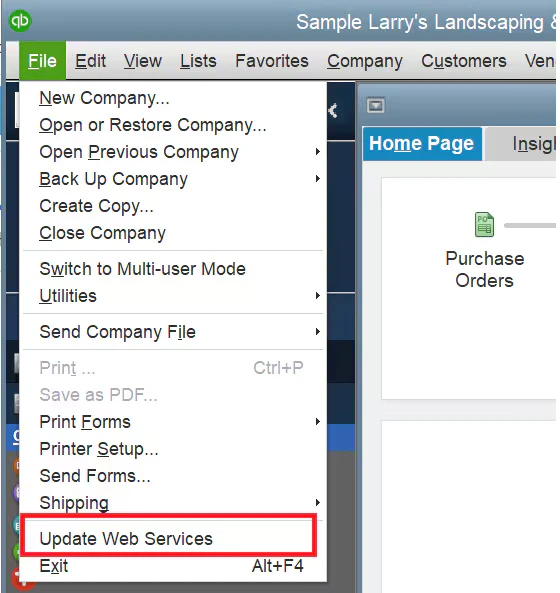
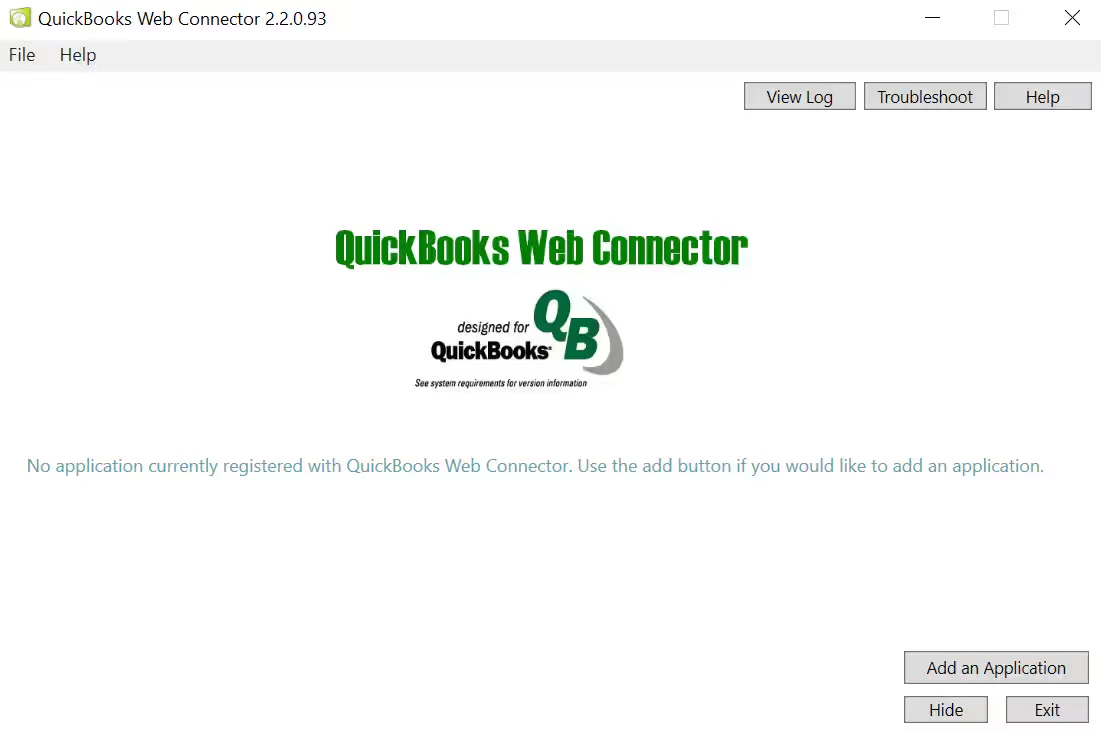
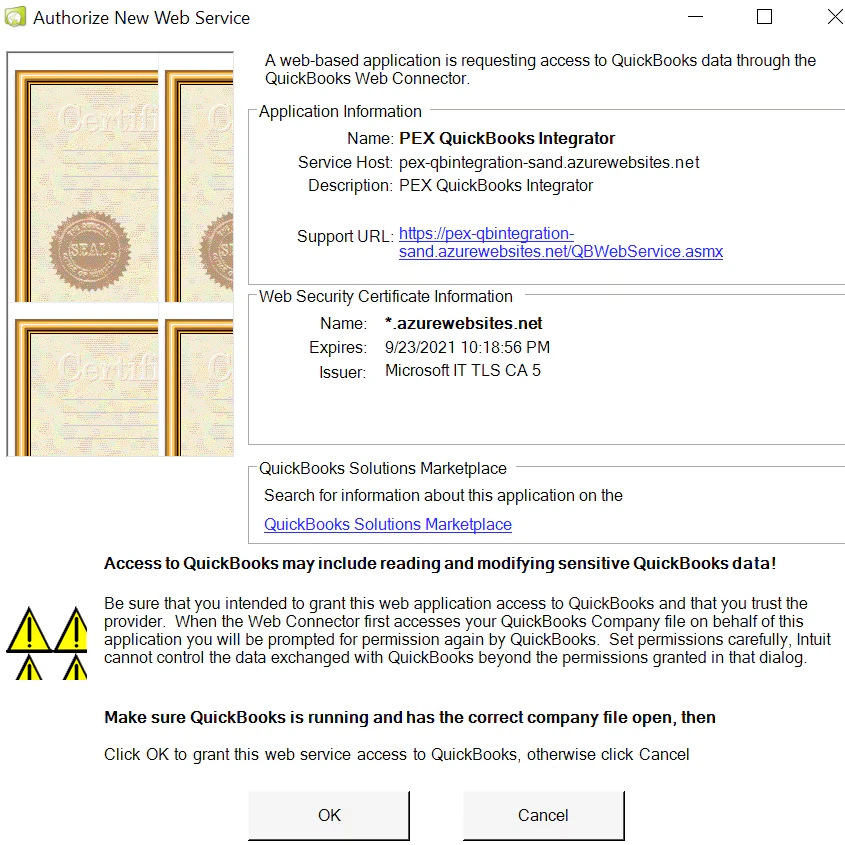
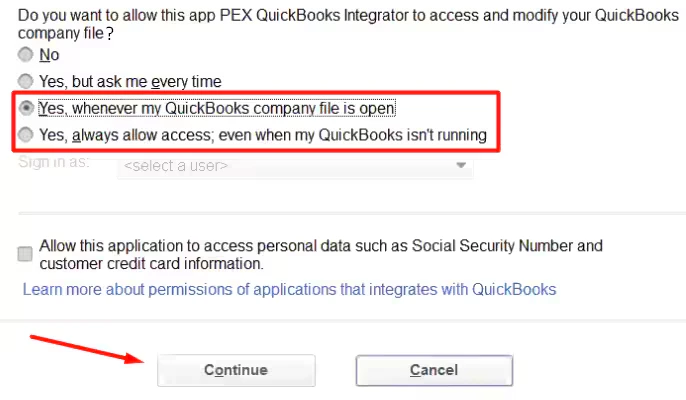
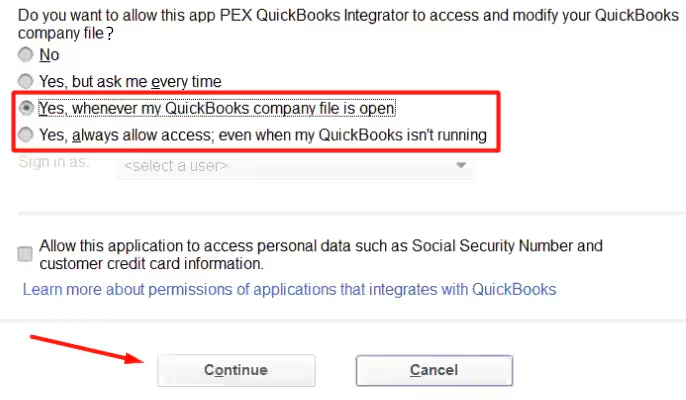
7. Web Connector Setup (one time only)
Note:Full Admin permissions in QuickBooks Desktop are required to complete the following setup.
How to Sync Transactions
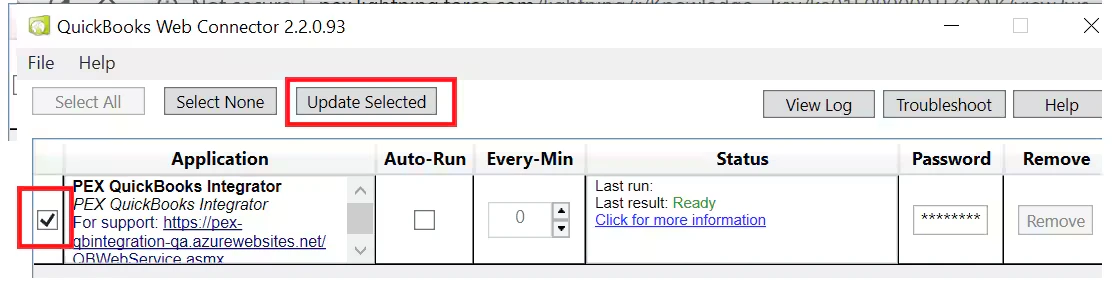
Manual Sync To manually sync, place a check in the box on the left and click Update Selected at the top of the Web Connector.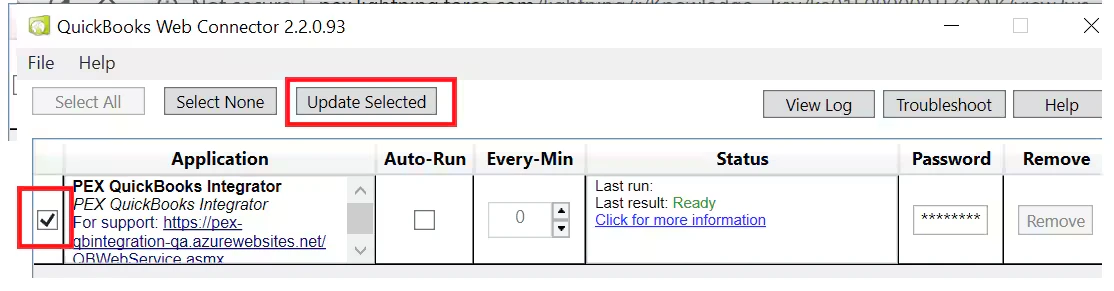
Auto Sync To auto-sync, check Auto-Run and set an interval in minutes. Note that auto-sync will only run if the machine is turned on and the Web Connector window is open.

How Transactions Are Recorded in QuickBooks
When syncing to QuickBooks, each transaction is recorded as either an Item or an Expense. If an Item value is set — either via a tag or a default — it will always win over the Expense Account. Since fees and transfers cannot be tagged in PEX, they rely entirely on your default settings. Make sure at least one default (Item or Expense Account) is configured to prevent sync failures. Purchases| Tagged with Item? | Default Item configured? | Tagged with Expense Account? | Default Expense Account configured? | Recorded as |
|---|---|---|---|---|
| Yes | No | Yes | No | Item |
| Yes | No | No | Yes | Item |
| Yes | No | No | No | Item |
| No | Yes | Yes | No | Item |
| No | Yes | No | Yes | Item |
| No | Yes | No | No | Item |
| No | No | Yes | No | Expense |
| No | No | No | Yes | Expense |
| No | No | No | No | ⚠️ Sync fails |
| Default Item configured? | Default Expense Account configured? | Recorded as |
|---|---|---|
| Yes | Yes/No | Item |
| No | Yes | Expense |
| No | No | ⚠️ Sync fails |
Tips & Limitations
- QuickBooks Desktop Sync does not use the QuickBooks Bank Feed — transactions post directly to your company file. To review transactions prior to posting, use the PEX transaction review process.
- For the first sync, always use a date range to ensure transactions appear as you expect.
- Once started, sync cannot be stopped or cancelled.
- Syncs the following transaction types: card transactions, fees (e.g., monthly account maintenance fee, shipping fees, ISA fees), bill payments, and merchant credits.
- Transaction notes are synced to QuickBooks.
- Receipt images are not synced.
- If you prefer not to manually tag each transaction, PEX Auto Tagger allows you to create dynamic rules that tag transactions automatically.
FAQ
Is MacOS supported?
Is MacOS supported?
No.
Can transactions be auto-tagged?
Can transactions be auto-tagged?
Yes — use PEX Auto Tagger to create rules that tag transactions automatically.
What transaction types sync to QuickBooks?
What transaction types sync to QuickBooks?
Purchases, bill payments, cardholder fees, business fees.
Do pending transactions sync?
Do pending transactions sync?
No — only settled transactions sync.
What date is used for syncing?
What date is used for syncing?
Transaction settlement date is used for syncing.
Do I need to re-download the file after changing connector settings (accounts, mapping, etc.)?
Do I need to re-download the file after changing connector settings (accounts, mapping, etc.)?
No — changes apply automatically.
Transactions not syncing?
Transactions not syncing?
- Verify account names match exactly between PEX and QuickBooks (Lists → Chart of Accounts).
- Make sure the password entered in the Password field matches your PEX Admin Account password.
- Make sure the machine is turned on and the Web Connector window is open.
- If you’re getting a 504 Gateway Timeout, reduce your date range and run a manual sync.
- If using VPN, download the connector file within your VPN instance.
How do I export transactions manually via a file?
How do I export transactions manually via a file?