

Note:Auto-login for users in the Procore app is not available yet.
Setting up tags within PEX
Tags are essential for the PEX Connector for Procore. Set up at least one tag with a temporary value before you configure the connector. You can set up up to three tags: Projects, Cost codes, and Cost types.Projects tag
Go to Business settings > Tag Manager.
Click Add a new option and enter
Test for both Display as and Option value.Note:After the connector is configured, Procore will supply real project values. Tag Manager still needs at least one option to save the tag—use Test as a placeholder for now.
Cost codes tag
Go to Business settings > Tag Manager.
Click Add a new option and enter
Test for both Display as and Option value.Note:After the connector is configured, Procore will sync cost code options. You need a temporary option (e.g. Test) to save the tag initially.
Cost types tag
Go to Business settings > Tag Manager.
Click Add a new option and enter
Test for both Display as and Option value.Note:After the connector is configured, Procore will sync cost type options. You need a temporary option (e.g. Test) to save the tag initially.
Note:Once the Procore connector is configured, Display as and Option value for these tags are populated automatically from Procore.
Connect to your Procore account
After you log in to PEX and create your tags, follow these steps:Click Install, then Launch.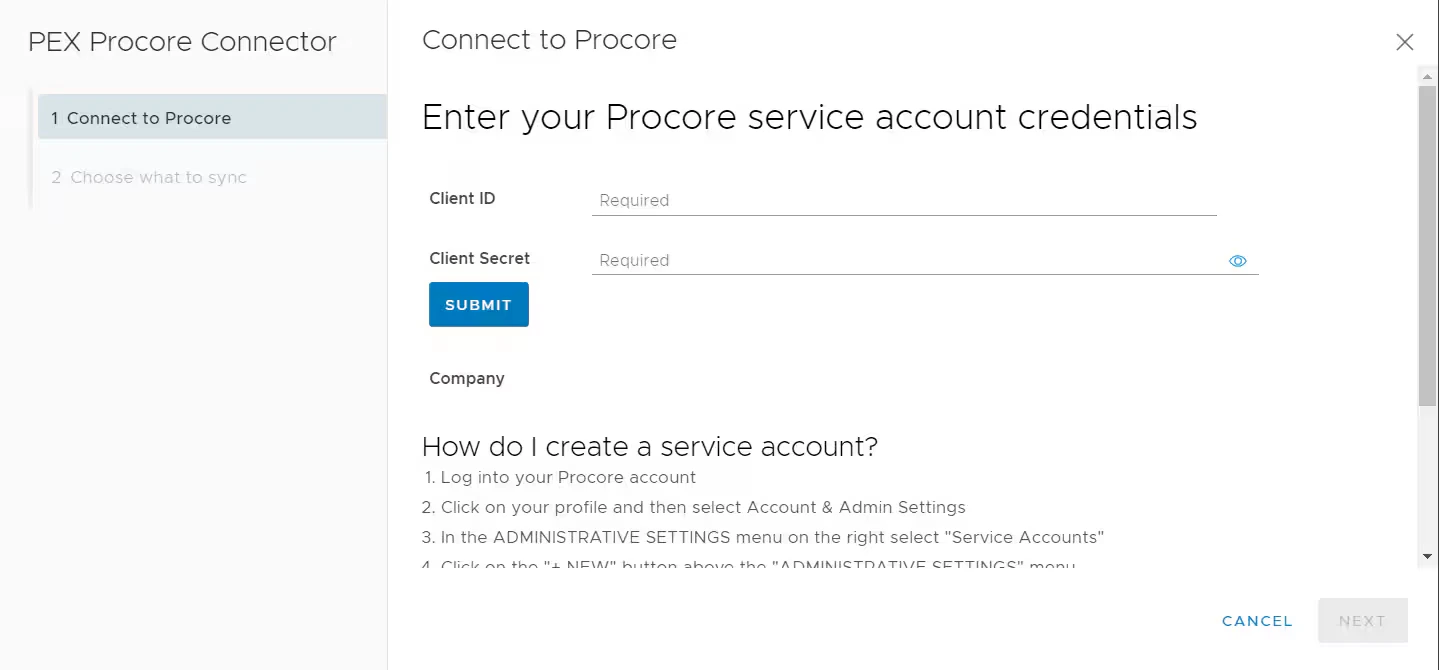
Note:To install the connector, enable the following permissions: Edit business settings & apps, Manage cardholder, View card transactions. Enable them in My Profile -> Permissions.
Click Submit.
- Your Company ID fills in automatically. If you have more than one company, select the one you want to sync transactions to.
Create a Procore service account
If you do not have a Client ID and Client Secret, create a service account in Procore: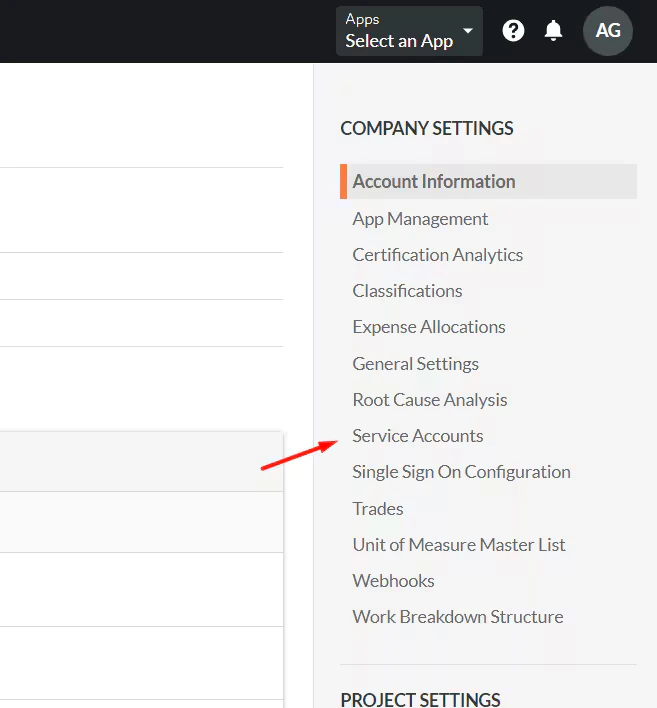
Directory (Admin) permissions
Your service account needs Directory (Admin) access so data can import into Procore.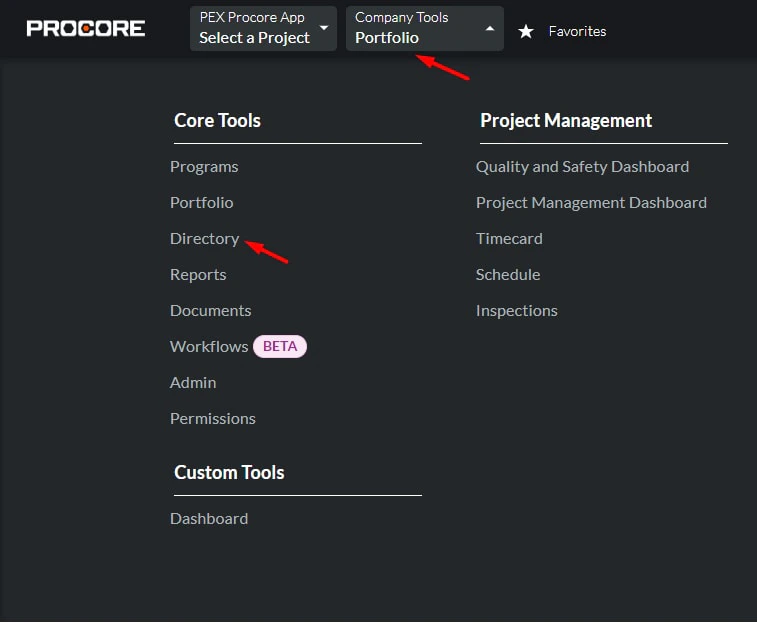
On the contact page, scroll to the permissions matrix. Configure access by selecting Admin for each tool in the matrix.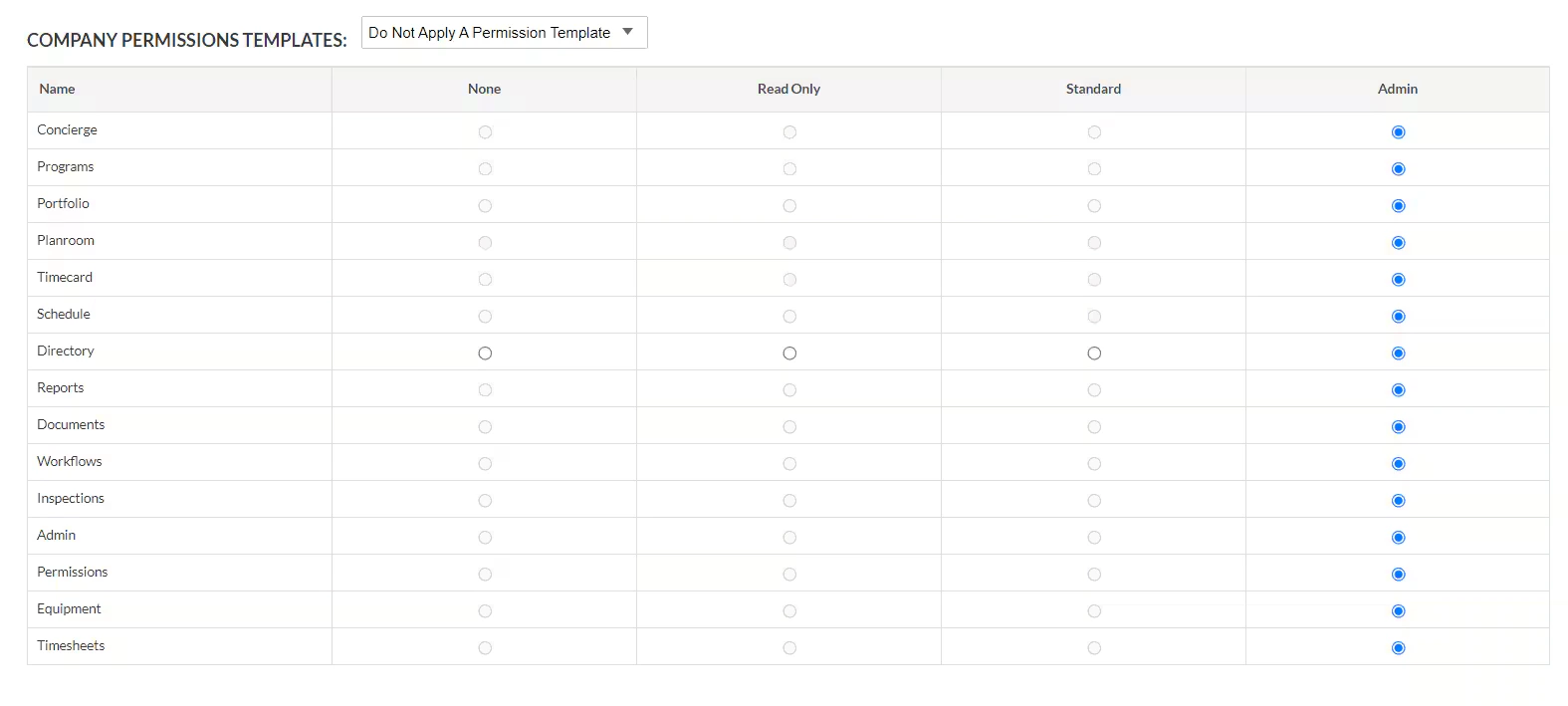
Choose what to sync
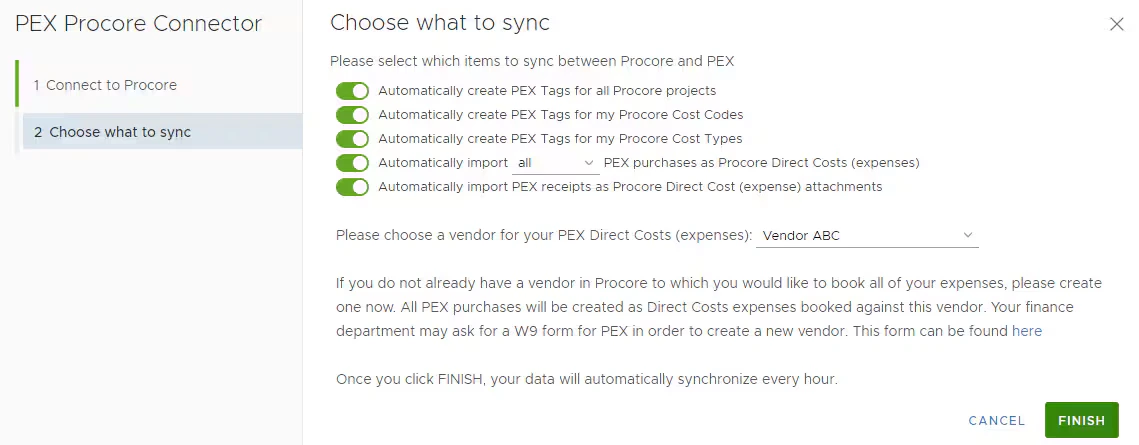
- Enable the first option to import all Procore projects into PEX as a tag.
- Enable the second option to import all Procore cost codes into PEX as a tag.
- Enable the third option to import all Procore cost types into PEX as a tag.
- Enable the fourth option to import PEX purchases as expenses in Procore. You can sync all transactions or approved only.
- For transaction review, see How to review transactions with receipts, tags, and user notes.
- Enable the fifth option to attach PEX receipts to expenses in Procore.
- Choose a vendor from the list. PEX transactions post under this vendor in Procore. Create a vendor in Procore first if you need one.
Limit which projects sync
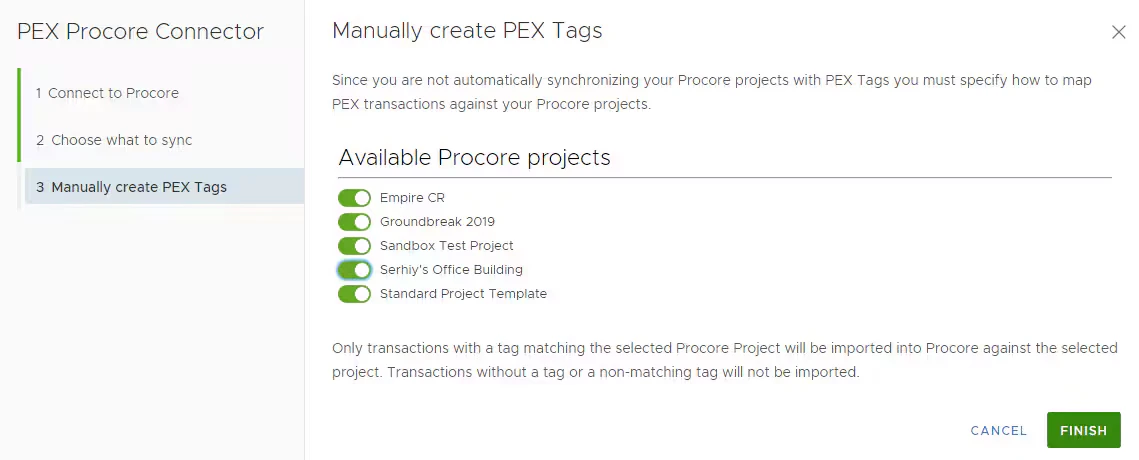
If you do not want every Procore project as a tag, turn OFF the first option (auto-create Procore projects as PEX tags). The connector then lets you pick specific projects.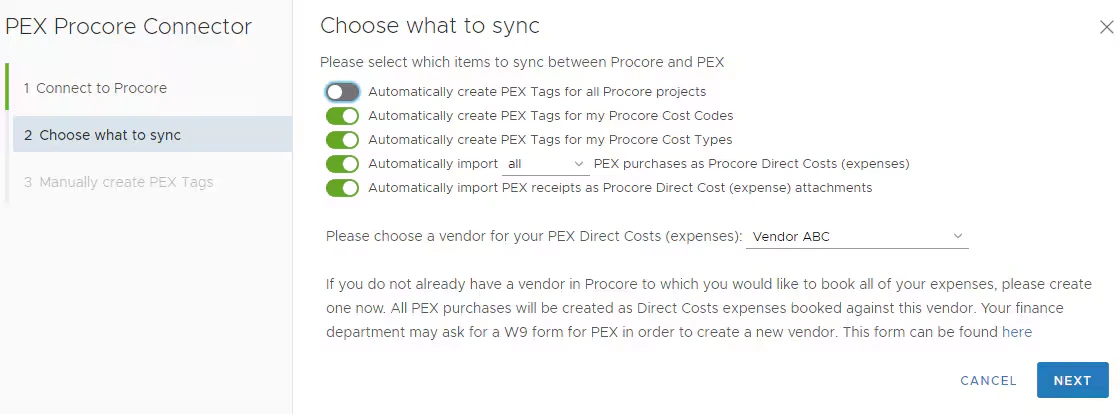
Managing the connector
On the connector dashboard you can:- View or edit configuration settings
- Turn project sync on or off
- View sync history
- Run a sync manually
- Disconnect from Procore