

Transactions are not syncing
Purchase transactions
Your purchase transaction might not have synced because:- A transaction is from today, and your connector last synced yesterday. Please allow at least one day for the connector to sync after the transaction occurs.
- If a transaction hasn’t synced and falls outside the sync start date. Please update the start date to predate the transaction date. Then, allow the connector one day after the transaction occurs for syncing.
- It is still in a pending status (not settled).
- You have not tagged it with the required tag(s).
- Imagine that you use the PEX Connector for QuickBooks Online. To sync a purchase transaction to your QuickBooks Online, you have to tag a transaction with a required PEX tag - Category. If you don’t do it, the transaction will not sync.
- You have not approved the transaction, but the connector is configured to sync only approved transactions.

- Transactions are older than 1 year.
- Connectors do not sync transactions older than 1 year even when you click “Sync now”.

- If you need data from older months, send us an email with the desired time period and file type (.qbo, .csv, .xls, or .xlsx) to adminsupport@pexcard.com. Alternatively, if there are just a few transactions, it might be faster to manually enter them into your accounting app ledger.
- Connectors do not sync transactions older than 1 year even when you click “Sync now”.
- Incorrect mapping
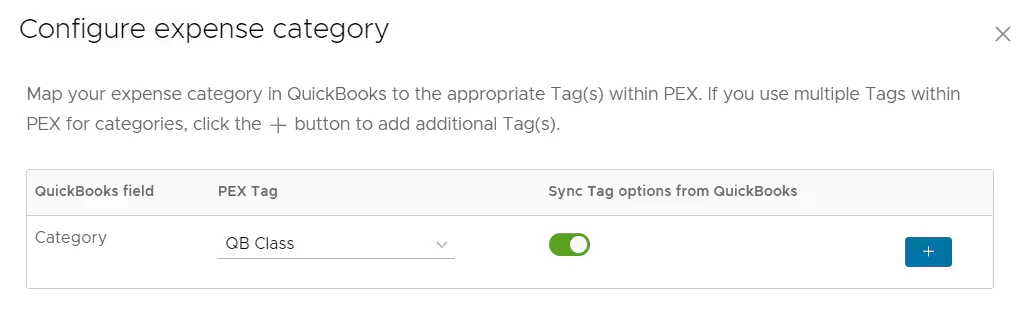
- Imagine that you are using the PEX Connector for QuickBooks Online. To sync a purchase transaction with QuickBooks Online, you need to map the Category field to a corresponding PEX tag, which might be called “QB Category”. Unfortunately, you have mapped the Category field to a PEX tag called “QB Class”, as shown on the screenshot below. A purchase transaction will not sync until it is tagged with one of the QuickBooks Online categories.
- Mapping to deleted tag
- Purchase transactions will not sync when they are tagged with the deleted PEX tag.
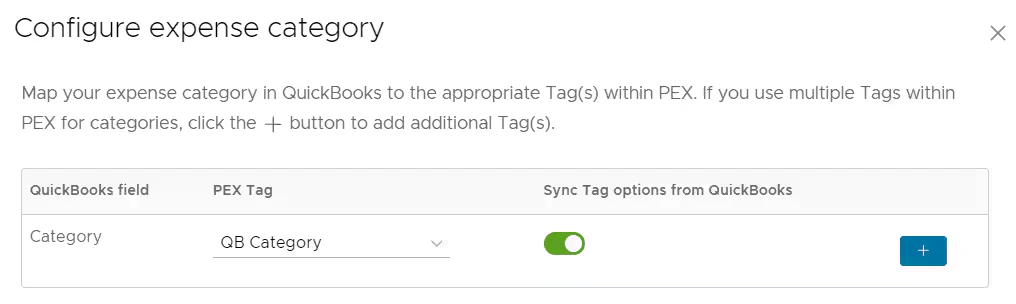
- In this scenario, the connector will flag the purchase transaction as improperly tagged. Imagine you’re using the PEX Connector for QuickBooks Online. To sync a purchase with QuickBooks Online, you map the Category field to a corresponding PEX tag named “QB Category.”
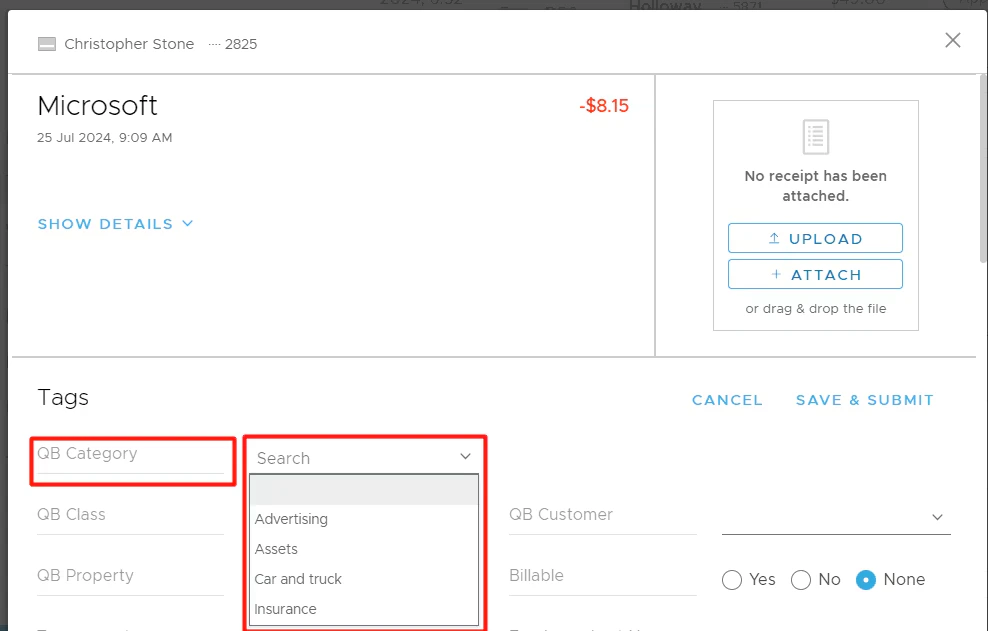
- Then you go to Transactions -> click on your transaction -> locate the “QB Category” PEX tag and apply it to the transaction.
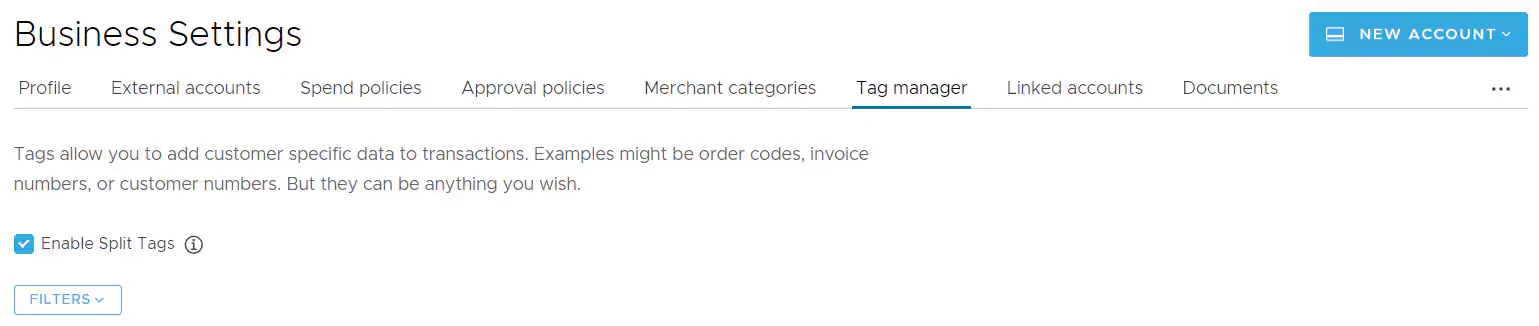
- Afterwards, you navigate to Business Settings -> Tag Manager -> locate the “QB Category” PEX tag and delete it before your purchase transaction syncs to your QuickBooks Online account.
- Purchase transactions will not sync when they are tagged with the deleted PEX tag.
- Timeout
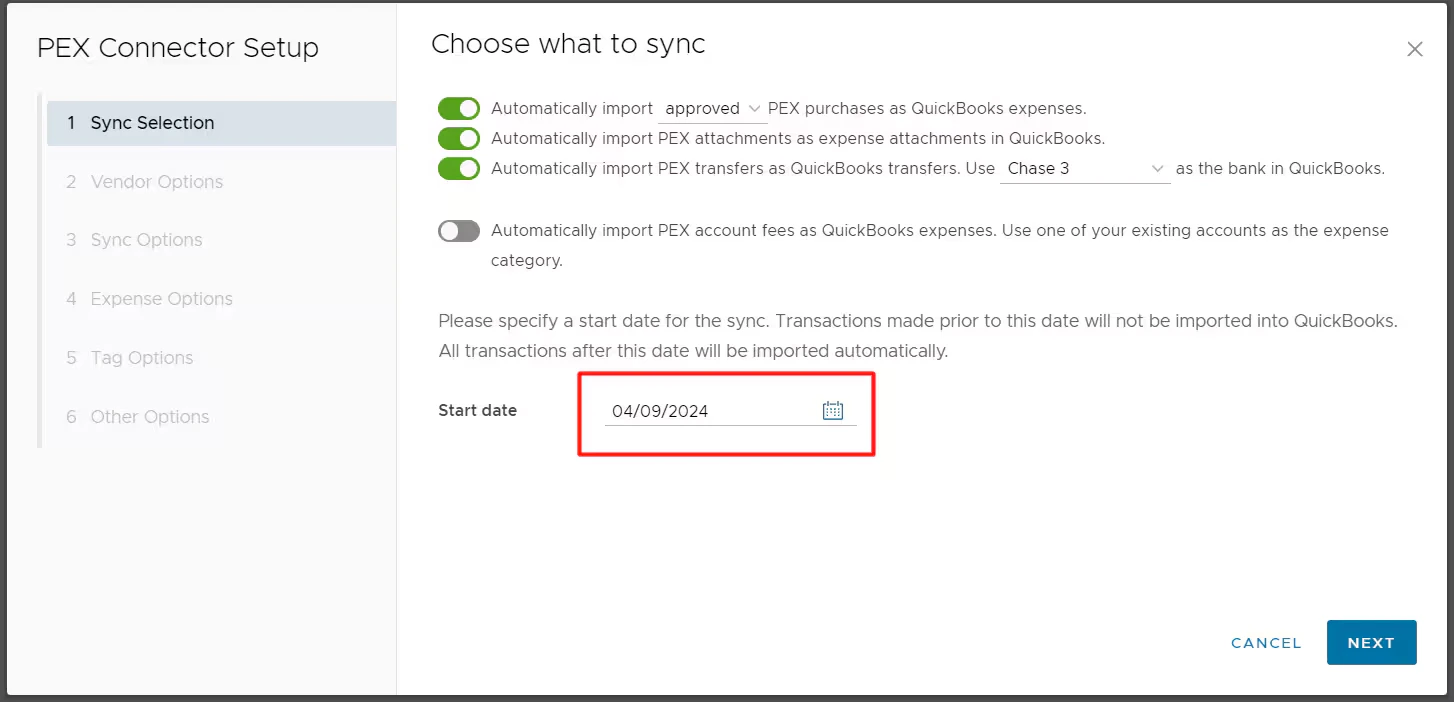
- You might have accumulated too many transactions, causing a timeout. To resolve this, set a more recent start date in the “Start date” field on the first step of your PEX Connector Setup (below is the QuickBooks Online example), such as one month ago, save the configuration, and click “Sync now”.
- Transaction list is filtered by a wrong vendor/merchant.
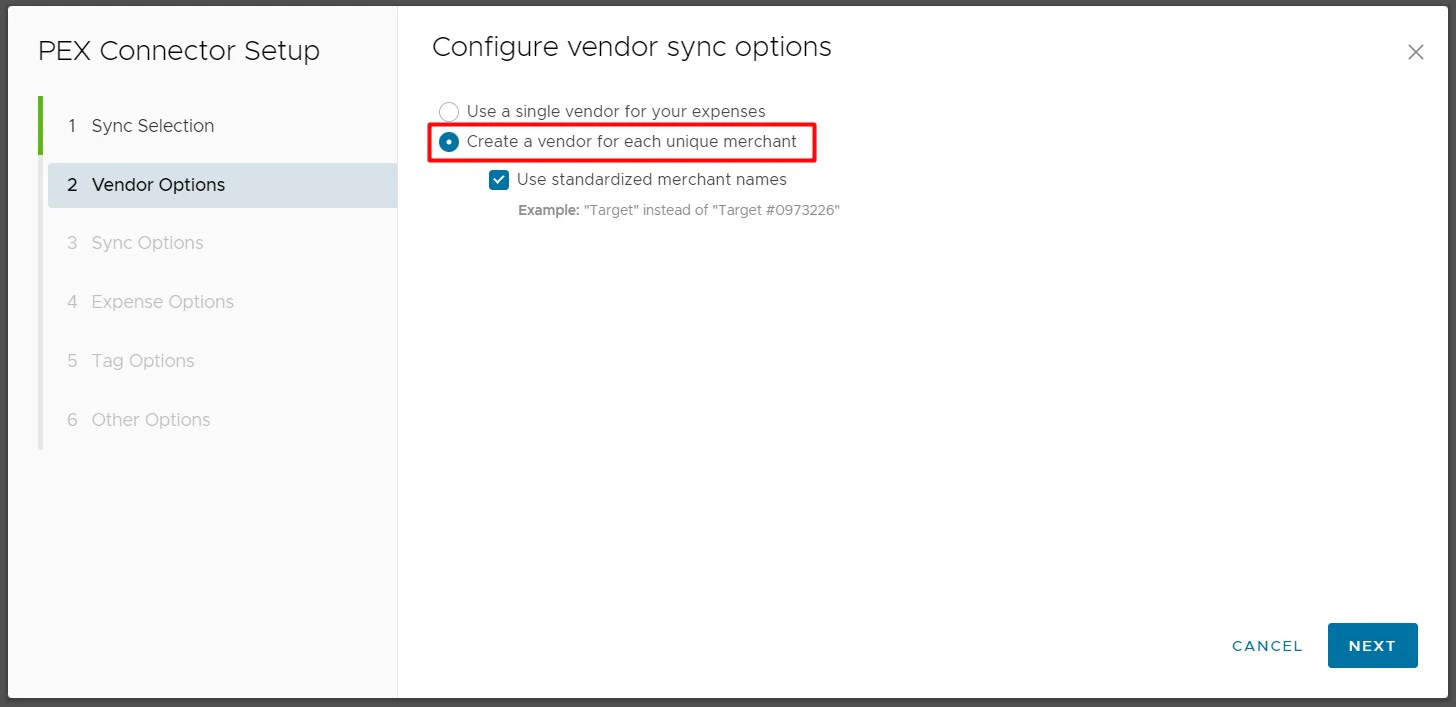
- If you selected the “Create a vendor for each unique merchant” option, PEX will book transactions against the corresponding merchants that already exist in your accounting app. If no matching merchant exists, PEX will automatically create a new one. This is why, when you filter the transaction list by a merchant like “PEX Card”, you may not see synced transactions. Remove the filter to view the synced transactions.
- If you selected the “Create a vendor for each unique merchant” option, PEX will book transactions against the corresponding merchants that already exist in your accounting app. If no matching merchant exists, PEX will automatically create a new one. This is why, when you filter the transaction list by a merchant like “PEX Card”, you may not see synced transactions. Remove the filter to view the synced transactions.
- Token expired
- If your transactions still do not sync even though they are in settled status, approved by Admin, with correct tags, not older than 1 year, and no timeouts detected, then your token might have expired. Contact us for assistance at appsupport@pexcard.com.
Transfer/bill payment transactions
My transfer/bill payment transaction is not syncing
My transfer/bill payment transaction is not syncing
Additional questions
Why did the same duplicate transaction sync over?
Why did the same duplicate transaction sync over?
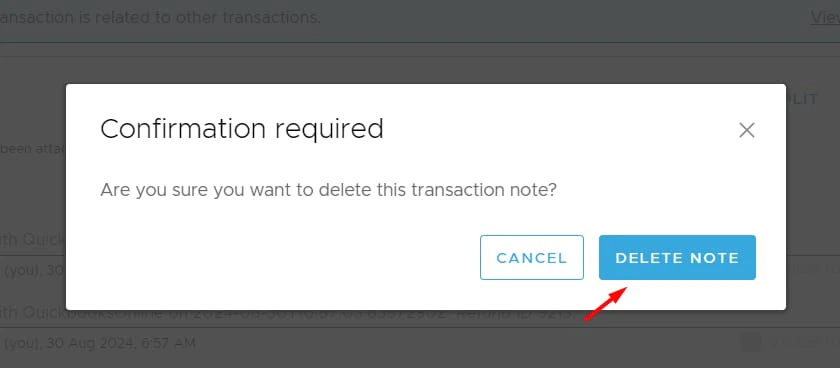

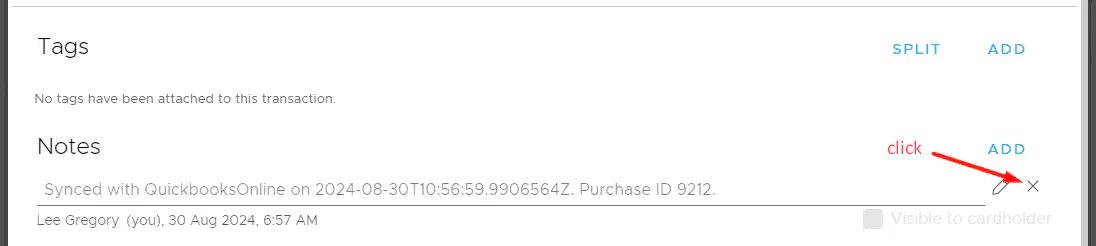
Can I add details to the Synced note without causing another sync?
Can I add details to the Synced note without causing another sync?
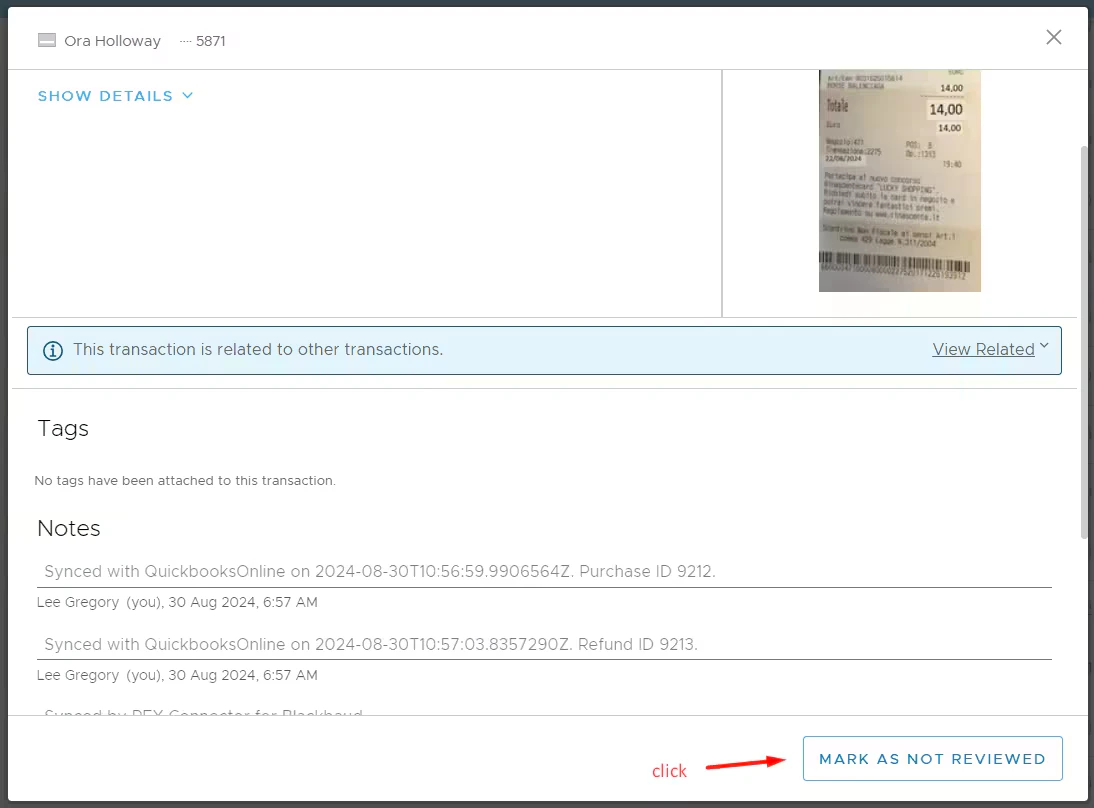
I want to resync a transaction with new receipts and/or tags
I want to resync a transaction with new receipts and/or tags
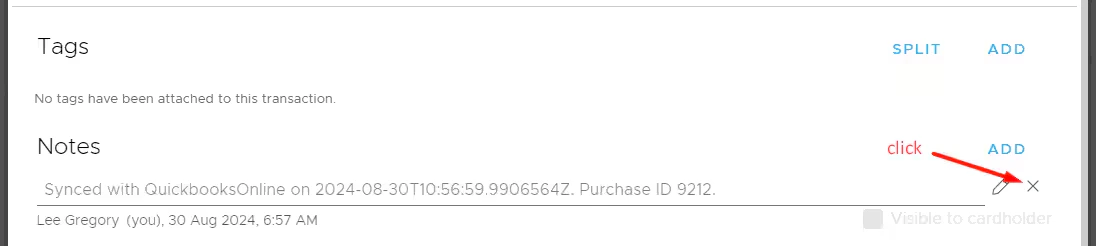
What happens when I enable auto-sync?
What happens when I enable auto-sync?
What happens when I do a manual sync by clicking "Sync now"?
What happens when I do a manual sync by clicking "Sync now"?
How do I identify which purchase transactions have not synced?
How do I identify which purchase transactions have not synced?
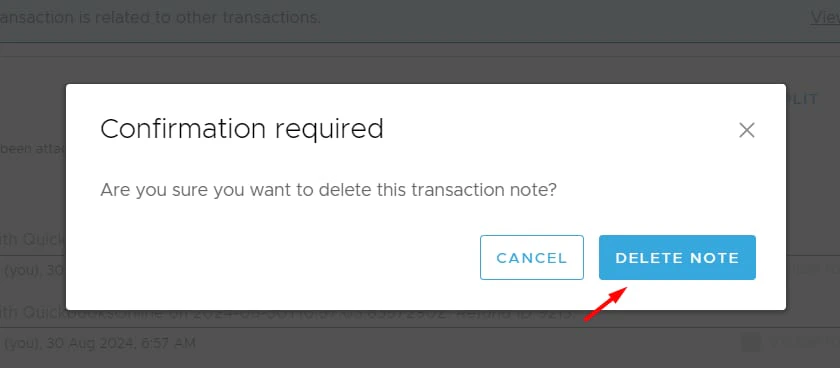
How do I make PEX transactions appear in my accounting app bank feed?
How do I make PEX transactions appear in my accounting app bank feed?
Fixing wrong tag setup
To quickly fix the setup of your connector:- Rename your old tags with a suffix “(old)” so PEX can reuse their initial names.

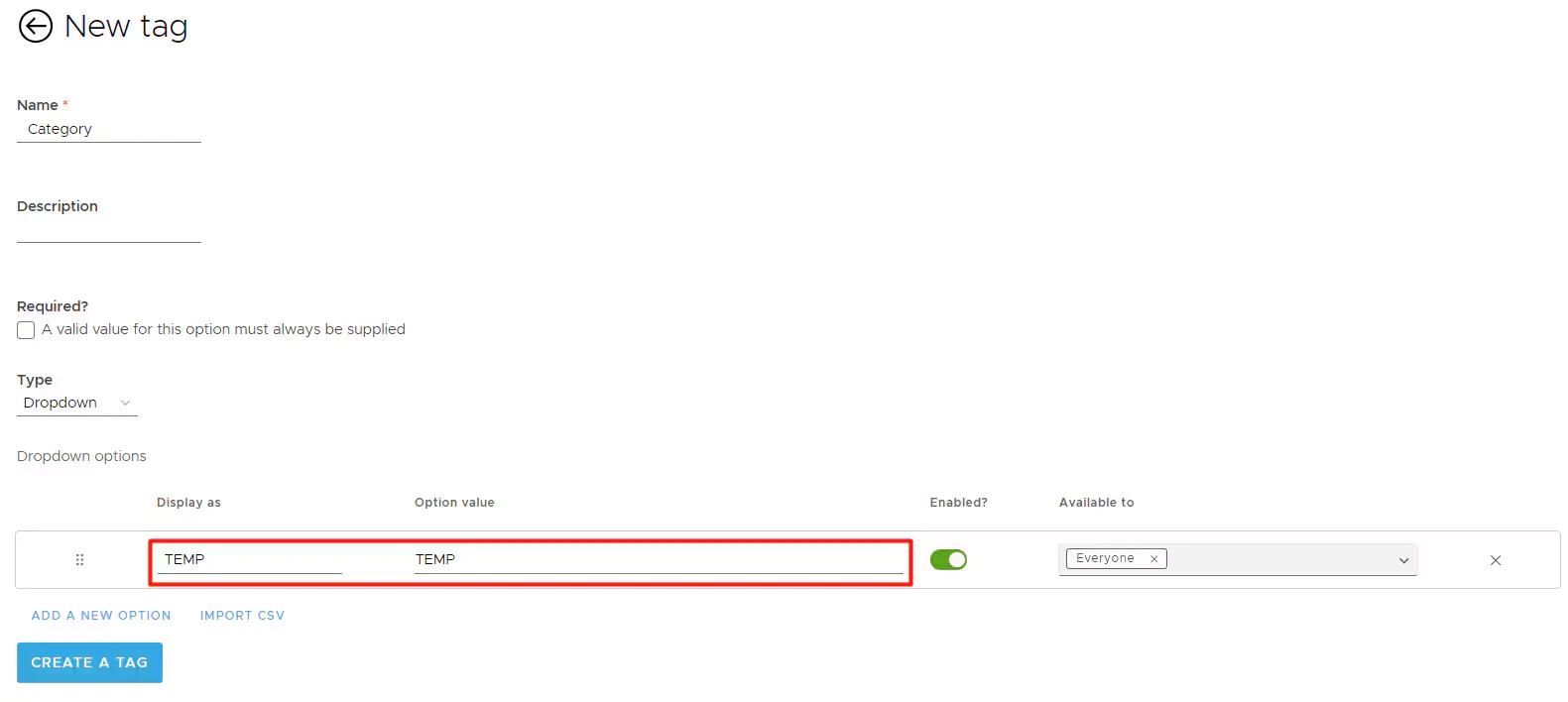
- Create a new dropdown tag with an initial temporary option with name and value TEMP.

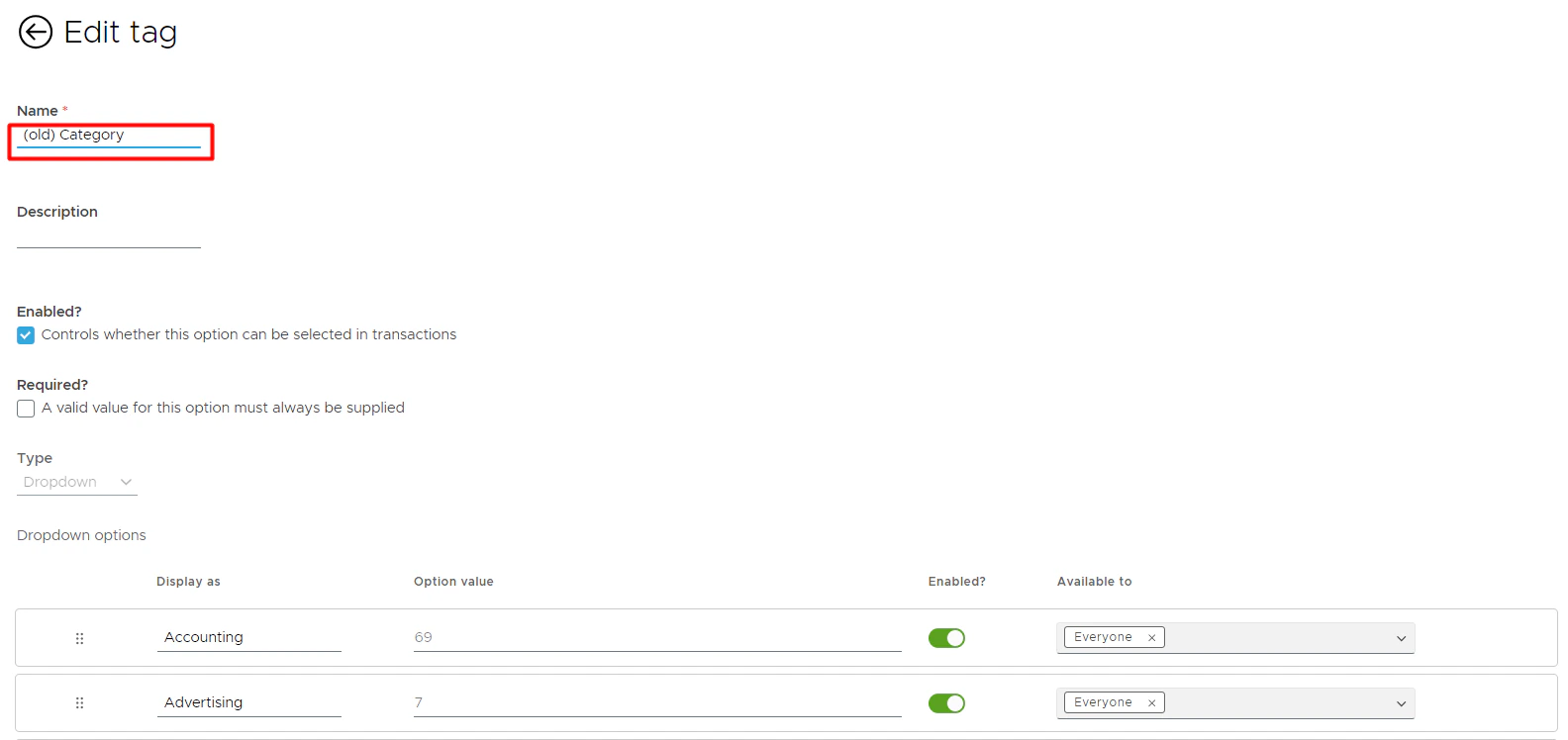
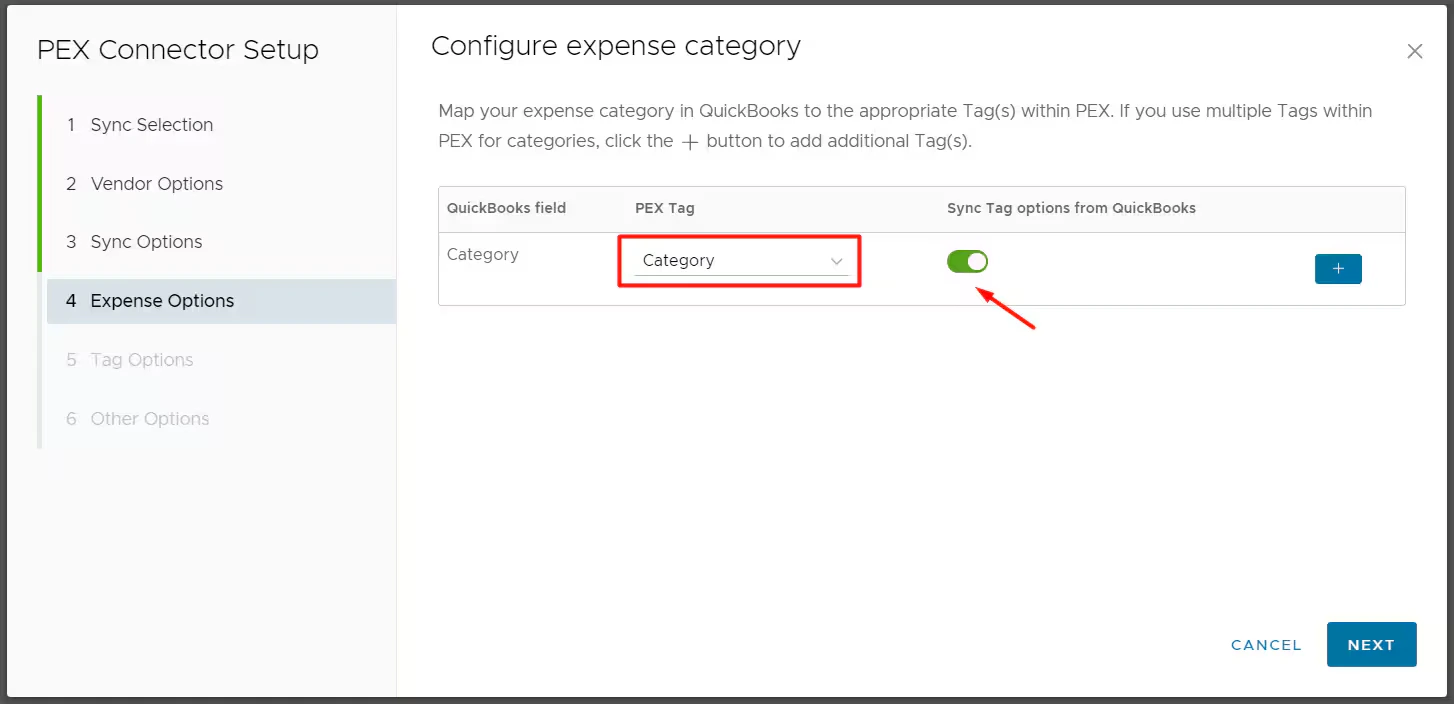
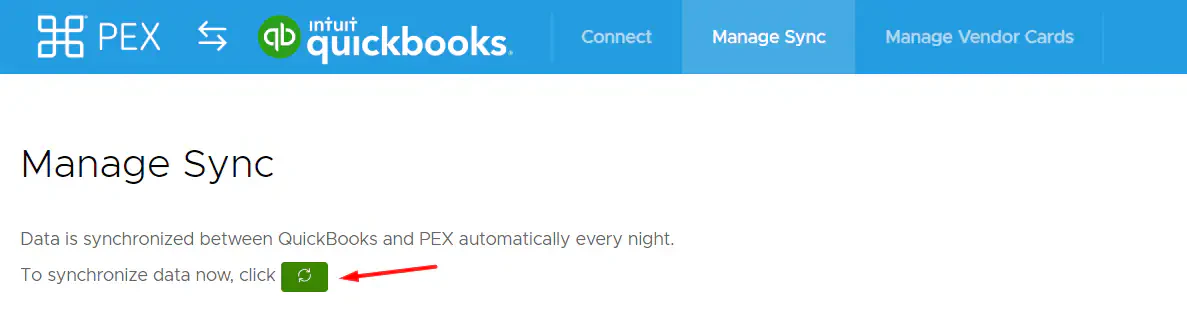
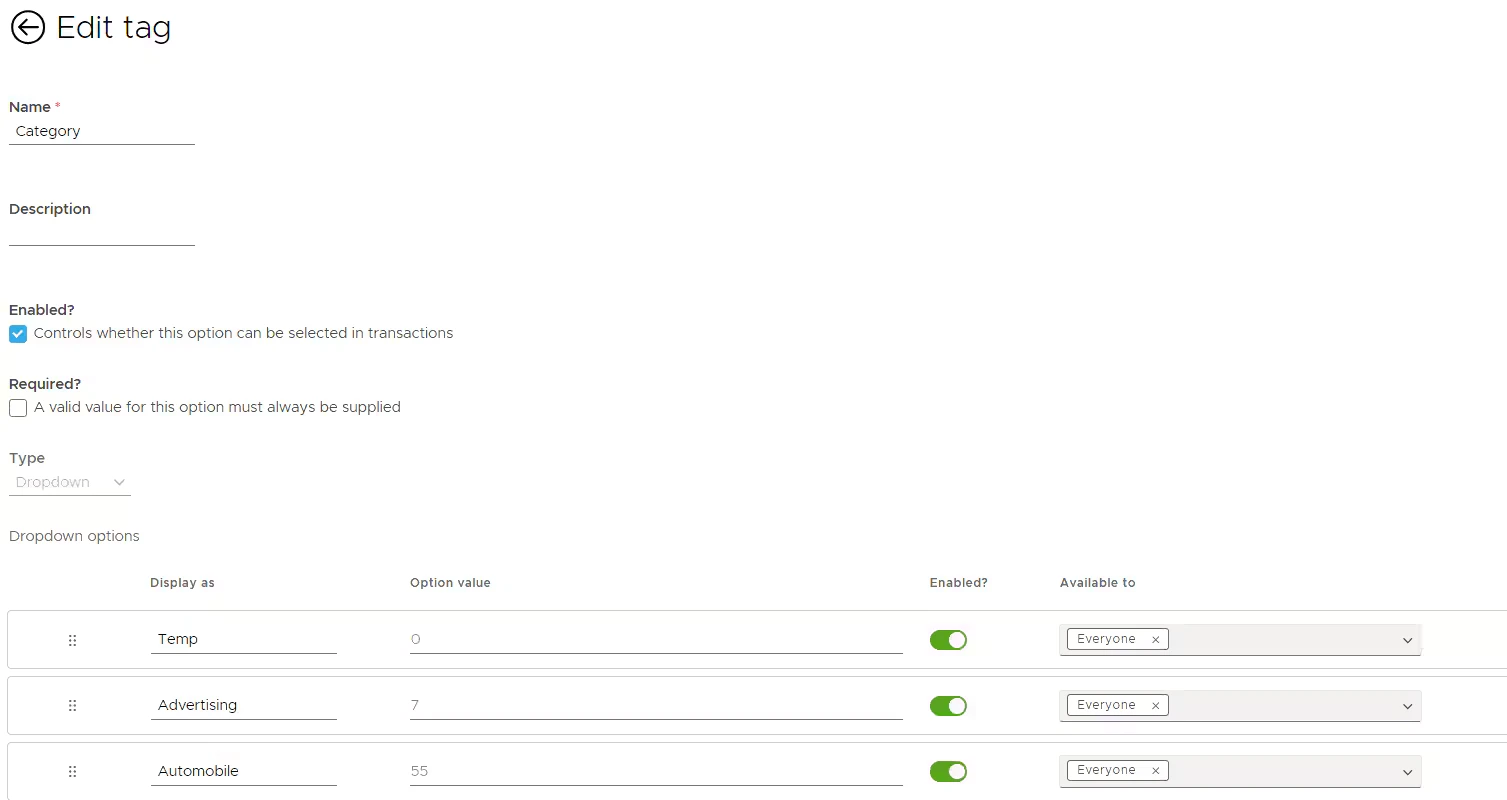
- You can disable any Expense Category in Tag Manager that you do not want visible to users for tagging.
Tag issues
All my transactions sync to a default account though they are tagged differently
All my transactions sync to a default account though they are tagged differently
Auto Tagger applies tags after transactions already synced
Auto Tagger applies tags after transactions already synced
Tag dropdown lists are empty
Tag dropdown lists are empty
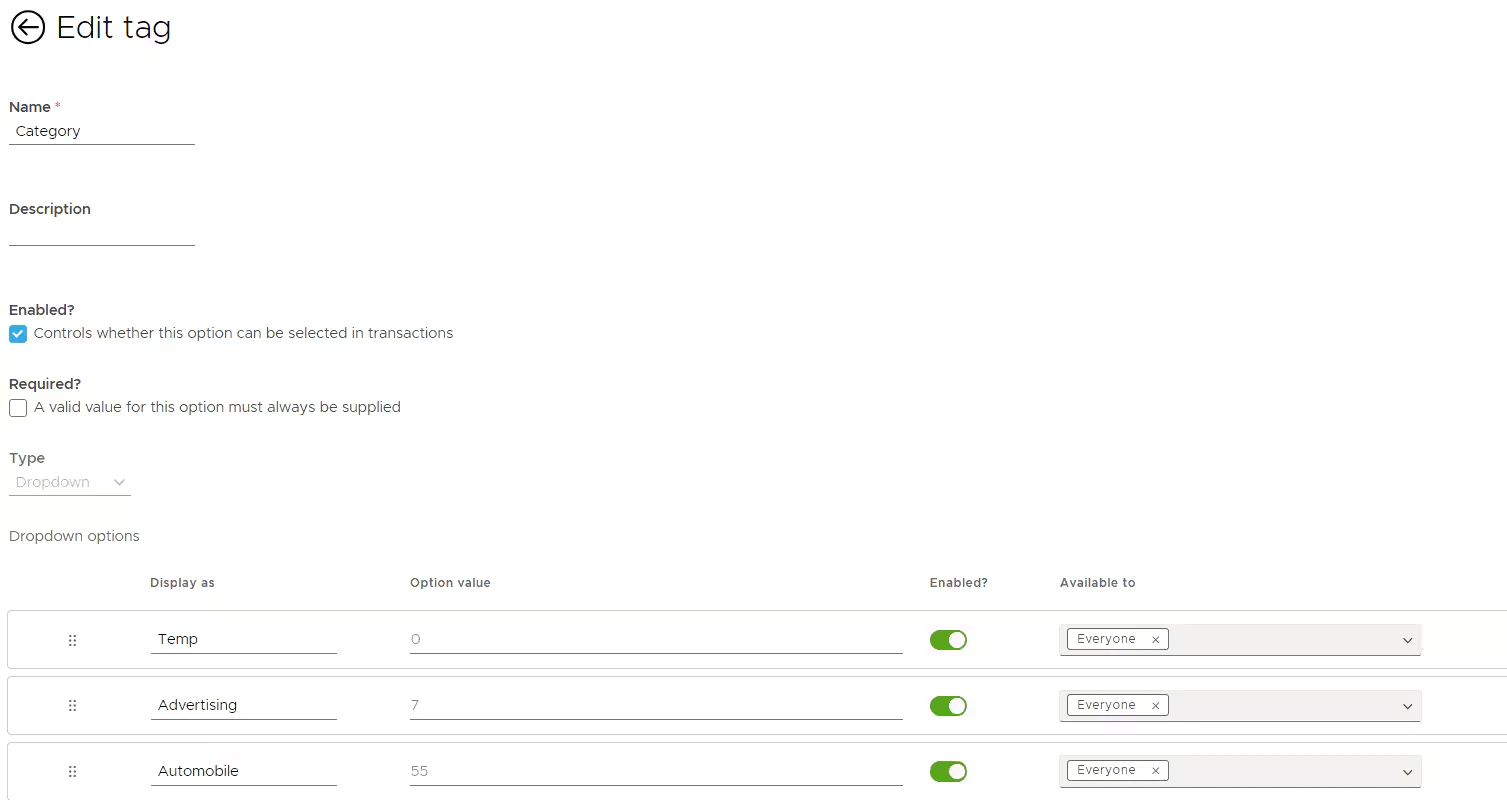
Editing PEX tag option values
Editing PEX tag option values
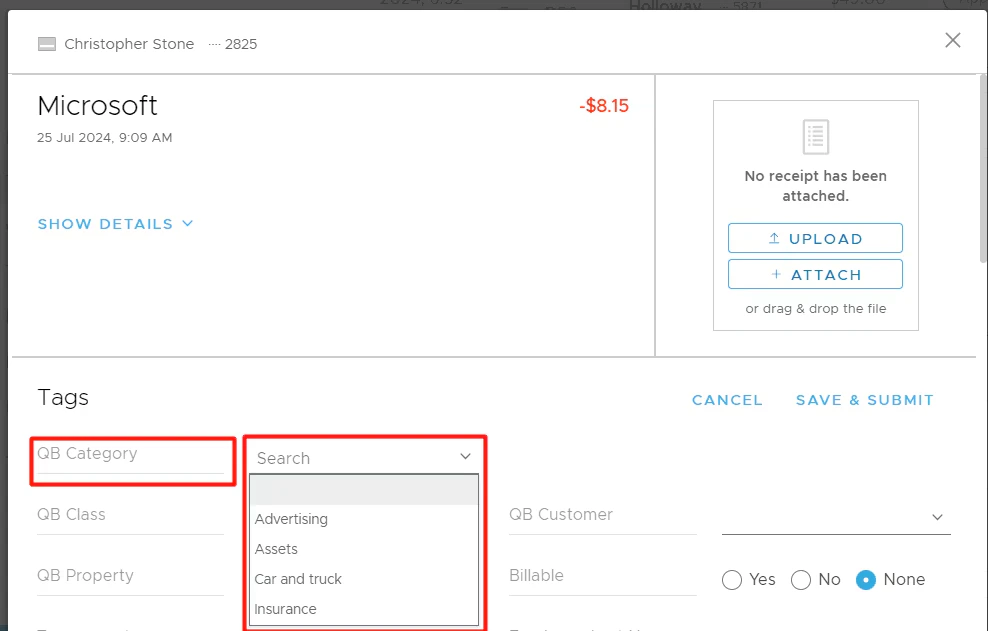
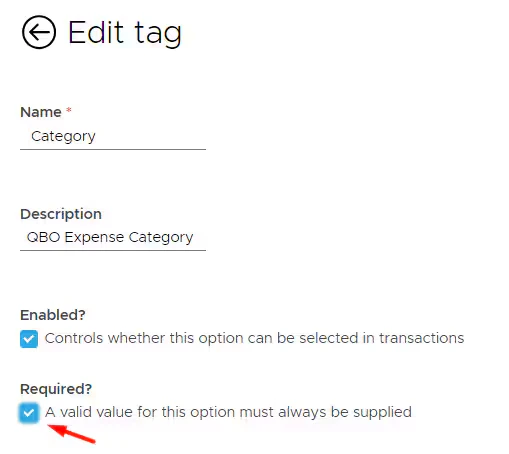


Tag options get disabled
Tag options get disabled
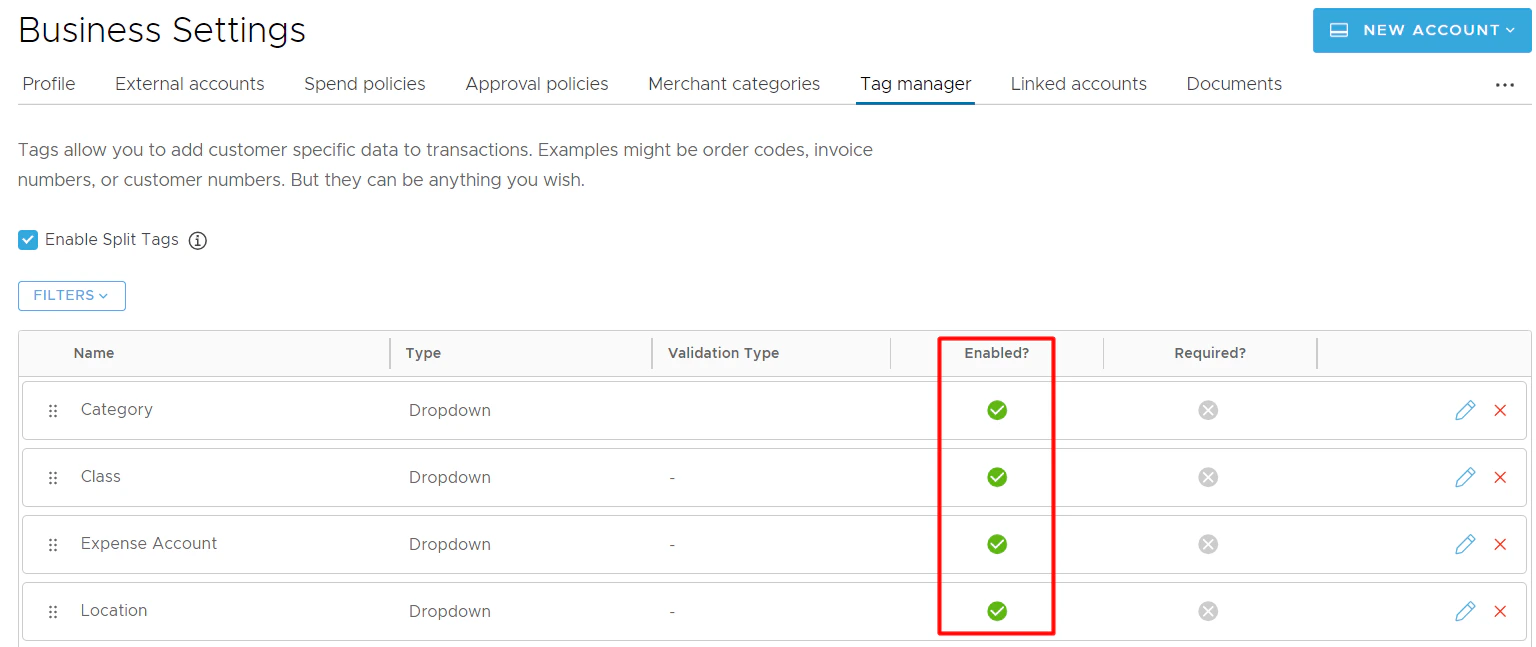
Disabled tag options are not auto re-enabled
Disabled tag options are not auto re-enabled
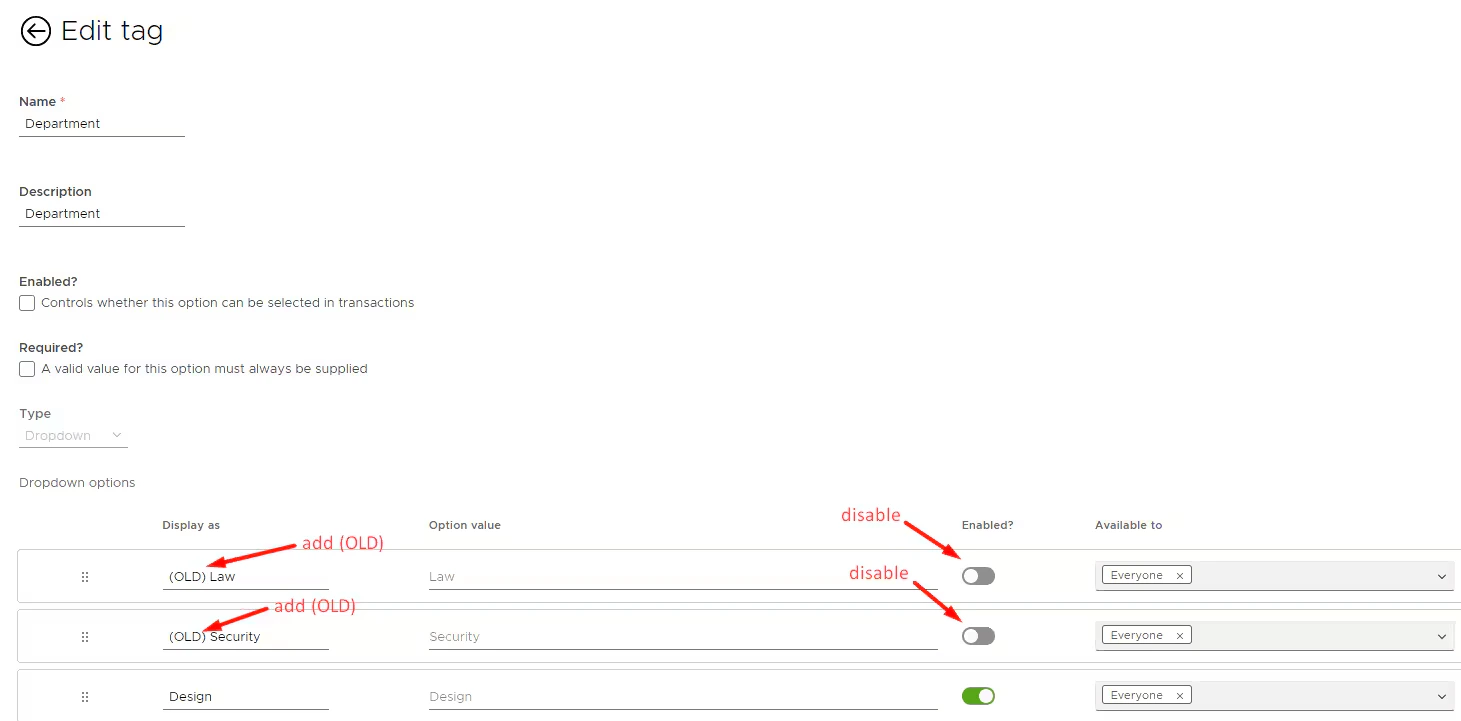
- The tag option sync is on.
- You disable a tag option in PEX that is still active in QuickBooks Online.
- Or you first disable, then re-enable the corresponding category, class, and so on in QuickBooks Online.
- You perform a sync or auto sync.
- The tag option stays disabled in PEX and is not automatically re-enabled. You must manually enable it again.
I change tag names in Tag Manager but they revert after a day
I change tag names in Tag Manager but they revert after a day
Deleted tag
Deleted tag