

Accessing app
To access the app:Log in to http://dashboard.pexcard.com/
Navigate to Apps > Available
Selecting your report
From the dropdown, select the report you wish to view and click launch. View details below on each report.Cardholder spend
The Cardholder spend report displays an overview by cardholder. Here you can see the following information:- Total cardholder spend over the past 2 months.
- Last 4 digits, the total amount, total # of transactions and average spend in the current month.

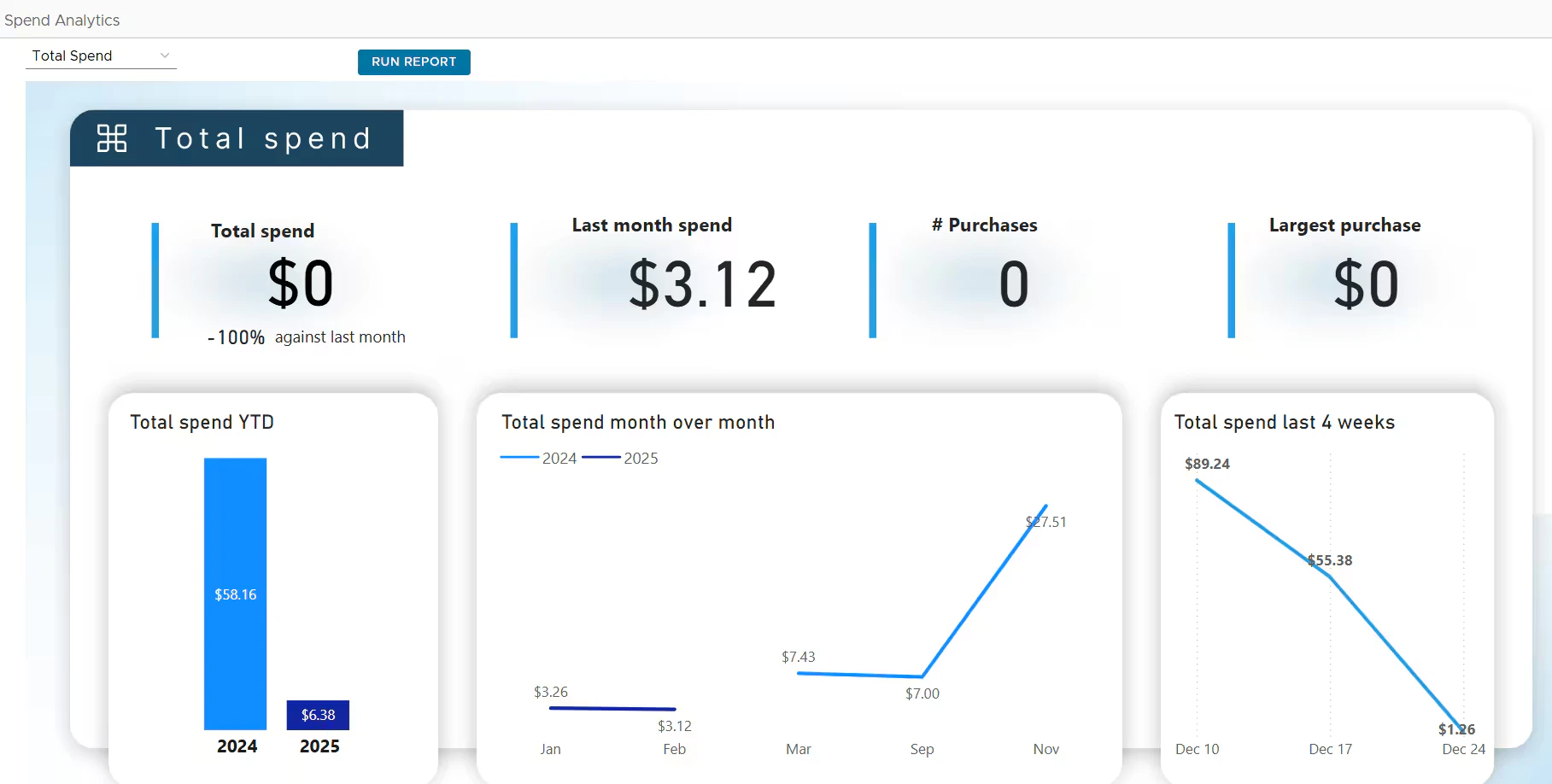
Total spend
The Total spend report displays an overview of your PEX spend for the current and prior month. Here you can see the following information:- Total spend and % compared to the prior month
- Last month spend
- # of transactions
- The amount and merchant for your largest purchase
- Total spend year to date (YTD)
- Total spend over month
- Total spend last 4 weeks
Merchant spend
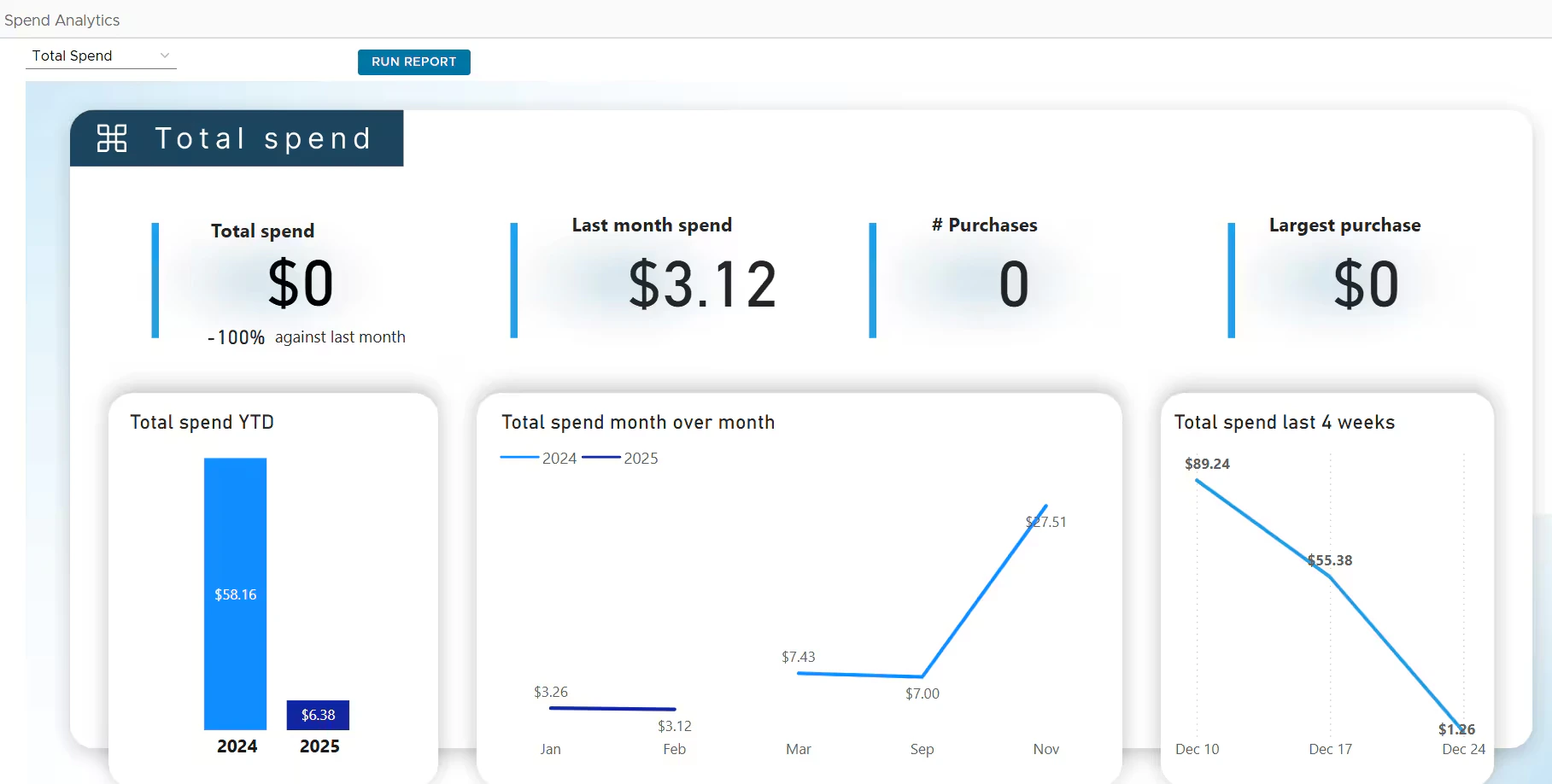
The Merchant spend report displays an overview of your spend by merchant category for the current month. Here you can see the following information:- Spend by merchant category (sorted descending)
- A table of merchants including total amount, total transactions and average spend.
MCC spend
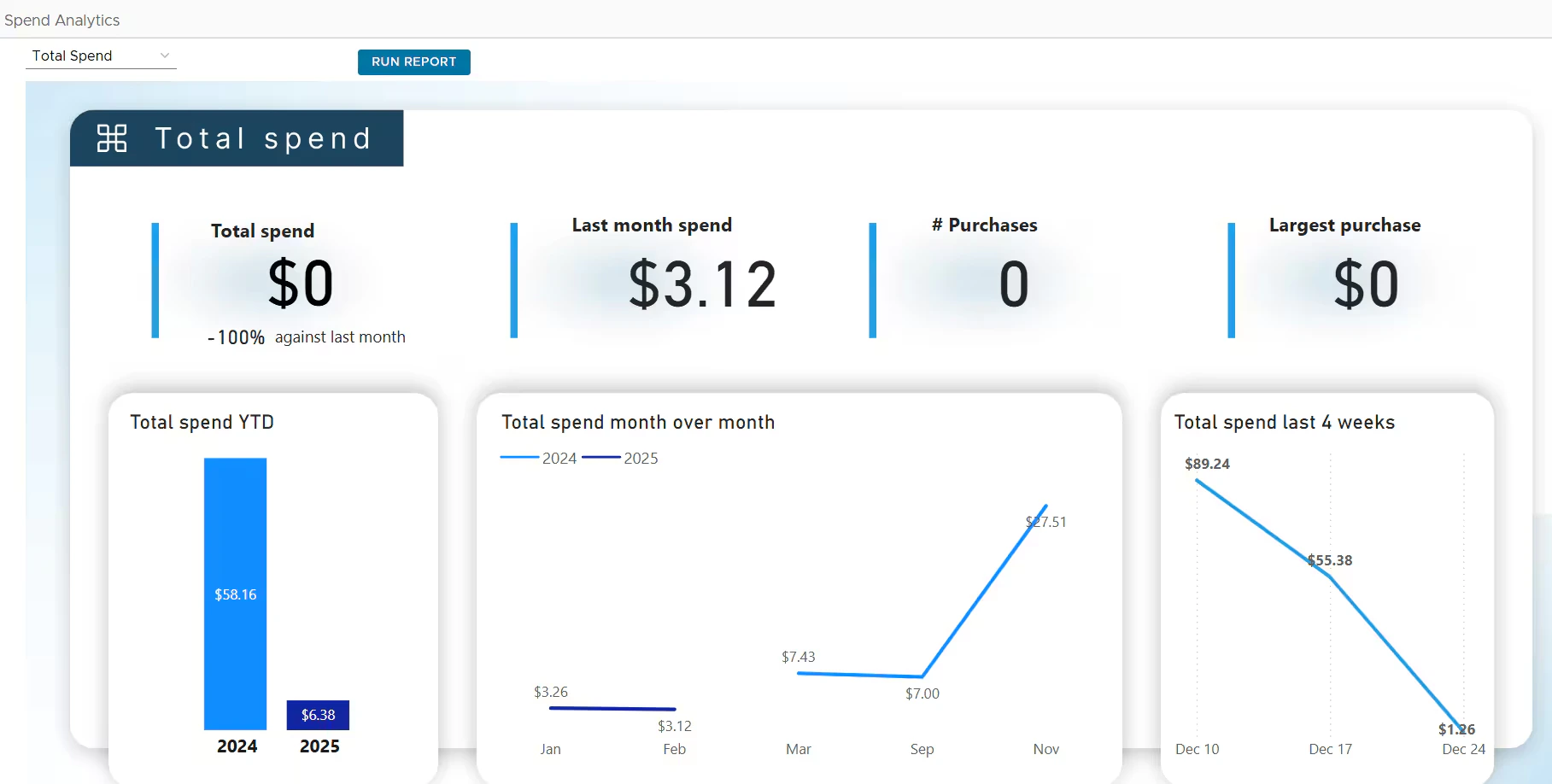
The MCC Spend report lists the merchant categories that your business has purchased using your PEX card over the past month. Here you can see the following information:- Spend by MCC Name & Code (including % of your total spend and dollar amount)
FAQ
How frequently does the data update?
How frequently does the data update?
Your spend information is updated 4 times a day.
How far back does the data go?
How far back does the data go?
Data is visible from January 1, 2022.
What type of transactions are included in these calculations?
What type of transactions are included in these calculations?
The totals include settled transactions only. Pending transactions are not included.
What type of exports are available?
What type of exports are available?
All charts are exportable to Excel. Simply navigate to the Export button on the top bar.
Can I view spend across all of my PEX accounts?
Can I view spend across all of my PEX accounts?
At this time, you can only view analytics for an individual account. We are working to add this across multiple accounts in the future.