

Create General Journal in Dynamics 365
Before transactions can sync from PEX, you must create a General Journal in Dynamics 365 Business Central for the connector to post entries to.Fill in the following fields:
- Name:
PEX Card.- Description: Enter a description (e.g.,
PEX Card Journal). - Bal. Account Type: Select
G/L Account.
- Description: Enter a description (e.g.,
Leave the remaining fields (Bal. Account No., No. Series, Posting No. Series, Reason Code) blank unless your organization requires them.
Note:The journal name must be
PEX Card for transactions to sync.Connect PEX and Dynamics 365
Log in to dashboard.pexcard.com
Go to Apps > Available
Note:You need these permissions: Edit business settings & apps, Manage cardholder, View card transactions. Enable them in My Profile > Permissions.
A popup prompts you to sign in with your Microsoft account. Use an account with admin access to your Business Central environment.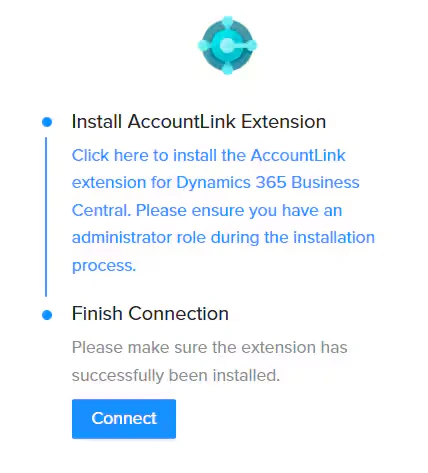
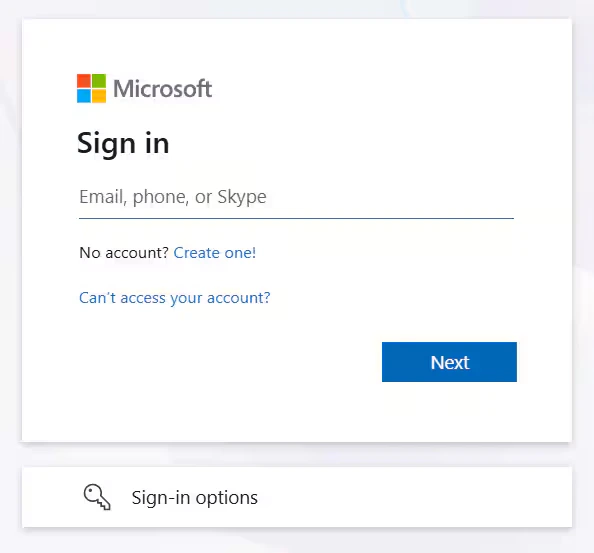
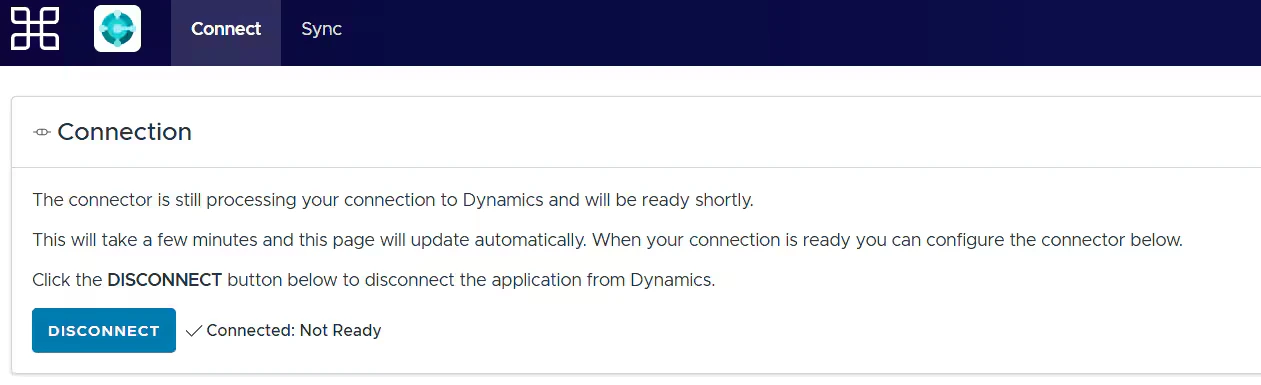
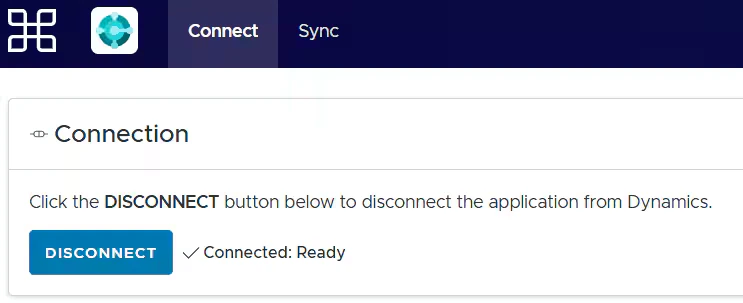
Note:For multiple PEX accounts connecting to the same Dynamics 365 tenant, you can link an existing connection instead of re-authenticating.
Configure Transaction Settings
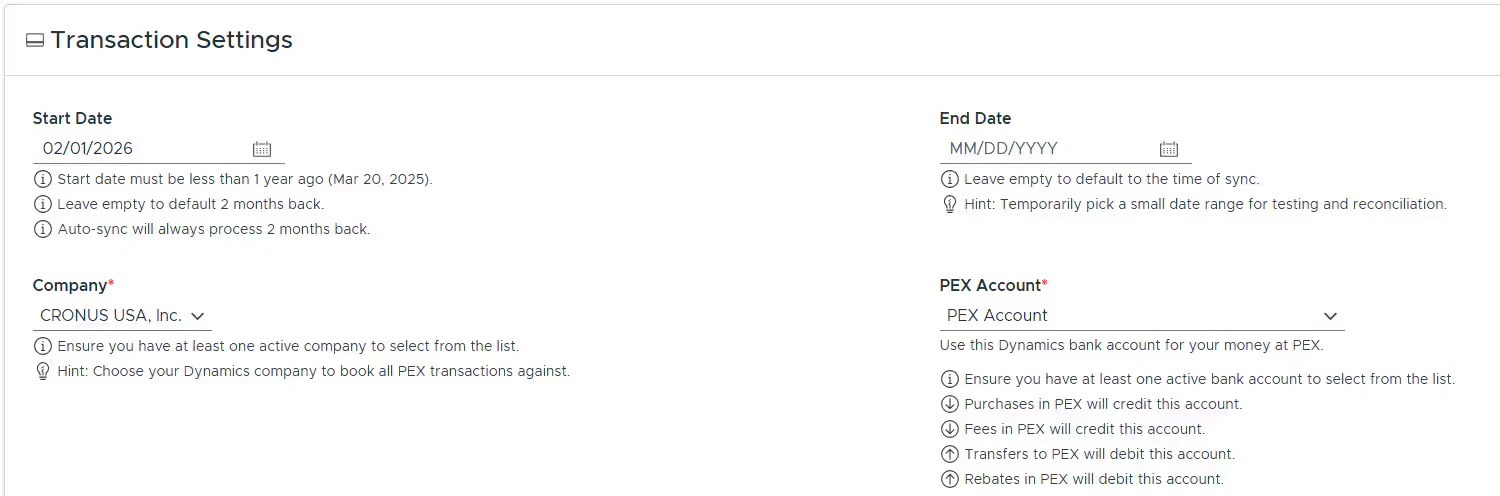
Start Date:- Transactions on/after this date will sync.
- Maximum 1 year back from today.
- Defaults to 2 months back if left empty.
- Auto-sync always processes 2 months back.
- Transactions on/before this date will sync.
- Defaults to time of sync if left empty.
- Use a narrow range for testing/reconciliation.
- Ensure you have at least one active company to select from the list.
- Ensure you have at least one active asset account to select from the list.
- Transfers to PEX will be added to this account.
- Purchases in PEX will be deducted from this account.
- Fees in PEX will be deducted from this account.
- Rebates from PEX will be added to this account.
Purchases
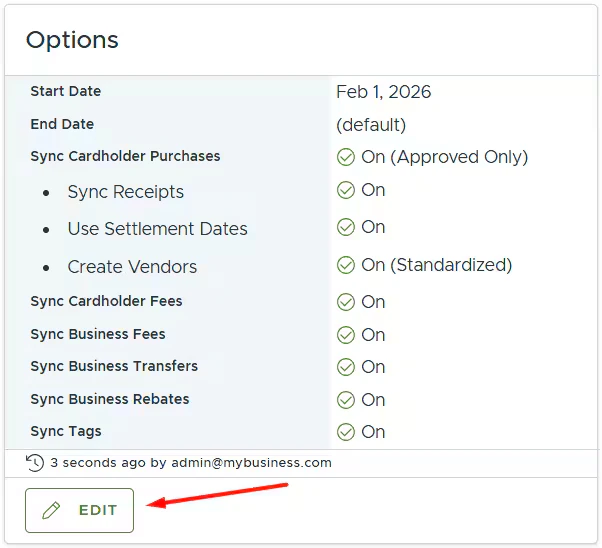
To sync purchases to Dynamics 365, enable Create journal entries in Dynamics for cardholder purchases. Configure the following:- Sync all purchases or only approved purchases
- “Only sync approved purchases” (recommended) means that purchases must be approved in PEX before syncing to Dynamics 365.
- Sync purchase attachments
- If this box is checked, purchase receipts will sync to Dynamics 365.
- Use settlement dates or purchase dates
- Purchases sync only once settled, but you can choose either the settlement or purchase date as the posting date in Dynamics 365.
- Note: A purchase may settle in a period following the time of purchase.
- Purchases sync only once settled, but you can choose either the settlement or purchase date as the posting date in Dynamics 365.
- Create a Dynamics vendor for each unique merchant
- Unchecked: Map vendor to a static Dynamics 365 vendor or PEX tag (see Mappings).
- Checked: PEX will record purchases with existing vendors in your Dynamics 365 account or auto-create a new vendor if one doesn’t exist.
- Update vendors with the chosen company if needed
- Checked: Automatically assigns your chosen company to the vendor in Dynamics 365.
- Unchecked: You’ll need to manually add your chosen company to the vendor, or the purchase will fail to sync.
- Use standardized vendor names
- Checked: PEX will record purchases like “Target #0973226” simply as “Target” in Dynamics 365.
- Unchecked: PEX will record purchases like “Target #0973226” as “Target #0973226” in Dynamics 365.
- Checked: Automatically assigns your chosen company to the vendor in Dynamics 365.
- Unchecked: Map vendor to a static Dynamics 365 vendor or PEX tag (see Mappings).

- Mapping the “Expense Account” field to a static value means that you can select one account out of the many presented in Dynamics 365, and that value (“Advertising” in our example below) will be applied to all PEX purchases.
Note that a purchase will not be tagged with this static value. You will not see this static value on the purchase details. The static value will be used only when syncing a purchase to Dynamics 365.

- Mapping the “Expense Account” field to a PEX tag (“Expense Account” in our example below) means that you and your cardholders can select one of the tag values for each purchase.
For that go to the “Transactions” menu -> locate a purchase -> click on it -> select a tag value (“Office Supplies” in our example below) of the “Expense Account” tag -> click “Save”. Note that you and your cardholders can select one of the tag values for each purchase once you finish the Dynamics 365 connector setup and sync tag options from Dynamics 365 to PEX.
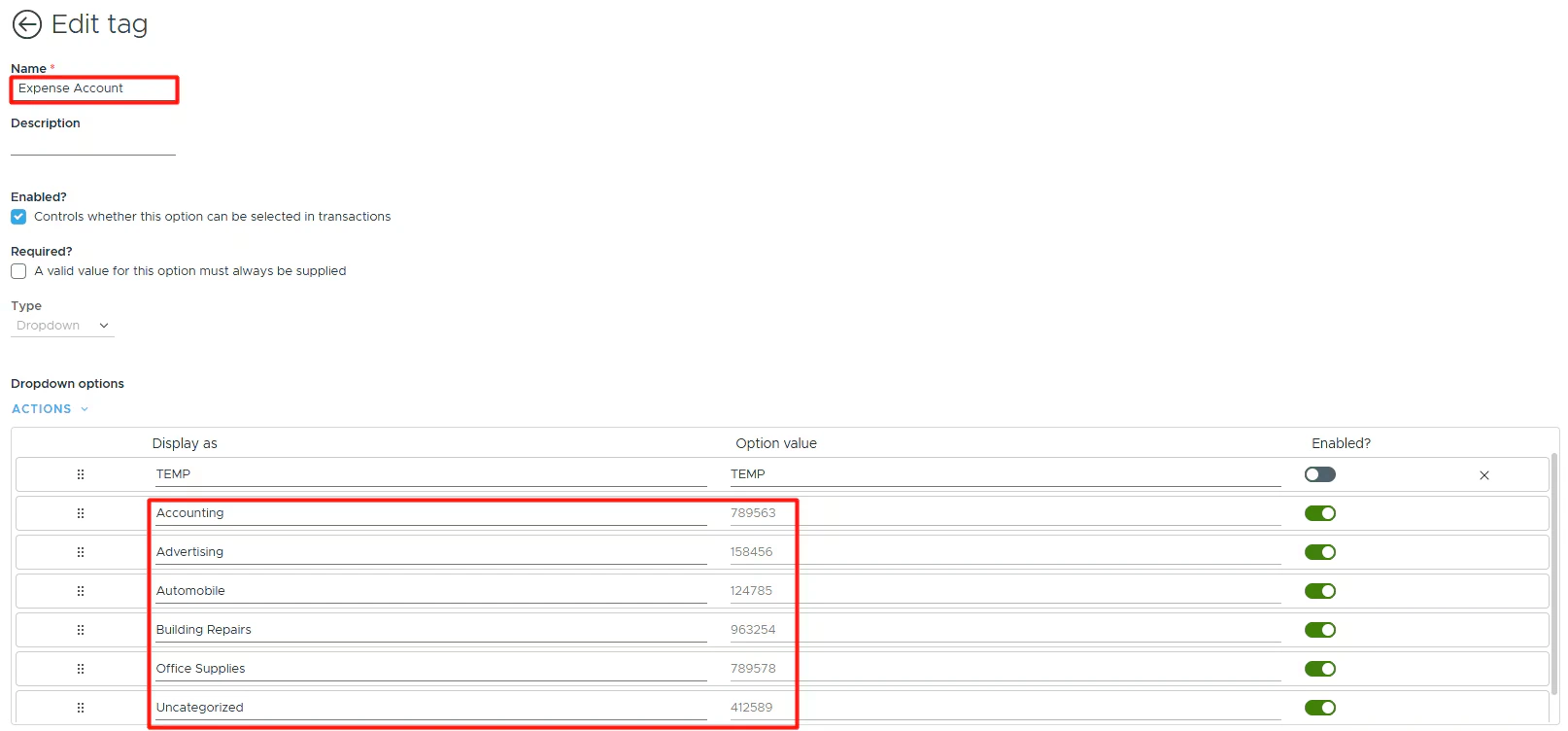
 When mapping to a tag, you can also specify a default “Expense Account” value: for example, Uncategorized, as highlighted below.
 Note that a purchase will not be tagged with this default value (“Uncategorized” in our example) on the purchase details. It means that if you or your cardholders forget to tag a purchase before it is synced to Dynamics 365, the default value (“Uncategorized” in our example) will be applied to this purchase during the sync. If you or your cardholders do tag a purchase with the tag option from the tag chosen in the highlighted field below,
 that specific purchase will be recorded against the expense account (“Accounting” in our example below) you tagged the purchase with. Tags take precedence over default values.

- Enable the sync toggle to sync field values from Dynamics 365 into PEX as tag options.
For example, the values for the PEX tag “Expense Account” (in Tag Manager) will be populated with the names of your Dynamics 365 accounts.



Fees
To sync business & cardholder fees to Dynamics 365, enable the toggle Create journal entries in Dynamics for business & cardholder fees. Fee Field Mappings Map Dynamics 365 fields so the connector knows which values to use when syncing fees to Dynamics 365. The fields can only be mapped to static values. PEX fee transactions that sync to Dynamics 365 will debit the account selected in the “Value” column (“Advertising” in our example below). The same account can be used for both purchases and fees.
Transfers
To sync business transfers to Dynamics 365, enable the toggle Create journal entries in Dynamics for business transfers. Transfer Field Mappings Map Dynamics 365 fields so the connector knows which values to use when syncing transfers to Dynamics 365. The fields can only be mapped to static values. PEX transfer transactions that sync to Dynamics 365 will credit the bank account selected in the “Value” column (“Checking ” in our example below).
Rebates
To sync business rebates to Dynamics 365, enable the toggle Create journal entries in Dynamics for business rebates. Rebate Field Mappings Map Dynamics 365 fields so the connector knows which values to use when syncing rebates to Dynamics 365. The fields can only be mapped to static values. PEX rebate transactions that sync to Dynamics 365 will credit the income account selected in the “Value” column (“Income” in our example below).
Sync to Dynamics 365
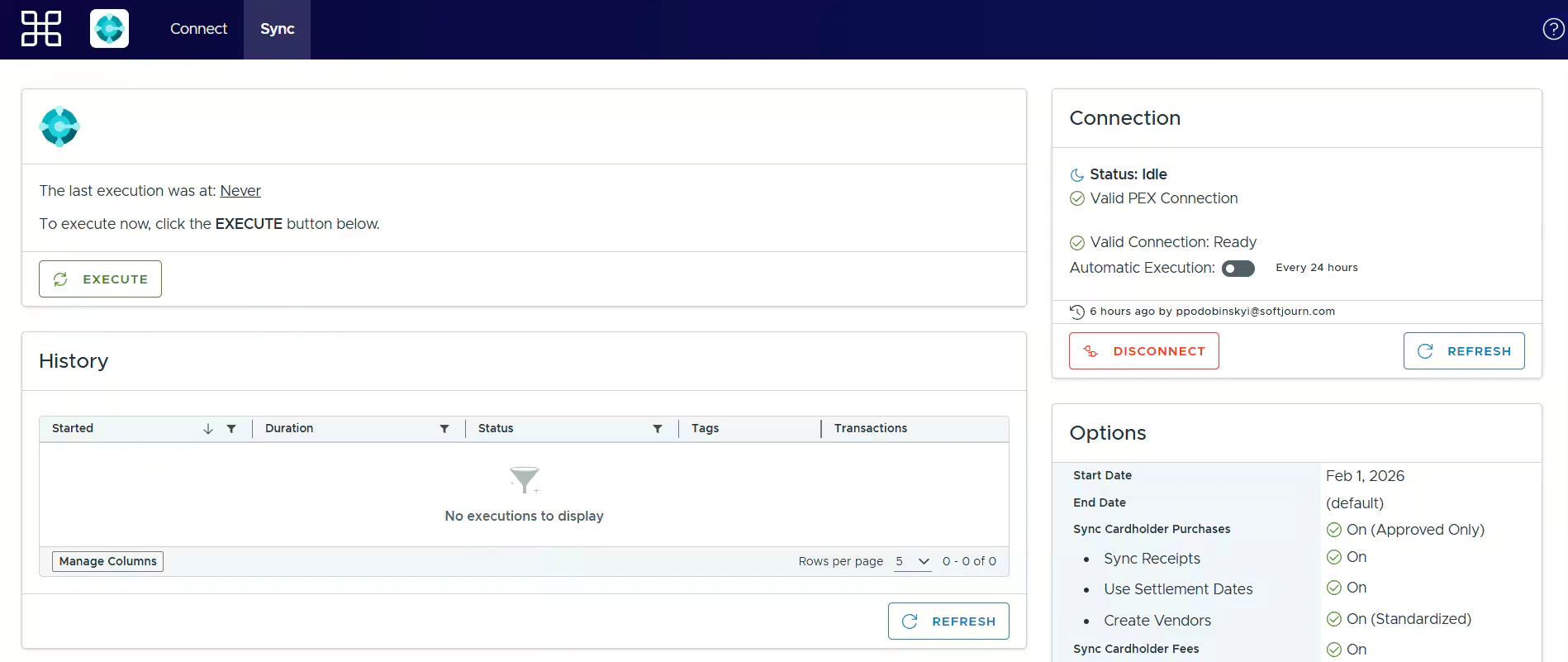
Manually sync transactions/tag options by clicking EXECUTE.
- When executing, you can choose which transaction types to sync.
- You can override the start and end dates for a specific execution.
Enable/disable auto-sync.
-
Enabled: Transactions/tag options sync automatically every 24 hours.
- Disabled: Transactions/tag options will not sync automatically.

View the History of transactions synced to your Dynamics 365 account.
- Each execution shows: Started time, Duration, Status, Tags synced, and Transactions synced.
- Click on Tags or Transactions counts to view detailed sync results.
Auto Tagger
The Auto Tagger app is a great complement to the Dynamics 365 connector. It allows you to create rules that auto-tag purchases. Learn more.View Synced Transactions in Dynamics 365
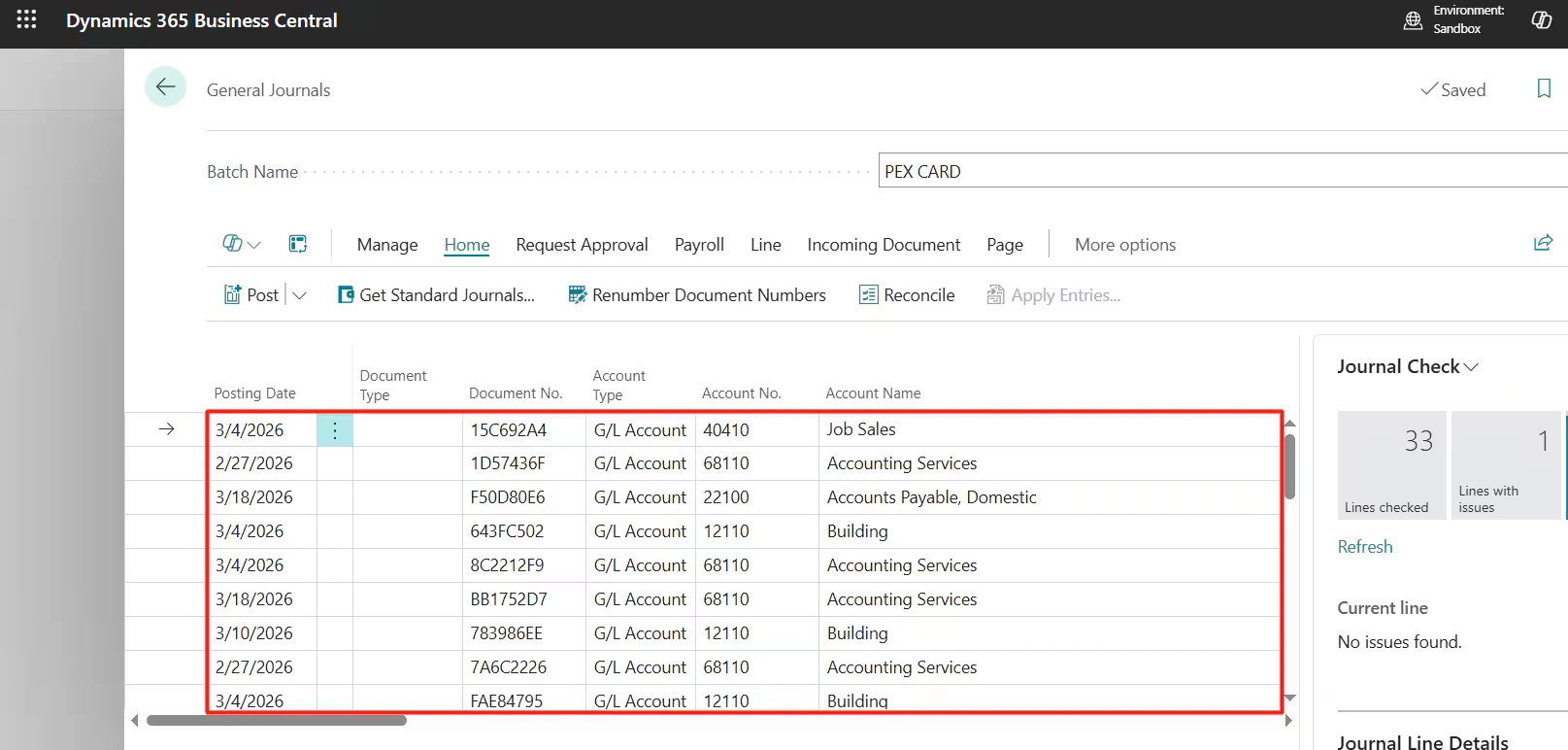
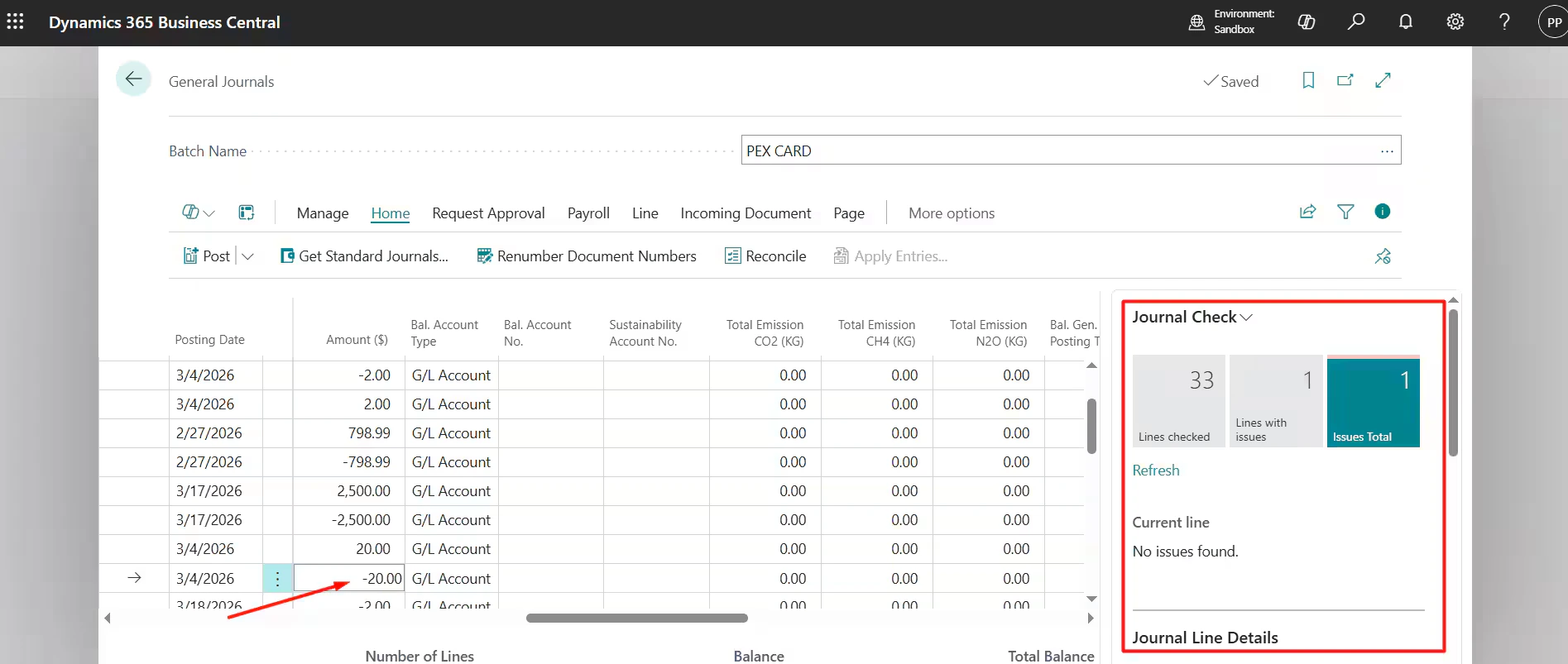
In Dynamics 365 Business Central, go to Finance → General Journals → click on the PEX Card journal →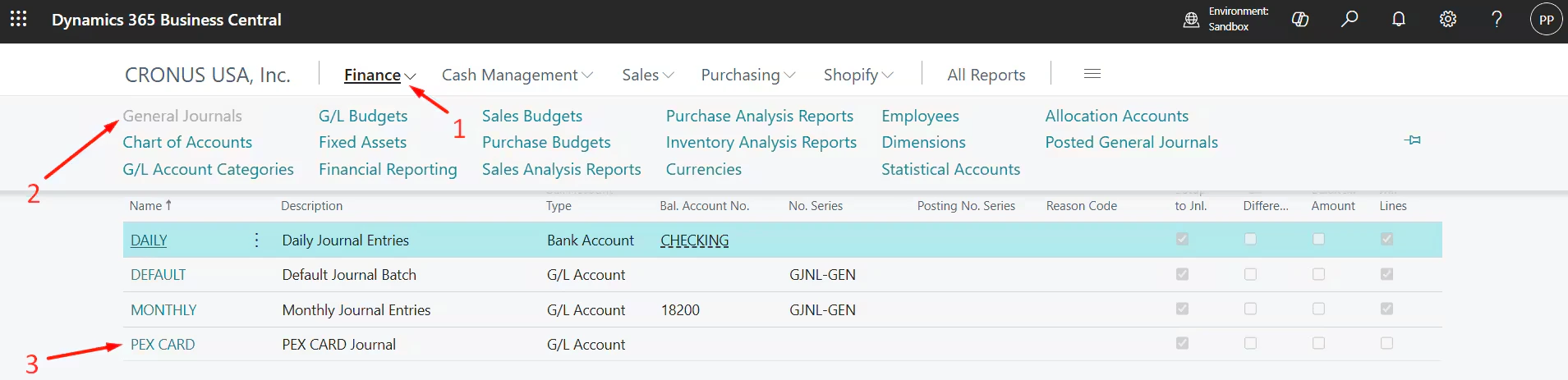
View Synced Receipts in Dynamics 365
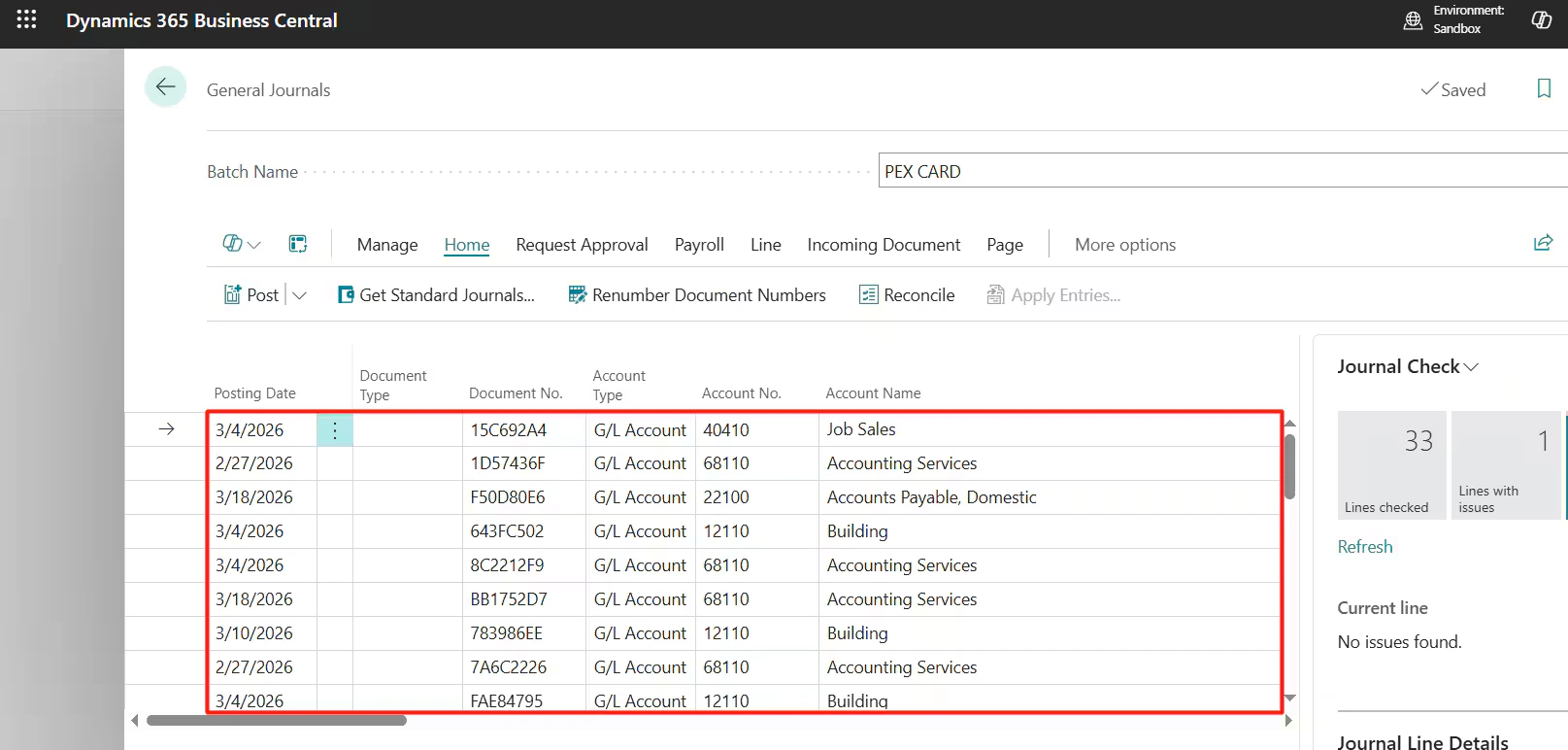
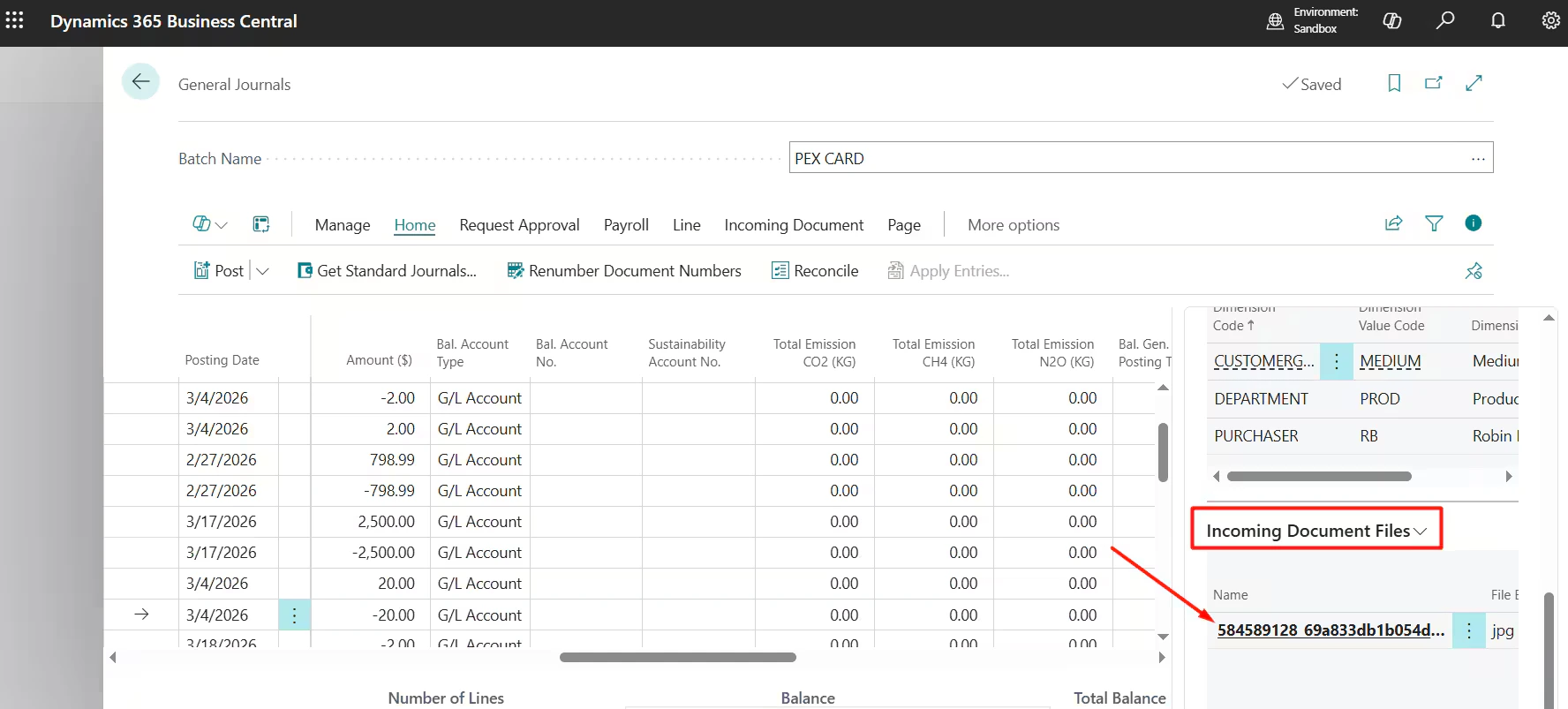
If receipt syncing is enabled, images are stored as incoming document files on journal entries. Go to Finance → General Journals → click on the PEX Card journal →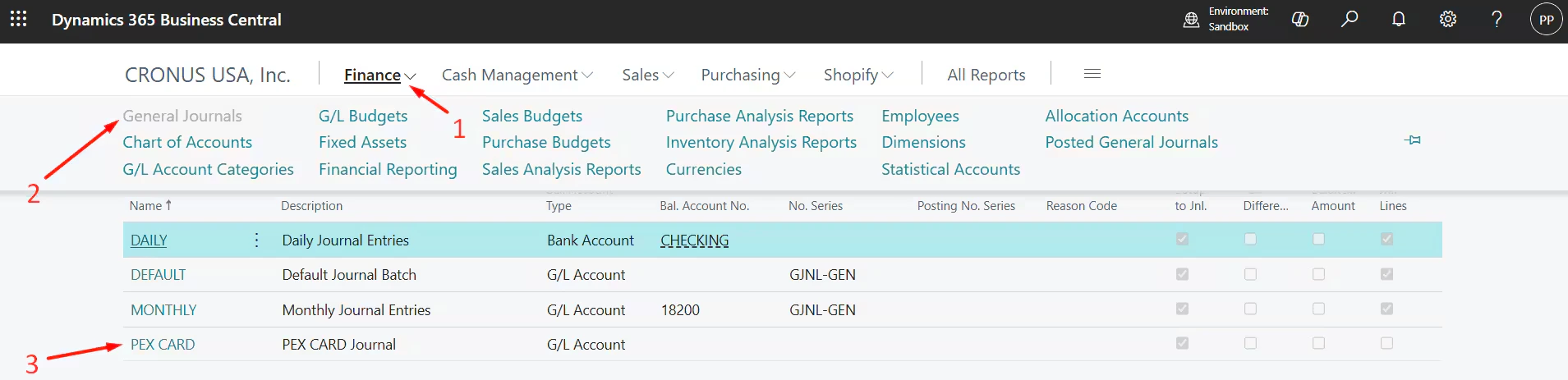
FAQ
How do receipts appear in Dynamics 365?
How do receipts appear in Dynamics 365?
As incoming document files on journal entries, serving as your system of record.
Do pending transactions sync?
Do pending transactions sync?
No. Only settled transactions sync. “Pending” next to a merchant name means the transaction hasn’t settled.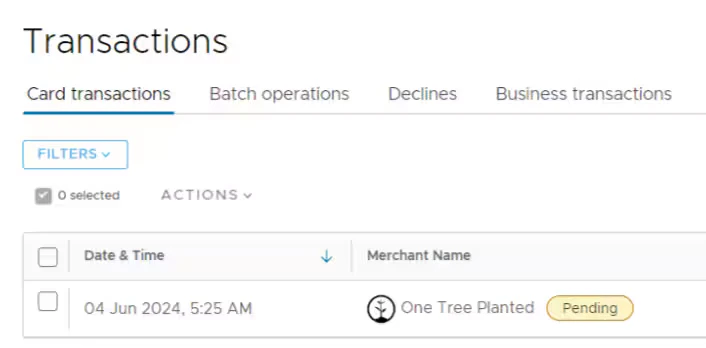
Do closed cardholder transactions sync?
Do closed cardholder transactions sync?
Yes. The connector syncs both open and closed cardholder transactions.
Can I combine manual and automatic tag sync?
Can I combine manual and automatic tag sync?
We strongly recommend using automatic sync of tag options from Dynamics 365 to PEX. This will keep your PEX tags and Dynamics 365 fields in sync. For more information, check out the support article “Create PEX tags for Microsoft Dynamics 365”. 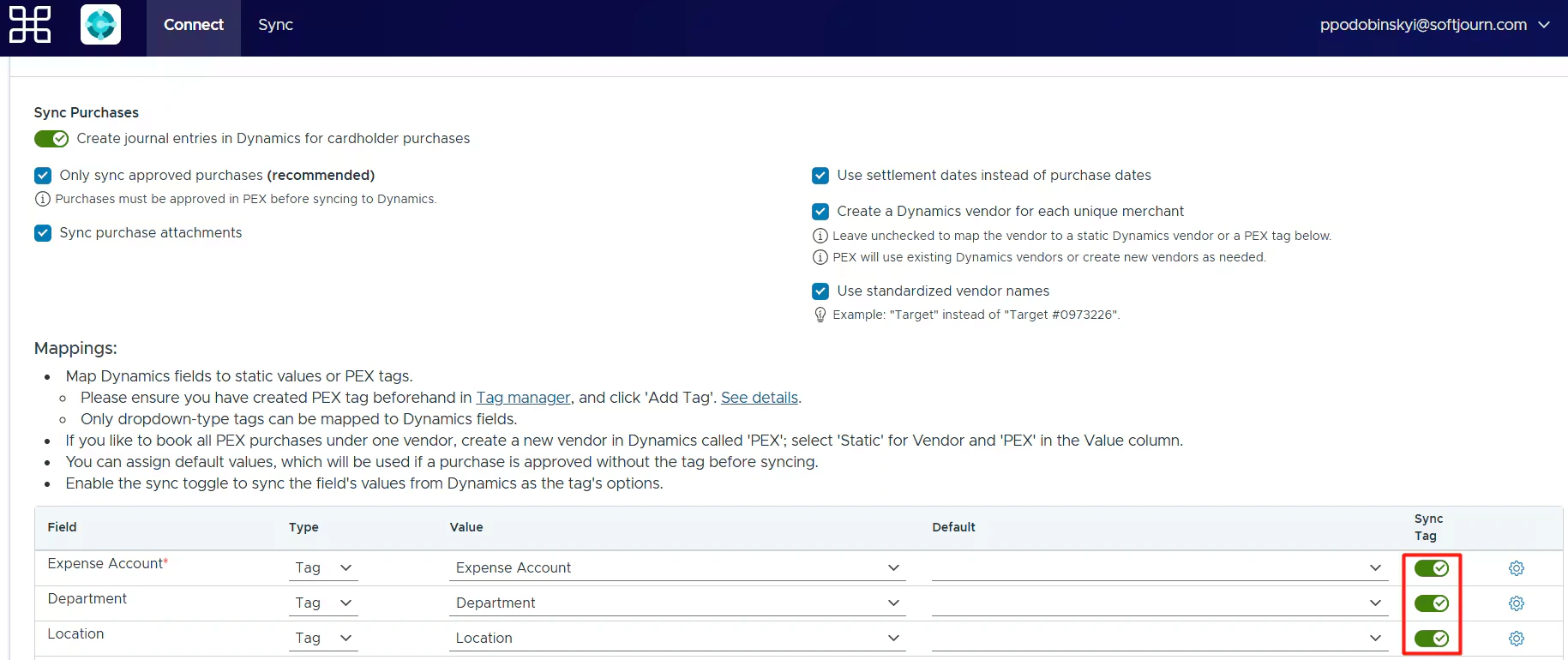
Will a previously synced transaction re-sync after status/tag/receipt changes?
Will a previously synced transaction re-sync after status/tag/receipt changes?
No. Contact PEX support to resync a transaction.
Can I connect multiple PEX accounts to one Dynamics 365 tenant?
Can I connect multiple PEX accounts to one Dynamics 365 tenant?
Yes. Link an existing connection from another PEX account to skip re-authentication.
Didn't find your answer?
Didn't find your answer?
Didn’t find your answer? See our Troubleshooting article.