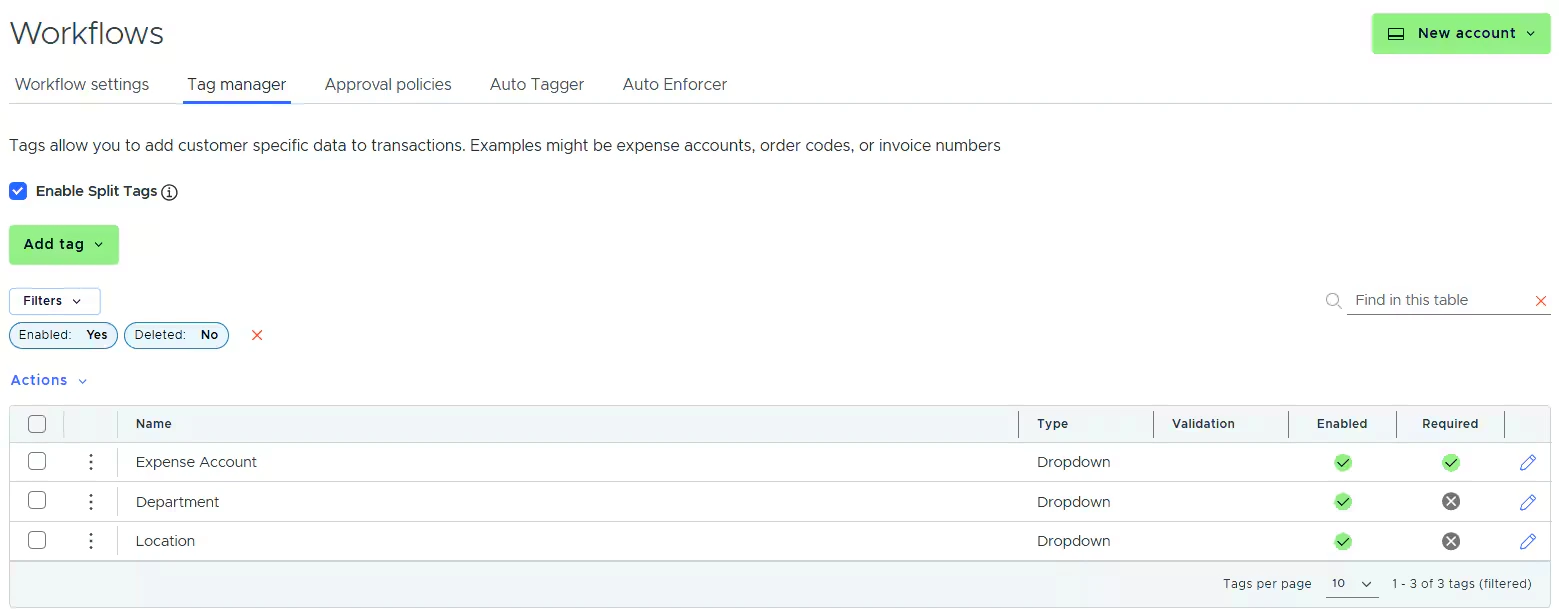
Create dropdown tags in Tag Manager
Log in to http://dashboard.pexcard.com/
Choose whether this tag is required.
- If the Required checkbox is checked, cardholders must tag a transaction with it.
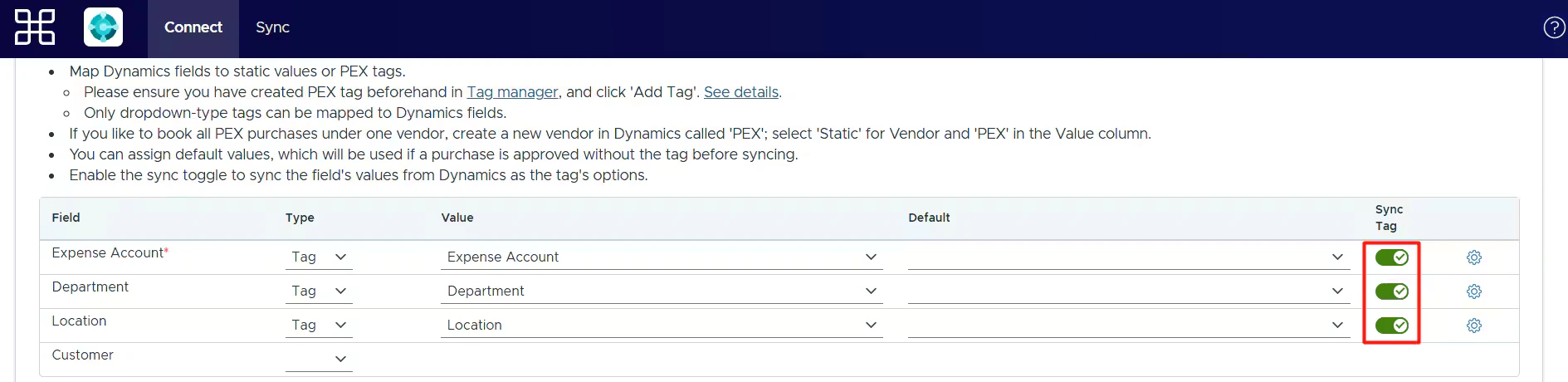
Dynamics 365 fields you can map to PEX tags
| Dynamics 365 field | Description | Required |
|---|---|---|
| Expense Account | The journal entry expense account. This account will be debited for purchases. | Yes |
| Vendor | The journal entry vendor. Only shown if “Create a Dynamics vendor for each unique merchant” is unchecked. | No |
| Tax Rate | The journal entry tax rate. | No |
| Class | The journal entry class. | No |
| Department | The journal entry department. | No |
| Location | The journal entry location. | No |
| Customer | The journal entry customer. | No |
Note:Only dropdown-type tags can be mapped to Dynamics 365 fields. Custom fields configured in Dynamics 365 are also supported and appear in the Mappings tables.
Where your tags appear
Once the tags are set up, you will also see them:-
In the dropdown lists of the Mappings table so you can complete the mapping.
-
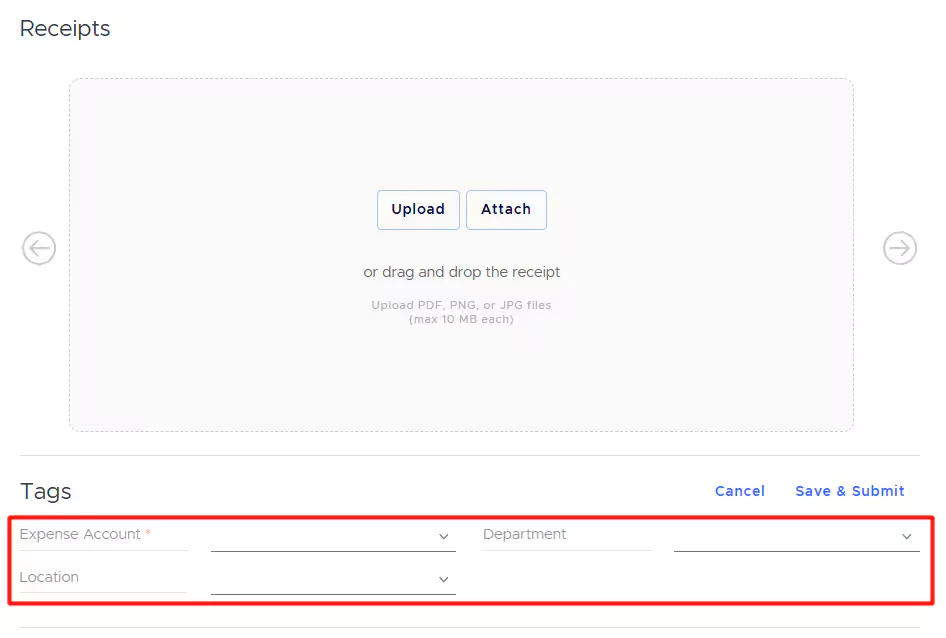
On the PEX transaction details screen, so you and your cardholders can tag transactions.