

- Tags are often used to attach GL (general ledger) codes to transactions
- You can use tags to note when a transaction should be billed to a client and the name of the client for the billing
Note:If you are using QuickBooks Online, Aplos, or one of the other accounting systems with a PEX Connector, you can use the connector to automatically create tags in PEX. The connector will keep your tab structure in sync and ensure that tagged transactions will always match your GL codes in PEX.
Create a New Tag
To create a new tag:- Log in to dashboard.pexcard.com
- Navigate to Business Settings > Tag Manager
- To see the ‘Tag Manager’ tab and edit tags, you must have either the ‘Manage Cardholders’ or ‘Edit Business Settings & Apps’ permission.
- If you have the proper permissions but still do not see an option for “Tag manager,” please contact Admin Support for assistance.
- Click Add Tag.
- Select the tag type you want to create — this determines how it will appear to Admins and cardholders. Select the tag type based on the type of information you want to attach to a transaction. A tag can be:
- Dropdown
- It is used to code transactions with GL codes, classes, departments, etc.
- Text
- It is a free-text entry tag that can be alphabetical, numerical, alphanumeric, or none (unrestricted).
- Decimal
- It allows decimal numbers (such as a dollar amount).
- Sales Tax ($)
- Yes/No
- Yes/No tag is shown as a checkbox.
- Dropdown
Dropdown
It is used to code transactions with GL codes, classes, departments, etc.- Name your tag.
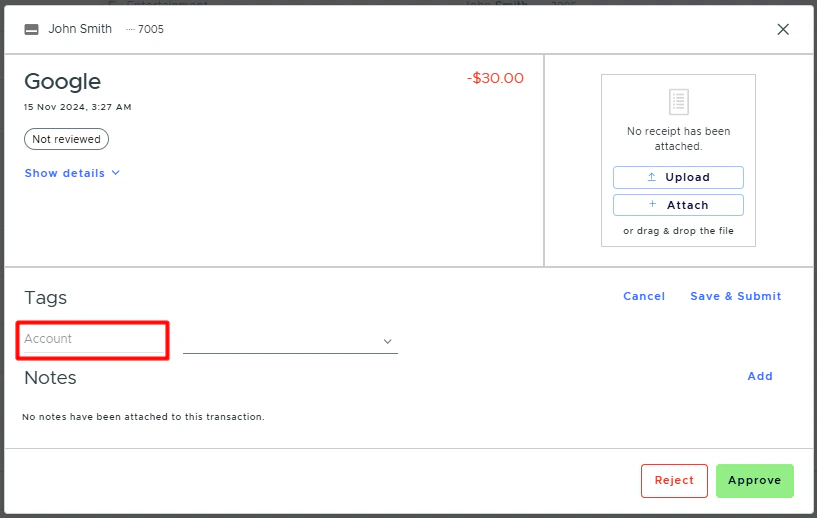
- This is what Admins and cardholders will see in the Tags section on a transaction.
- Optionally, you can add a description.
- Choose whether or not the tag is enabled.
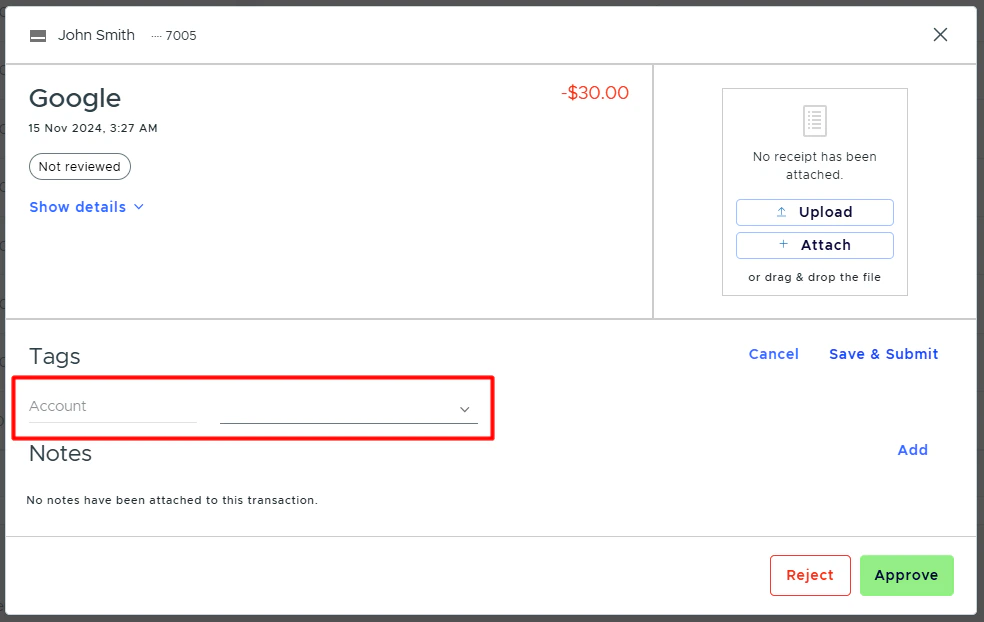
- When the “Enabled” checkbox is selected, users will see this tag in the Tags section on a transaction.
- Choose whether or not the tag is required.
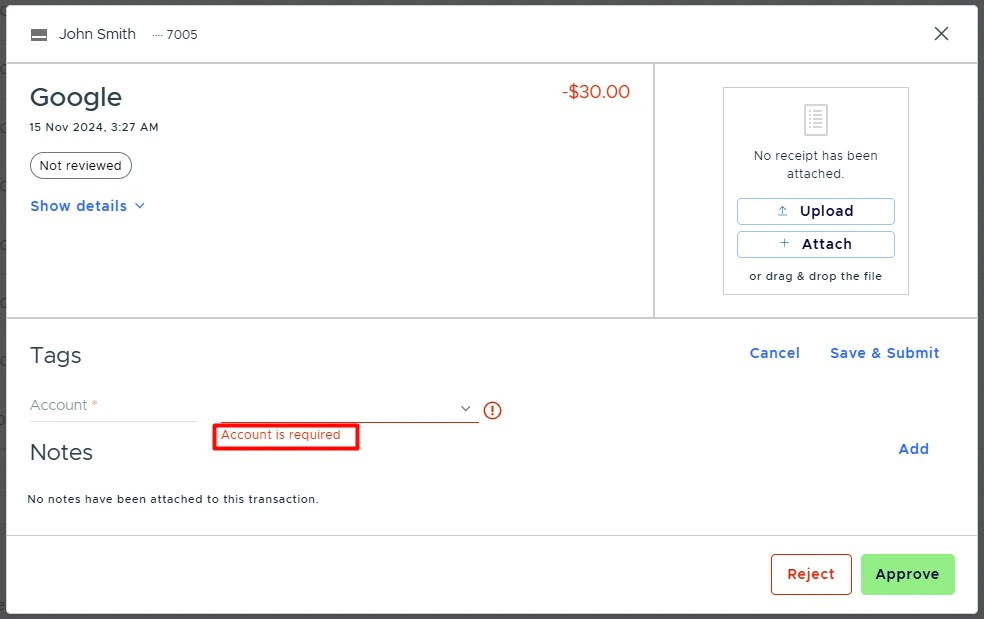
- When the “Required” checkbox is selected, users must add this tag when they click “Add” or “Edit” in the Tags section on a transaction.
- Click Save.
Add options
There are three ways to add tag options:- Automatically import options from your accounting system
- PEX recommends this way if you want to use existing GL codes from your accounting system.
- Add options manually
- Import options from CSV
Automatically Import Options from Your Accounting System
Refer to the relevant article based on your accounting system:- QuickBooks Online: Create PEX tags for QuickBooks Online
- Aplos: PEX Connector for Aplos: Pre-configuration
- NetSuite: Create PEX tags for NetSuite
- Blackbaud: Create PEX tags for Blackbaud
- Xero: Create PEX tags for Xero
Add Options Manually
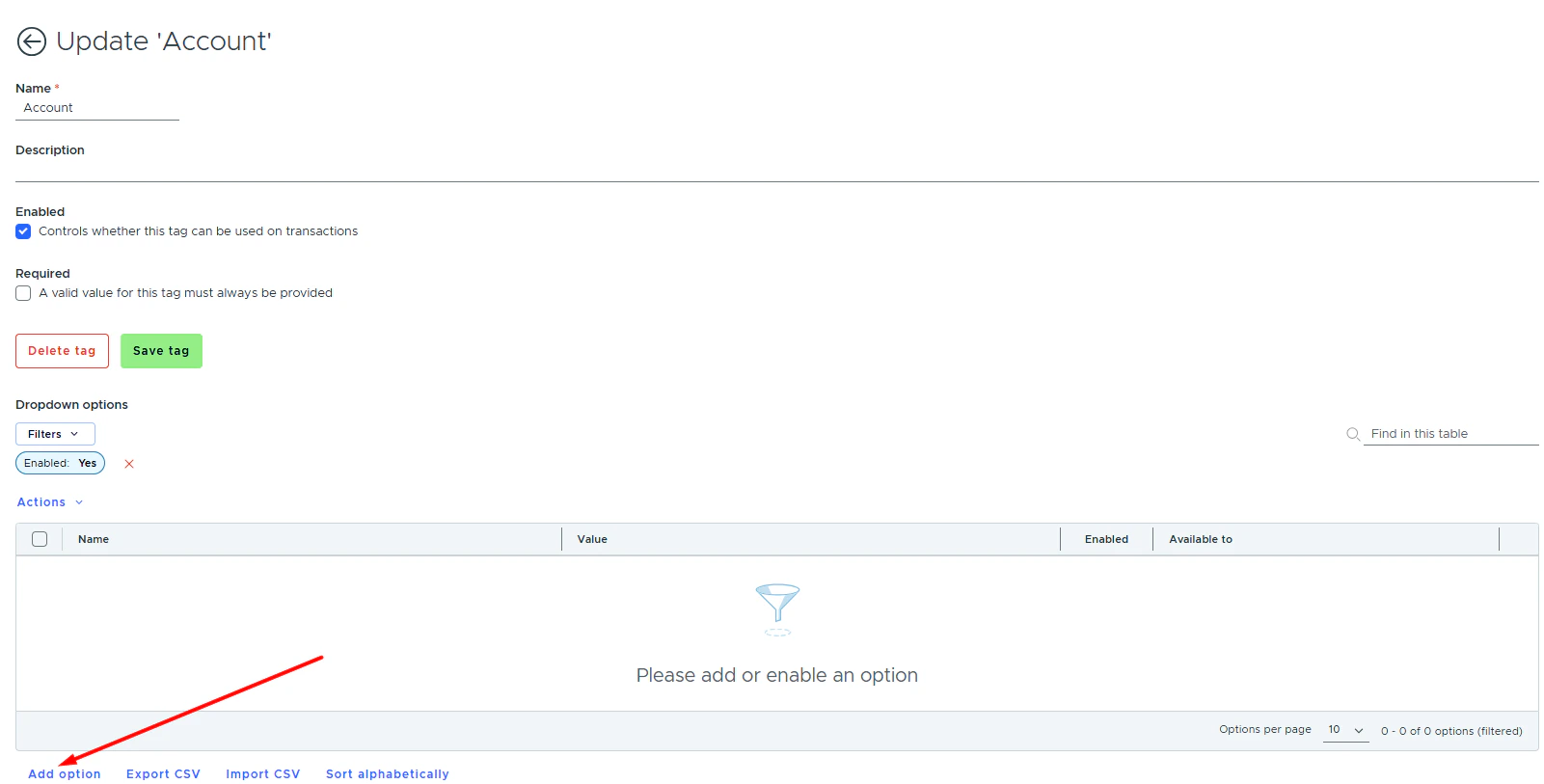
- Click Add option.
- Name your option.
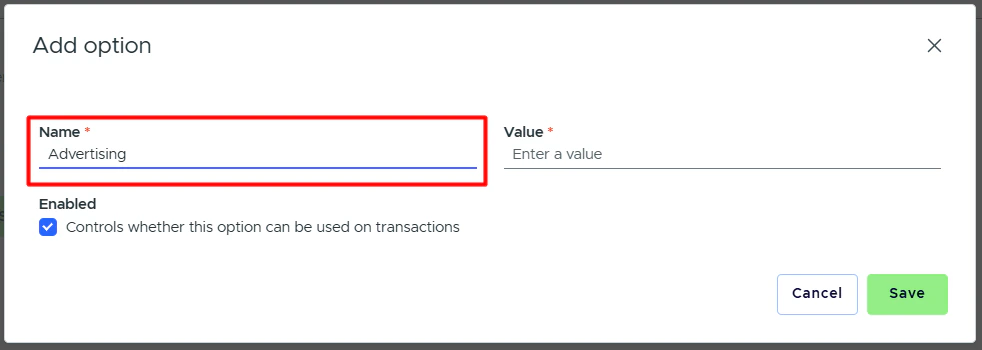
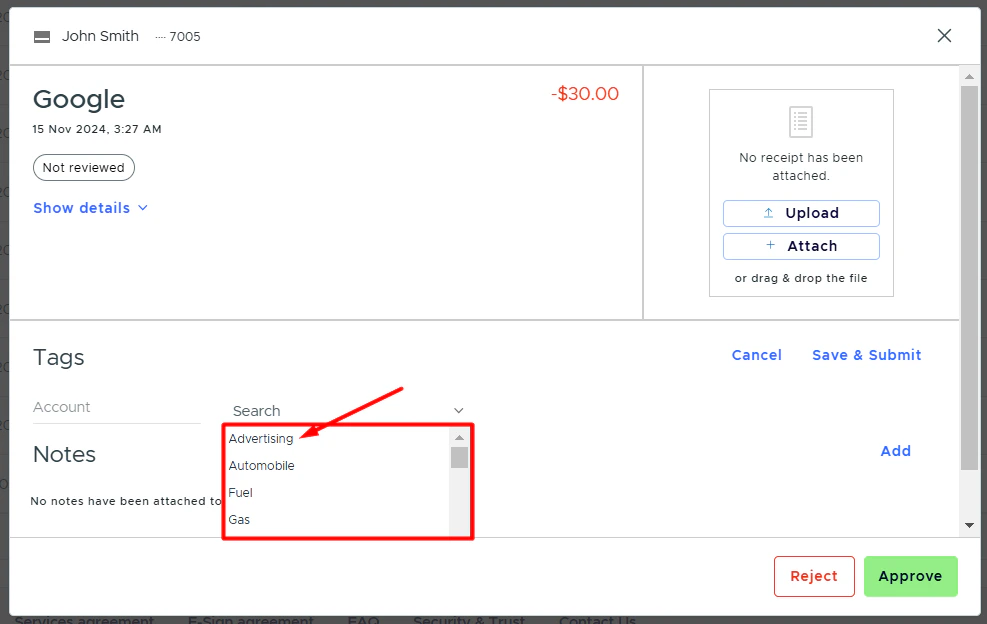
- This name is what the Admins and cardholders will see in the dropdown list.
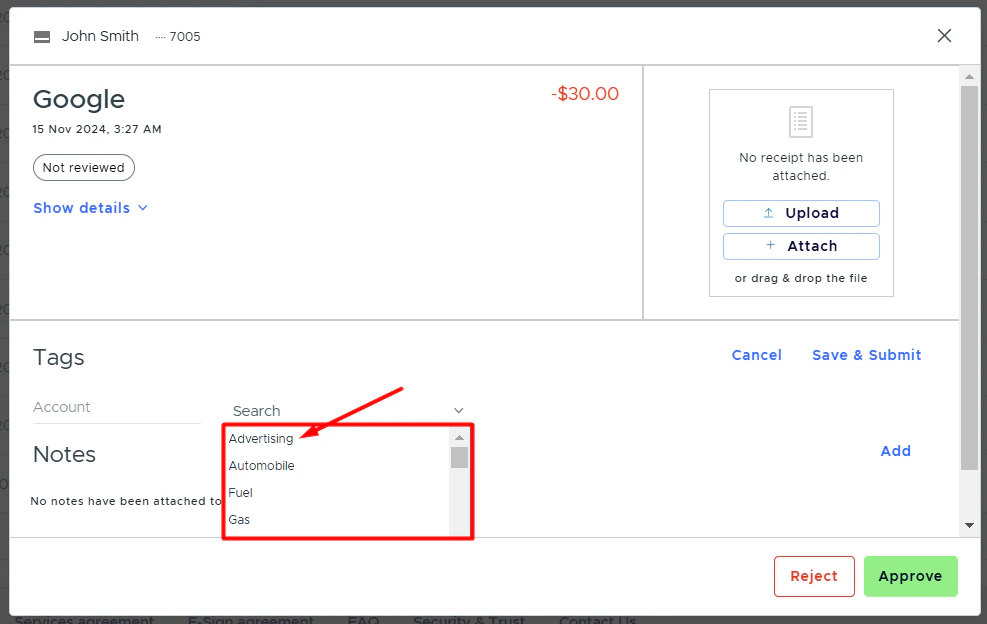
- This field is limited to 200 characters. We recommend using shorter lengths as the full name may be cut off before that on older mobile devices / smaller screens.
- Add Option Value.
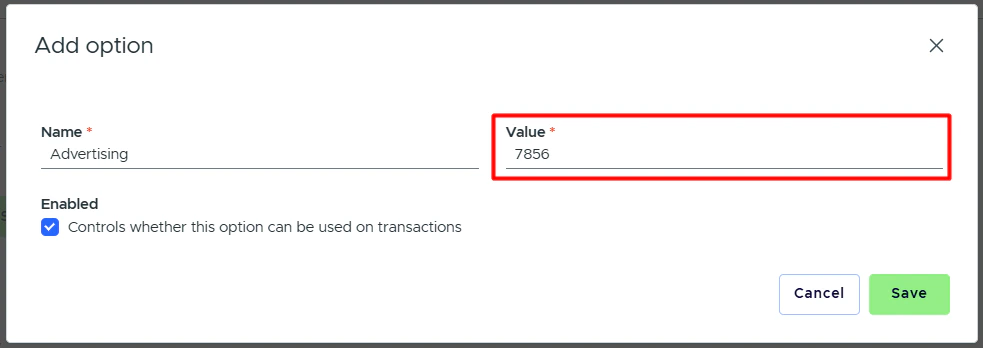
- The “Option Value” is a code used in your accounting software.
- It provides a 1-to-1 match with your system to track and analyze transactions.
- The “Option Value” is often (though not always) a number, e.g., a GL account number.
- The cardholder does not see the option value.
Note:All option values must be unique. You will receive a duplicate entry error if the option values are not unique.
- Enabled controls whether this option can be used on transactions.
- If it is disabled, the option will not be shown in the dropdown list.
- Available to. You can show only relevant and necessary tag options to your employees when they tag their purchases. Note that this is available only to tags of a Dropdown tag type.
The “Available to” field lists all your groups. By default, every tag option is available to all cardholders. From the dropdown, select the relevant group(s) to limit the option’s visibility and availability to those specific cardholders. You can select multiple groups. See more details in “How to limit tag values with tag restrictions?”
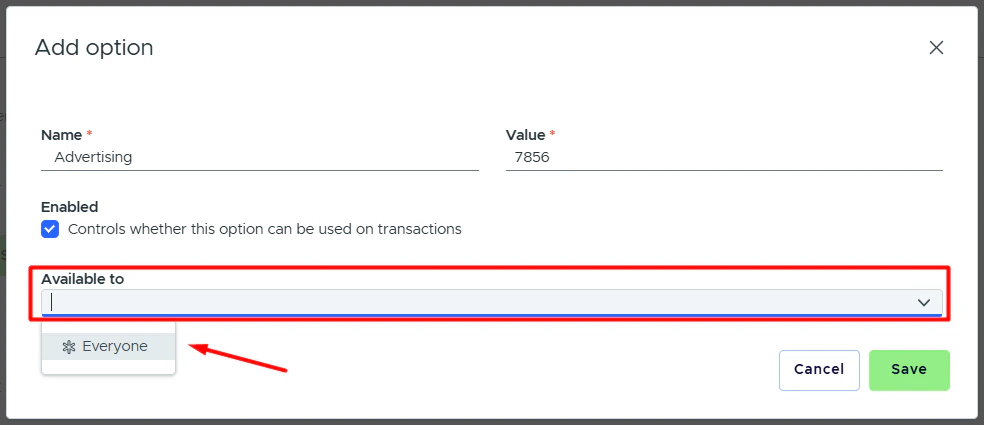
- Click Save.
Import CSV
You can import tag options by uploading them to PEX in a .csv (Comma Separated Values) formatted file.- PEX does not accept uploads in proprietary formats like .xls (Excel) or .numbers (Numbers).
- Popular programs like Excel and Numbers will let you save files as .csv
- If you have problems importing the information to PEX, please see “Fixing Common Errors with File Imports”.
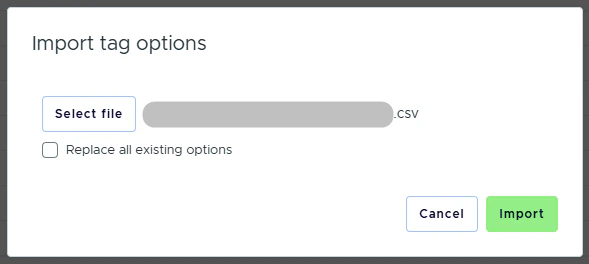
- Click Select file.
- Select the .csv file you want to upload
- Click Open.
- Click Import to upload the .csv file
File example:
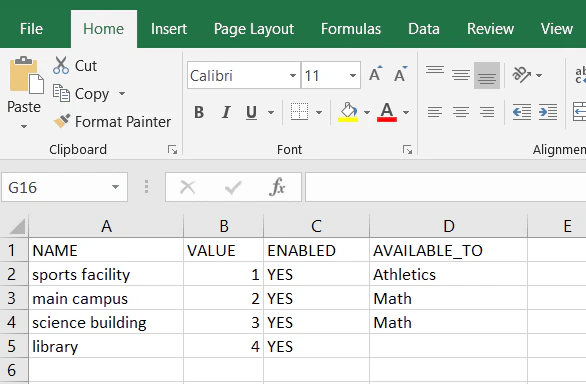
- All names must be unique. You cannot add two tag options with the identical names.
- You will receive a duplicate entry error if the names are not unique.
- All option values must be unique. You cannot add two tag options with the identical option values.
- You will receive a duplicate entry error if the option values are not unique.
- If you manually add options and later import csv option values, the system will not duplicate the same tag option values from your csv if you’ve already added them manually.
- If you want your tag option to be available to everyone, leave a blank value in the “AVAILABLE_TO” column.
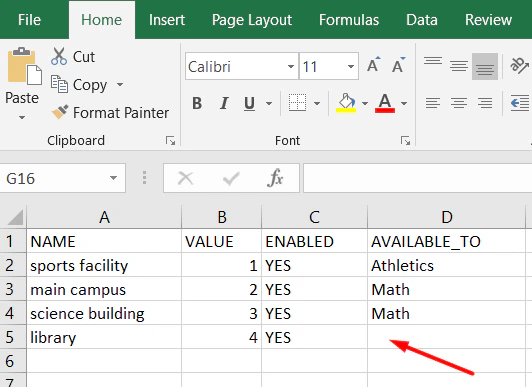
- If the “Replace all existing options” is checked while importing a csv file then:
- All existing tag options will be disabled.
- New tag options will be added as enabled or disabled depending on the ENABLED column in the csv file.
- If you already have tag options saved but want to update them using a csv file, keep the following in mind:
-
Scenario A
- Update name for tag option A in the csv file
- Do not update option value for tag option A in the csv file Then after importing the file:
- No new tag option will appear
- The name of an existing tag option A will be updated.
-
Scenario B
- Update name for tag option A in the csv file
- Update option value for tag option A in the csv file
- A new tag option B will appear with updated name and option value
- An existing tag option A will not be updated.
-
Scenario C
- Update option value for tag option A in the csv file
- Do not update name for tag option A in the csv file
Then after importing the file:
- You will receive a duplicate entry error because you cannot have both a new tag and an existing tag with identical names.
-
Scenario D
- Update “Enabled” for tag option A in the csv file Then after importing the file, the “Enabled” for an existing tag option A will be updated.
-
Scenario A
Options filters and actions
There are several actions you can take with options, including: Filtering options by:- Enabled/disabled status
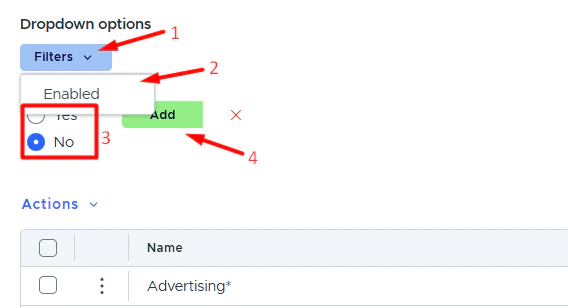
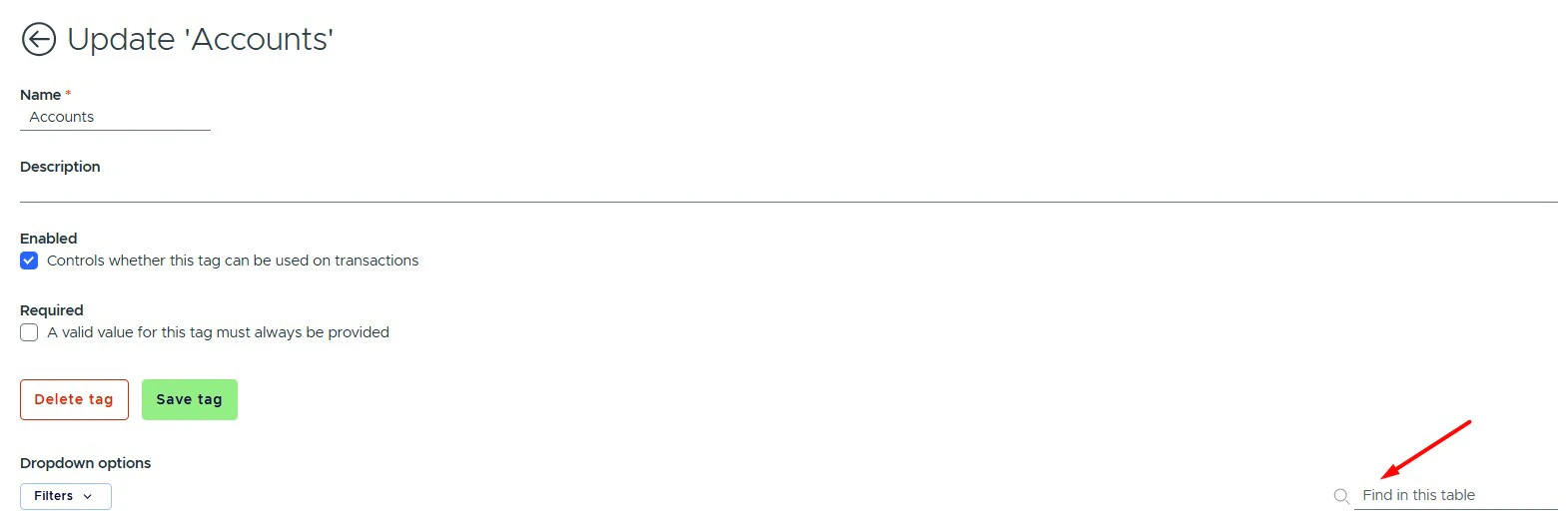
- If you’re searching for the disabled option but the list is filtered to hide disabled options, it won’t appear in the search results.
- Clear the filters to display all options first, then run the search.
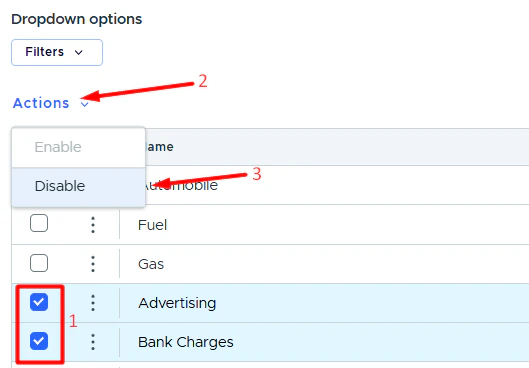
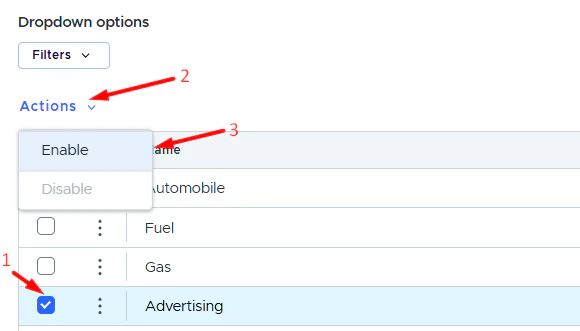
- Click the pencil icon next to the option you want to edit.

Sorting options alphabetically:
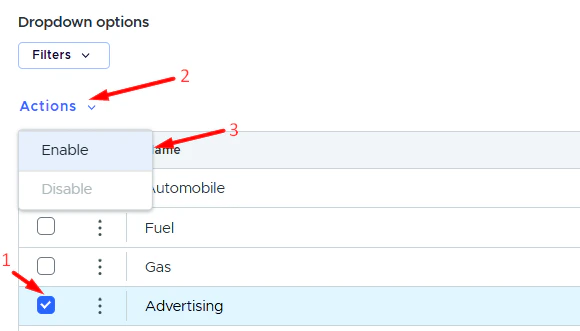
- Click Sort alphabetically.
- Confirm.

- Click Export CSV.
Text
It is a free-text entry tag that can be alphabetical, numerical, alphanumeric, or none (unrestricted).-
Name your tag.
- This is what Admins and cardholders will see in the Tags section on a transaction.
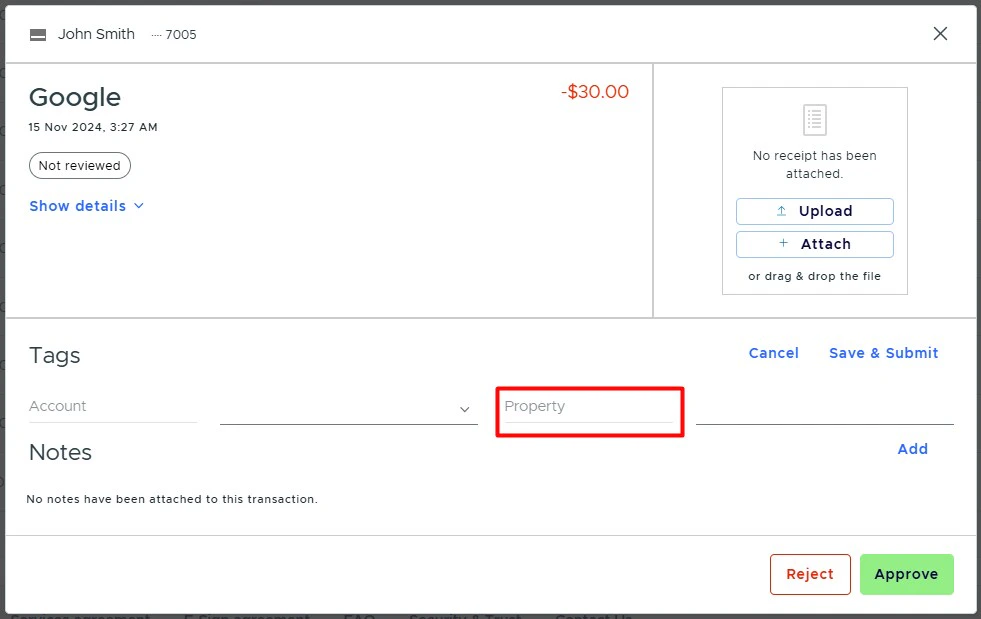
- Optionally, you can add a description.
-
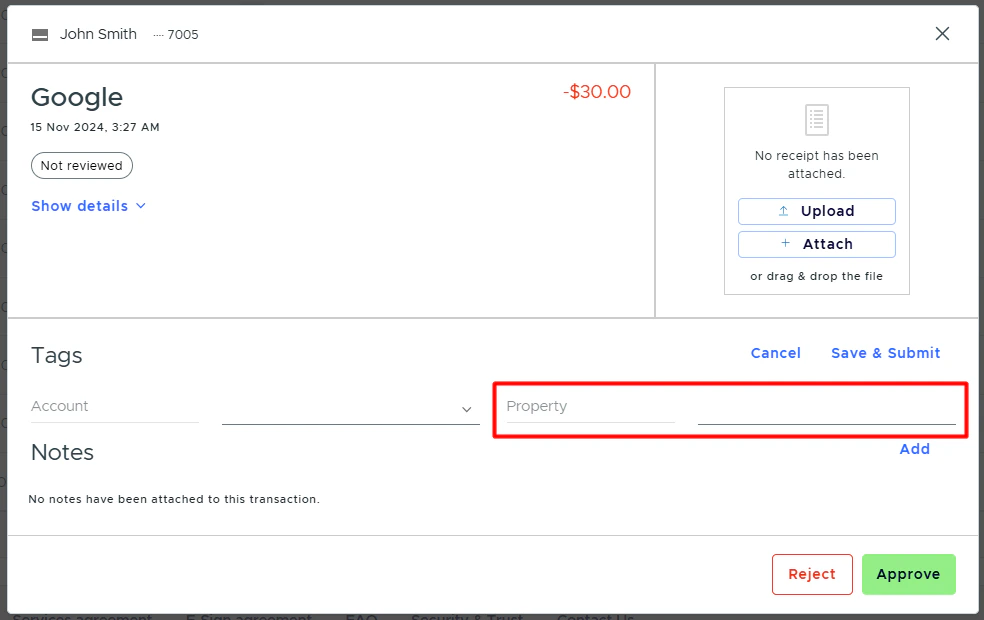
Choose whether or not the tag is enabled.
- When the “Enabled” checkbox is selected, users will see this tag in the Tags section on a transaction.
-
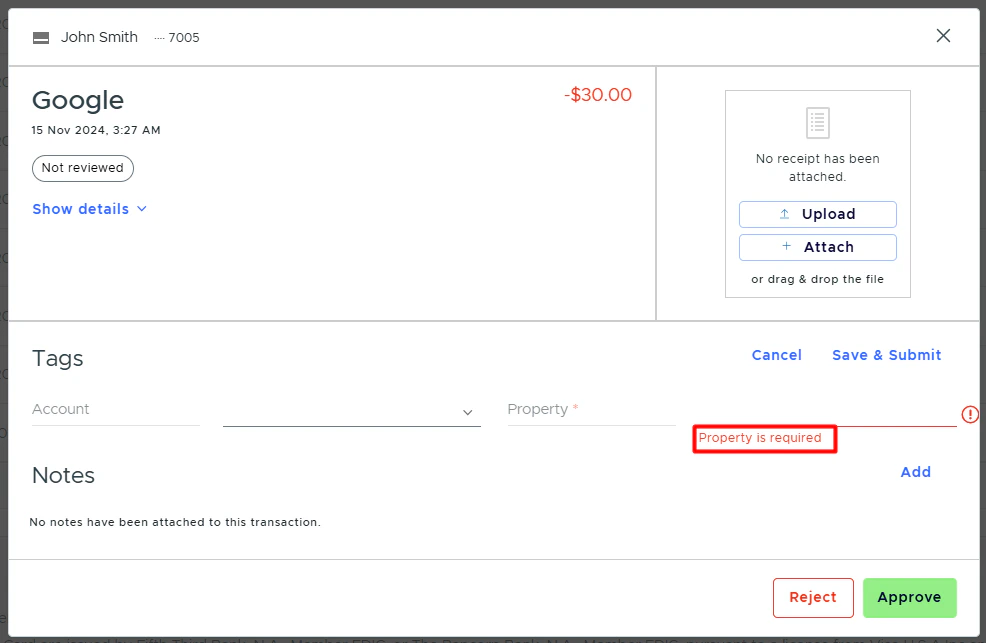
Choose whether or not the tag is required.
- When the “Required” checkbox is selected, users must add this tag when they click “Add” or “Edit” in the Tags section on a transaction.
-
Select a validation type for the field:
- None
- Alphabetic
- Numeric
- Alphanumeric
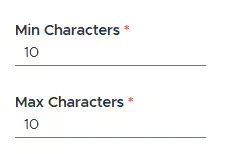
- Add Min Characters
-
Add Max Characters
- If you want users to enter an exact number of characters, set the same value for both the Minimum allowed characters and Maximum allowed characters fields.
- Click Save.
Decimal
It allows decimal numbers (such as a dollar amount).- Name your tag.
- This is what Admins and cardholders will see in the Tags section on a transaction.
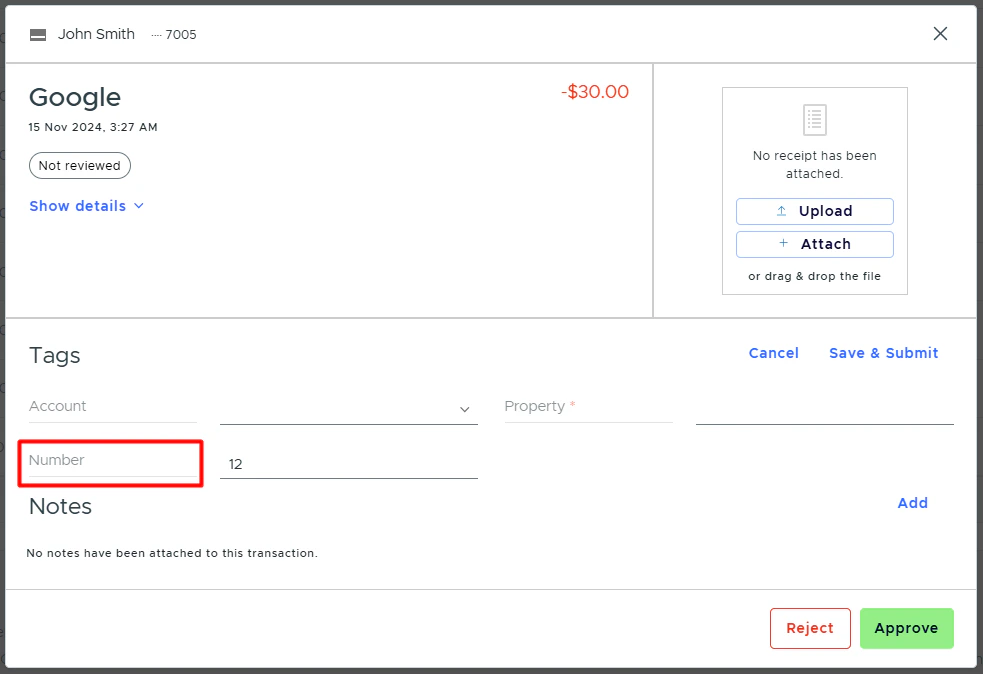
- Optionally, you can add a description.
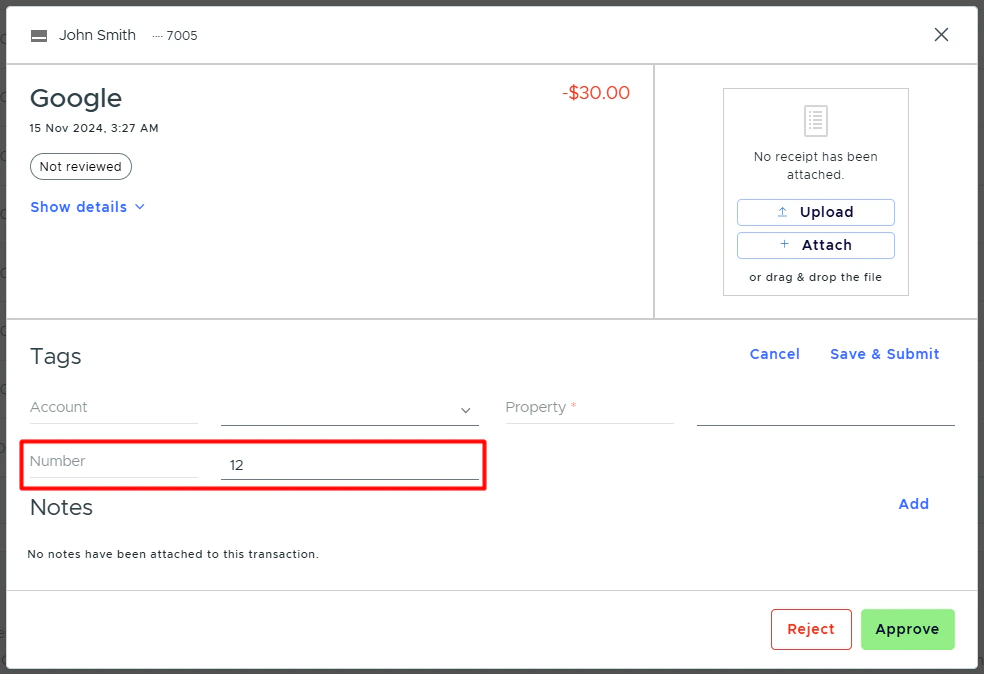
- Choose whether or not the tag is enabled.
- When the “Enabled” checkbox is selected, users will see this tag in the Tags section on a transaction.
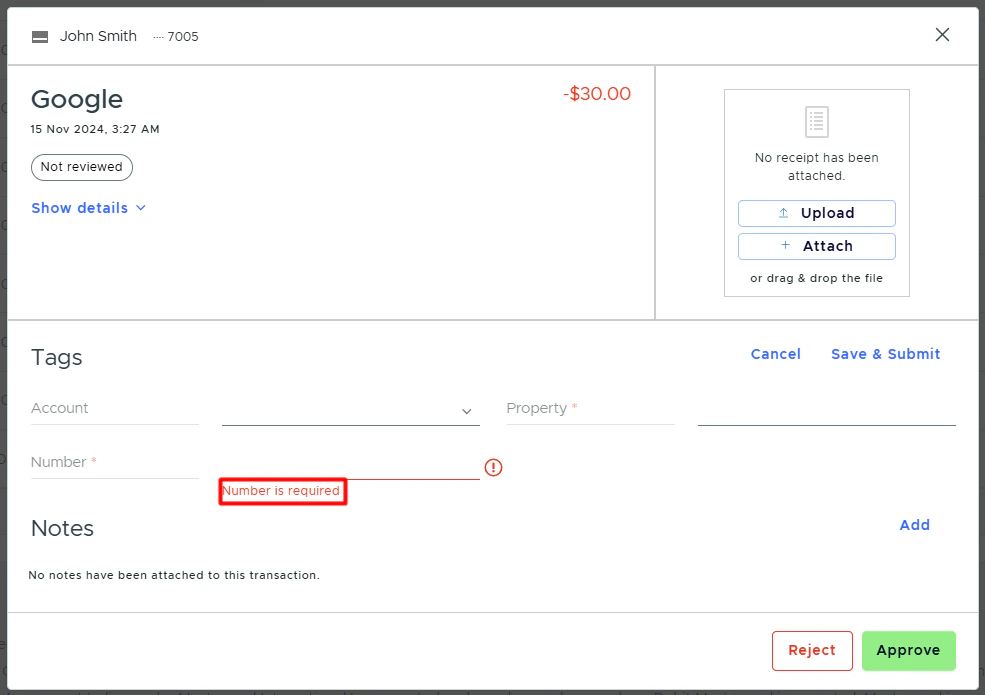
- Choose whether or not the tag is required.
- When the “Required” checkbox is selected, users must add this tag when they click “Add” or “Edit” in the Tags section on a transaction.
- Click Save.
Sales Tax ($)
- Name your tag.
- This is what Admins and cardholders will see in the Tags section on a transaction.
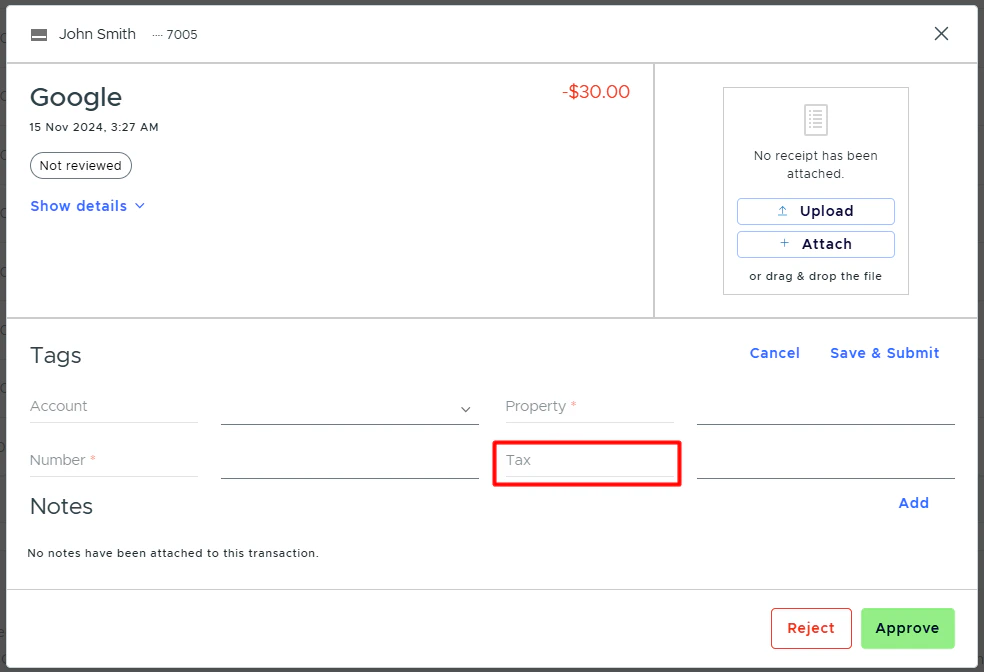
- Optionally, you can add a description.
- Choose whether or not the tag is enabled.
- When the “Enabled” checkbox is selected, users will see this tag in the Tags section on a transaction.
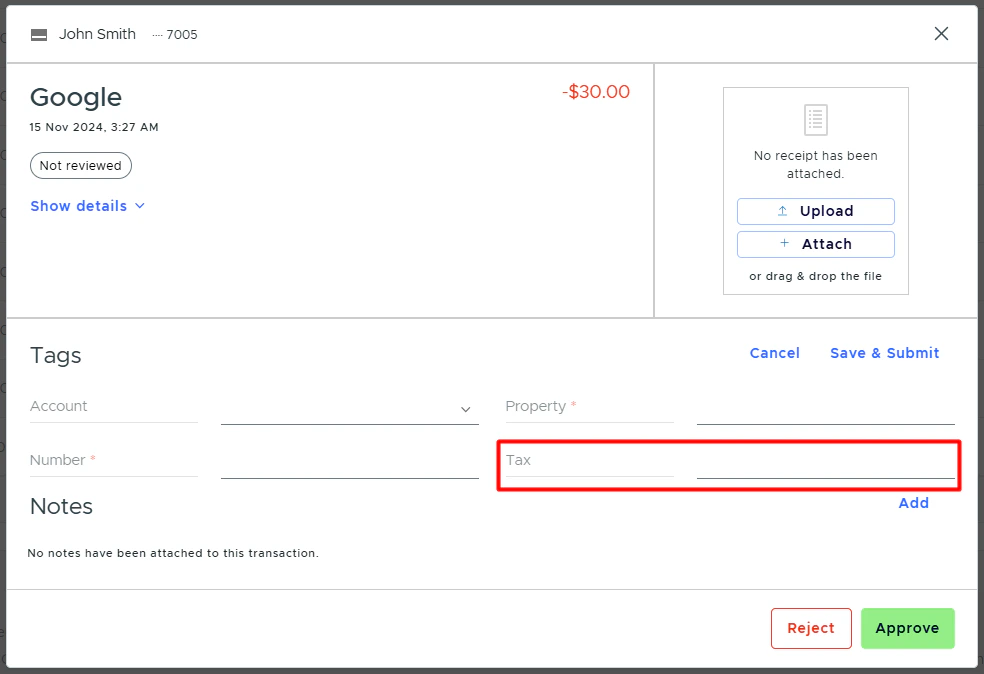
- Choose whether or not the tag is required.
- When the “Required” checkbox is selected, users must add this tag when they click “Add” or “Edit” in the Tags section on a transaction.
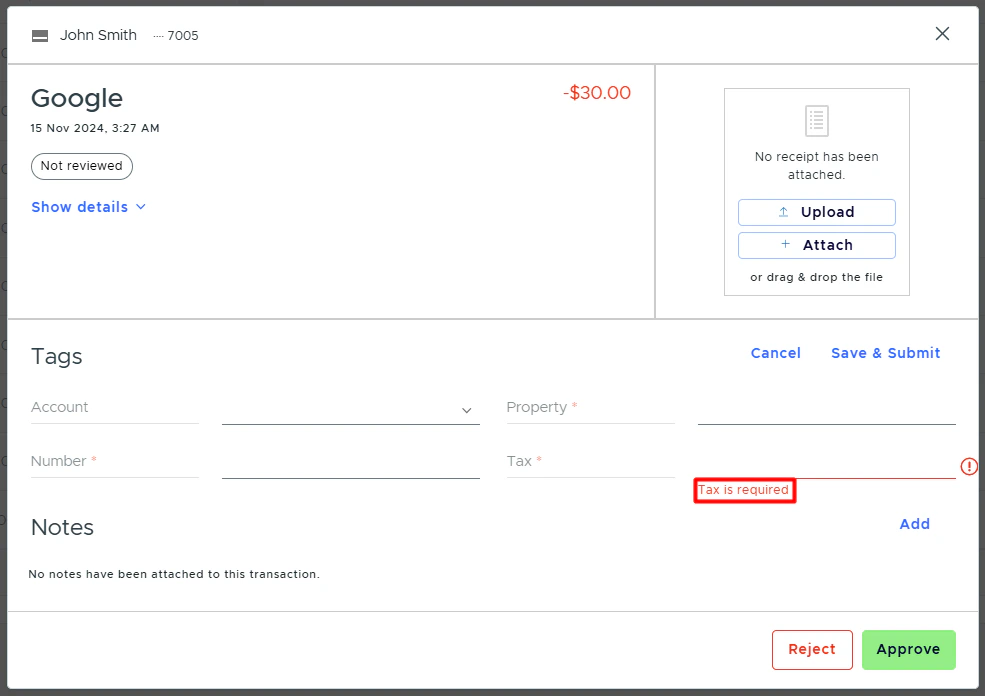
- Click Save.
Yes/No
Yes/No tag is shown as a checkbox.- Name your tag.
- This is what Admins and cardholders will see in the Tags section on a transaction.
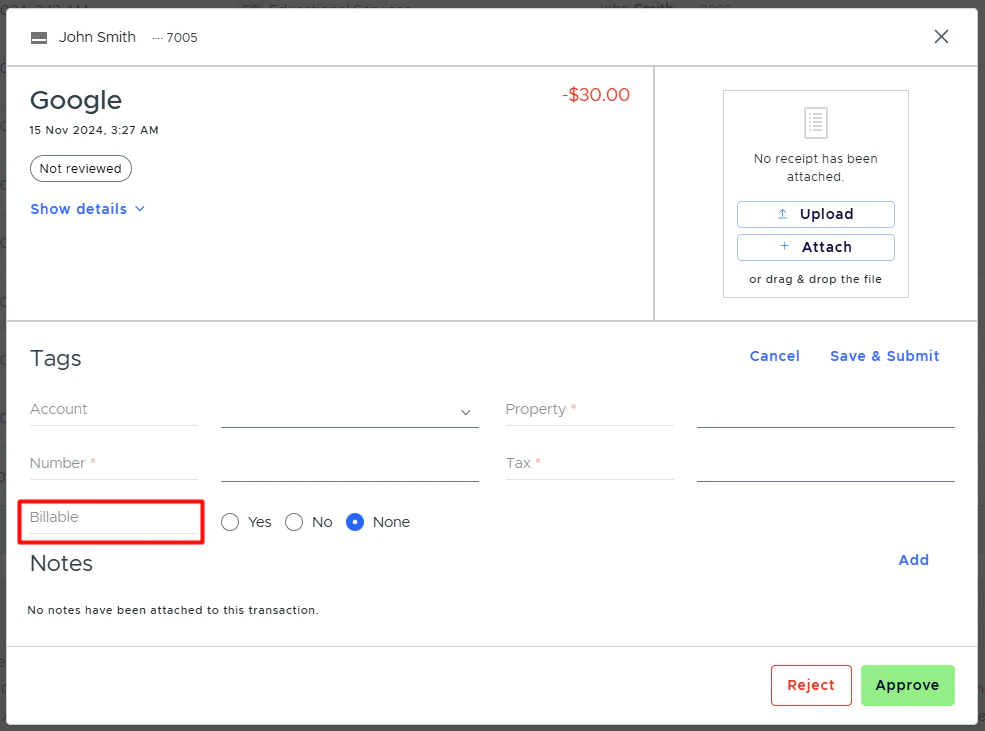
- Optionally, you can add a description.
- Choose whether or not the tag is enabled.
- When the “Enabled” checkbox is selected, users will see this tag in the Tags section on a transaction.
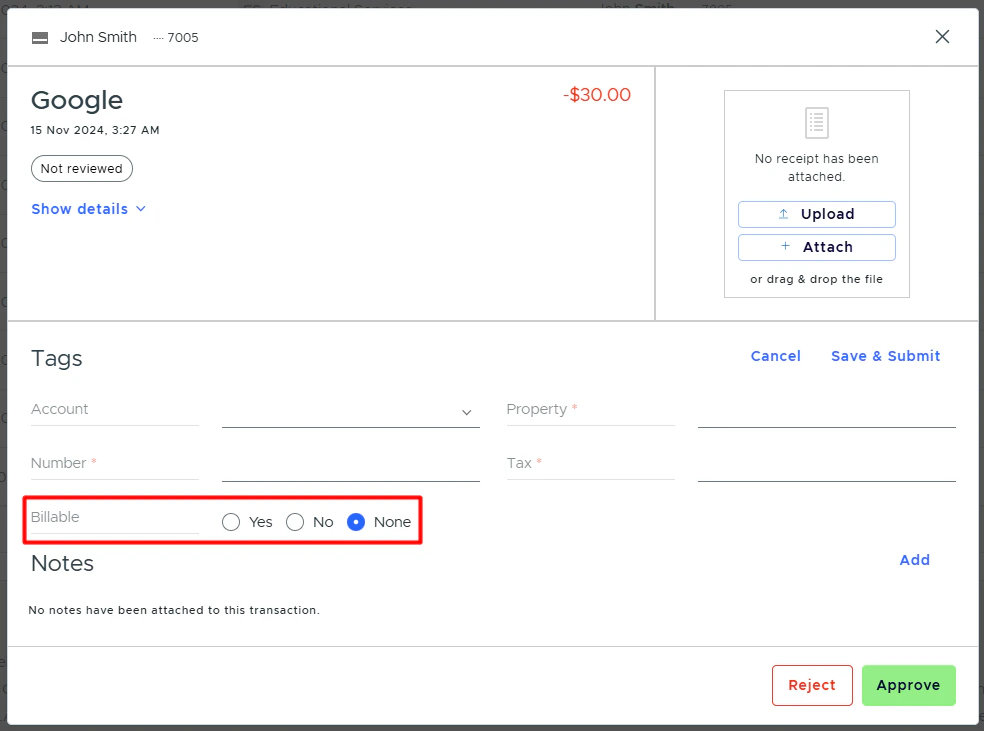
- Choose whether or not the tag is required.
- When the “Required” checkbox is selected, users must add this tag when they click “Add” or “Edit” in the Tags section on a transaction.
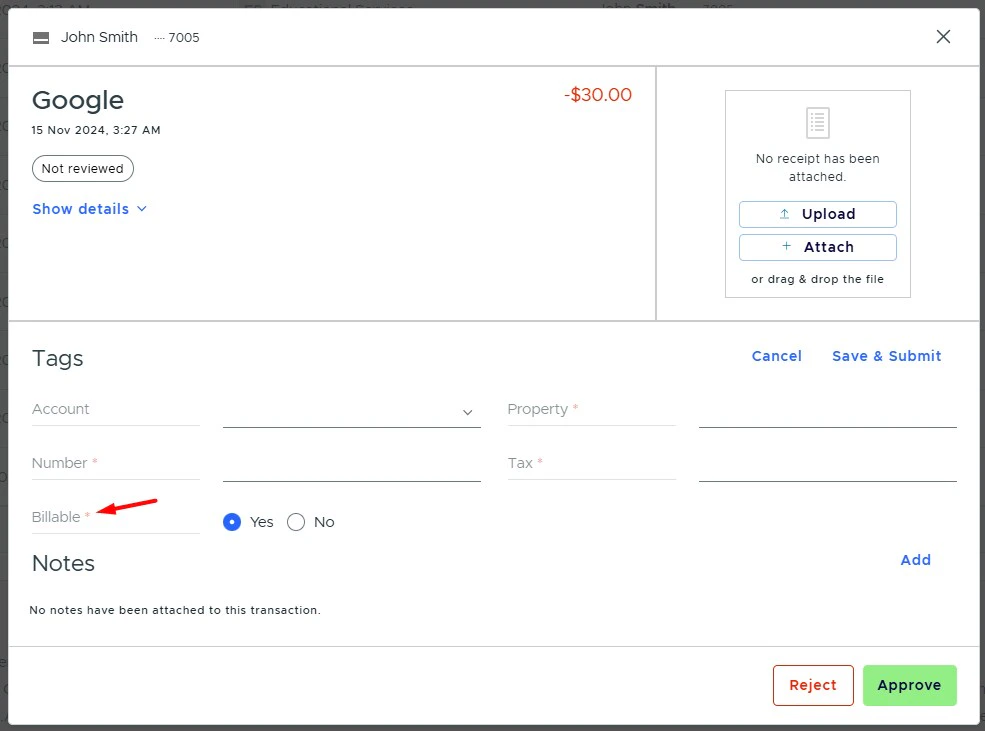
- Click Save.
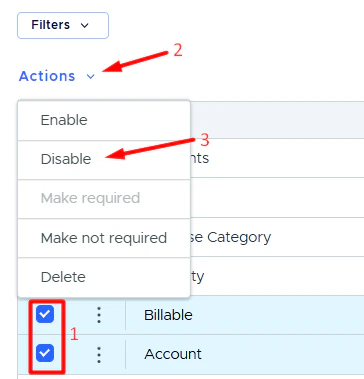
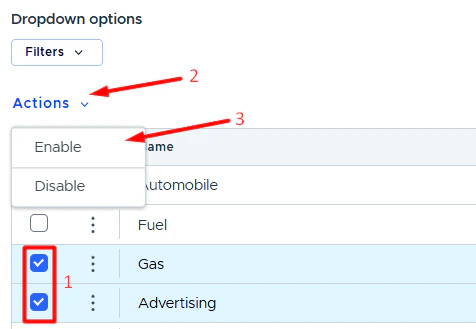
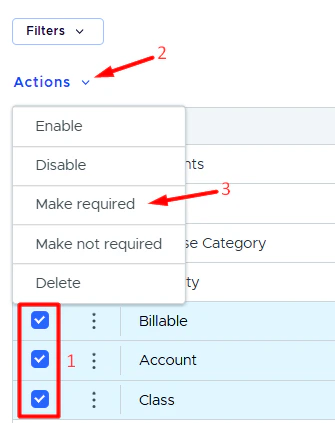
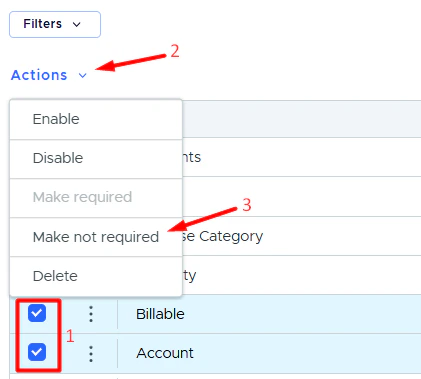
Tag filters and actions
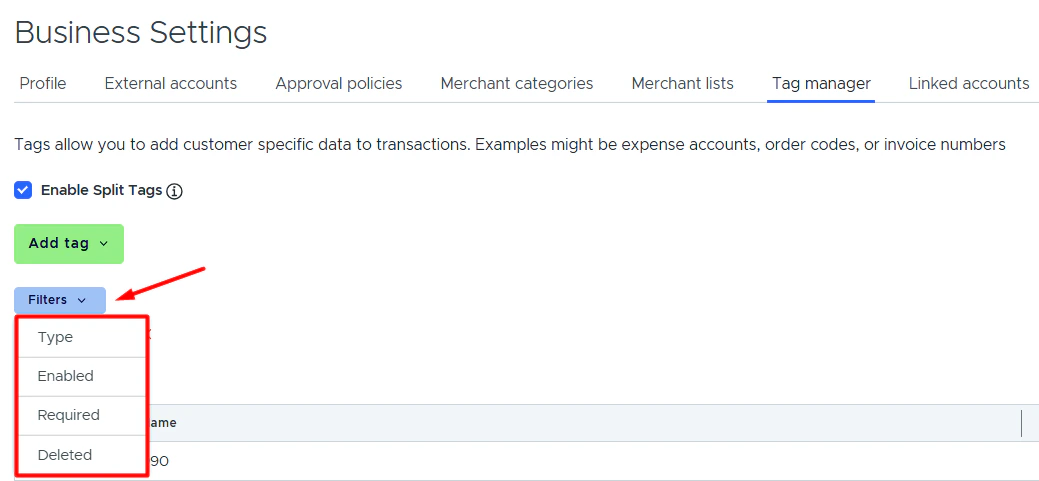
There are several actions you can take with tags, including: Filtering tags by:- Type
- Enabled status
- Required status
- Deleted status
-
If you’re searching for a deleted tag but the list is filtered to hide deleted tags, it won’t appear in the search results.
- The same is true for all other statuses: enabled, disabled, required, not required.
-
Clear the filters to display all tags first, then run the search.
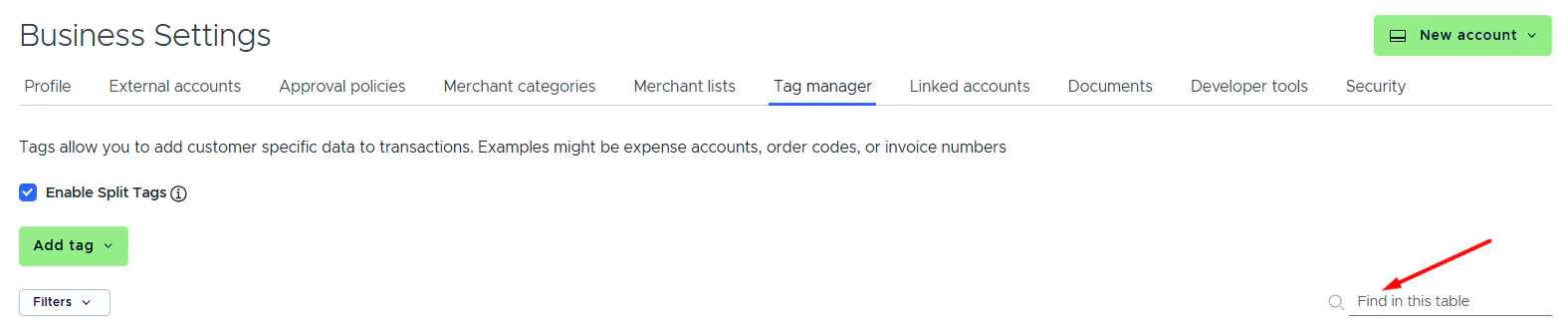
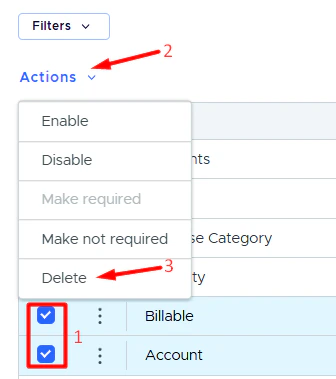
- Click the pencil icon next to the tag you want to edit.

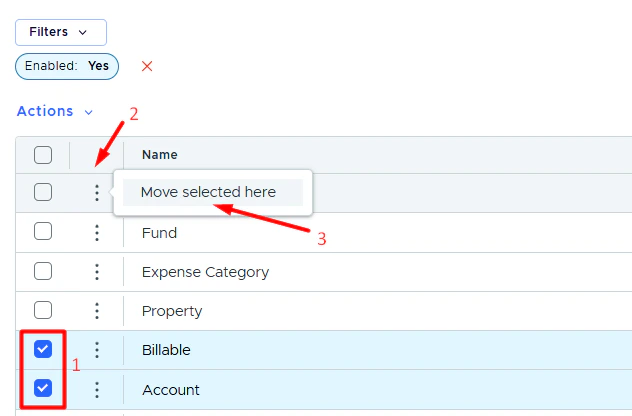
FAQ
I am using a csv to upload tag options for a dropdown tag. What does this error mean: "CSV file has one or more duplicate entries
I am using a csv to upload tag options for a dropdown tag. What does this error mean: "CSV file has one or more duplicate entries
**Option values (usually GL codes) must be unique. Please ensure there are no duplicate option values in your file.
Once a cardholder has tagged their transactions, how can I prevent them from changing the tag at a later time?
Once a cardholder has tagged their transactions, how can I prevent them from changing the tag at a later time?
Once a transaction has been approved or rejected by an administrator, the cardholder can no longer edit or change a tag for the transaction.
How can I ensure that I receive transactions for review only when the required tags have been added?
How can I ensure that I receive transactions for review only when the required tags have been added?
What tag option values can Admins view and use when updating a tag(s) on a purchase?
What tag option values can Admins view and use when updating a tag(s) on a purchase?