

Review
To review transactions with receipts and tags:- Log in as an Administrator to https://dashboard.pexcard.com
- Click on the Review tab in the left navigation.
- The Review tab will open to show all “Not reviewed” transactions in the first tab.
- Receipts uploaded to pending transactions that did not match to a settlement are listed on the “Expired” tab.
- To view a receipt in full, hover over the receipt and click on the receipt anywhere outside of the “Edit” button.
- The receipt will open as a full screen modal.
- Alternatively, hover over the receipt and click “Edit” to review the receipt in medium size.
- You can also download the image from the receipt screen by clicking the download button.
- Review the receipt image and corresponding transaction details and notes.
- To complete the review of a receipt, assign it to one of these three statuses:
- Approve. The receipt matches the transaction details and/or the tags assigned to the transaction are correct.
- Click the “Approve” button.
- Approved status is indicated by a green badge in the transaction history for the card.
- The cardholder cannot replace or delete an approved receipt.
- Reject: The receipt does not match the transaction details and/or the tags applied are inaccurate.
- Click the “Reject” button with the red “x”.
- Reach out to the cardholder to have them attach the correct receipt.
- When a new receipt is attached, the status will change from “Rejected” to “Not reviewed”.
- “Rejected” status is indicated by a red badge in the transaction history for the card.
- Not Reviewed: A transaction with a receipt will have this status until it is approved or rejected. Admins can choose to scroll to another transaction and leave the transaction in the Not Reviewed status.
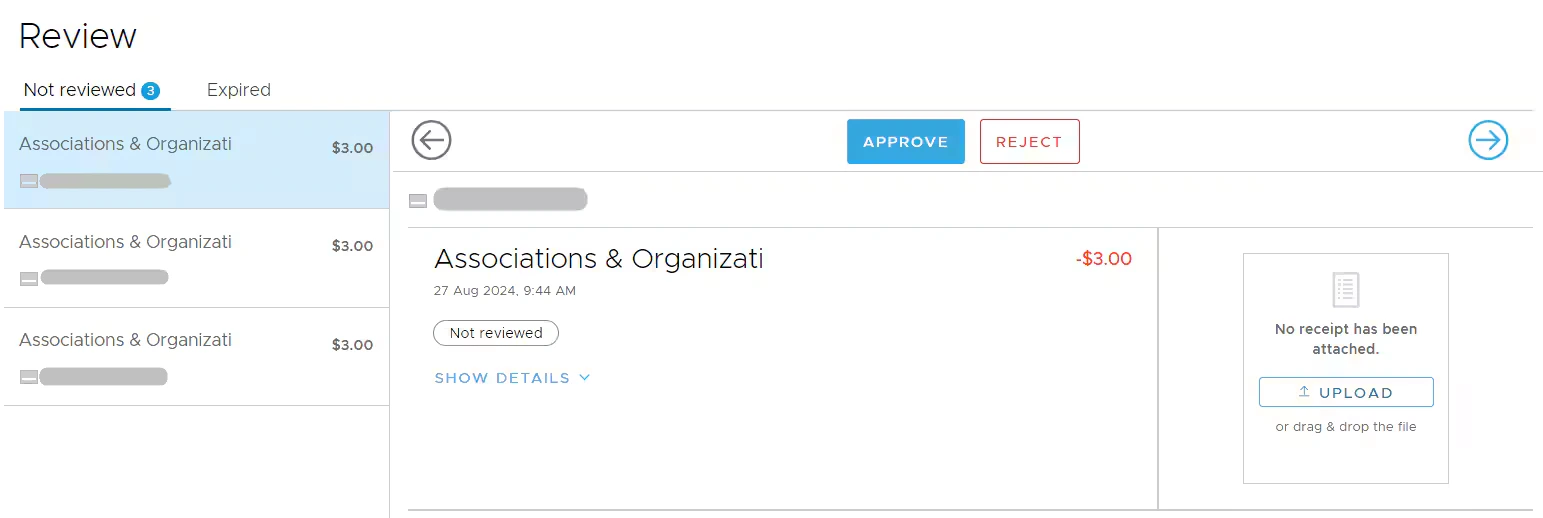
- Approve. The receipt matches the transaction details and/or the tags assigned to the transaction are correct.
Note:
- Cardholders CANNOT modify a receipt or notes once it has been approved by an administrator. To update a receipt or note, the administrator must unapprove the transaction, make the required changes, Save, then approve the transaction again.
- Transactions can be approved from the PEX Web App. The ability to approve or reject is unavailable on the PEX mobile app.
- If you are unable to approve or reject a transaction, first ensure a receipt is attached, then download the receipt, delete it, then reattach.
- If a receipt is not attached and a review to approve/decline the transaction is required for the transaction to sync, you may instead add a tag to the transaction.
How to configure the ‘Transaction review requirements & missing info reminders’ feature
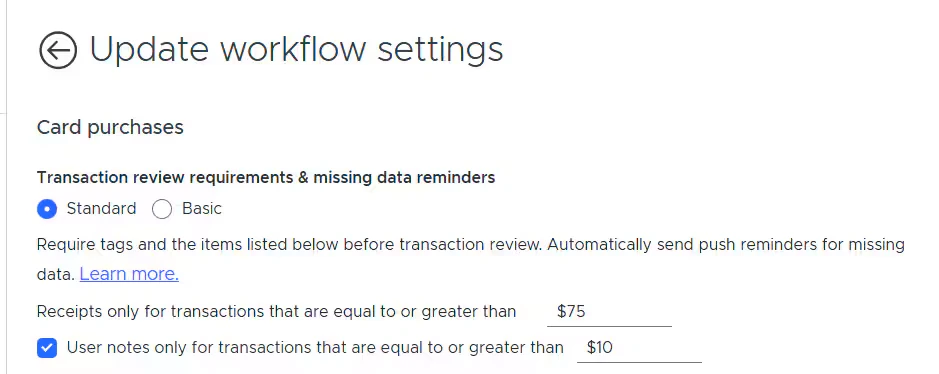
The “Transaction review requirements & missing data reminders” business setting controls when the transactions are sent for the manager’s review. You can find it by navigating to Business settings -> Workflows-> click “Edit” -> find the “Transaction review requirements & missing info reminders” section.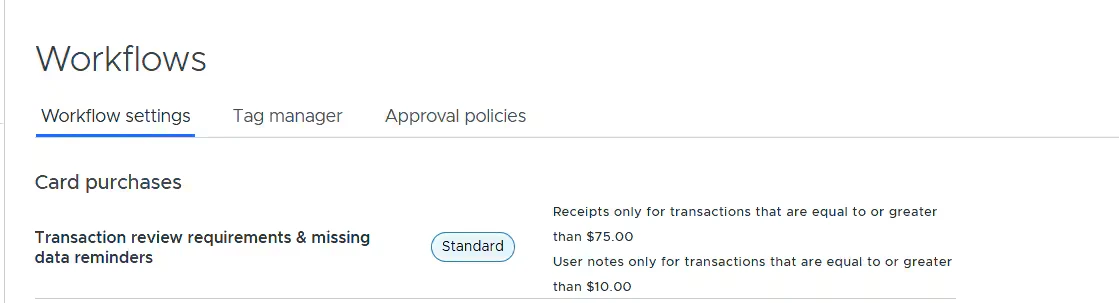
- You can set up a threshold for the receipt requirement
- You can make user notes a part of transaction review requirements and set up a threshold for that.
- ‘Admin-only control…’ is enabled by default and cannot be disabled. This means that once push/email or SMS receipt reminders are enabled, cardholders won’t be able to disable them.
Mobile push notifications will be sent by default if the PEX mobile app is installed; email and sms have to be enabled by cardholders.
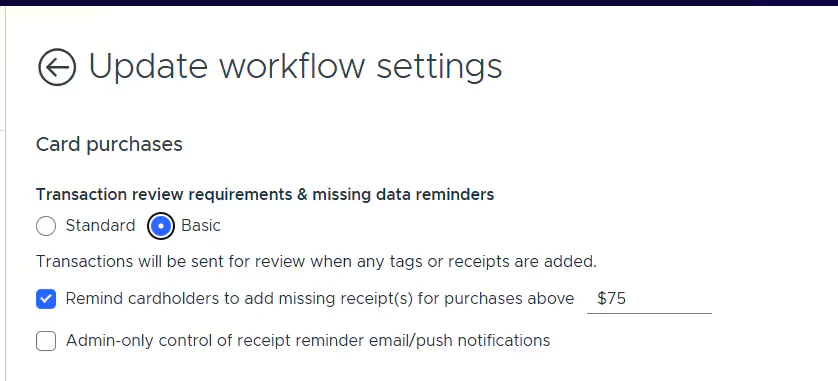
- You can set up a threshold for receipt reminders (mobile push notifications will be sent by default if the PEX mobile app is installed, email and sms have to be enabled by cardholders)
- ‘Admin-only control…’ means that once push/email or sms receipt reminders are enabled, cardholders won`t be able to disable them.
When transactions get into “Not Reviewed” status
You can see that a transaction is in “Not Reviewed” status in the “Transactions” menu.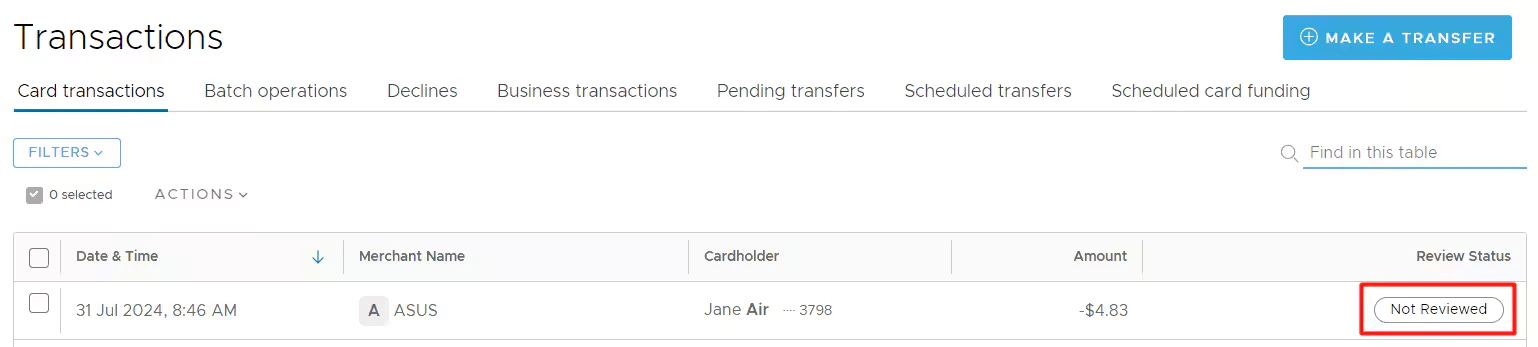
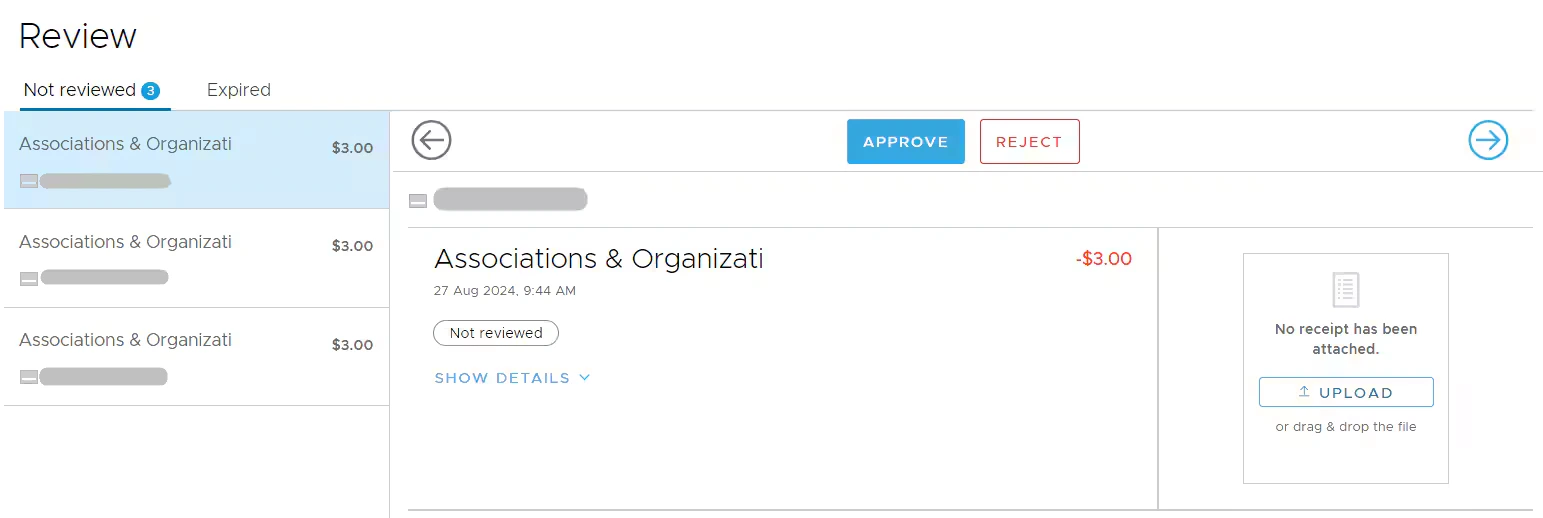
Scenario A
- No approval policy set up.
- The “Basic” mode under the “Transaction review requirements & missing info reminders” setting is enabled.
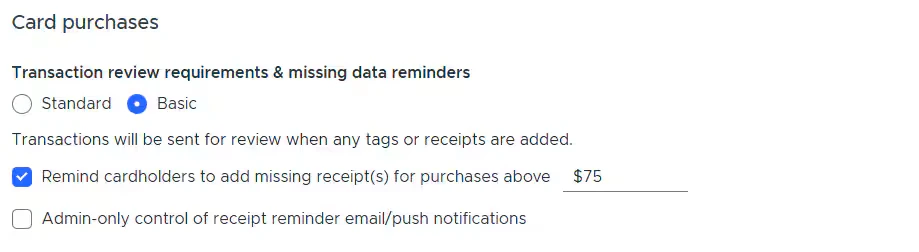
- Admin(s) or cardholders add either a tag (required or not), a receipt, or both.
- Then, the transaction appears to all Admins on the “Not Reviewed” tab.
Scenario B
- No approval policy set up.
- The “Standard” mode under the “Transaction review requirements & missing info reminders” setting is enabled.
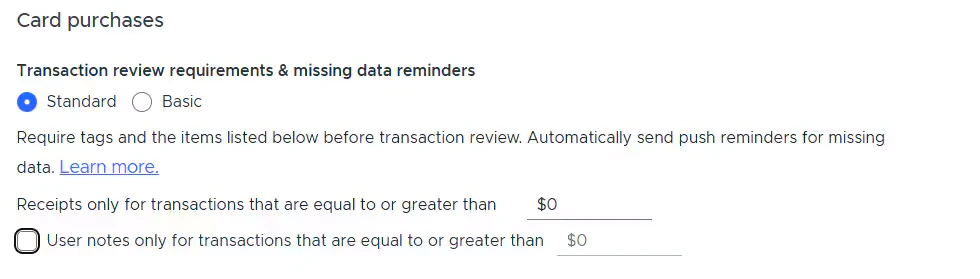
- Admins or cardholders must add required tags and receipts to all transactions to appear to all Admins on the “Not Reviewed” tab.
Scenario C
- Approval policy is set up.
- The “Standard” mode under the “Transaction review requirements & missing info reminders” setting is enabled.
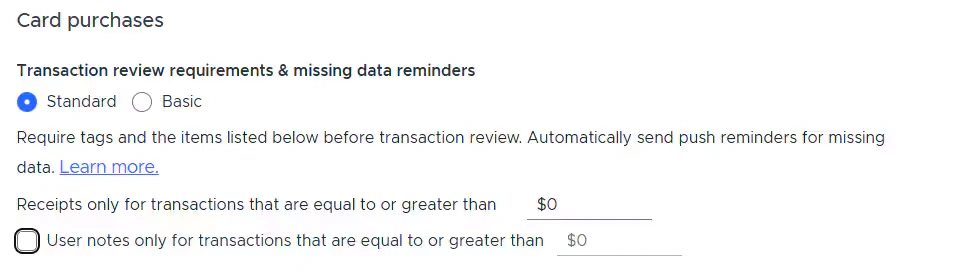
- Admins or cardholders must add all required tags and a receipt for the transaction to appear on the “Not Reviewed” tab, visible only to the Admin(s) assigned to approve or decline the transaction.
Scenario D
- Approval policy is set up.
- The “Basic” mode under the “Transaction review requirements & missing info reminders” setting is enabled.
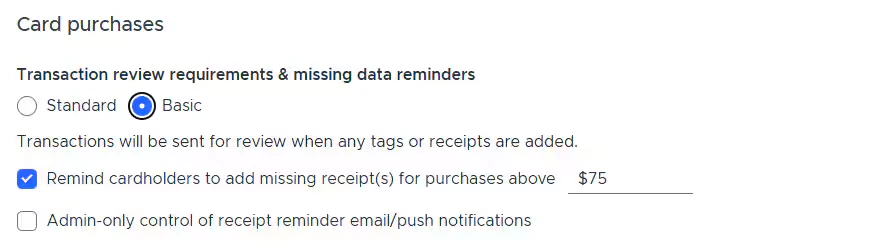
- Admins or cardholders must add a tag (required or not) or a receipt, or both, for the transaction to appear on the “Not Reviewed” tab, visible only to the Admin(s) assigned to approve or decline the transaction.