

Accessing the app
Log on to your PEX account on dashboard.pexcard.com.Note:
- You do not need to download any file to install an app. The exporter is web-based.
- In order to see the application, you need to be an Admin with ViewCardUsage and Edit Business Profile permissions.
Configuration
Select the earliest transaction date. The exporter will pick transactions that are settled on and after this date.
There are three settings corresponding to three types of transactions on the PEX platform: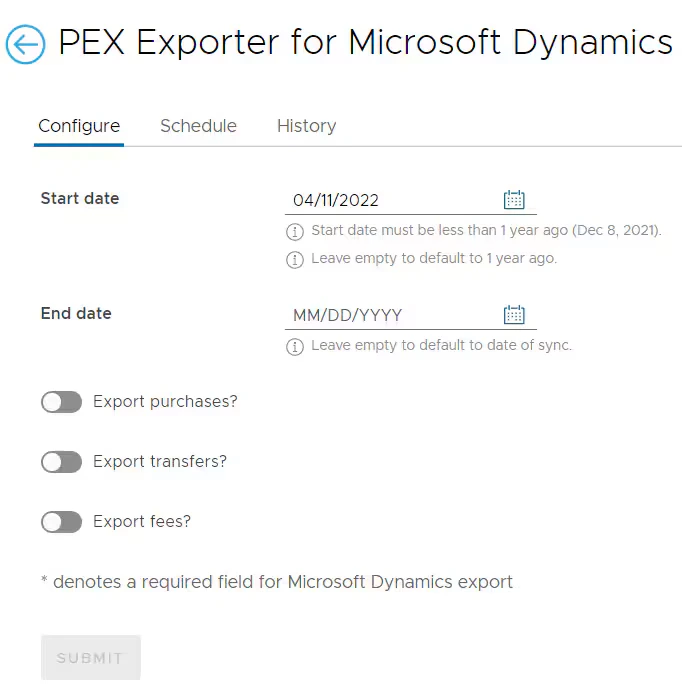
- Sync Purchases includes your PEX card purchases made at the merchant.
- Sync Transfers includes PEX account funding/defunding transactions.
- Sync Fees includes PEX account fees if any.
Configure purchase, transfer, and fee transactions
You are presented with the option to sync Purchases, Transfers, and/or Fees. Start with Purchases. Turn the toggle ON for Sync Purchases and select whether you want to export all or only approved transactions. The table represents the configuration for each column in the file:- Enabled. This option controls whether the corresponding Target field is included in the file. If turned OFF, the Target field is excluded; if ON, it is included. All required fields denoted with an asterisk (
*) are enabled by default. - Target field. These are the names of the columns in the file.
- Source. Select which data is populated in the Target field. The source can be:
- Transaction — data from the transaction is used (e.g. amount and date may be mapped from the transaction).
- Text — the target field is populated with the text you enter in the source column.
- Tag — the target field is populated from a tag value. Tags are based on your business’s active PEX tags. To manage tags, go to Business settings > Tag manager.
- Source value. Depending on the selected Source, you can select or enter the source value.
Note:All options included as a default can be updated based on your preferences.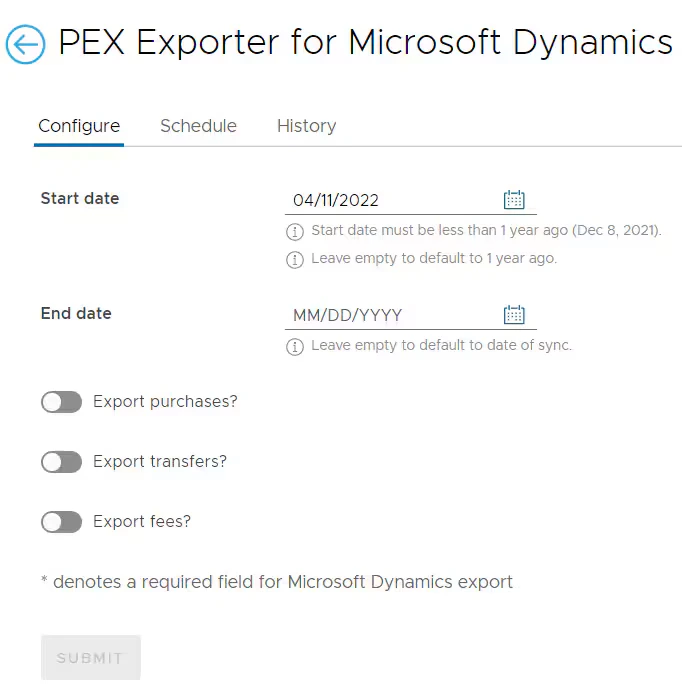
Note:
- When configuring transfers, Account No. is the bank account your business uses to fund transactions.
- When configuring fees, Account No. is the bank account from which you pay fees for the PEX platform. Tags selected are based on your business’s active PEX tags. To manage tags, go to Business settings > Tag manager.
Schedule
You can create a schedule by specifying the Schedule date and Schedule time when the file will be generated. The schedule can be recurring by turning on the Repeat toggle.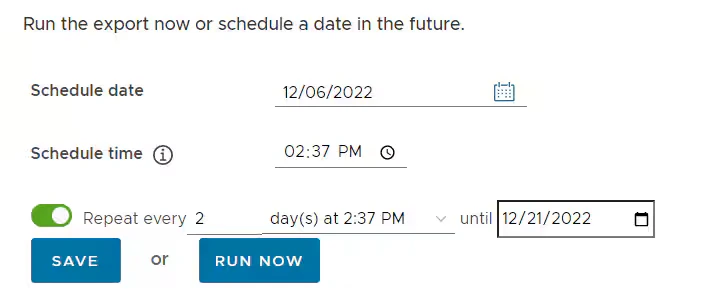
History
When the export file is run now or on the set schedule, the file is available to download in the History section. The History tab lists prior exports, including the date range selected, status, number of transactions found, number eligible, and number exported. The Action column includes a download button when the file is ready. For a small date range with few transactions, the download is usually ready in less than a minute. For a large date range, it may take a few minutes—refresh the screen for the latest status.Note:If you selected Approved transactions only on the Configure screen, only approved transactions are shown.

FAQ
What type of files are supported?
What type of files are supported?
The PEX Exporter for Microsoft Dynamics supports .CSV and .XLS.
Are split tags supported for the export?
Are split tags supported for the export?
Can I re-export a purchase?
Can I re-export a purchase?
Every exported purchase has a “Synced to PEX Connector for Microsoft Dynamics” note. If you remove this note, the purchase will be re-exported.