

Creating Airtable Table
Sign in your Airtable Account.
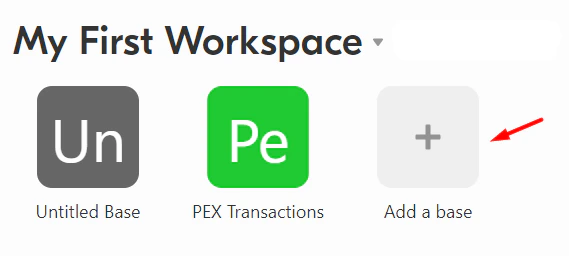
Airtable Table Format
In order to sync transaction data from PEX, the Airtable table should have the following columns and strictly adhere to the below listed data format.Note:Column headers should be named exactly the same because the sync is case-sensitive.
| Columns | Data type |
|---|---|
| Transaction ID | Number Format: Decimal places (0) Allow negative numbers OFF |
| Merchant ID | Single line text |
| MCC | Single line text |
| Merchant Name | Single line text |
| Transaction Time (EST) | Date Date format: ISO Include time ON Time format: 12 hour Use the same time zone for all collaborators OFF Display time zone OFF |
| Settlement Time (EST) | Date Date format: ISO Include time ON Time format: 12 hour Use the same time zone for all collaborators OFF Display time zone OFF |
| Cardholder ID | Number Format: Decimal places (0) Allow negative numbers OFF |
| Cardholder Name | Single line text |
| Card Number | Single line text |
| Description | Single line text |
| Amount | Currency Currency symbol: 1.00 Allow negative numbers ON |
| Cardholder Group | Single line text |

Accessing App
To access the app:Log in to your account dashboard.pexcard.com
Note:To install the app, you need to enable the following permissions: Edit business settings & apps, View card transactions. You can enable them in My Profile -> Permissions.
Initializing App
Once the app has launched, follow the steps: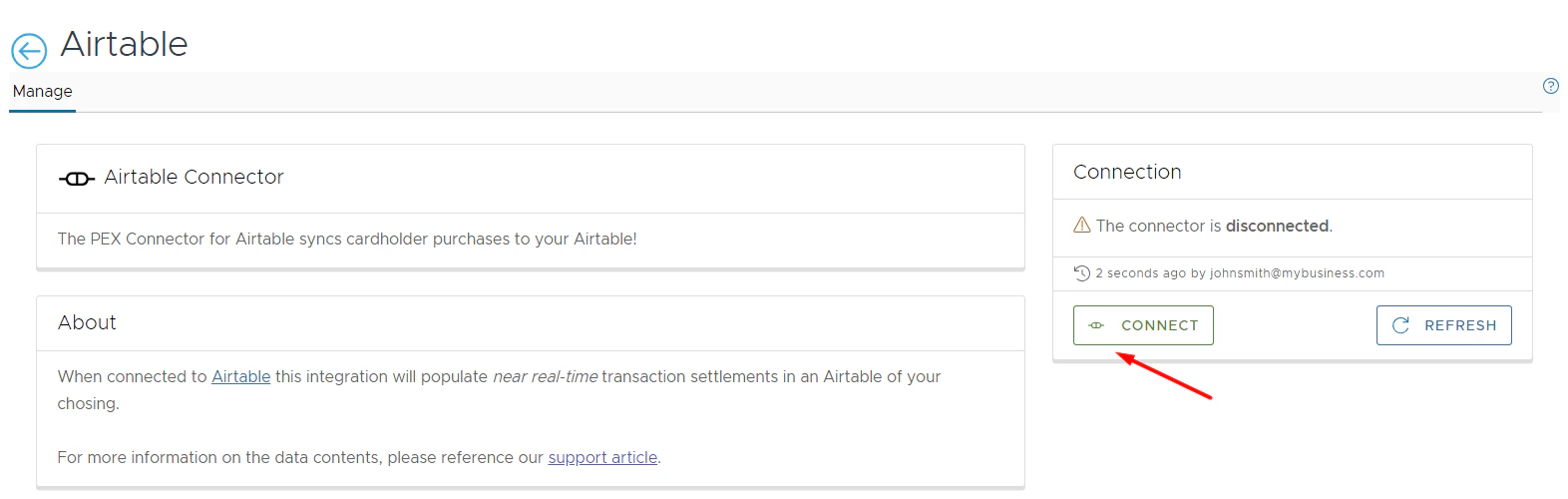
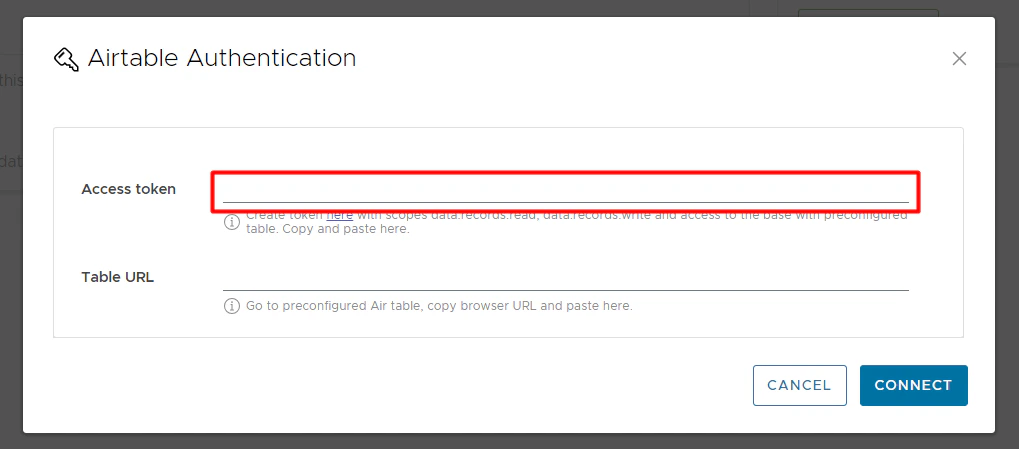
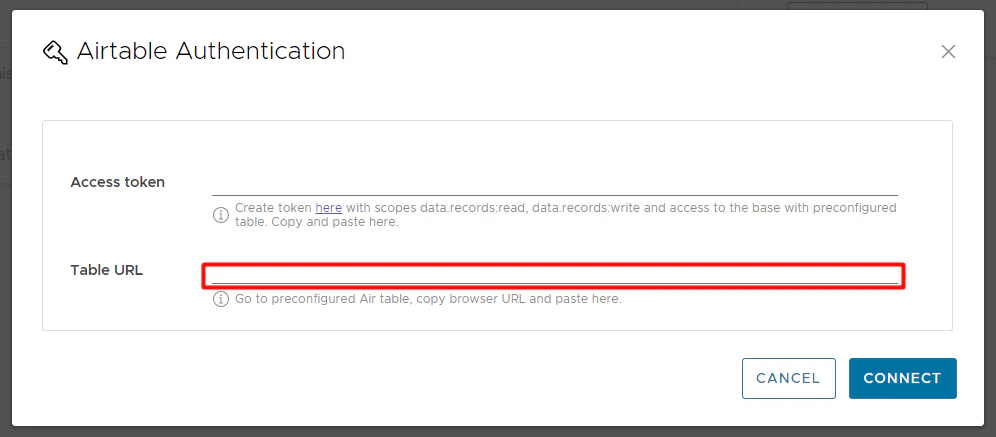
Enter your Access token and Table URL.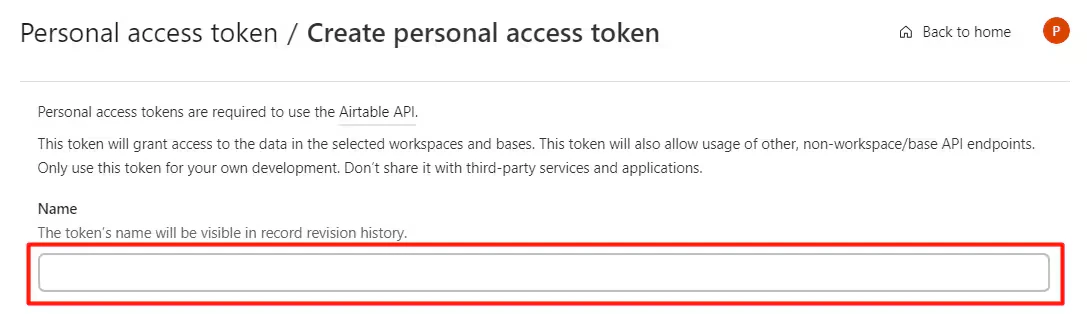

- To create a token:
- Go to https://airtable.com/create/tokens/new
- Name a token.
- Go to https://airtable.com/create/tokens/new
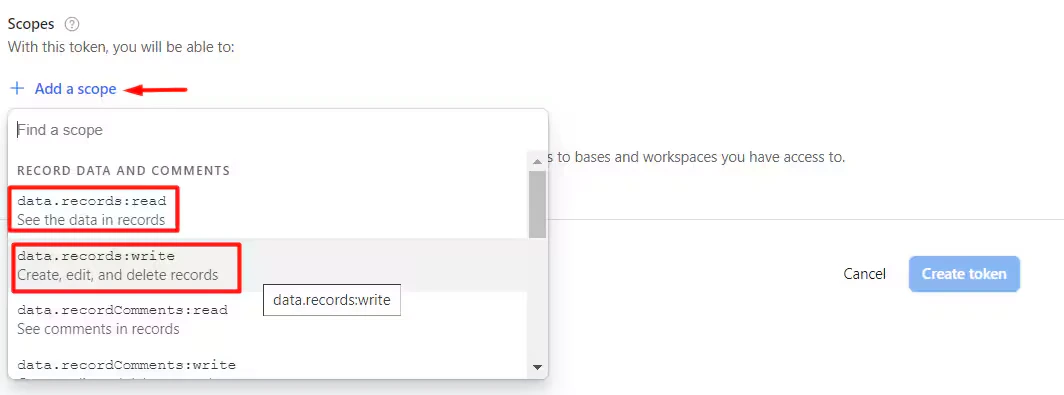
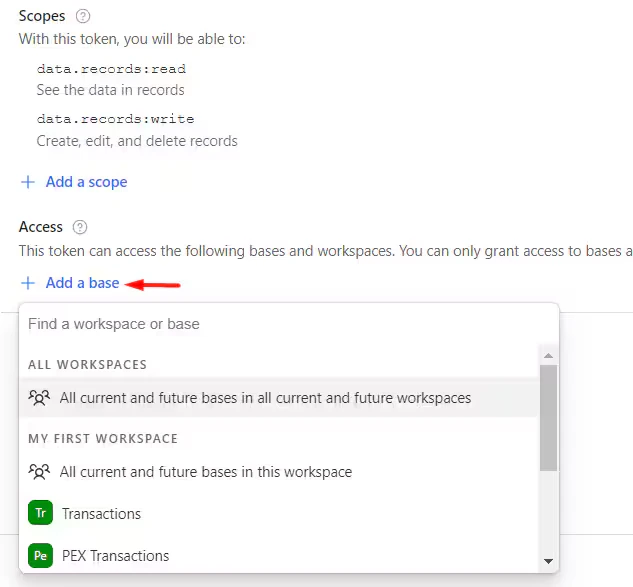
- Click ”+ Add a scope”.
- Select two permissions: data.records:read, data.records:write
- Click ”+ Add a base” and select the table you created to sync transactions to.
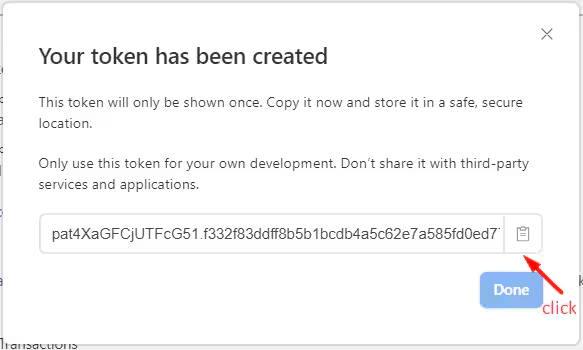
- Click “Create token”.
- Click on the “Copy” icon.
- Paste the copied token into the Access Token field.
- Open your the table you created to sync transactions to.
- Copy its link.
- Paste the copied link into the Table URL field.
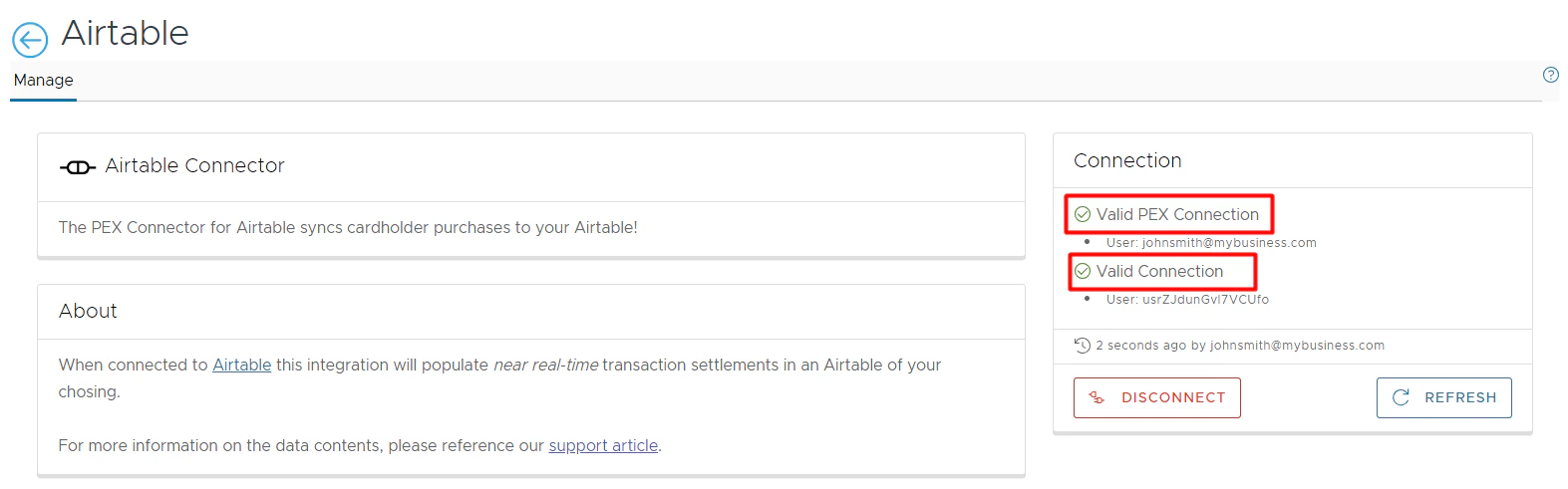
Using App
To view your synced transactions:Sign in your Airtable Account.
Note:The PEX Connector syncs:
- Only settled transactions.
- No past transactions.