

- Automatically import options from QuickBooks Online.
- We strongly recommend using automatic sync of tag options from QuickBooks Online to PEX. This will keep your PEX tags and QuickBooks fields in sync. Manually adding tag options or importing them from a CSV file typically takes much more time.
- Import options from CSV.
- If you still want to import options from CSV, follow the below instructions.
Import options from CSV
Begin by generating an Account list report: navigate to your QuickBooks Online account -> Transactions -> Chart of Accounts -> Run Report.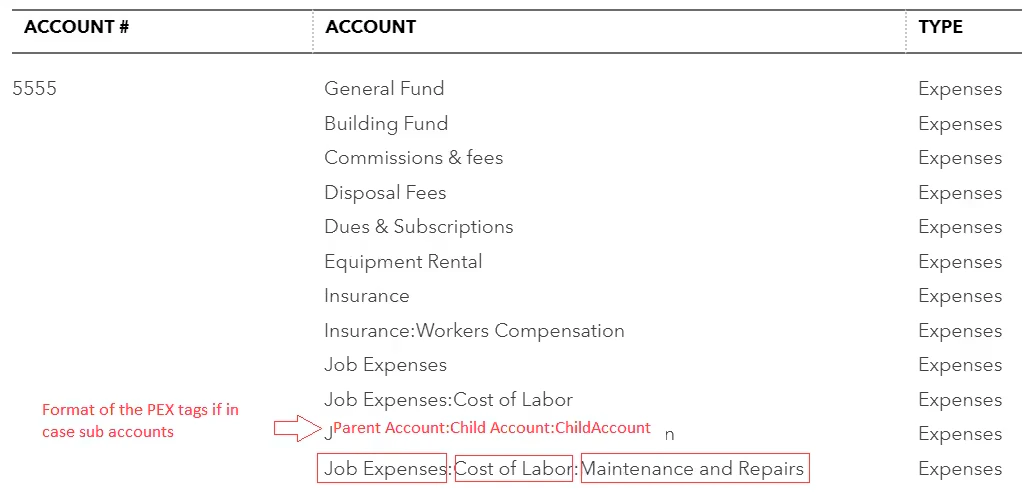
Make the following changes to the file:
- If you are using Account numbers for your expense account e.g. 2000 Travel Expense. Please remove the preceding Account number. Only the name of the account is expected in the PEX Tag Manager.
- Remove all non-Expense Accounts i.e. Type = Expense. PEX only supports syncing to Expense accounts.
Log in to http://dashboard.pexcard.com/
Choose whether or not this tag is “Required”.
- If the “Required” checkbox is checked, cardholders must tag a transaction with it.
Copy all the values from the Full name column from the Account list report saved in step 2 in the Option value column in the .CSV file format downloaded in step 14.
- Note: The PEX connector uses the “Option value” while exporting transactions into QuickBooks. The values for “Option value” should exactly match the values used by your chart of accounts.
- You can edit the values shown in the “Display as” column. The value shown in “Display as” is the value that the cardholder will see in PEX when tagging the transaction.