

Note:To use this app, tags must be enabled and set up on your PEX account. If your account does not include tags, please contact adminsupport@pexcard.com.
Install
To use the app:- Log in to http://dashboard.pexcard.com/
- Navigate to Apps > Available
- Locate Auto Tagger.
- Click More info > Install > Launch.
Note:To install the app, you need to enable the following permissions: Edit business settings & apps, View card transactions. You can enable them in My Profile -> Permissions.
Create Rules
To start, click Create Rule on the top right.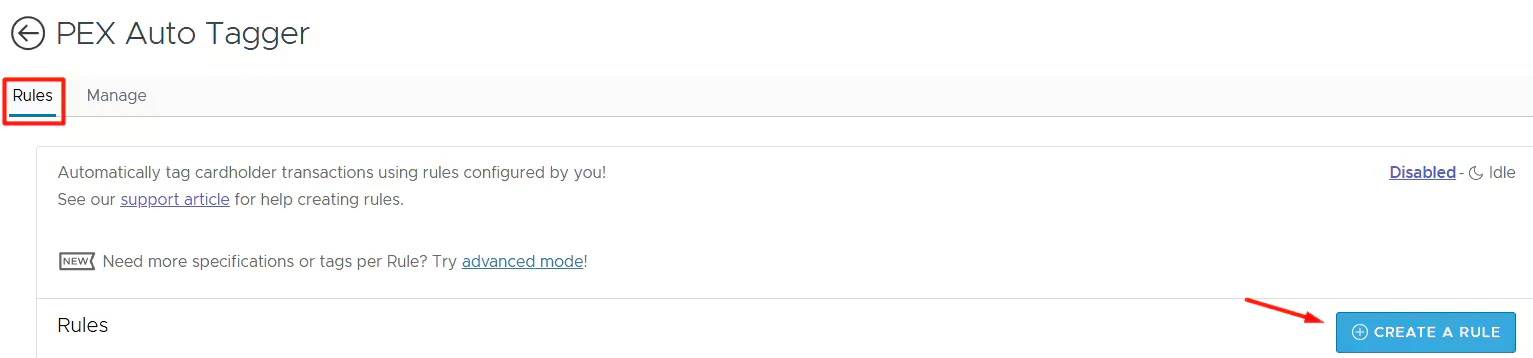
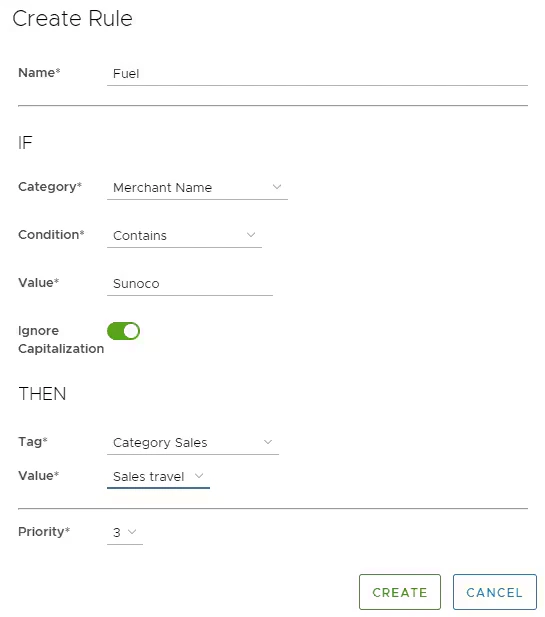
Select the category from the dropdown including Cardholder First Name, Cardholder Last Name, Cardholder Group, Merchant Category, Merchant MCC Code, Merchant Name, Transaction Any Note, Transaction Approval Status, Transaction Description, or Transaction Type.
- Merchant categories usually include more than one merchant category code. You can add custom merchant categories under Business Settings -> Merchant categories.
Specify the condition (e.g., Contains, Does Not Contain) and the value for the rule. The contents will populate based on the information in your profile. Note: If “Ignore Capitalization” is selected, this criteria will be omitted from the rule selection.
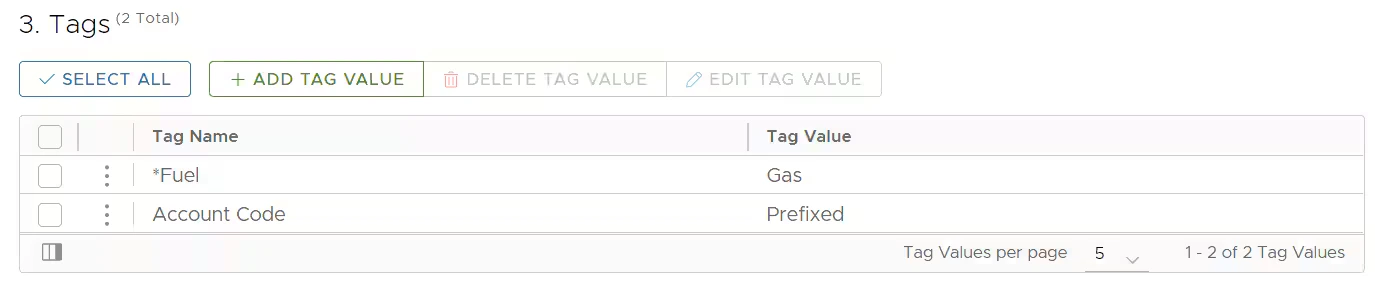
Indicate the PEX tag and associated value that you would like to use for this rule. Note: Only active PEX tags will be populated. Tags are managed within Business settings > Tag manager.

Add multiple conditions and tags
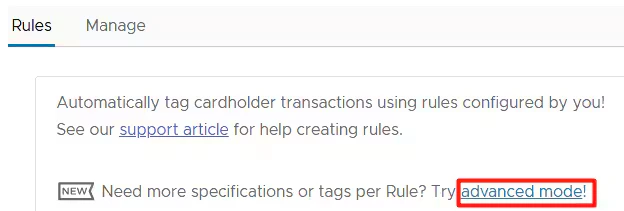
Add a name and description.
Add specifications. To enter more than one specification, select + Add Specification.

Update rules
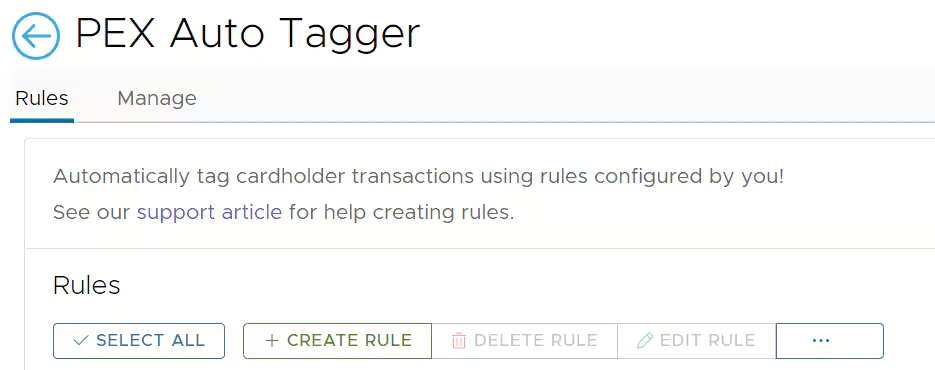
At any time Admins can edit rules previously created including change the priority of rules to be applied, delete rules, or edit the categories.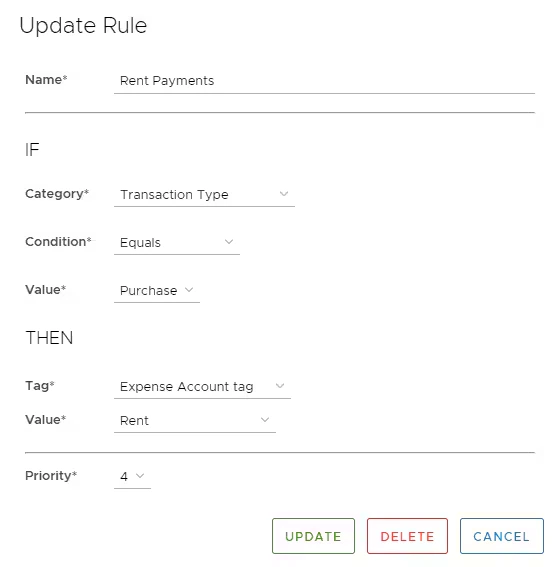
Run Rules
Admins can:- View the time of last sync.
- Disable all rules from processing:
- Click on the Manage tab, you’ll be able to view if the Auto Tagger is enabled or disabled and the last time of sync.
- If you would like to disable all active rules from processing, click “DISABLE AUTO TAGGING”.
- Admin can also run ad-hoc auto tagging. You don’t need to enable auto tagging to run ad-hoc auto tagging.
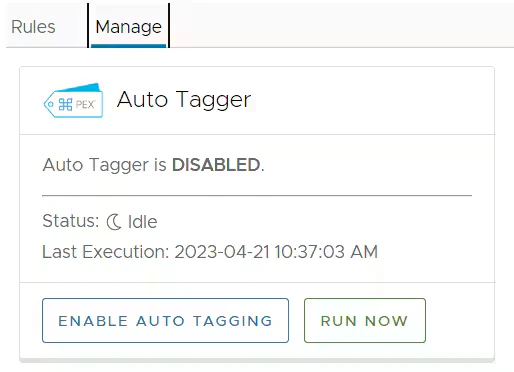
Auto Tagger Custom Options
You can set custom options when running ad-hoc auto tagging:- Click Run now.
- Click Custom options.
- Select a start date. Transactions after this date will be processed.
- Start date must be less than 1 year ago.
- Leave empty to default to 2 weeks ago.
- Select an end date. Transactions after this date will not be processed.
- Leave empty to default to today.
- Decide if to process closed cardholders.
- By default, Auto Tagger skips closed cardholder accounts.
- Decide if to reprocess transactions.
- By default, Auto Tagger skips transactions it has already tagged.
- Select a start date. Transactions after this date will be processed.
- Click Run.
FAQ
What transactions does Auto Tagger run my rules against?
What transactions does Auto Tagger run my rules against?
Auto Tagger runs your rules only against:
- Active cards’ transactions.
- Settled transactions.
- Transactions in the “Not Reviewed” and “Rejected” statuses.
- If a transaction in the “Rejected” status is tagged, its status reverts to “Not Reviewed”.
- Purchase transactions.
- Transactions up to 2 weeks in the past and on a go forward basis.
When are the rules applied to transactions?
When are the rules applied to transactions?
For first time rule set-up, Auto Tagger will be applied to transactions up to 2 weeks in the past. Once a rule is active, Auto Tagger will update transactions every 60 minutes. To view past tags, click on a transaction and look at the details.
Can I add more than one condition or tag?
Can I add more than one condition or tag?
Yes. Please visit the adding multiple conditions and tags above.
Are split tags supported?
Are split tags supported?
Can I auto tag transactions older than two weeks?
Can I auto tag transactions older than two weeks?
Yes, but only manually. To perform this action, follow these steps:
Why doesn't Auto Tagger retag my transactions?
Why doesn't Auto Tagger retag my transactions?
Auto Tagger tag transactions only once. Auto Tagger adds a transaction note when it tags a transaction. To reprocess and retag transactions, follow these steps: