

Accessing App
To access the app:Log in to http://dashboard.pexcard.com/
Note:To install the connector, you need to enable the following permissions: Edit business settings & apps, View card transactions. You can enable them in My Profile -> Permissions.
Initializing App
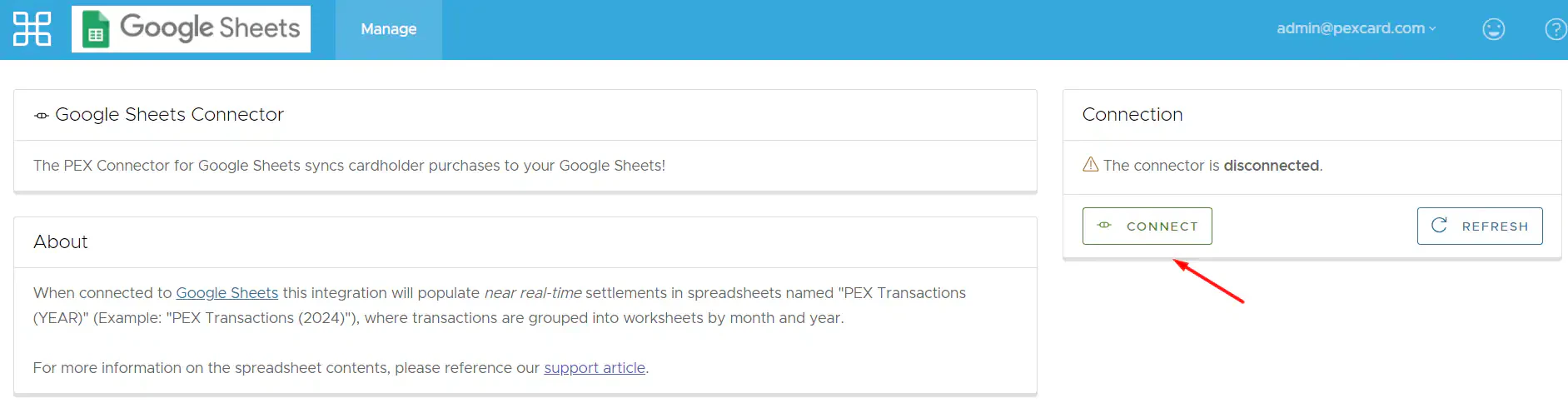
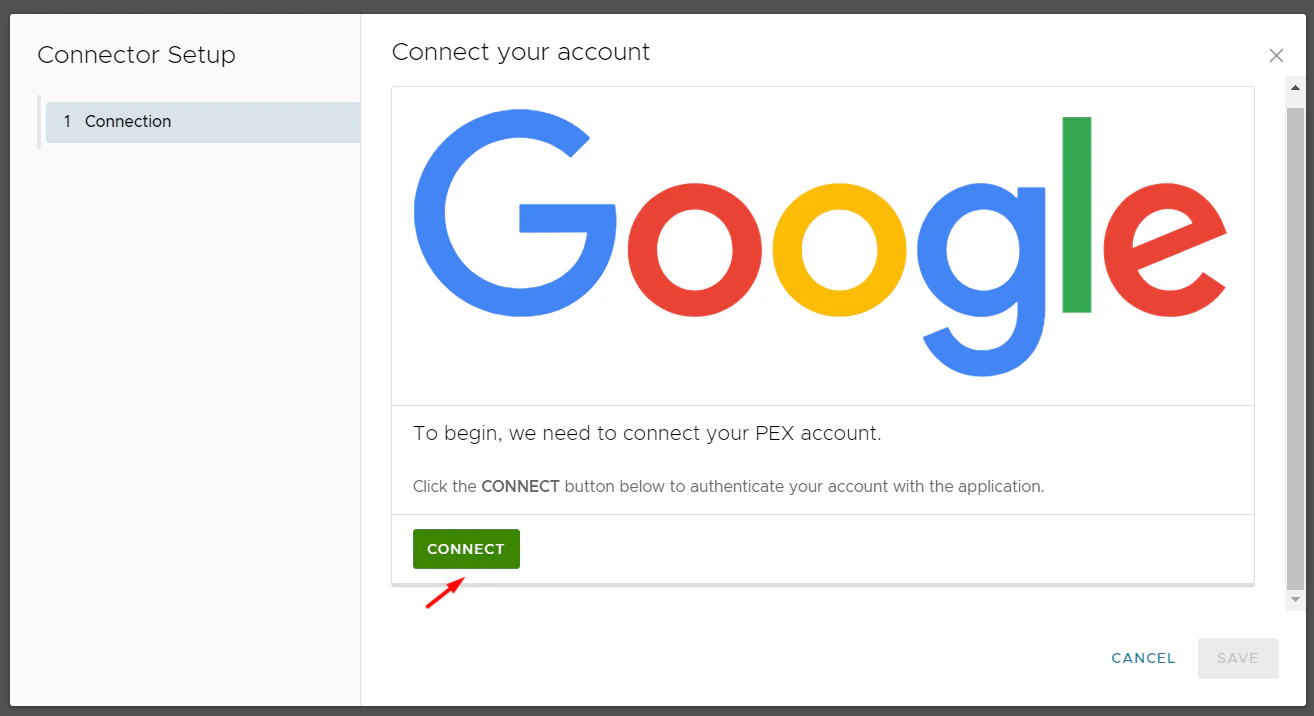
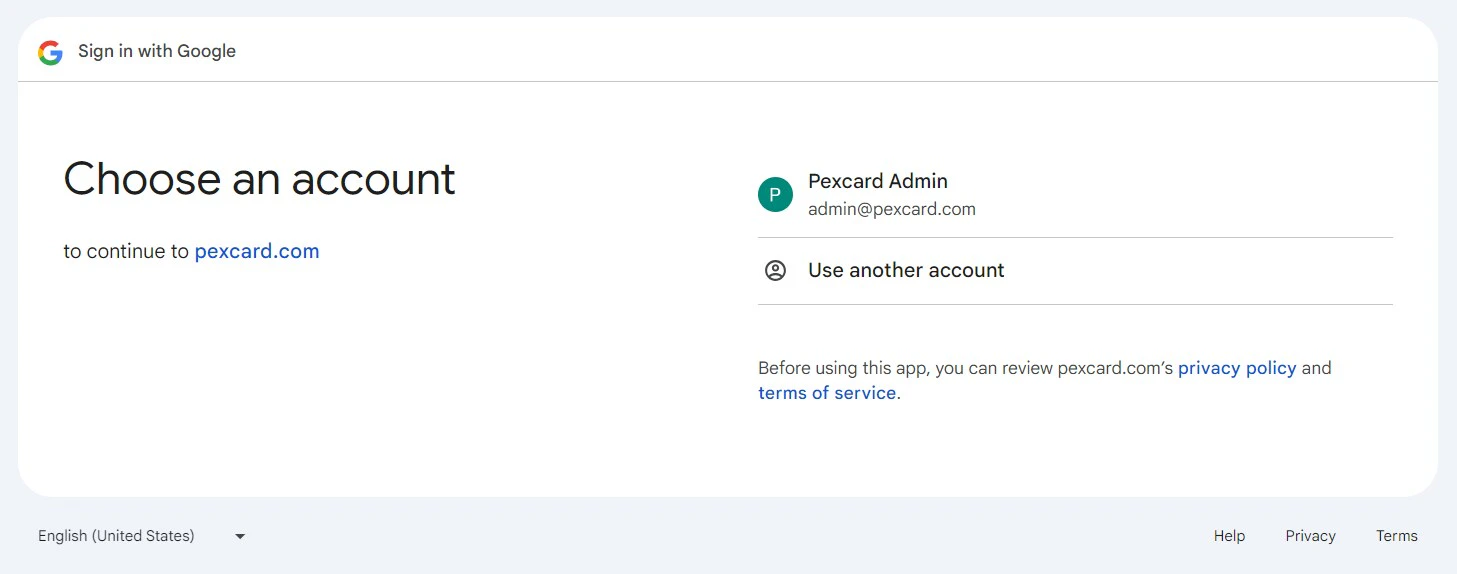
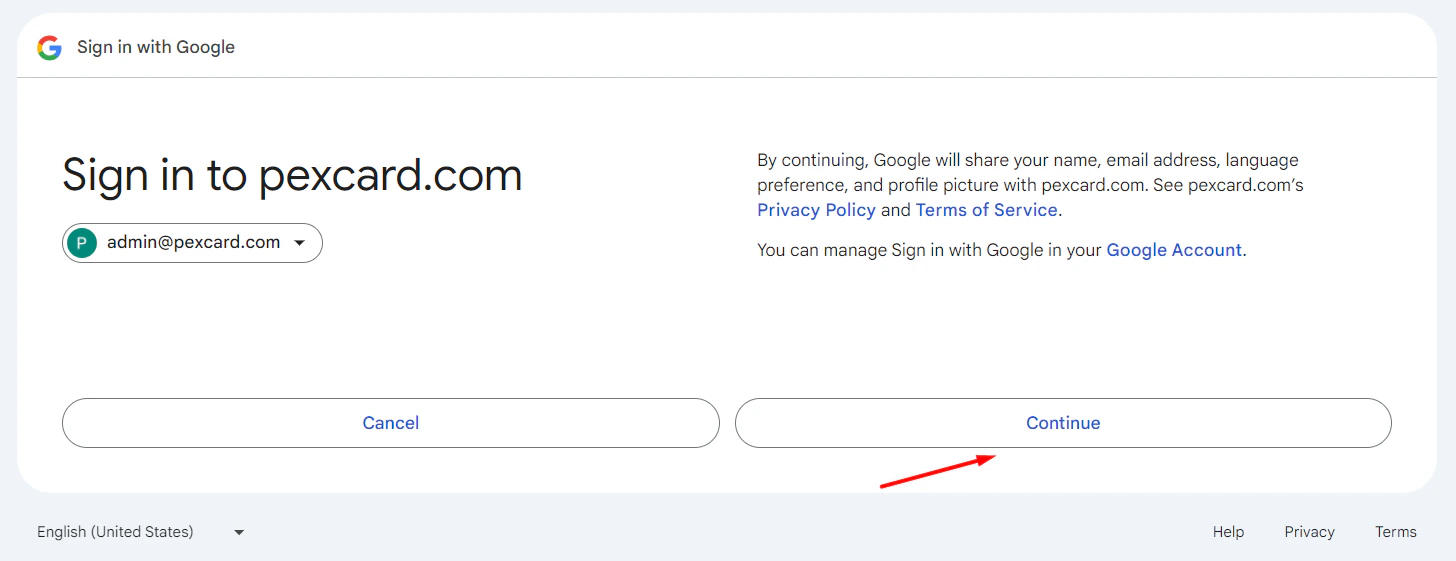
Follow the steps to connect your PEX account and your Google account:
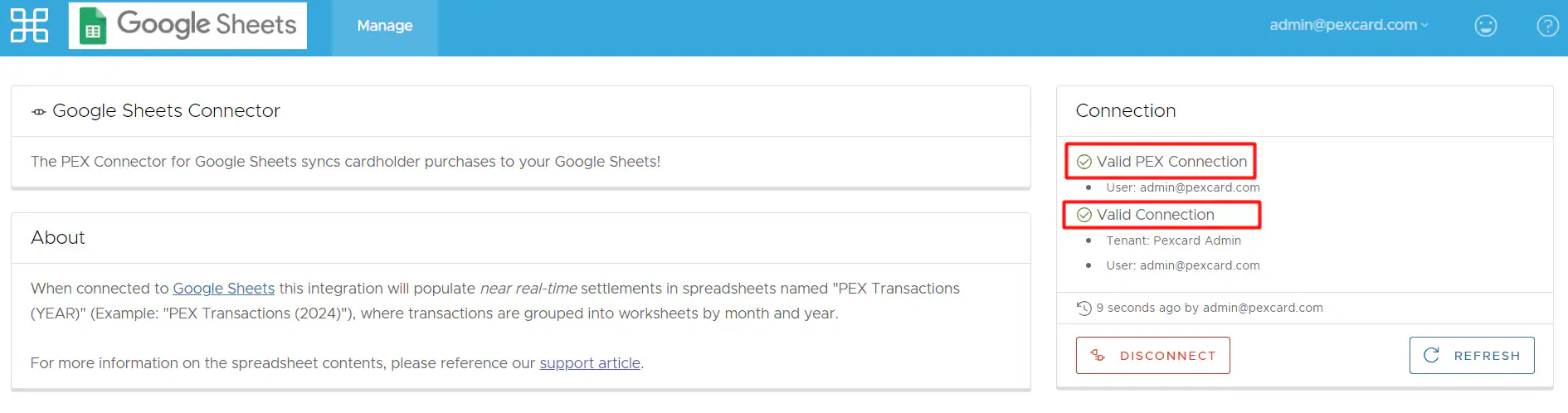
Once successfully connected, you are redirected to the “Manage” tab. You will see green checkmarks and the statuses “Valid PEX Connection” and “Valid Connection”.

Using App
Sign in your Google Sheets connected to a Google Account that you have selected to sync transactions to.
Locate the spreadsheet named “PEX Transactions (<Year>)” by following this path: PEX\Transactions\PEX Transactions (<Year>).
- Month: Navigate between spreadsheet’s bottom tabs to view transactions for a particular month.
- Year: A new spreadsheet named “PEX Transactions (<Year>)” will be automatically created for every year.
- Transaction ID
- Merchant ID
- MCC
- Merchant Name
- Transaction Time (EST)
- Settlement Time (EST)
- Cardholder ID
- Cardholder Name
- Description
- Amount
- Cardholder Group
Note:The PEX Connector syncs:
- Only settled purchase transactions.
- No past transactions.