Accessing the app

3
Find PEX Connector for Aplos.
4
Click More info > Install > Launch.

Select your use case(s)

There are two ways to connect PEX with Aplos. Enable both when you can so reconciliation stays simple.
  • Auto-create vendor cards from my Aplos vendor list.
  • Sync transactions from PEX to Aplos nightly.

Click Auto create vendor cards from my Aplos vendor list.
Aplos connector use case selection

Connect to your Aplos account

After you log in to PEX, confirm you are already connected to Aplos.
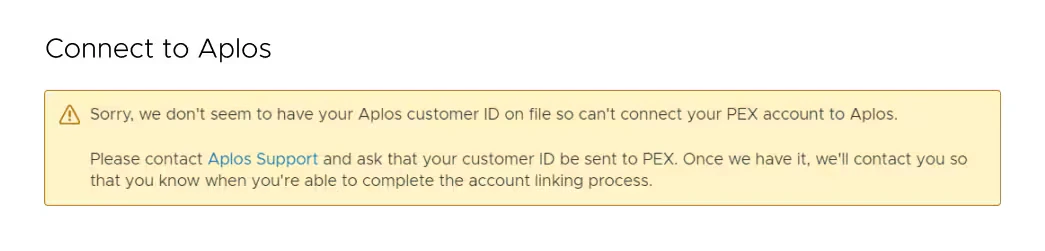
Aplos connection status

Select vendors to auto-create vendor cards for

You will see a list of your top vendors. A to Z, Z to A, and Total Spend are sorting options for the Your Aplos vendors list. Select the vendors you want vendor cards for: click a name in Your Aplos vendors. Hold Cmd + click (Mac) or Ctrl/Shift + click (Windows) to select multiple. To select every vendor, click Select All.
Note:You can select up to 25 vendors at a time.
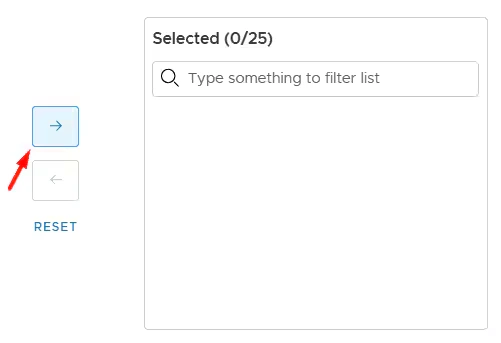
If you do not see a vendor, search for any contact in your Aplos account: type in the Your Aplos vendors search bar. If a vendor is missing from the list, add them in Aplos first. See Creating contacts (individuals or companies) in Aplos help. After you add them, the name is searchable in PEX. When your selections are ready, click the right-arrow button to move them to Selected vendors.
Move vendors to Selected vendors
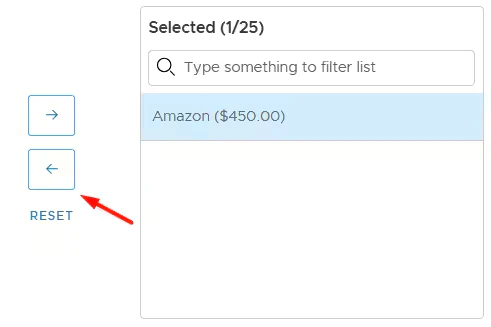
To remove a vendor from Selected vendors, click the name, then the left-arrow button. The vendor returns to Your Aplos vendors.
Remove vendor from Selected vendors
To clear Selected vendors, click Reset.
Note:Vendor cards are created only for vendors in Selected vendors.
Click Next.

Add card details

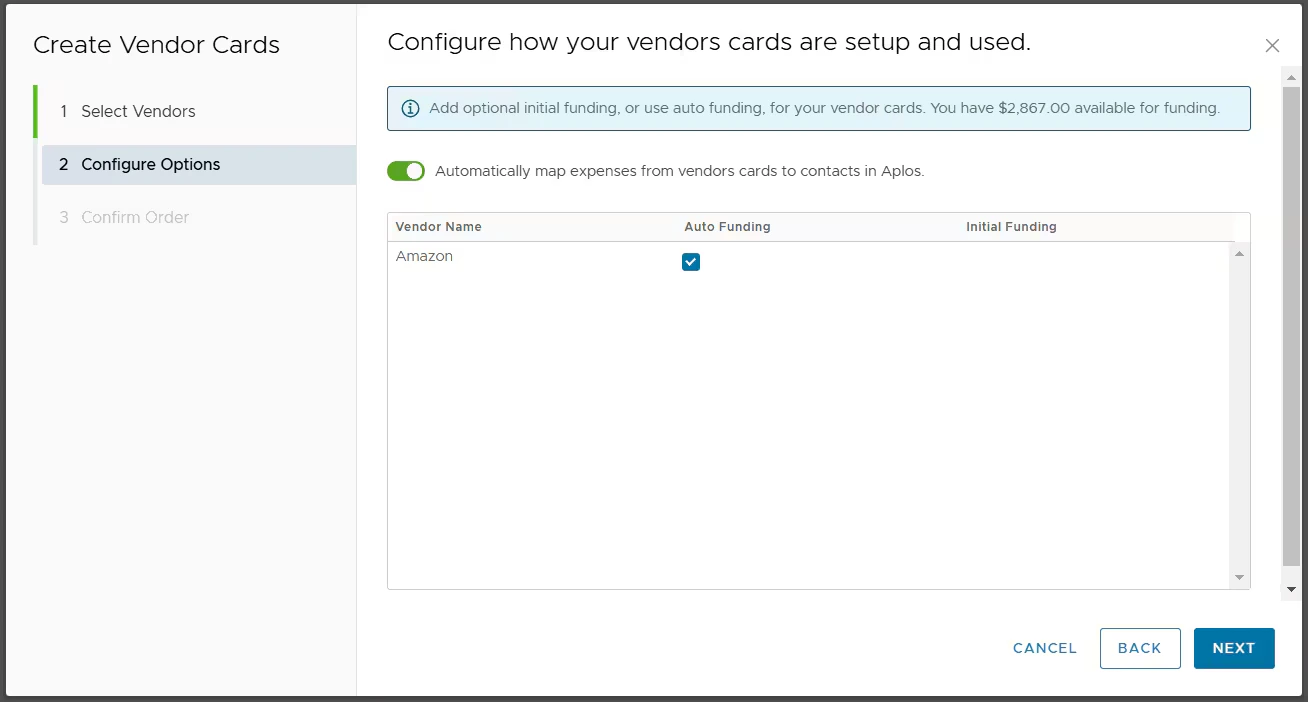
Vendor card funding and options
This screen lists every vendor you moved to Selected vendors. You may see:
  • Set an auto card funding limit drawn from your PEX Business Balance.
  • Turn off auto funding and add initial funding for that vendor card (PEX Prepaid only).
Note:If transaction sync with Aplos is already set to book purchases to a single vendor, you will also see Automatically map expenses from vendor cards to vendors in Aplos.
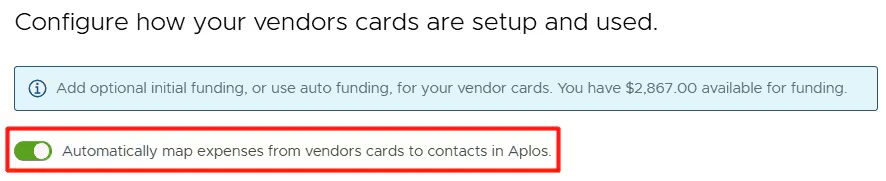
Automatically map expenses to Aplos vendors
By default, that option is on. When it stays on:
  • PEX purchases book to the matching vendors on your vendor cards.
  • If a purchase has no matching vendor, it books to a single vendor.
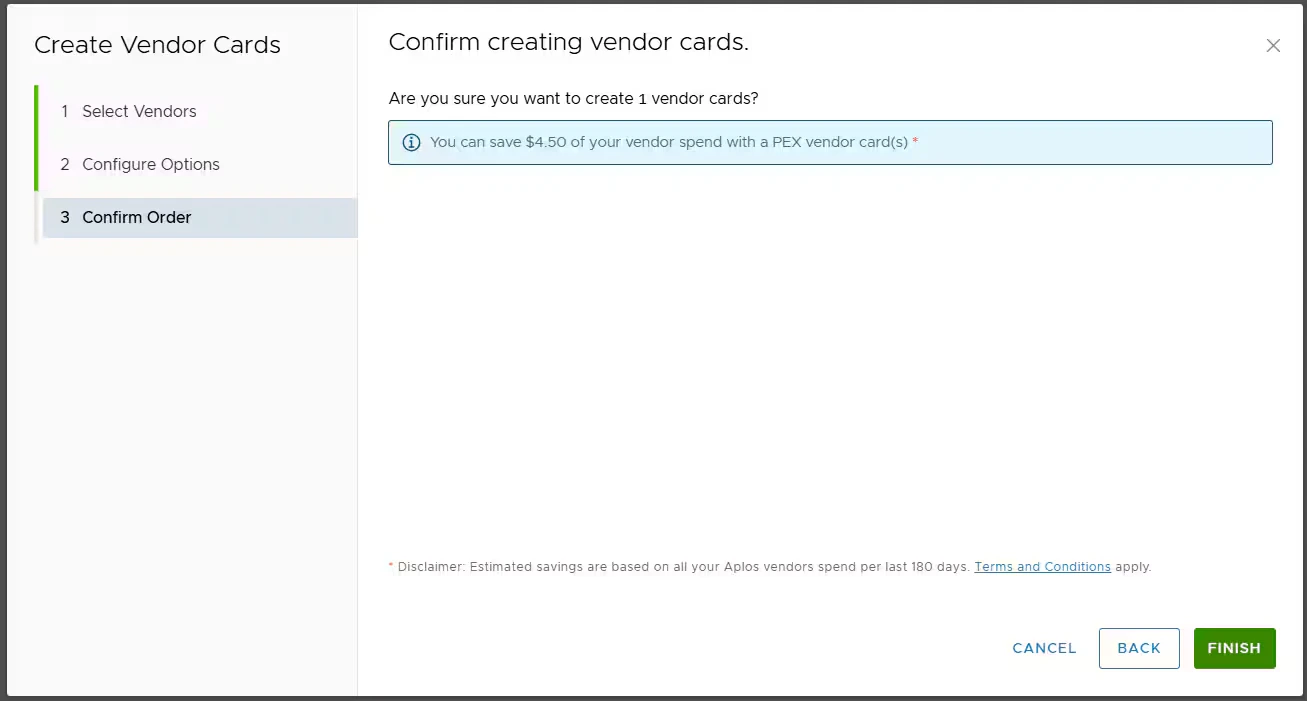
If you turn it off, all PEX purchases book to a single vendor. Click Next, then Finish to confirm.
Finish vendor card creation
PEX creates the vendor cards and opens the Manage vendor cards tab. Cards are active immediately.

Managing vendor cards

View PEX vendor cards created from your Aplos list.

Manage vendor cards tab
Click a card to manage it. If nightly sync to Aplos is not set up, you will see Sync your transactions to Aplos nightly. Click Get Started to configure sync between PEX and Aplos. More detail: For connector questions, email appsupport+aplos@pexcard.com.
Last modified on April 23, 2026