

Prerequisites
To sync PEX transactions to CMiC, you need the Job Costing Module and Document Management Module enabled in CMiC. With the Enterprise plan, you need a license for CMiC ECN Application and setup config.Connect PEX and CMiC
To connect your PEX and your CMiC accounts from the PEX Marketplace follow these steps:Log in to http://dashboard.pexcard.com/
Navigate to Apps > Available
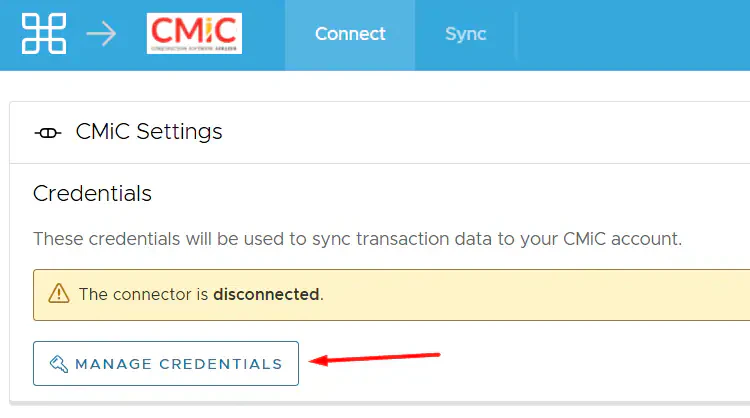
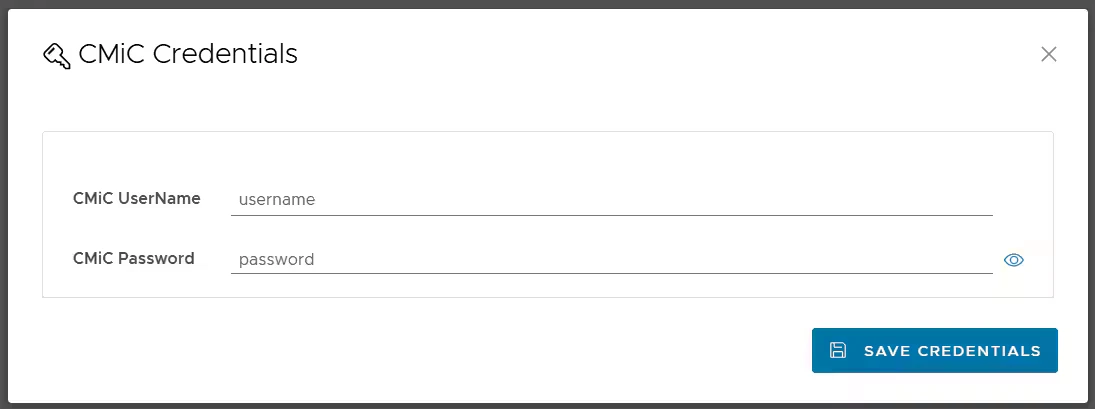
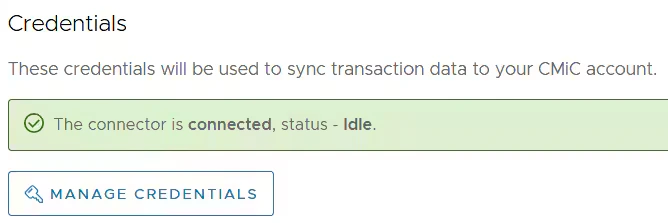
Configure Transaction Settings
On the Transaction Settings card, you can configure the Start Date and End Date. Start date:- Must be less than 1 year ago (if today is Nov 30, 2024 then you can not go further back than Nov 30, 2023).
- Leave empty to default 2 months back.
- Auto-sync will always process 2 months back.
- Leave empty to default to the time of sync.
- Temporarily pick a small date range for testing and reconciliation purposes.
- Sync all purchases or only approved purchases
- “Only approved” means that purchases must be approved in PEX before syncing to CMiC.
- Only sync purchases with attachments
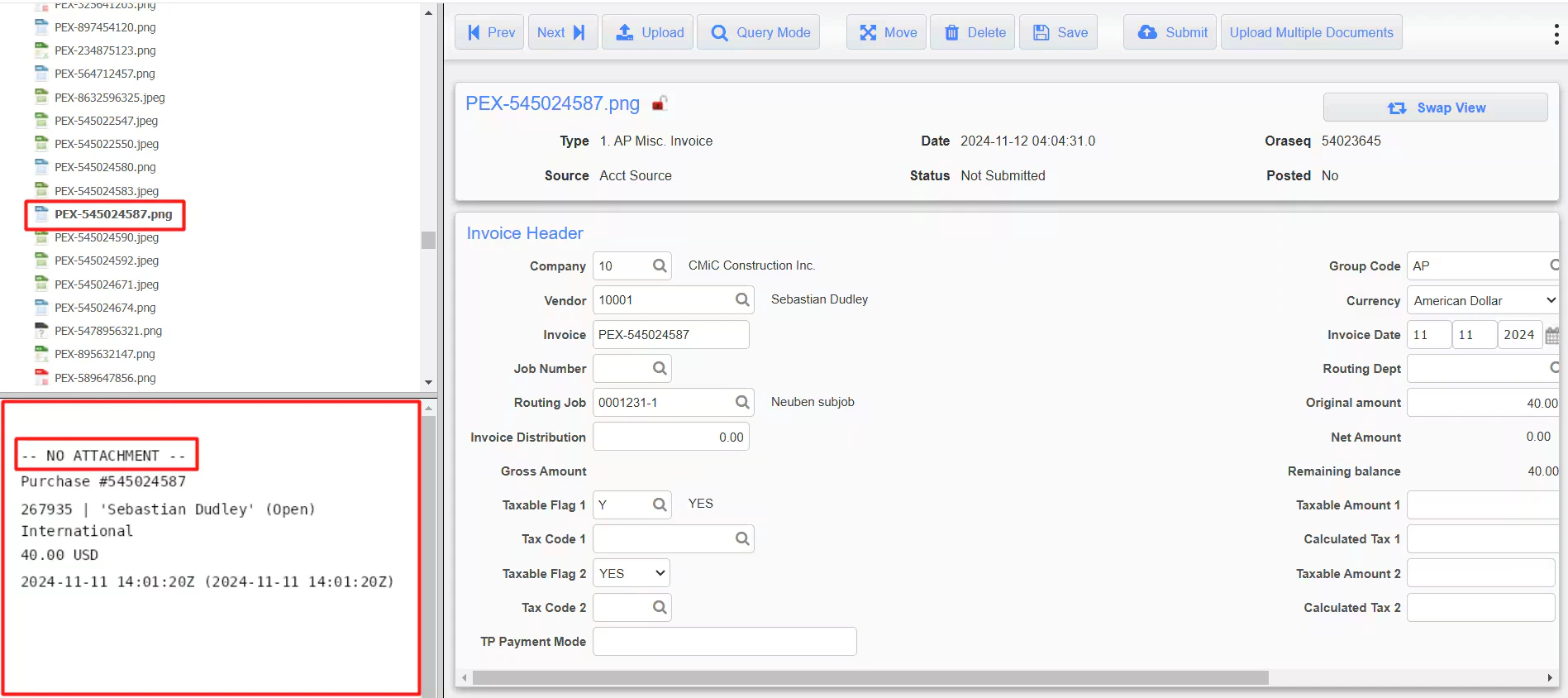
- Purchases must have an attachment before syncing to CMiC. If this box is unchecked, a default attachment will be used if a purchase does not have an attachment.
- The “Group Code”, “Valid Flag”, and “Type Code” fields can be mapped only to static values.
- The “Job/Dept/Eqp.”, “Cost Code/Account/Category”, and “Cost Type/Tran Code” fields can be mapped to static values or PEX Tags.
-
Mapping the “Job/Dept/Eqp.” to a static value means that you can select one Job/Department/Equipment out of the many presented in CMiC, and that value (“NYC Office Renovation” in our example below) will be applied to all PEX purchases.
 Note:Note that a purchase will not be tagged with this static value. You will not see this static value on the purchase details. The static value will be used only when syncing a purchase to CMiC.
 -
Mapping the “Job/Dept/Eqp.” to a PEX tag (“Job” in our example below) means that you and your cardholders can select one of the tag values for each purchase.
For that go to the “Transactions” menu -> locate a purchase -> click on it -> select a tag value (“NYC Office Renovation” in our example below) of the “Job” tag -> click “Save”. Note that you and your cardholders can select one of the tag values for each purchase once you finish the CMiC connector setup and sync tag options from CMiC to PEX.
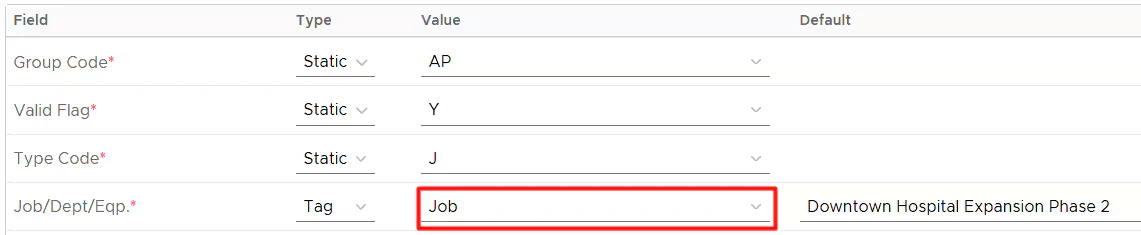
 When mapping to a tag, you can also specify a default “Job/Dept/Eqp.” value: for example, Downtown Hospital Expansion Phase 2, as highlighted below.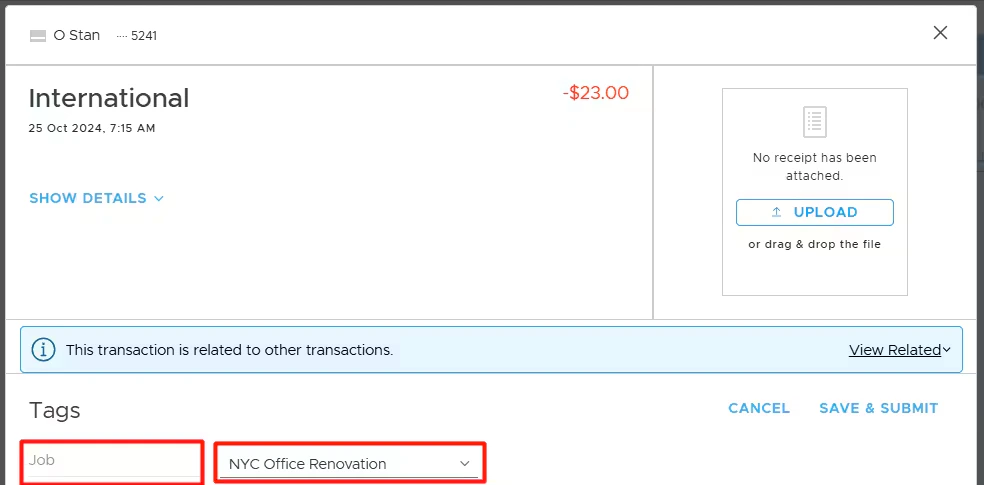
 If you or your cardholders do tag a purchase with the tag option from the tag chosen in the highlighted field below,Note:Note that a purchase will not be tagged with this default value (“Downtown Hospital Expansion Phase 2” in our example) on the purchase details. It means that if you or your cardholders forget to tag a purchase before it is synced to CMiC, the default value (“Downtown Hospital Expansion Phase 2” in our example) will be applied to this purchase during the sync.that specific purchase will be recorded against the tag option (“NYC Office Renovation” in our example below) you tagged the purchase with. Tags take precedence over default values.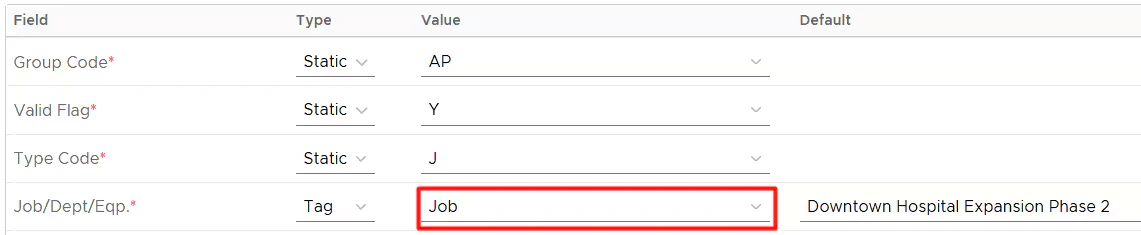
-
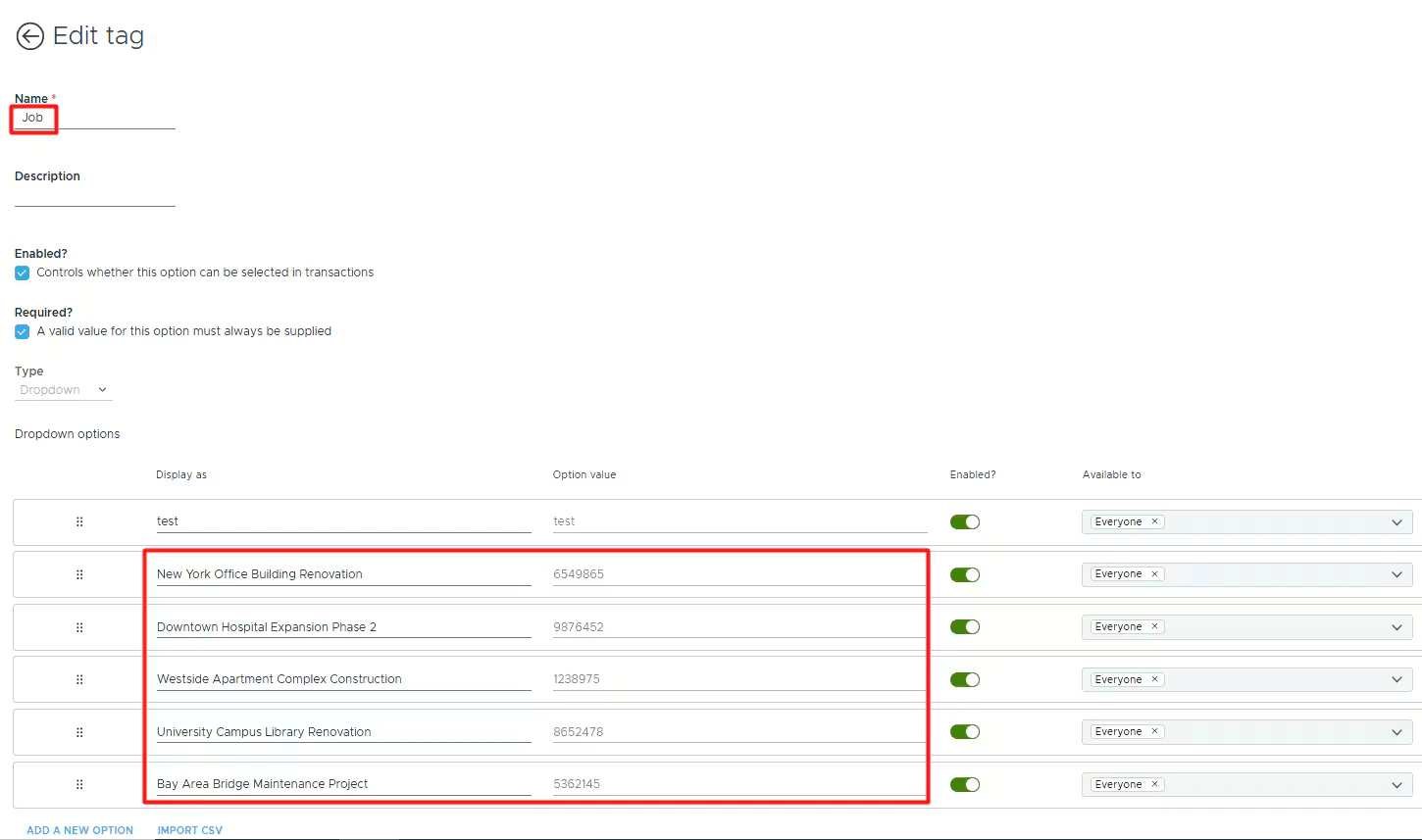
Enable the sync toggle to sync field values from CMiC into PEX as tag options.
For example, the values for the PEX tag “Job” (in Tag Manager) will be populated with the names of your CMiC jobs.

Sync to CMiC
In the Sync tab, you can: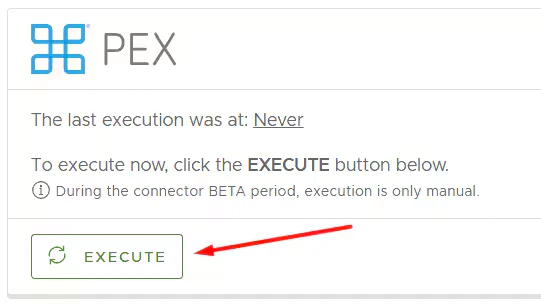
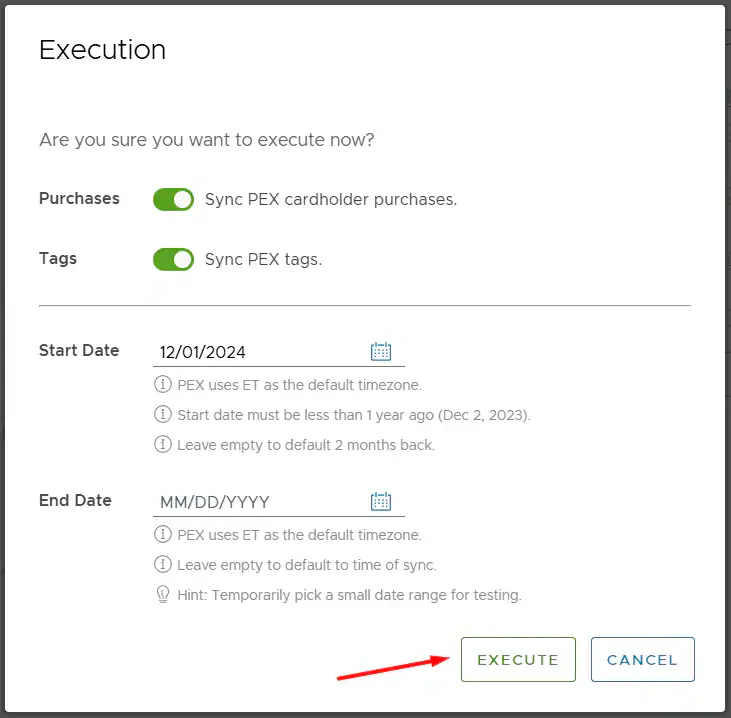
Enable/disable auto-sync.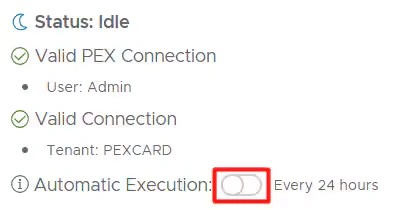
- Enabled: Transactions sync automatically every 24 hours.
- Disabled: Transactions will not sync automatically.
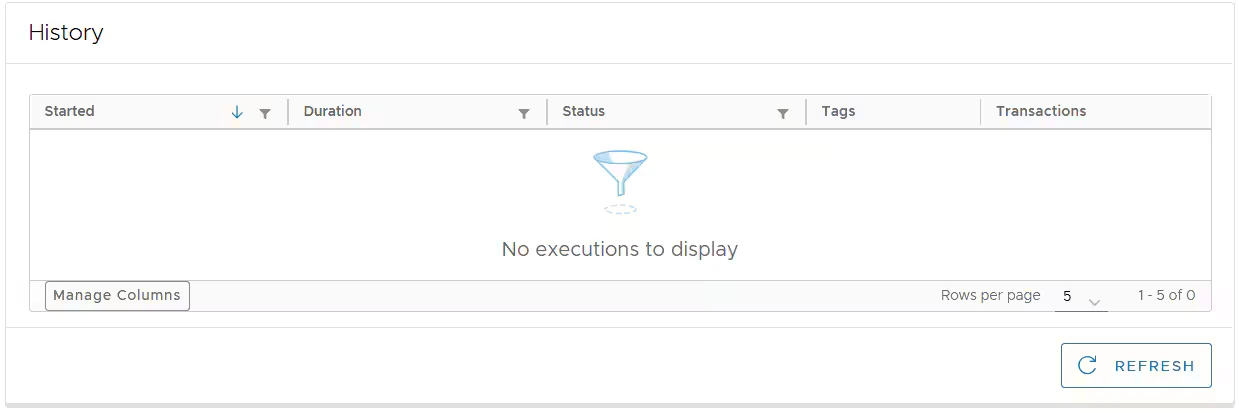
Auto Tagger
The Auto Tagger app is a great compliment to CMiC. It allows you to create rules that auto-tag purchases. Learn more.View Transactions and Receipts in CMiC
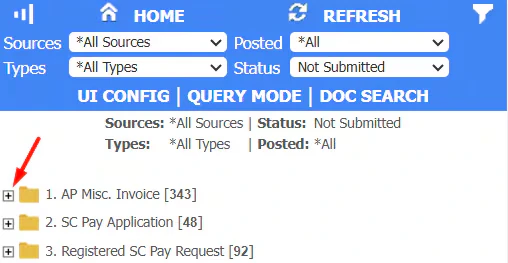
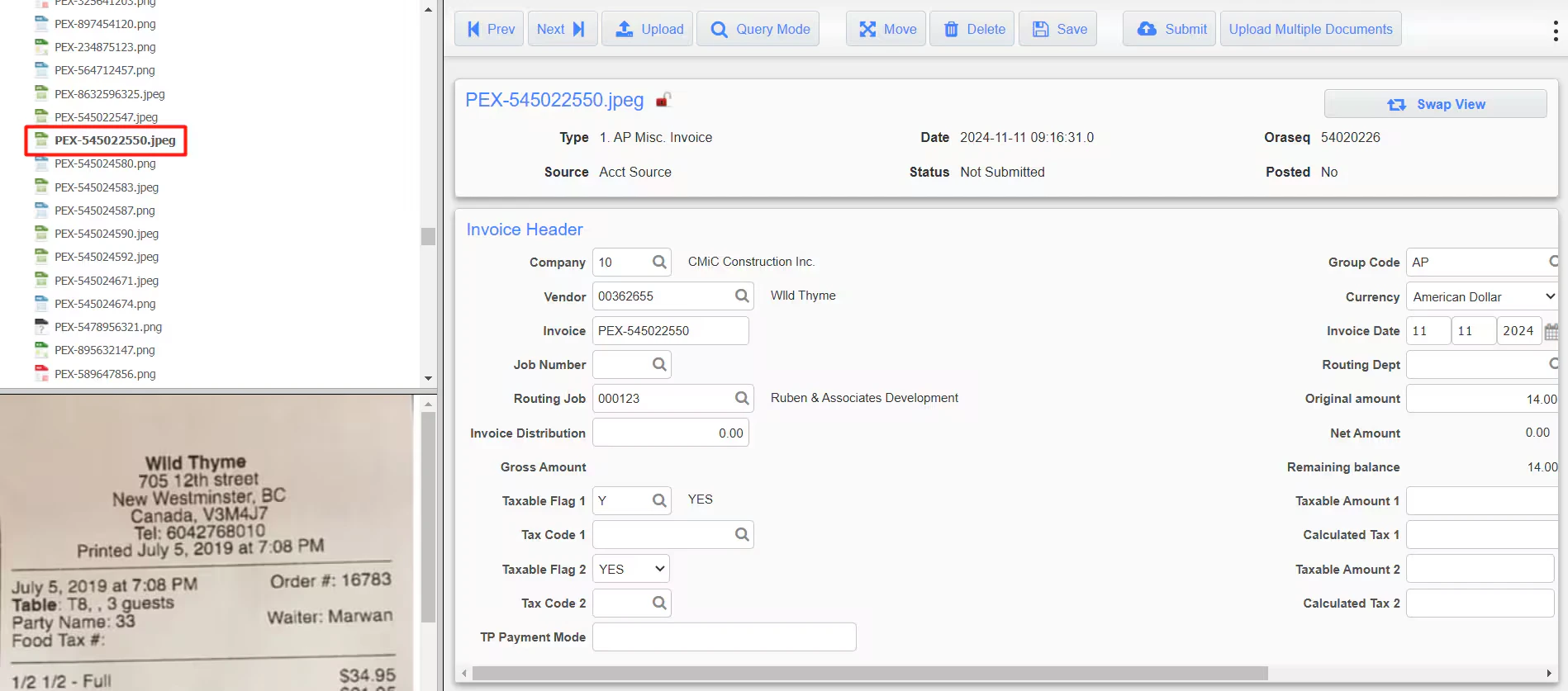
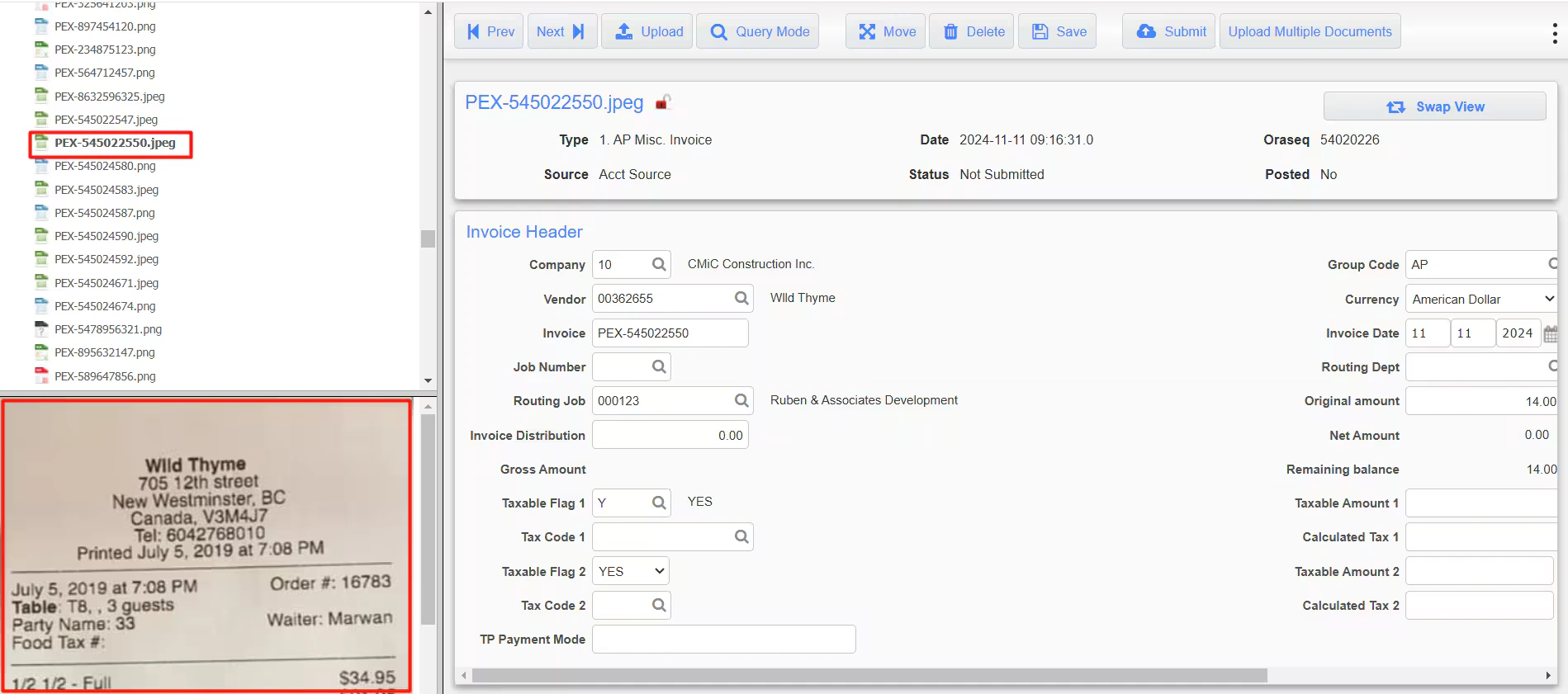
Log into CMiC account and navigate to Enterprise -> Enterprise Content Management -> Image Manager ->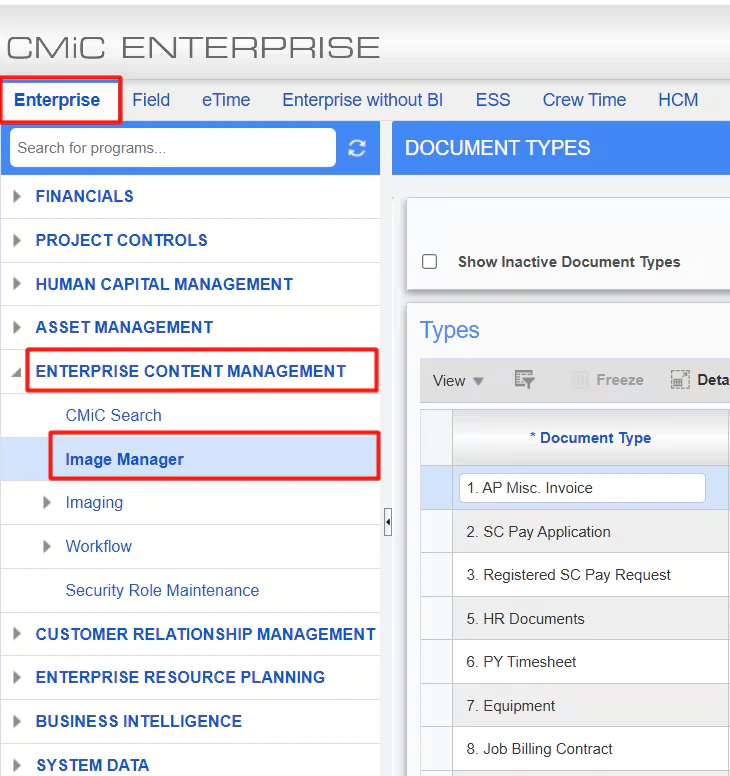
FAQ
Can I enable auto-sync?
Can I enable auto-sync?
Auto-sync is not available during the connector BETA period.
What transactions are synced?
What transactions are synced?
Only purchases in a settled status are synced.
Do pending transactions get synced?
Do pending transactions get synced?
No. Only transactions in settled status get synced to your account. If you see a “Pending” label next to the merchant name as shown on the screen below, then the transaction is still in the pending status.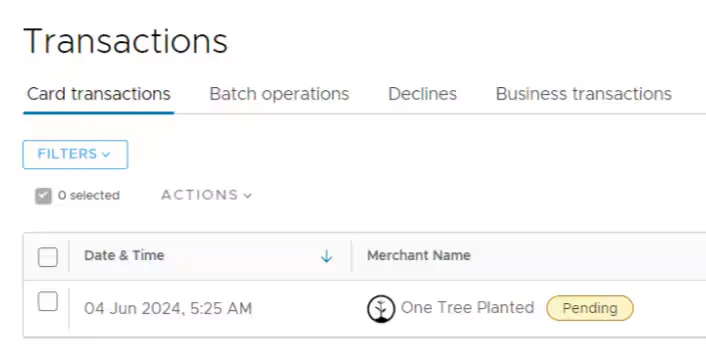
Can transactions be automatically tagged?
Can transactions be automatically tagged?
Yes. If you prefer not to manually tag each transaction, PEX Auto Tagger offers a solution. This app allows you to create dynamic rules that automatically tag transactions. Learn more.
Can I combine manual and automatic tag sync from CMiC to PEX?
Can I combine manual and automatic tag sync from CMiC to PEX?
We strongly recommend using automatic sync of tag options from CMiC to PEX. This will keep your PEX tags and CMiC fields in sync. For more information, check out the support article “Create PEX tags for CMiC” to add tags and test tag options.Once added, enable “Sync Tag” for fields with the Type set to Tag (as shown in the example below).
Will a previously synced transaction re-sync to my CMiC account if I change its status (Rejected -> Approved), re-tag or add another receipt?
Will a previously synced transaction re-sync to my CMiC account if I change its status (Rejected -> Approved), re-tag or add another receipt?
Every synced transaction has a “Synced with CMiC” note. As long as you don’t remove the “Synced with CMiC” note on a transaction, it will not re-sync to your CMiC account.
Didn't find the answer you were looking for?
Didn't find the answer you were looking for?
Didn’t find the answer you were looking for? Check out our Accounting Software Connector Troubleshooting article.