Step 1: Set up Document Numbering
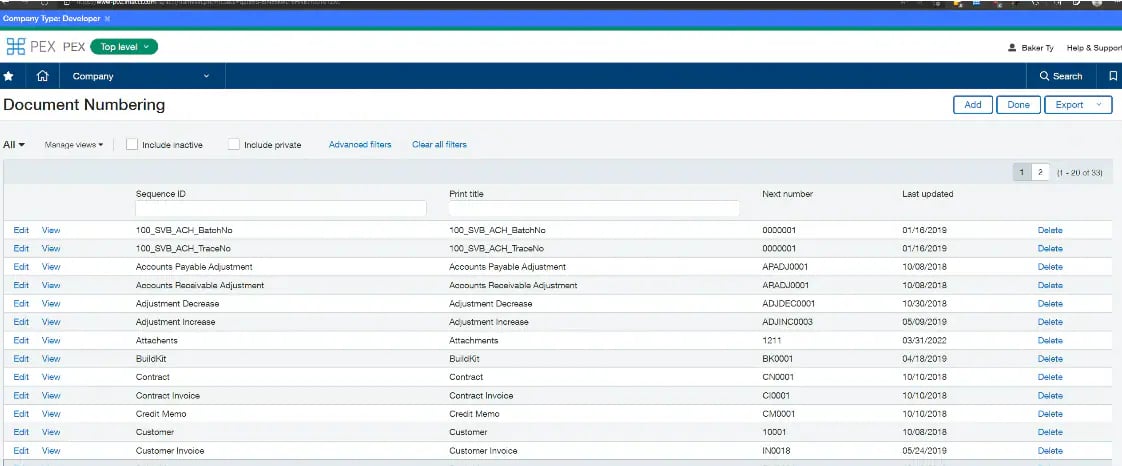
Ensure document numbering is set up on your Sage account to ensure the transaction receipts port over correctly.
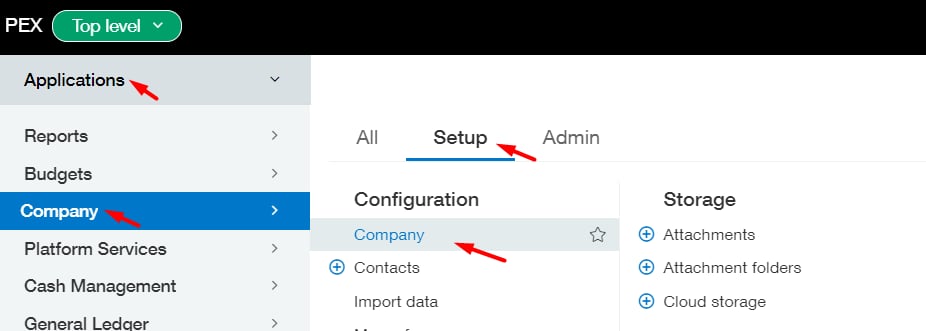
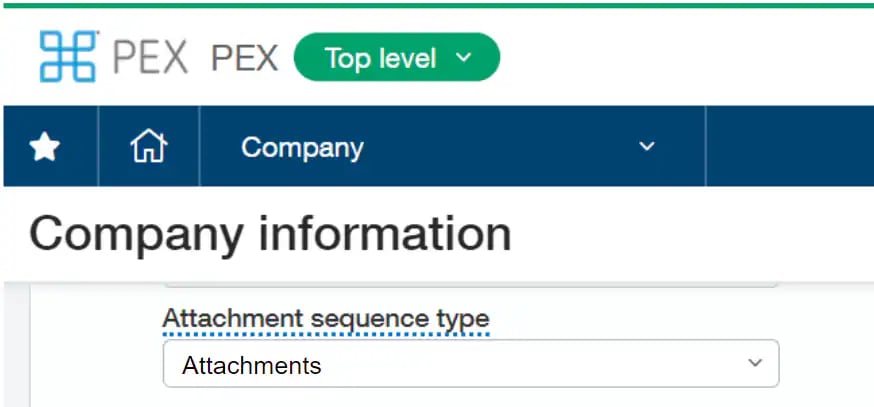
Navigate to Applications > Company > Setup tab > Company > General Information tab. Ensure the Attachments sequence type is set to “Attachments”, which will automatically create a unique number for each attachment. Step 2: Add PEX’s Sender ID
Navigate to Applications > Company > Setup tab > Company > Security tab.
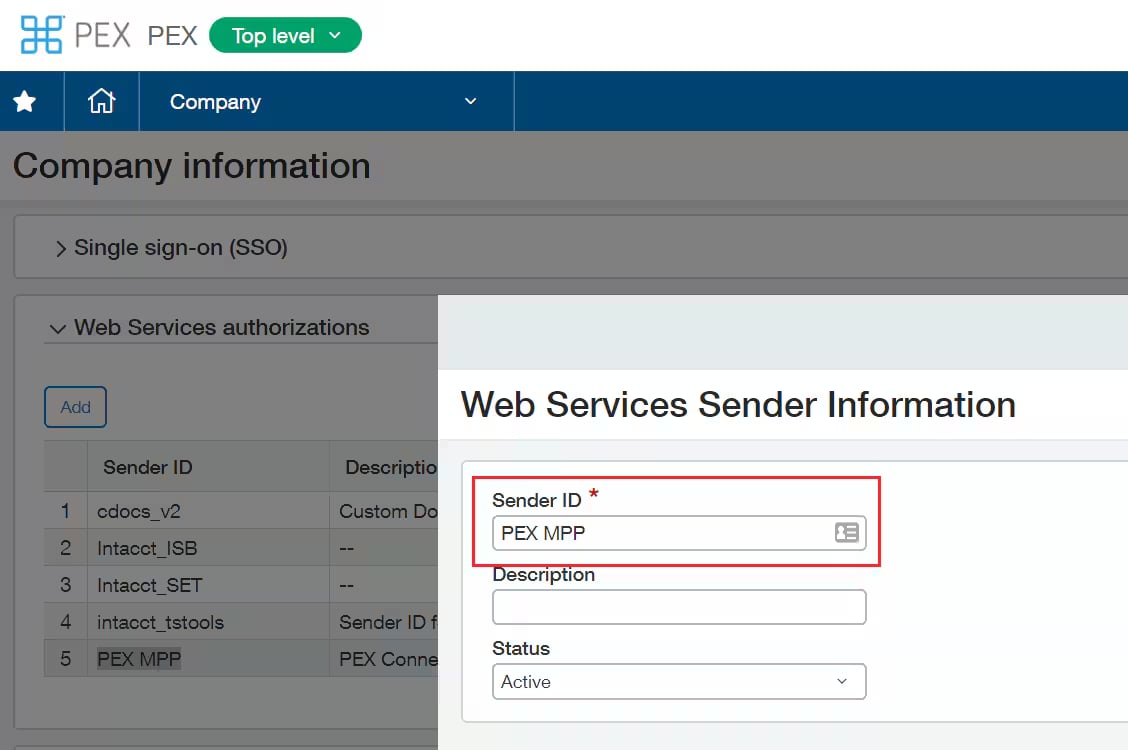
Go to the section labeled “Web Services authorizations”.Note:You must have Web Services enabled on your account.
Sender ID = PEX MPPNote:It is very important to create sender ID exactly as PEX MPP
Step 3: Create a Web Service PEX Sync User in Sage Intacct
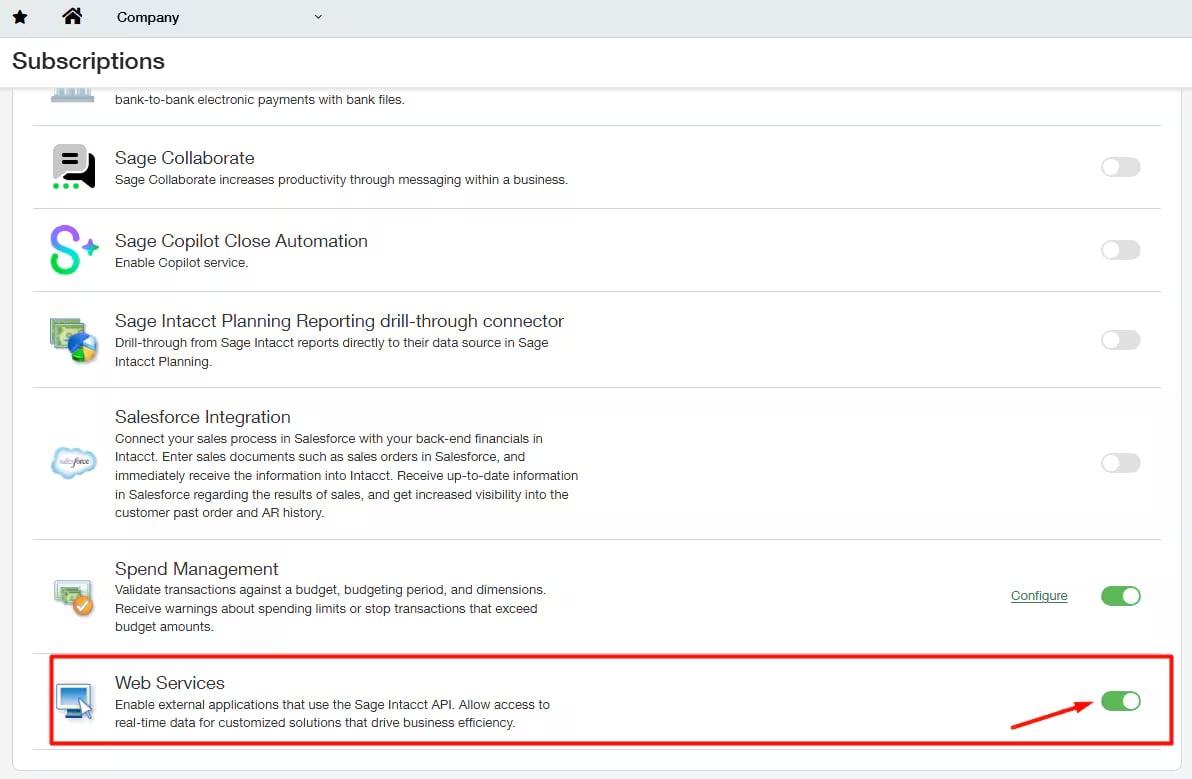
You must have Web Services enabled in Intacct (Company > Admin tab > Subscriptions).
Create a user at the Root Level (top level) and give it full permissions.
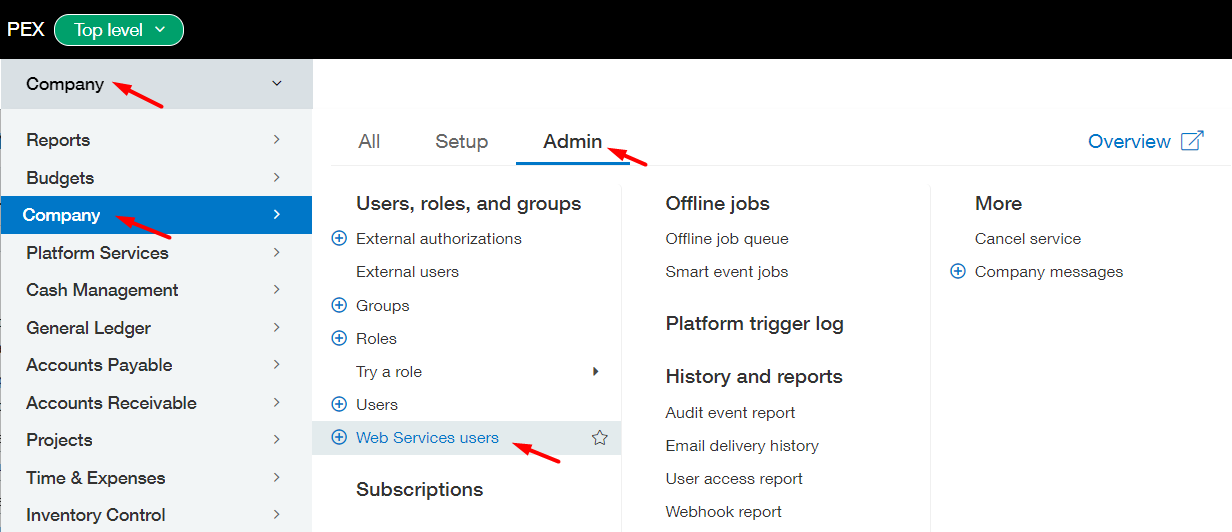
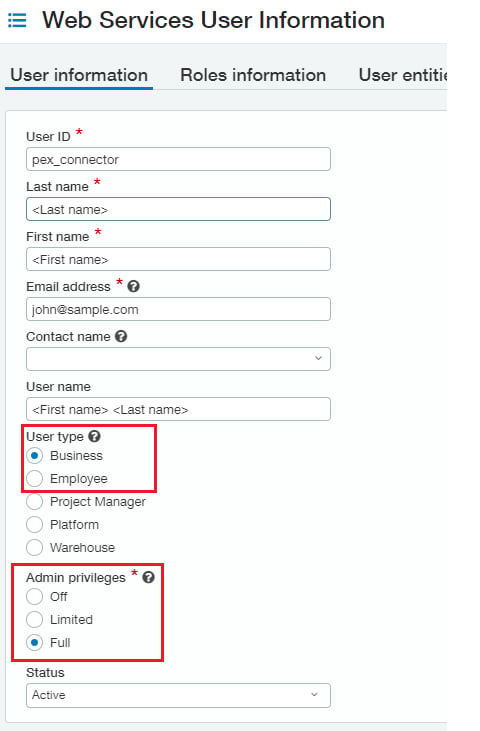
Navigate to Company > Company > Admin tab > Web Services users. Set User ID = pex_connector.Note:This username indicates a non-billable user and is used ONLY for the integration.
Email address: Use the email address of the person managing the PEX account or the sync.
User Type: select Business.
Admin Privileges: select Full. Step 4: General Ledger Set Up
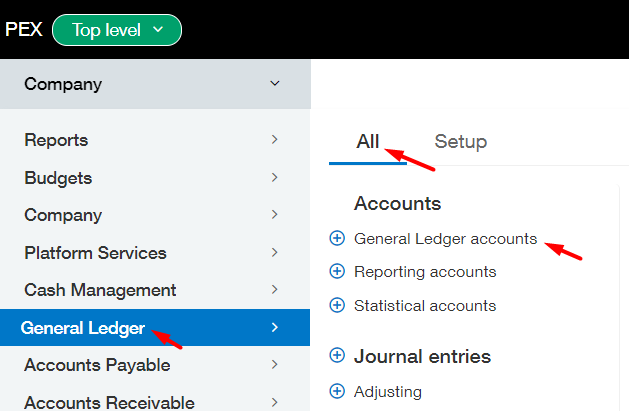
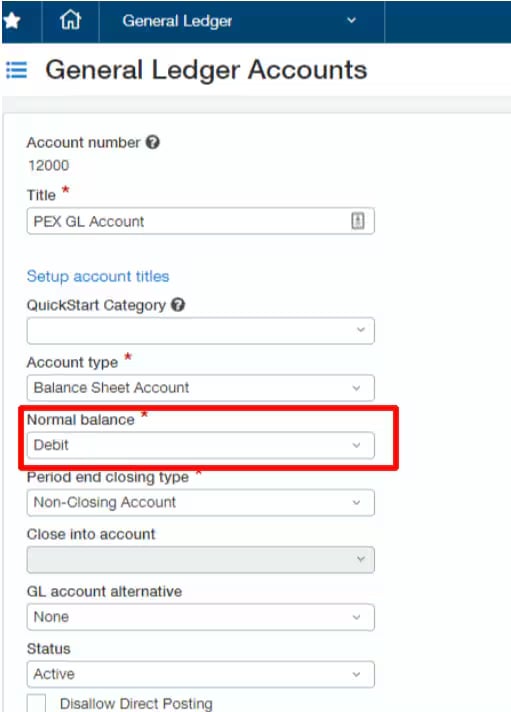
Navigate to General Ledger > All tab > General Ledger accounts. Locate your PEX General Ledger Account (e.g., PEX GL Account).
Ensure Normal Balance = Debit. User Defined Dimensions
If you want to sync transactions with user defined dimensions, grant the group access to read user defined dimensions go to Company > Admin > Roles > Click “Edit” on the Web Services user > Click “View Subscriptions” > Check a checkbox for “User Defined Dimensions” > Click on “Permissions” for the User Defined Dimensions > Give it read only permissions > Click “Save” a few times.Last modified on April 23, 2026