

How to Add a Bank Account Using Instant Account Verification via Open Banking Providers
Log into the Administrator Site at https://dashboard.pexcard.com
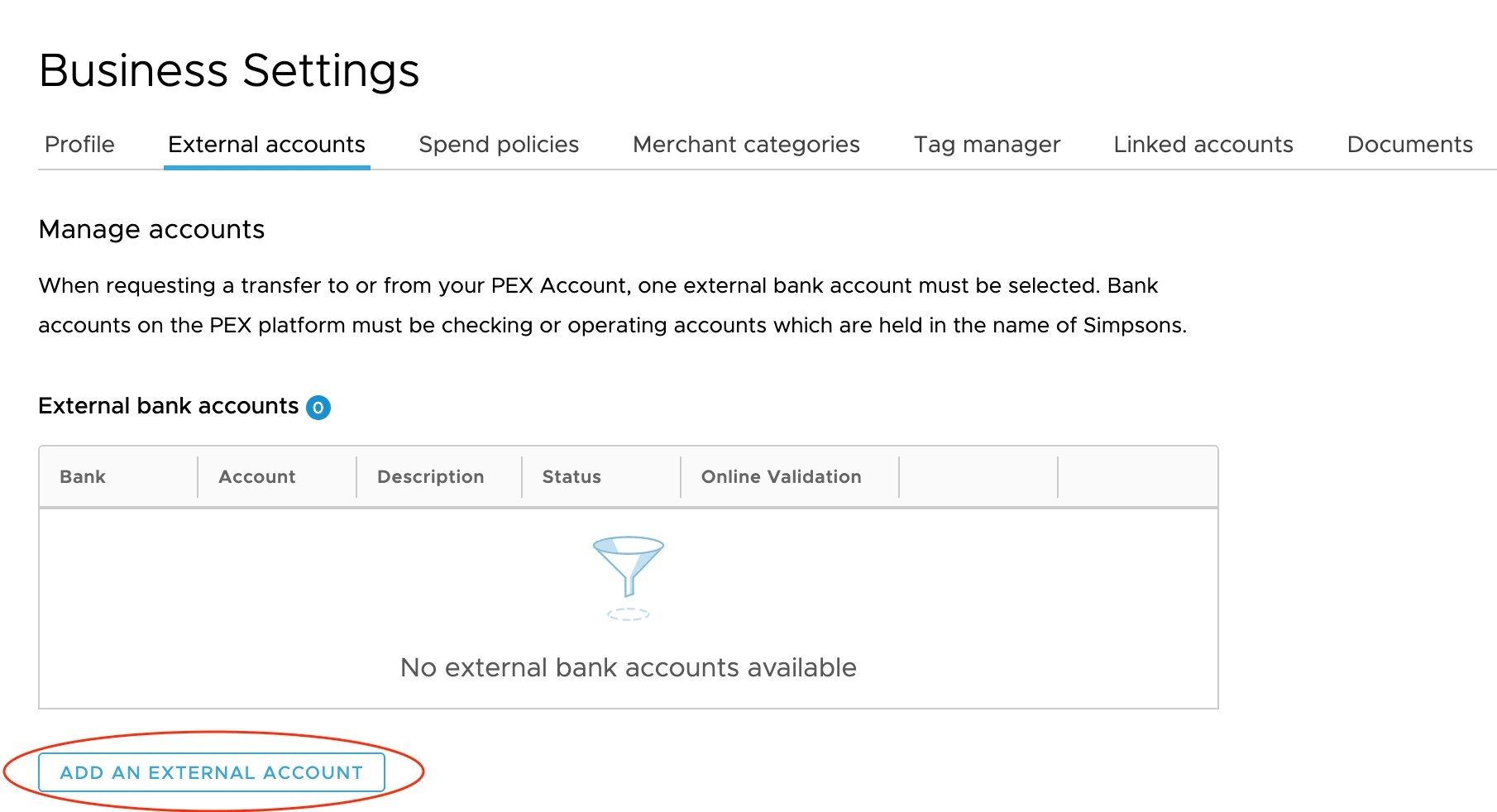
Choose your bank from the list of available banks.
- PEX supports bank account authentication for thousands of financial institutions, including many of the largest banks in the U.S. (Chase, Citibank, Wells Fargo, US Bank, Bank of America, and more)
- If your bank is not supported you will need to use micro-deposits verification, which may restrict access to certain PEX features such as Same Day ACH funding
Note:If you are having issues connecting your bank account, use the “Click here” hyperlink and you will be able to add your account using micro-deposits verification.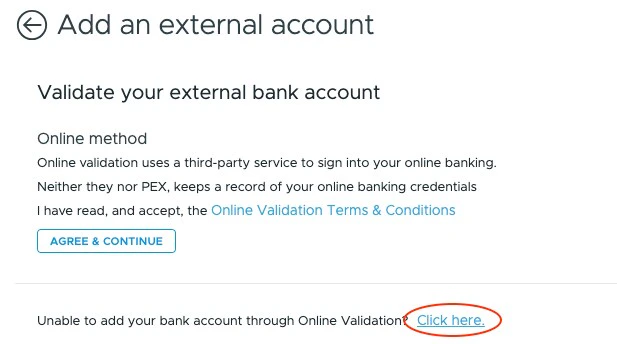
Online Verification Common Issues
PEX uses the 3rd party tool Instant Account Verification via Open Banking Providers in order to connect to your bank account. These are some common problems experienced by our customers during the online verification process:- Occasionally Instant Account Verification via Open Banking Providers or your bank’s service may be disrupted preventing online verification. In this event, the pop up for searching for your bank should indicate service issues, and it may be best to try again later.
- Although Instant Account Verification via Open Banking Providers support over 12,000 financial institutions, your bank may not show up on the list when you search for it. Additionally, for some banks consumer accounts are supported by Instant Account Verification via Open Banking Providers, but business accounts may not be.
- In some situations certain user settings on your bank account may prevent Instant Account Verification via Open Banking Providers connectivity such as privacy restrictions or multi-factor authentication.
- When you change your bank account username or password, PEX loses access to the bank connection we use to verify account details. PEX Business settings for External accounts will indicate the bank is “Unlinked” if we lose connectivity. We suggest relinking your external bank account in this situation.
- If you are unable to complete the online verification process despite these suggestions, you should proceed with the micro-deposits verification method by selecting the “Having a problem?” prompt. This may restrict access to certain PEX features such as Same Day ACH funding.
How to Add a Bank Account using Micro-Deposits Verification
Log into the Administrator Site at https://dashboard.pexcard.com
Click “Having a Problem?” to select the micro-deposits method for account verification.
- Enter your account number, routing number, and bank name
- Click “Submit”
PEX will make two small deposits to your bank account in the next 2 to 3 business days.
- Check your bank account for these deposits.