

How to Set the Spending Limit per Purchase, by Merchant Category
Log in to https://dashboard.pexcard.com/
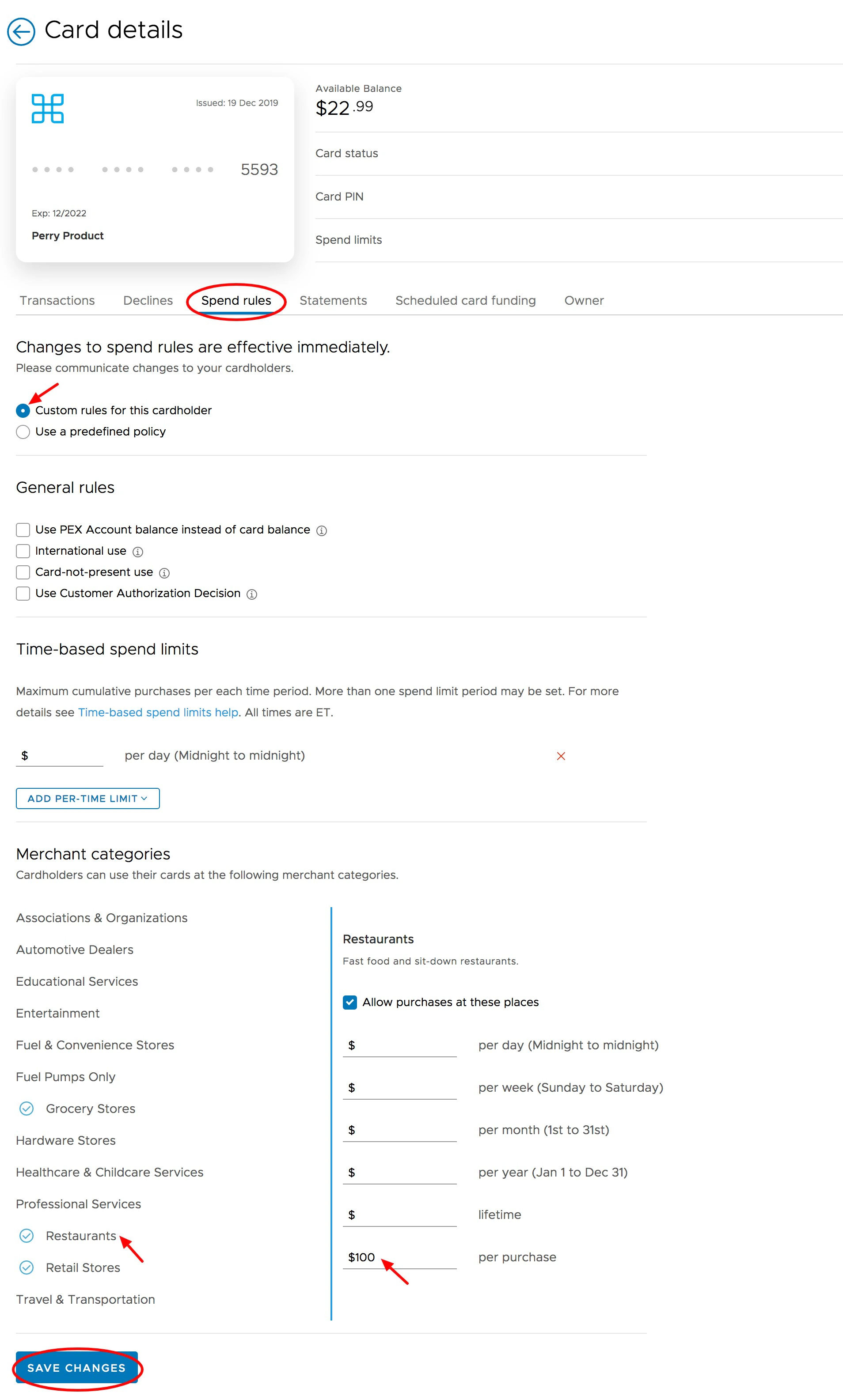
Scroll down to Merchant Categories and choose the category where you want to control the cardholder’s spending per purchase.
Note:
- The Per Purchase spending limit applies to single transactions, not to aggregate/cumulative spending against a Merchant Category.
- If a cardholder’s spend limit for Restaurants is $100 Per Purchase, then PEX will decline a transaction that’s submitted in the amount of $101
- As long as there?s a sufficient balance on the card, however, the system will approve multiple individual transactions in Restaurants for $99 each — so that in the aggregate, the cardholder might spend much more than $100 in Restaurants
- When you set maximum spending limits for two separate Categories, they may share one or more of the same MCCs. If they do, then the system will send you a warning message to tell you that this can create conflicts.
- When multiple categories with Maximum spend limits contain the same MCC, then PEX will apply the lowest spending limit to that MCC, for example:
- MCC #5661, Shoe Stores, is contained in the PEX Merchant Category “Retail Stores.” You have set a Max Purchase limit of $500 per transaction for “Retail Stores.”
- MCC #5661, Shoe Stores, is also contained in a Custom Merchant Category “Shoes,” where you have set a Max Purchase spending limit of $200 per transaction.
- The Max Purchase limit for that cardholder for MCC #5661 will therefore be $200 per transaction, because PEX enforces the lower limit.
- If you enter a Daily spend limit in addition to a Per Purchase spend limit, the Per Purchase limit cannot be greater than the Daily limit (e.g., a cardholder cannot have a Daily spend limit of $200 and a Per Purchase spend limit of $500).
- In a case like that, the system will send you an error message
- You will not be able to continue until the conflict is resolved