

Please note:
- Only the Administrator who first created a Custom Merchant Category can delete it.
- If the Administrator who created the Custom Merchant Category has left your organization, then send an email to adminsupport@pexcard.com. PEX Support can help you with the issues regarding editing and deleting Custom Merchant Categories when the person who created them is no longer available.
- PEX Categories. You cannot delete the 13 original PEX Merchant Categories (Associations & Organizations, Automotive Dealers, Educational Services, and so on), which are indicated with the blue PEX logo.
- Locked Categories. You cannot delete any Merchant Categories that are indicated with a lock.
How to Delete a Custom Merchant Category
Log into to dashboard.pexcard.com
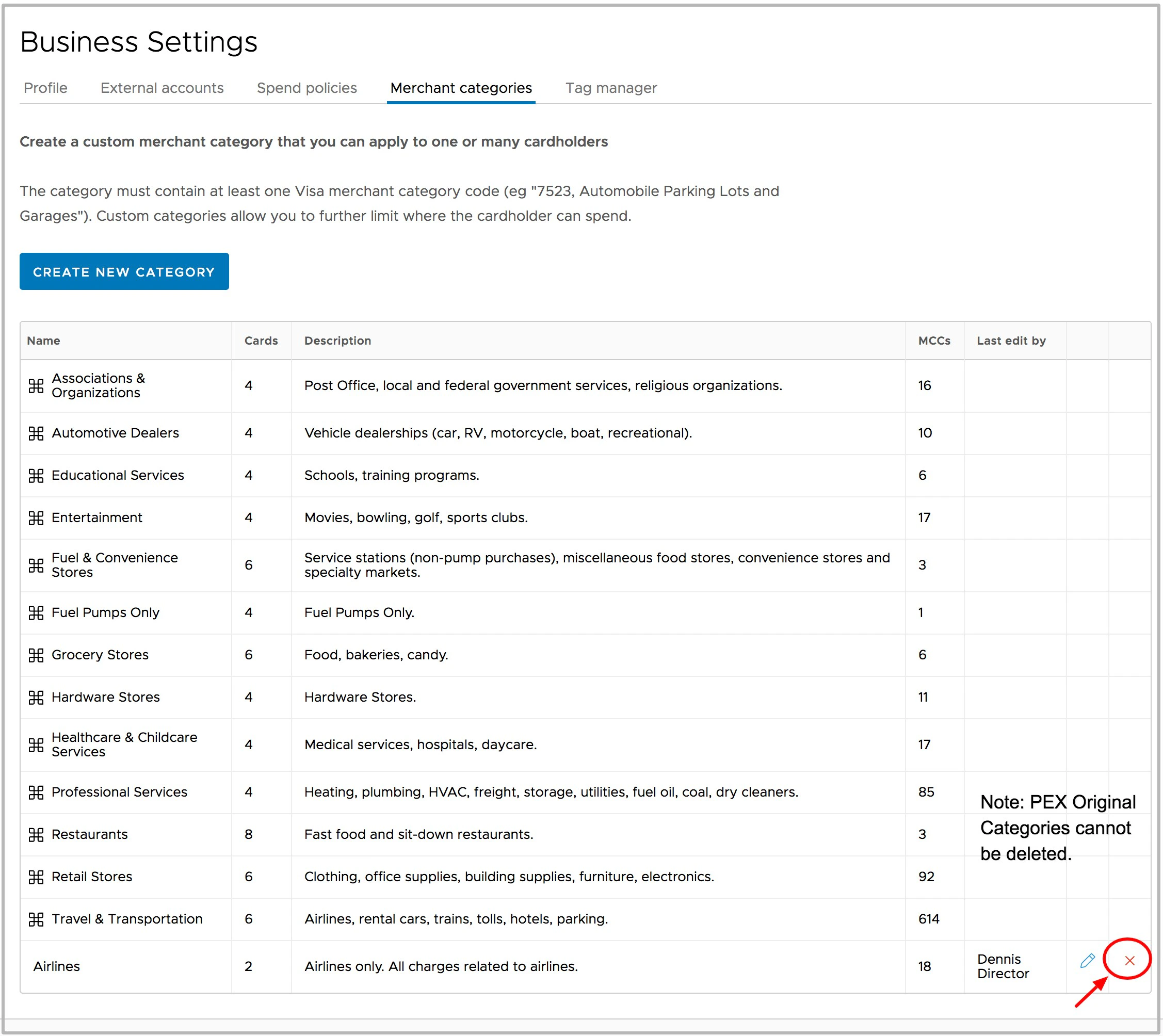
Note:
- Spending Policies and cardholder Spend Rules that had the deleted Custom Merchant Category in them will be updated in real-time
- The deleted category will no longer be listed in the Merchant Category tab nor will it be listed as an option for Spending Policies, or under cardholder Spend Rules