How to Change Your Username:

2
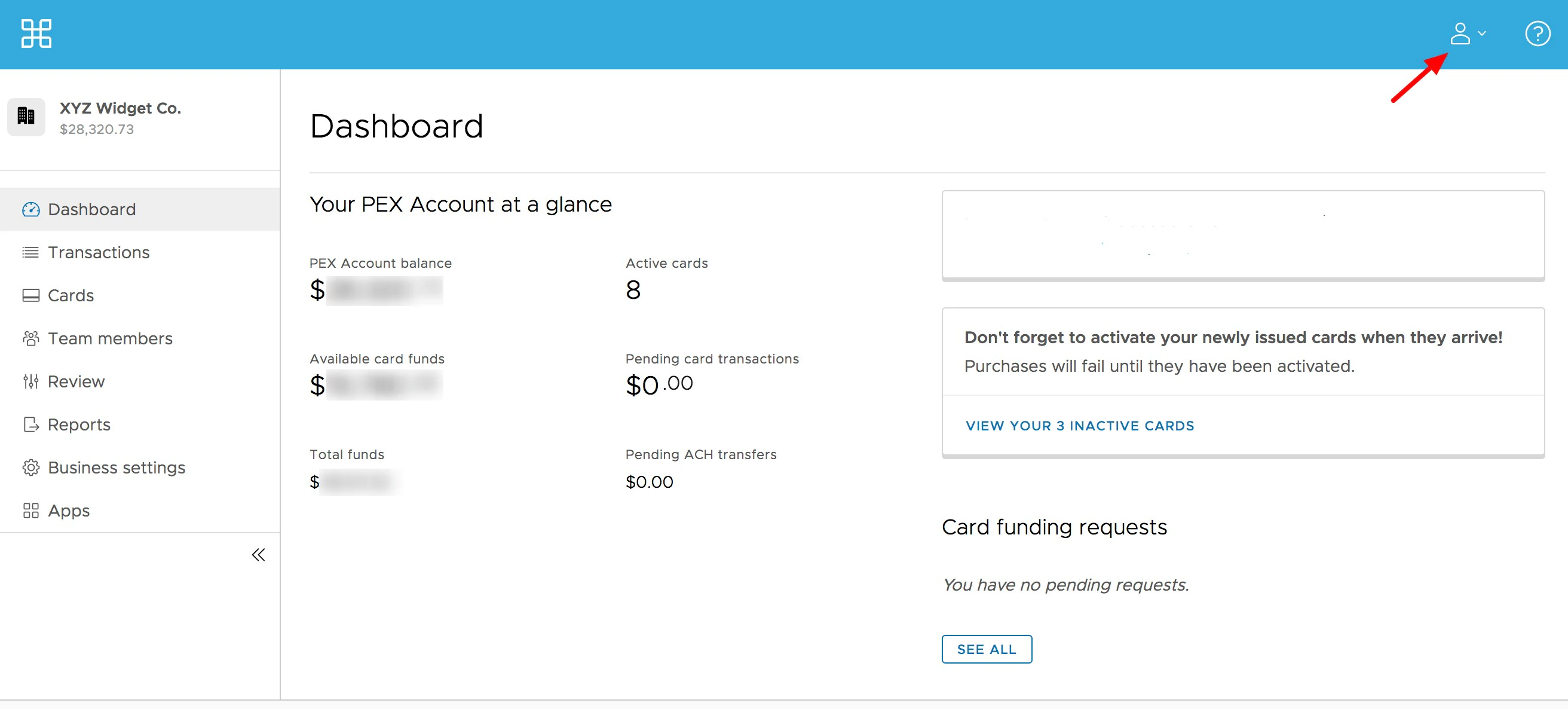
Click “My profile” in the upper right corner (the icon of a person)
3
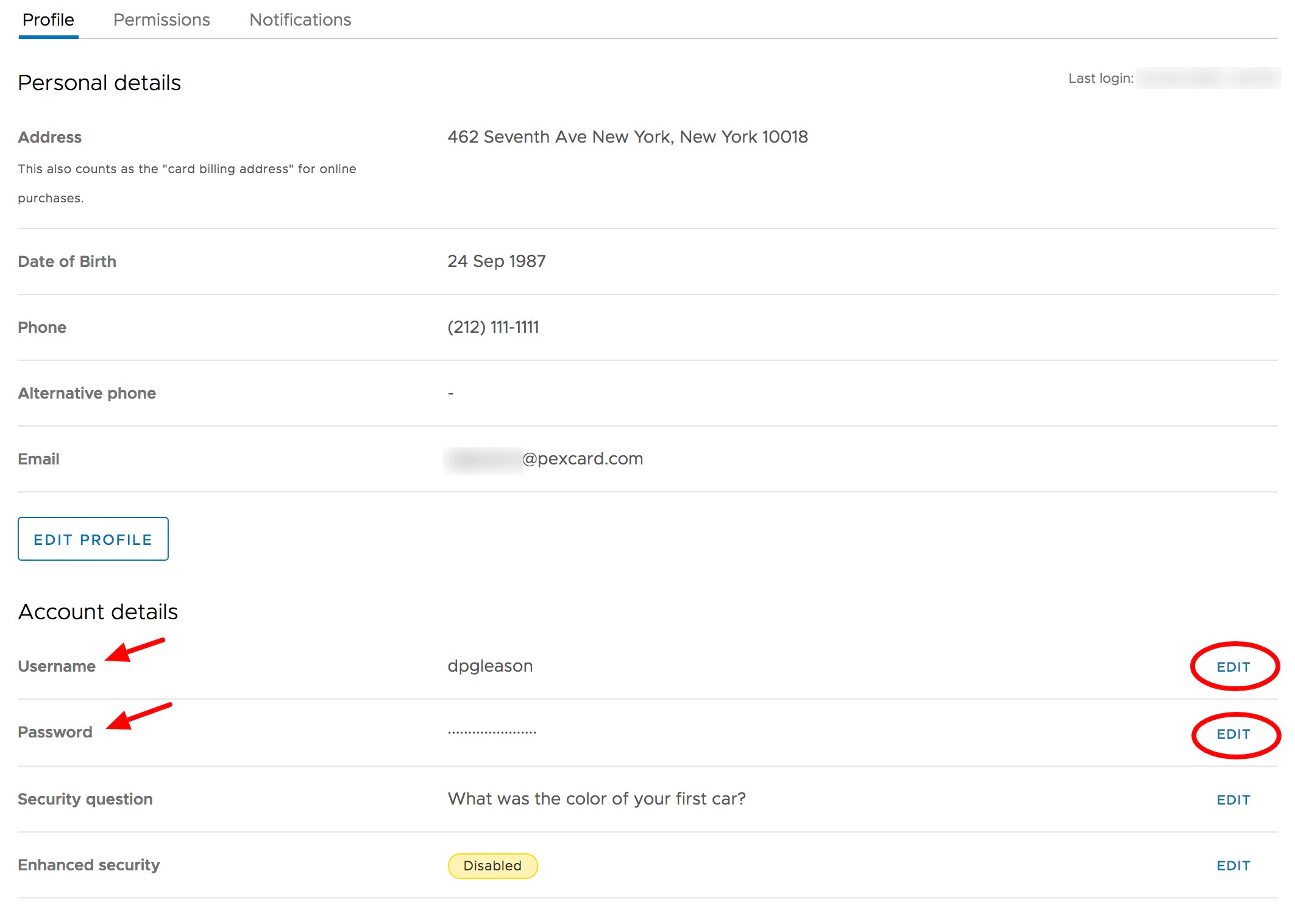
Scroll down to the Account Details section, and Click “Edit” next to Username
4
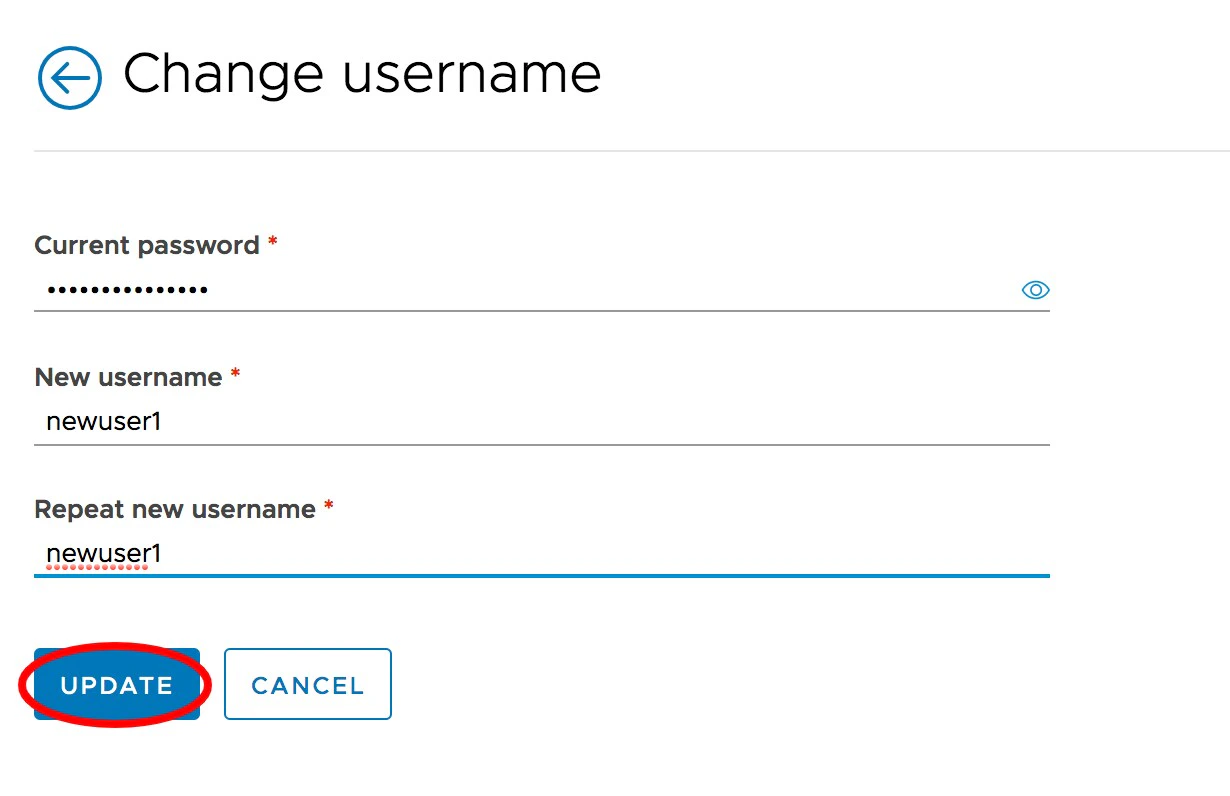
Enter your current password
5
Enter your new username
6
Re-enter to confirm new username
7
Click the “Update” button to save changes

How to Change Your Password (PEX 2020 Dashboard)

1
Log into the Administrator Site
2
Click on the “Administrators” tab
3
Click “My profile” in the blue bar
4
Click “Change password” button
5
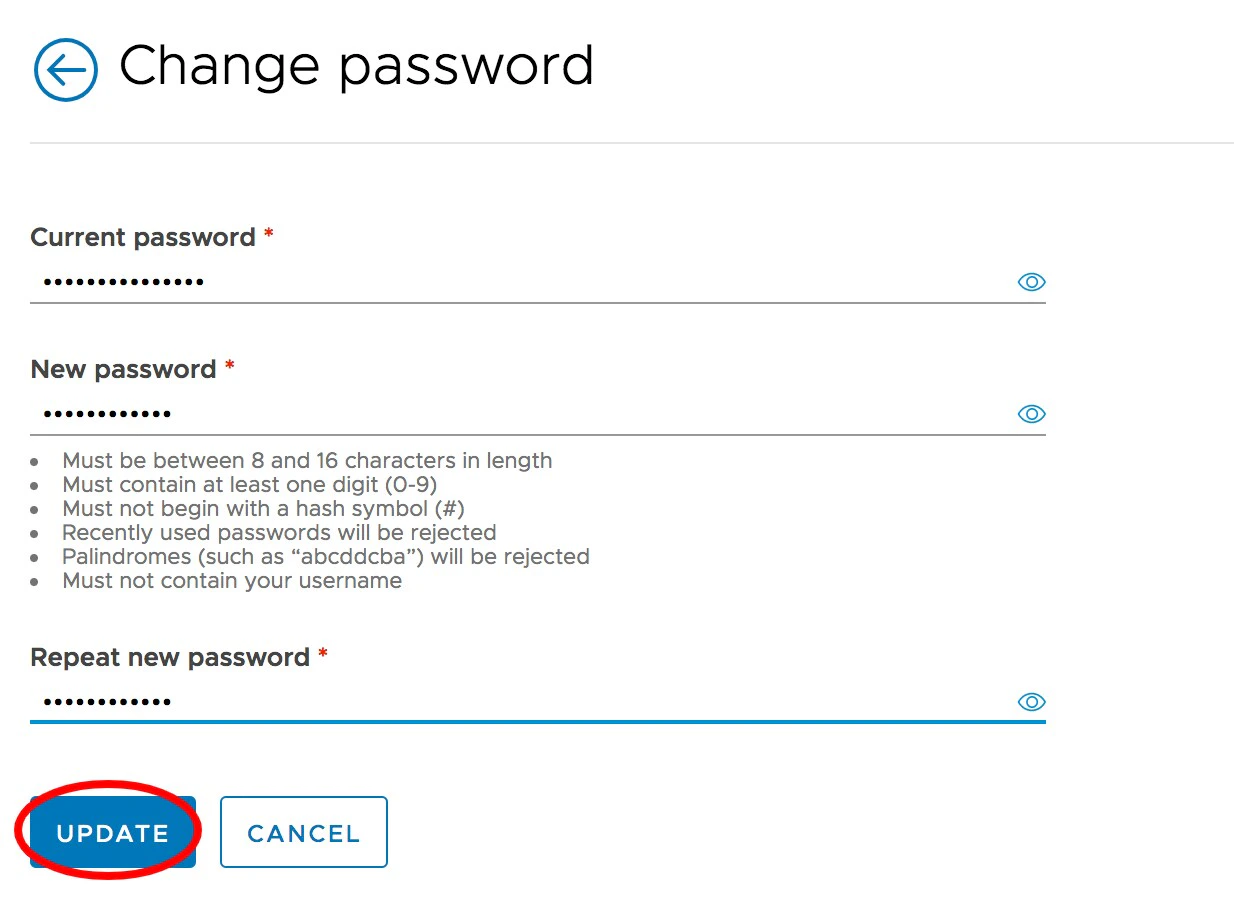
Enter your current password
6
Follow the new password requirements and create your new password. Passwords must meet the following requirements:
  • Must be between 8 and 16 characters in length
  • Must contain at least one digit (0-9)
  • Must not begin with a hash symbol (#)
  • Palindromes (such as “123aba321”) will be rejected
  • Must not contain your username
7
Re-enter to confirm the new password
8
Click “Save new password” button below
Last modified on April 22, 2026