

How to Link Multiple Administrator or Cardholder Accounts
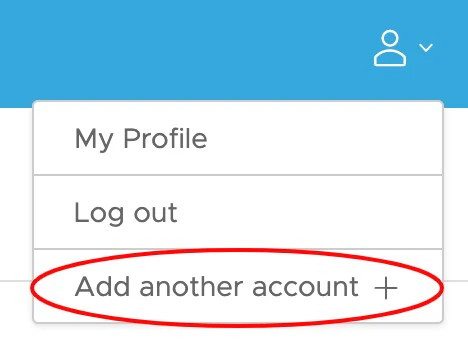
If you have credentials for more than one user account – either an additional cardholder account or an additional administrator account – you can now connect these accounts so that you can easily switch between them. This functionality allows you to access multiple accounts with a single username and password. Watch a step-by-step demonstration here!How to Link Multiple Admin or Cardholder Accounts
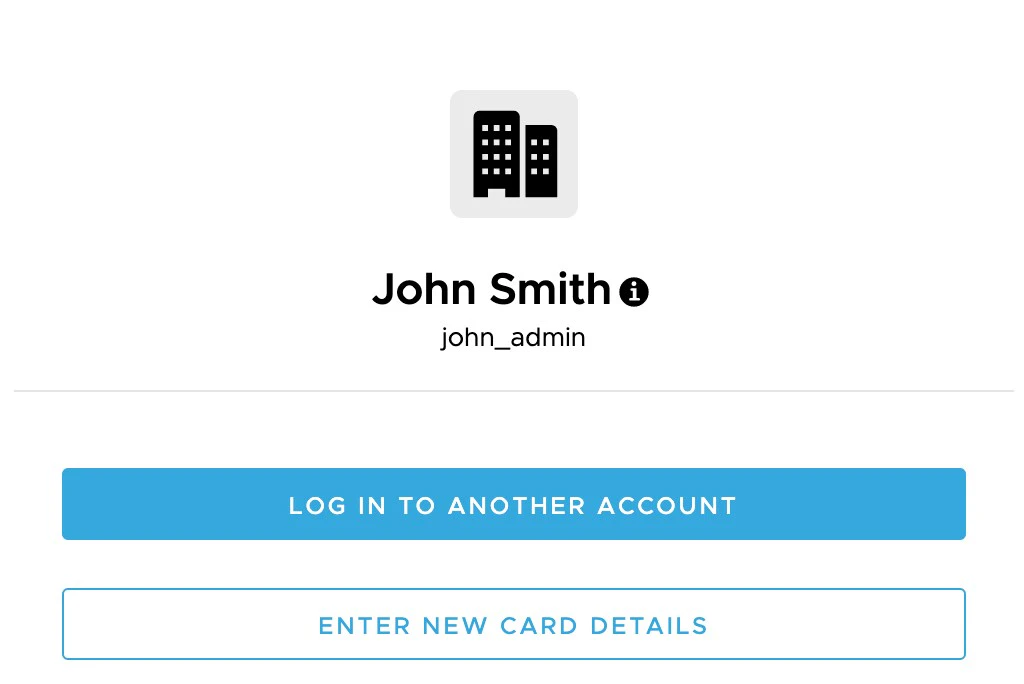
- To link an existing admin or cardholder account, select ‘Log In To Another Account.’ From there, you will be prompted to enter in your credentials.
- To link a new card account, select ‘Enter New Card Details.’ You will be prompted to enter in your card information and new login credentials to register your account.
Once you have successfully logged in to your other account, your new account will be accessible via dropdown on the top left section of the dashboard.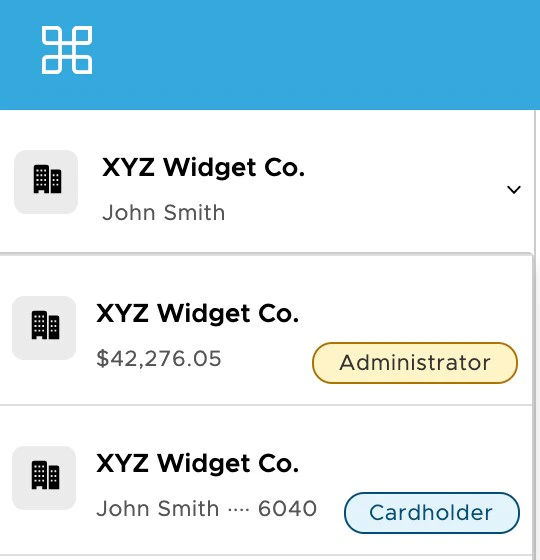
Frequently Asked Questions
Can I link accounts that are in different businesses or programs?
Can I link accounts that are in different businesses or programs?
A: Yes, as long as you have the appropriate credentials, you can link accounts across businesses.
I received an invite for a new administrator account. How do I add a new admin account to my linked accounts?
I received an invite for a new administrator account. How do I add a new admin account to my linked accounts?
A: At this time, you will need to complete registration and account set-up for your new account. Once you have a username and password set up, you can then follow the process for linking an existing account.
Once I've linked an account to my profile, will I be able to remove it?
Once I've linked an account to my profile, will I be able to remove it?
A: No, you will not be able to remove an account once you have added it. To remove an account from your linked accounts, contact customer service.
Can I link a closed account?
Can I link a closed account?
A: Yes, you can link a closed account.