Instructions for the PEX dashboard | Instructions for the Mobile app

How to Change Your Username Through the PEX Web App

1
Log in to dashboard.pexcard.com/
2
Click on the My Profile icon on the upper right corner of the screen (icon of a person)
3
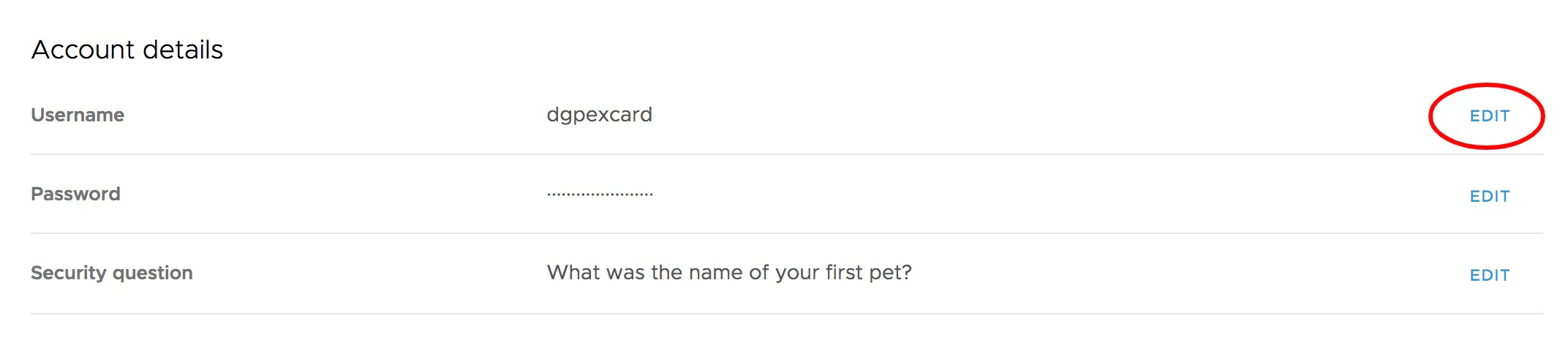
Under “Account Details”, click “Edit” next to username
4
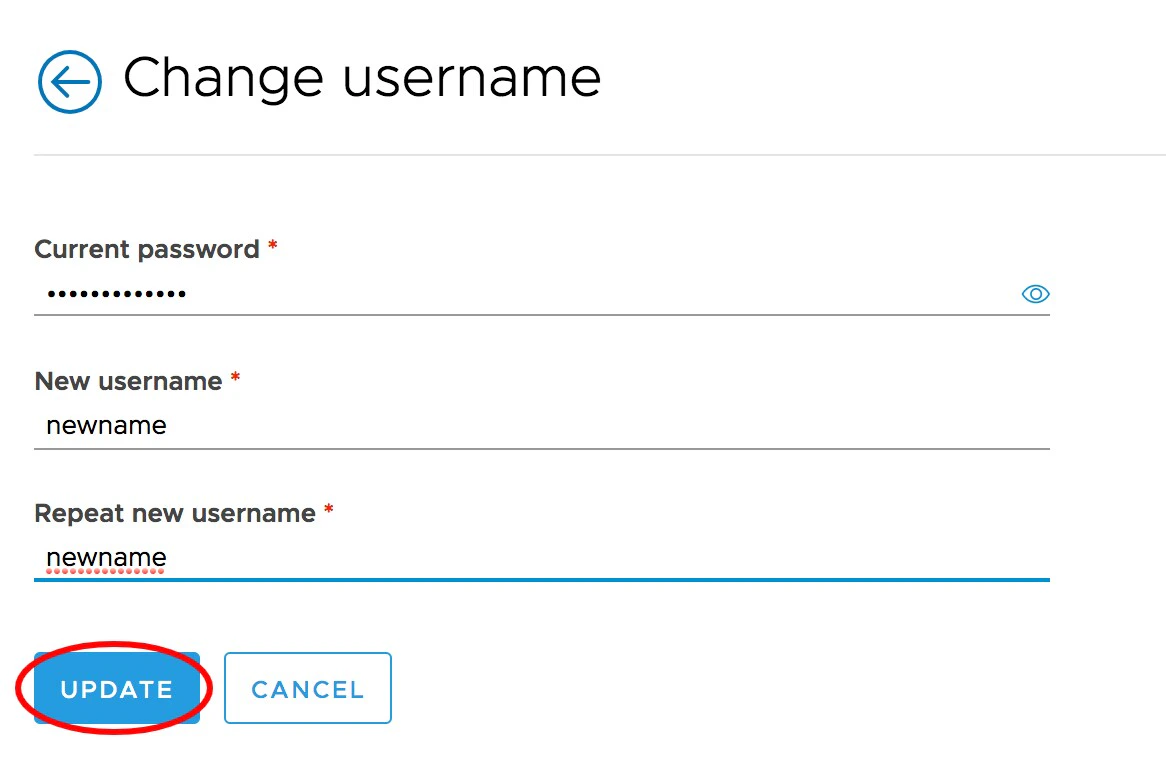
Enter your current password
5
Enter your new username
6
Re-enter to confirm the new username
7
Click “Update” to Save changes

How to Change Your Username Using the Mobile App

Download the Mobile App:
1
Log in to the Mobile App
2
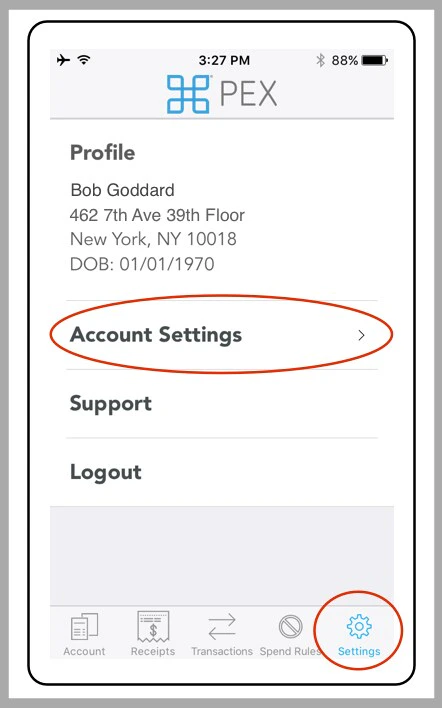
Click the “Settings” icon at the bottom of the screen
3
Click “Account Settings”
4
Click “Settings” icon. Click “Account Settings.”
5
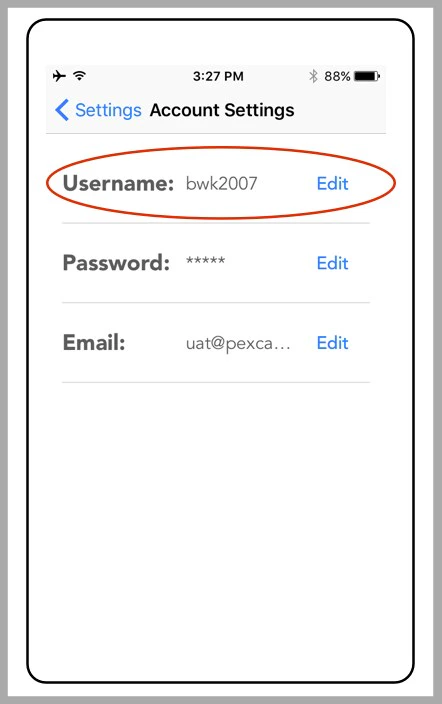
Click “Edit” after Username
6
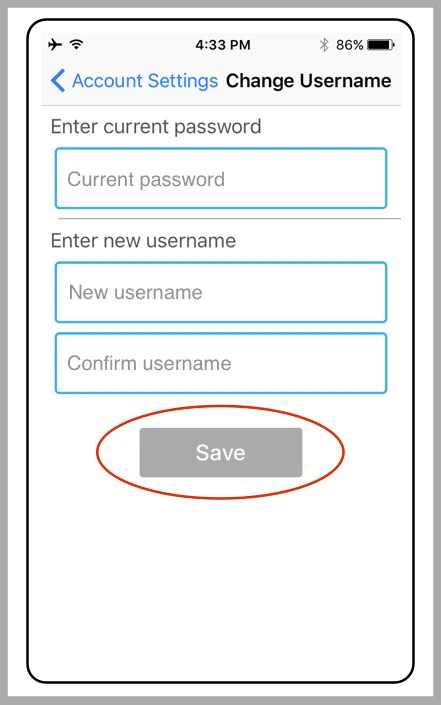
Enter your current password
7
Enter and re-enter the new Username
8
Click “Save” to confirm the changes
Enter current password. Enter and re-enter new Username. Click “Save.”
Last modified on April 22, 2026