

- If you do not have a Cardholder User Account, please see “How to Create a New Cardholder User Account”
- If you have trouble logging in to your Cardholder User Account, please see “Troubleshooting Cardholder User Login”
How to Check Your Card Balance
Log in to dashboard.pexcard.com
On the Dashboard tab (the default upon logging in), you will find the “Available Balance” displayed.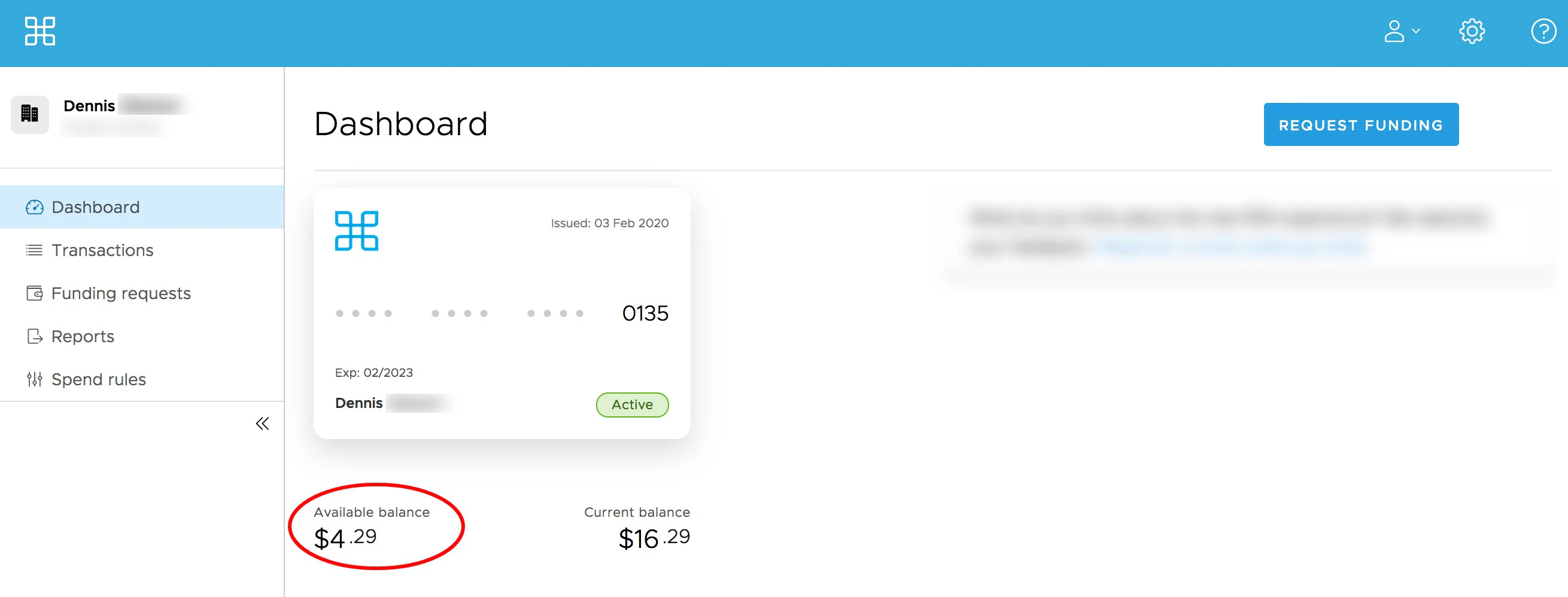
- Note: the “Available balance” is the amount you are able to spend. This balance may differ from the “Current Balance” due to pending transactions that have not yet settled. To see pending transactions, click on the Transactions tab.
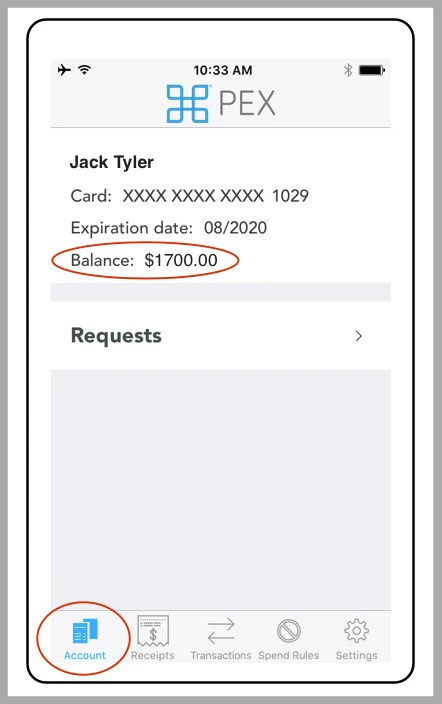
How to Check Your Card Balance on the PEX Mobile App
Download the PEX Mobile App for your device:- Download the iOS App from the App Store
- Download the Android App from the Google Play Store
- The download is free but carrier data rates may apply
How to Check Your Card Balance in the Automated Phone System
Call 866-685-0898. You will be prompted to input the card information in order to locate your account. The company’s billing zip code will be required.How to Opt into receiving your balance by SMS/Text Message
- Follow all steps in How to Check Your Card Balance in the Automated Phone System
- Once you have verified your balance, select 3
- You will receive a test message containing your balance
- Text back this message with the last 4 of your card
- Repeat this last step for future balance sms/text alerts
Note:
- If you are unable to create a Cardholder User Account, please check with your business administrator
- Your business administrator can also tell you your card balance