

How to Attach a Receipt to a Transaction
Log in to dashboard.pexcard.com
Locate the relevant transaction, and click on it to see the transaction details
- You can use the Filter button above the transaction list to add a filter which may help narrow the list of transactions to help find a specific transaction.
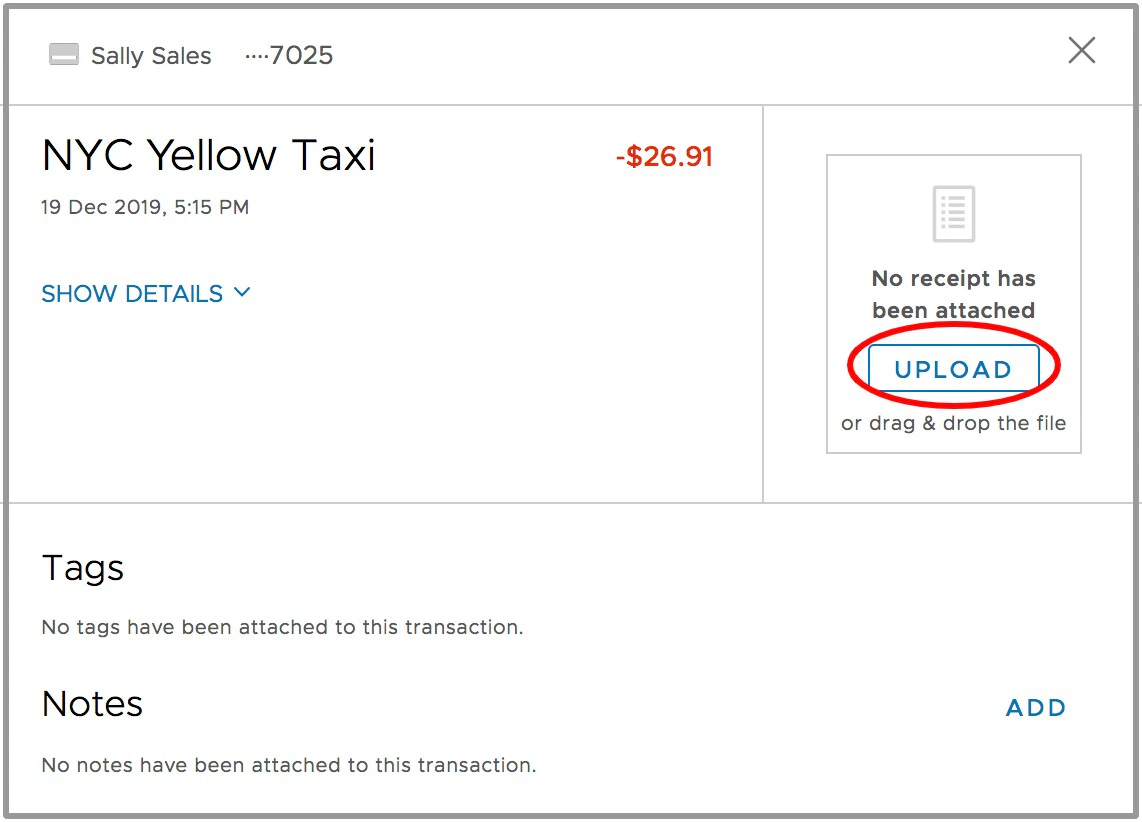
Locate the image file of the receipt on your computer
- You can also drag-and-drop the file on to the window that says “Upload”
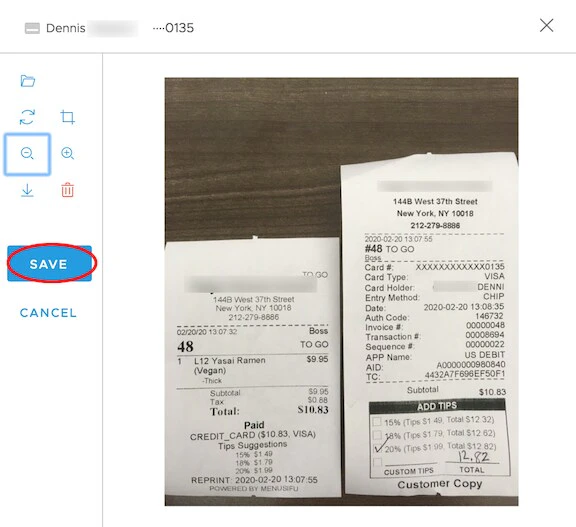
Click “Save” in the following window.
- The image upload window will have tools such as Rotate, Crop, Zoom In, Zoom Out to help you edit the image.
- You can also choose a different file, save an existing receipt image from this window to your current device, and/or Edit your uploaded image at a later date from this window.
- The image format is one that is supported by the system:
- .PNG
- .JPG
- The file contains no malware or computer viruses
- The file is not corrupted
- The file is smaller than 1 MB