PEX offers Multi-Factor Authentication (MFA) to protect your account by sending you a one-time secure access code to use at login. If your organization has MFA enabled, you will be able to opt in to receive your secure access code via email or SMS/Text. If you would prefer to receive your access code via text, follow the steps below to enroll your mobile device in MFA. 

1. Verify your phone number

You can verify your phone number in two places. 

Verify via login

1
Log into your dashboard via dashboard.pexcard.com.
2
Select your phone number.
3
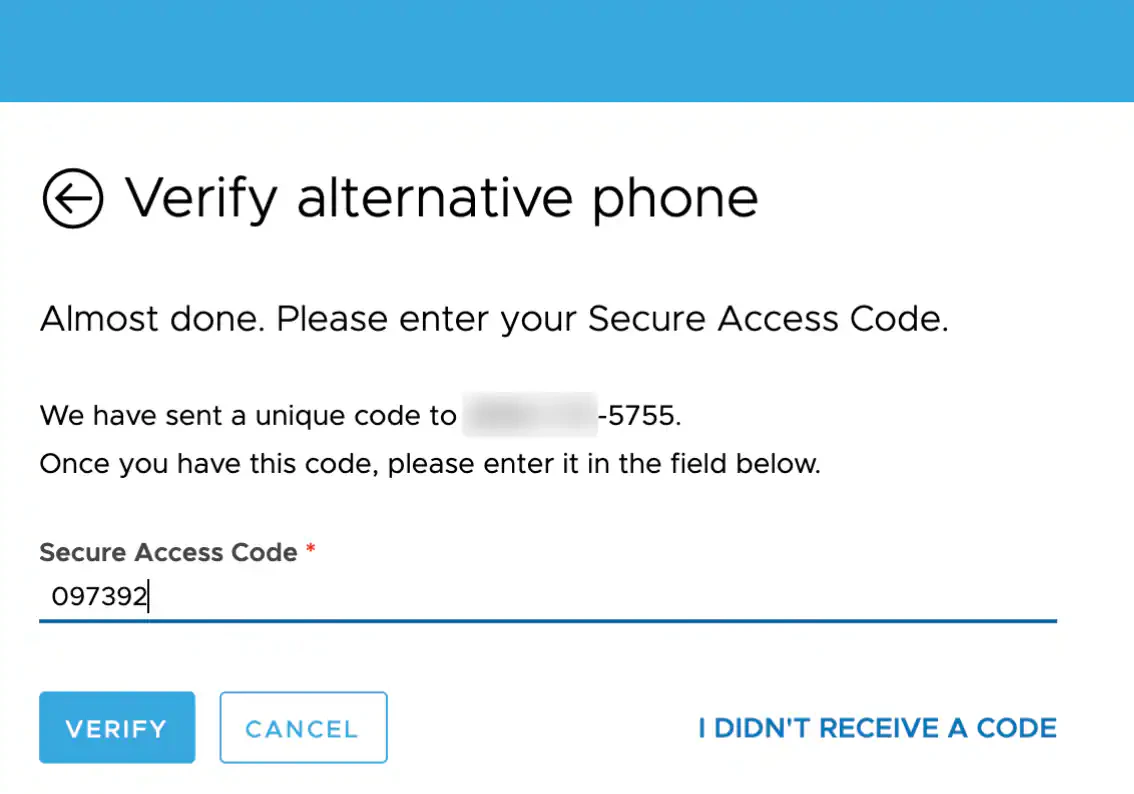
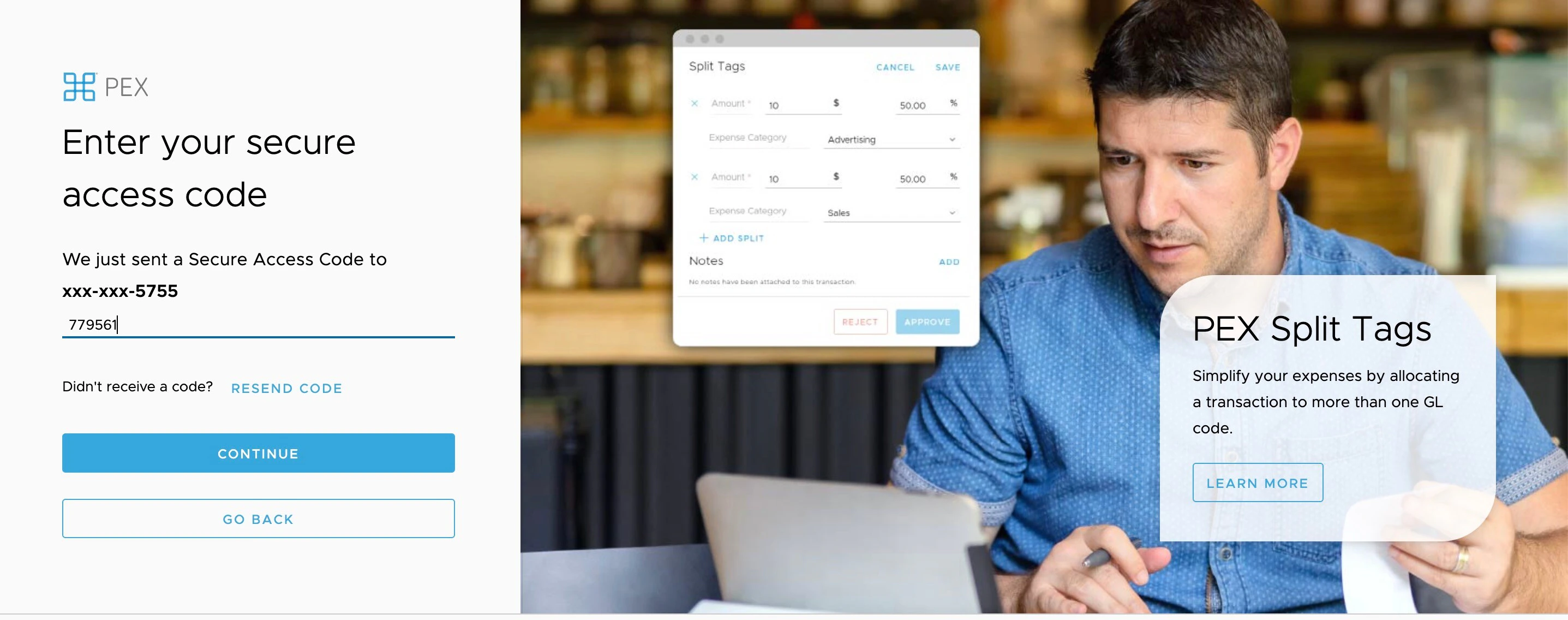
When prompted, enter the secure access code sent to your phone number.

Verify via dashboard

1
Log into your dashboard via dashboard.pexcard.com.
2
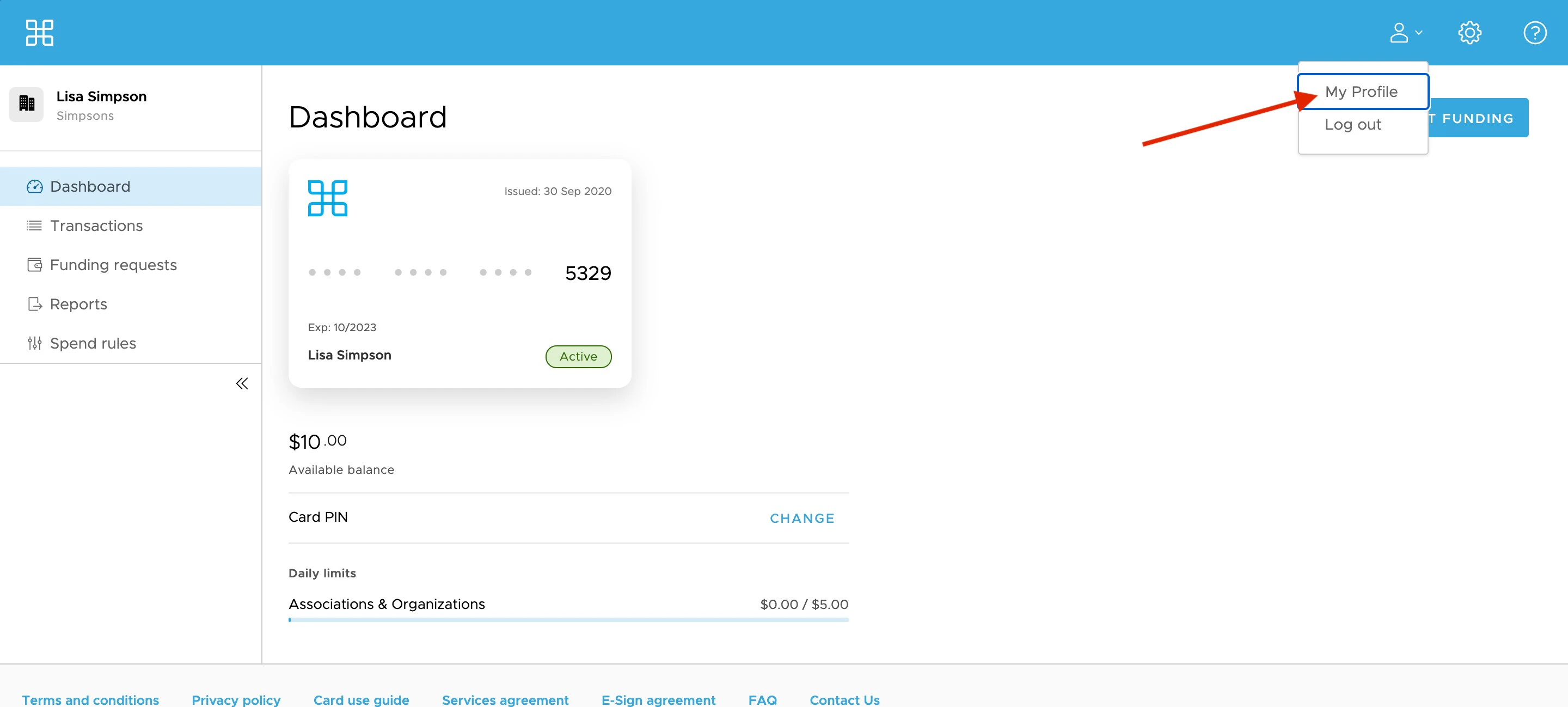
Visit your profile by clicking on the dropdown beside the person icon in the upper right corner.
ch_screenshot_4.png
3
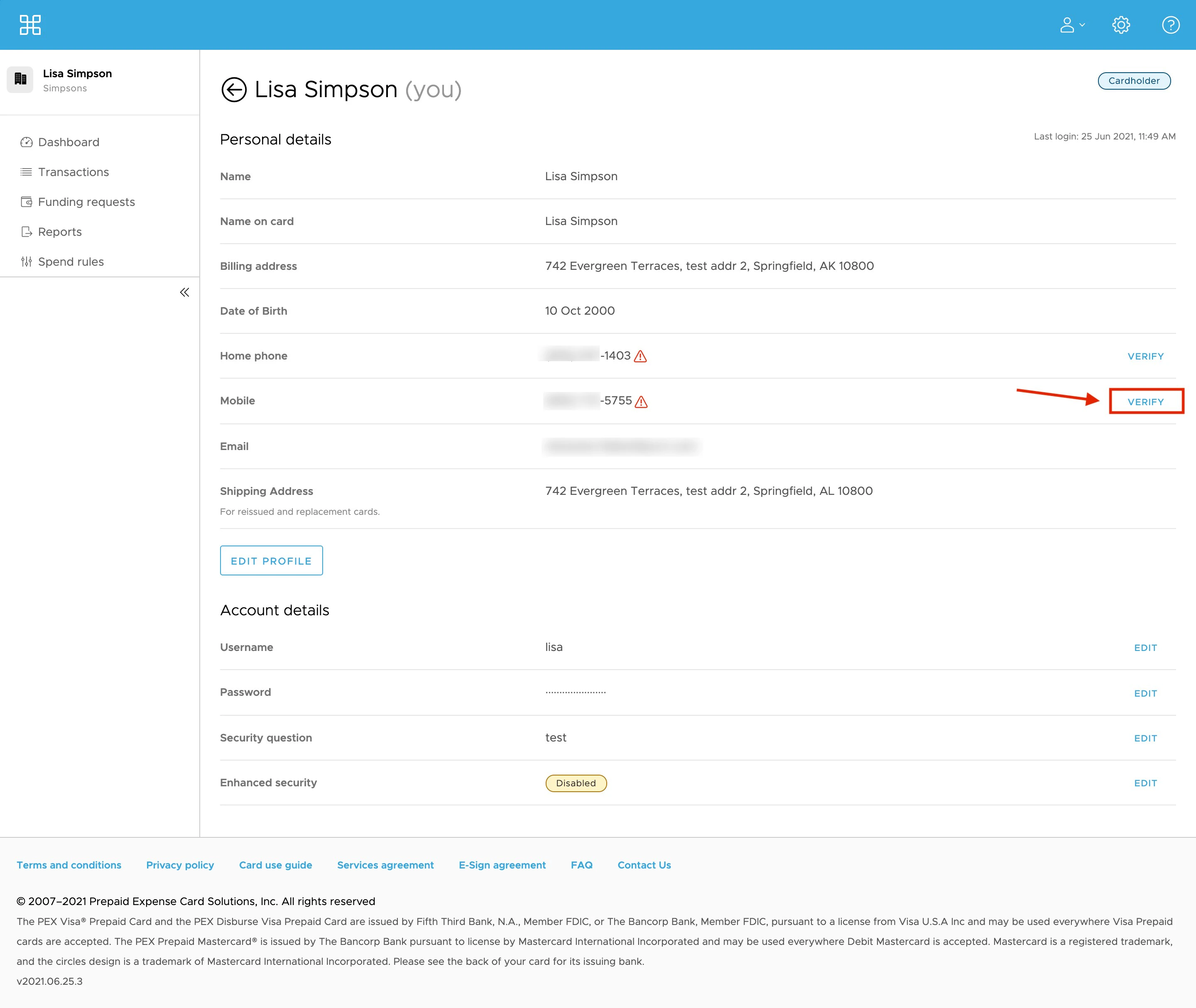
Edit or add your phone number where you would like to receive the SMS MFA notifications.
4
Verify your phone number.
ch_screenshot_2.png
5
When prompted, enter the secure access code sent to your phone number.
ss_4.png

2. Opt into SMS/Text to receive your secure access code

1
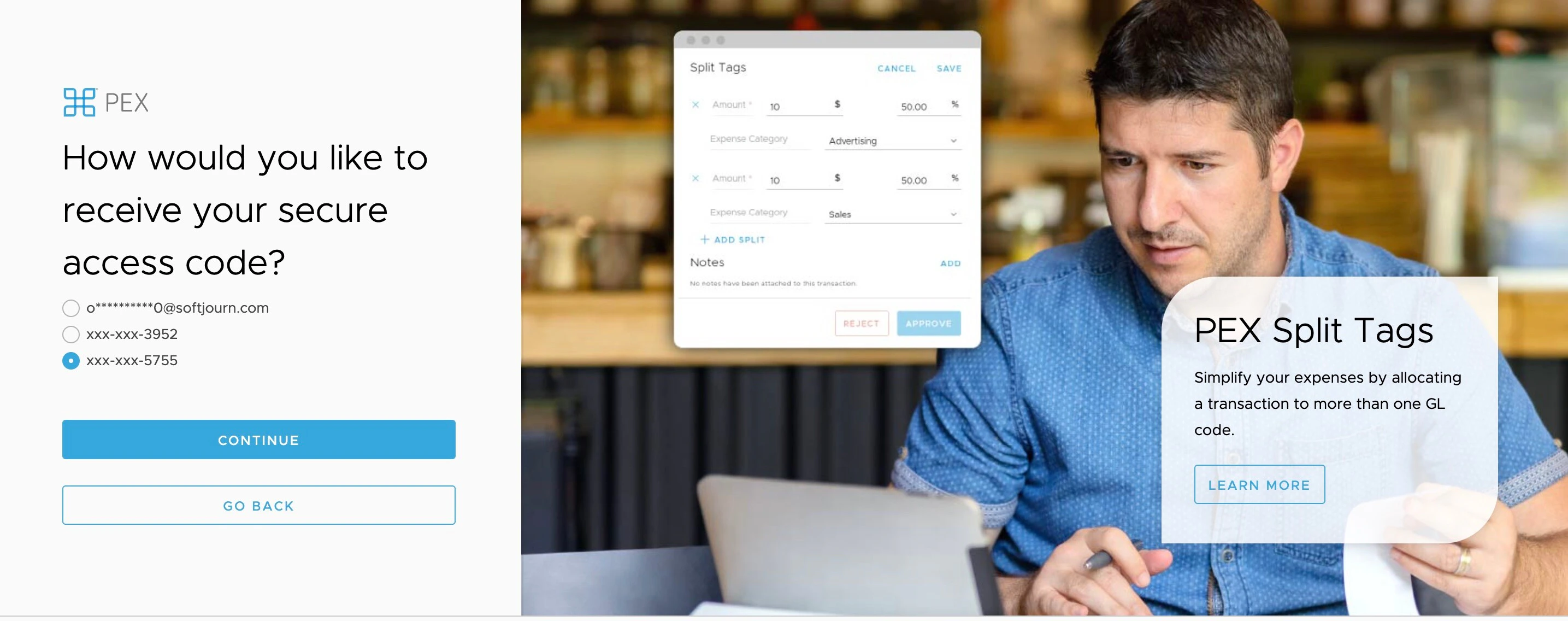
Once your phone number is verified, you can opt in to receive your secure access code via SMS/Text instead of email.
downsized_ss.jpg
Screen Shot 2021-05-14 at 11.40.49 AM.jpg
2
The next time you log in from an unfamiliar device and are prompted to enter a secure access code, you will be able to choose SMS/Text as your method of choice for receiving access codes in the future.
Last modified on April 22, 2026