Instructions for the PEX Dashboard Site | Instructions for the Mobile app

How to Change My Password on the PEX Dashboard site:

To change your password, you must be able to log into dashboard.pexcard.com. If you cannot log in, please see Troubleshooting Cardholder Login
1
Click on the My Profile icon on the upper right corner of the screen (icon of a person)
2
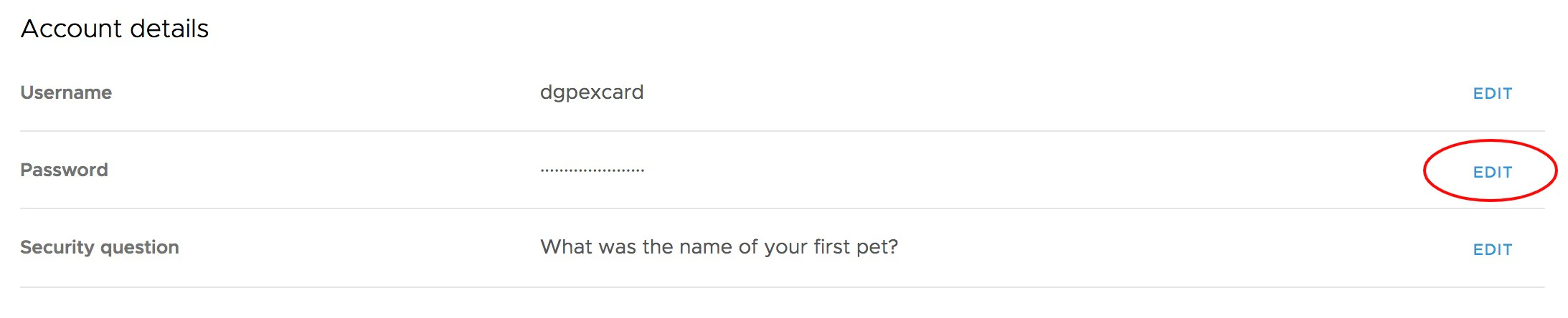
Under “Account Details”, click “Edit” next to password
3
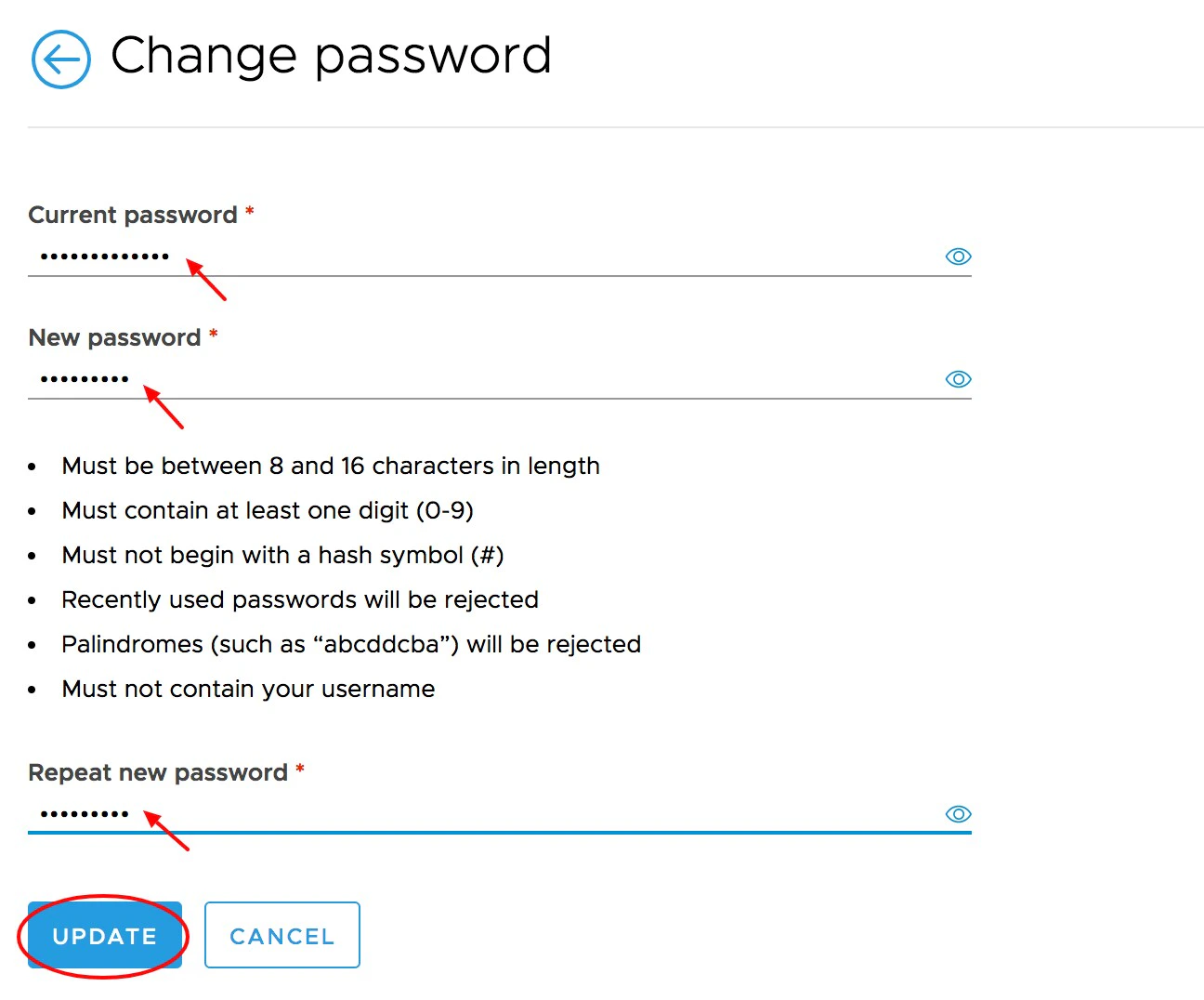
Enter the current password
4
Enter and re-enter the new password. Passwords must meet the following requirements:
  • Must be between 8 and 16 characters in length
  • Must contain at least one digit (0-9)
  • Must not begin with a hash symbol (#)
  • Palindromes (such as “123aba321”) will be rejected
  • Must not contain your username
5
Click “Update” to Save changes

How to Change My Password Using the Mobile App

1
Log into the Mobile App
2
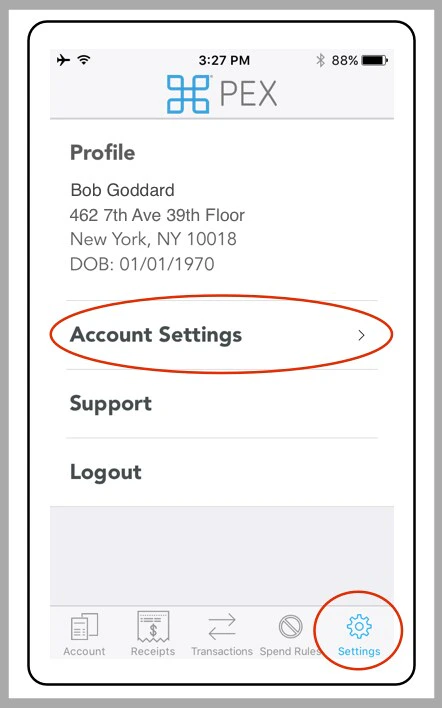
Click the “Settings” icon at the bottom of the screen
3
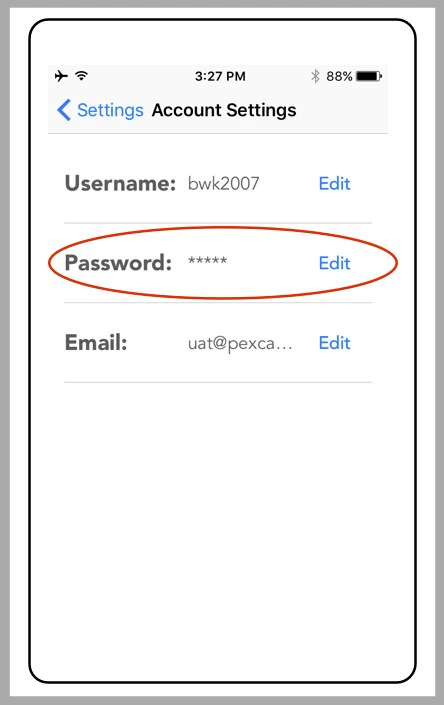
Click “Account Settings”
Click “Settings” icon. Click “Account Settings”.
4
Click “Edit” after Password
5
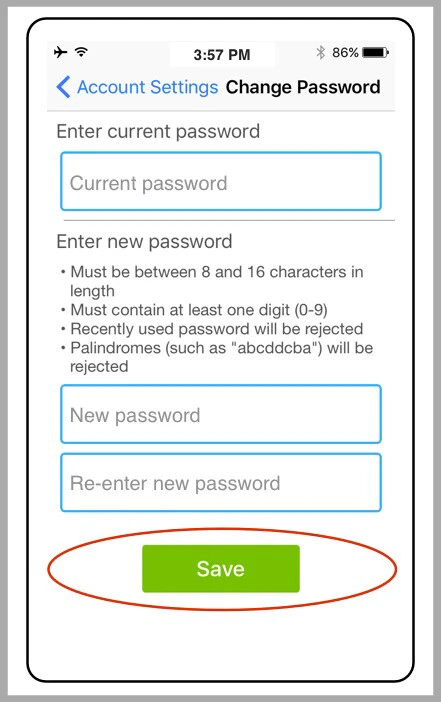
Enter the current password
6
Enter and re-enter the new password
  • Follow the system requirements
7
Click the “Save” button to confirm the new password
Enter the current password. Enter and re-enter the new password. Click “Save.”
Last modified on April 23, 2026