You can quickly fund individual cards, once your main PEX account is funded:

How to Quick Fund a Card Through the Administrator Site

2
Click the “Cards” tab on the left side of the page
3
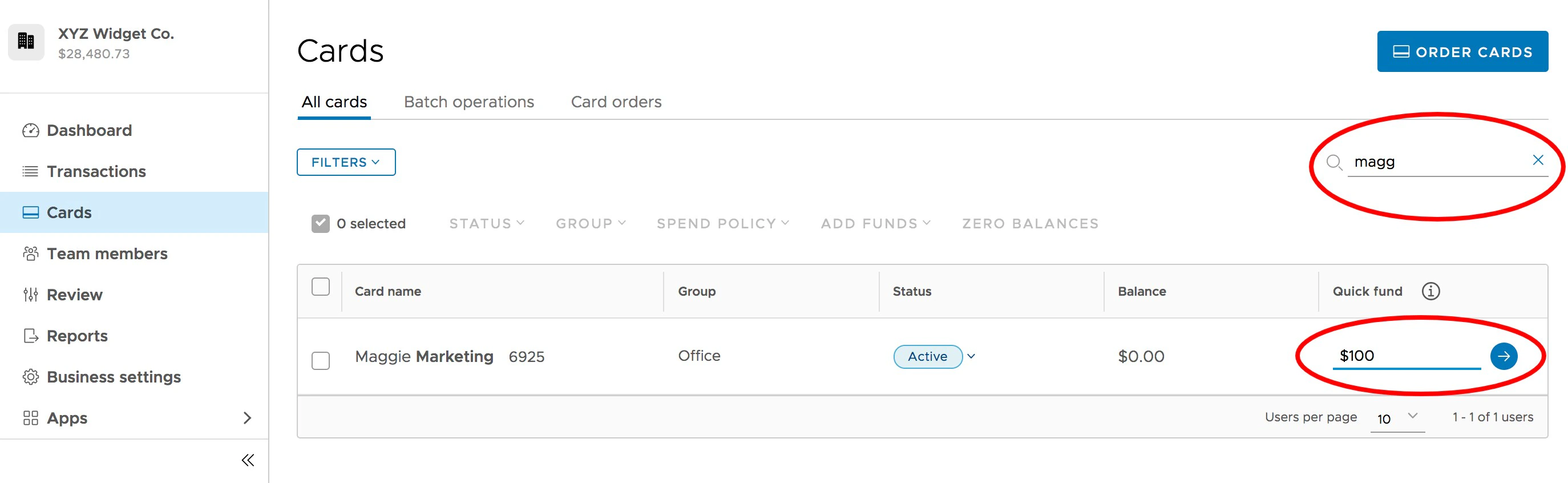
Within the All Cards list, use the “Find in this table” function on the upper right to search and find the Cardholder. The field will begin searching based on a few letters of the person’s name or the entire name.
4
Enter the amount to that card in the “Quick Fund” box, the box at the far right, as a positive number, e.g., “500”
5
Click the blue Arrow button
6
To remove funds from a card, enter the amount to that card in the “Quick Fund” box, the box at the far right, as a negative number, e.g., “-500”

How to Quick Fund a Card Through the Mobile App
1
Log in to the Mobile App
2
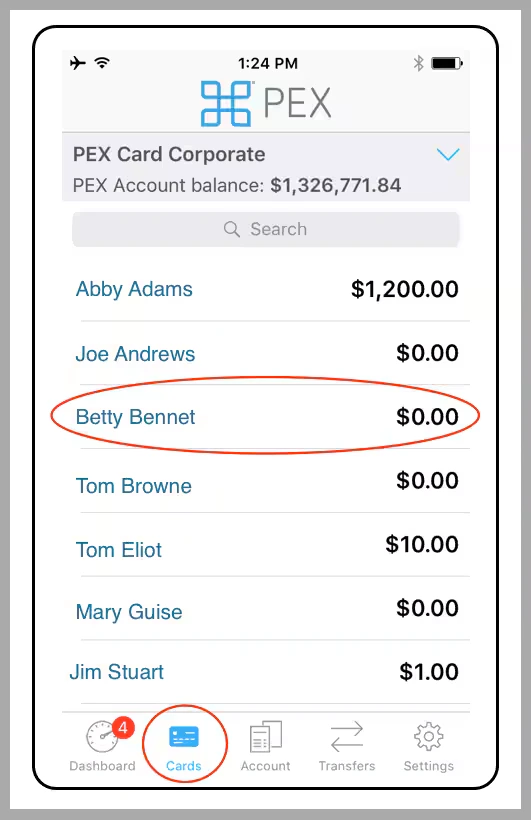
Click the “Cards” icon at the bottom of the page
3
Navigate to the cardholder
4
Click on the cardholder’s name
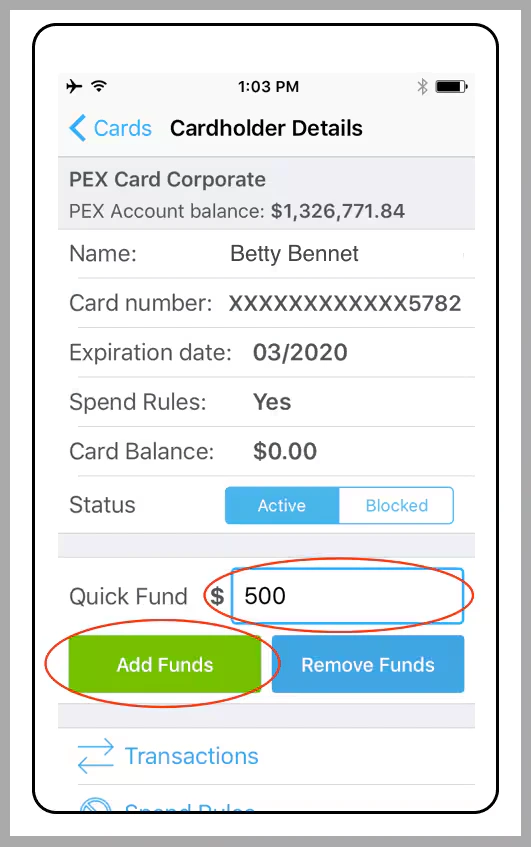
Click on the “Cards” icon. Click on the cardholder’s name.
5
Enter the amount to add in the “Quick Fund” box
6
Click the green “Add Funds” button
Enter the amount in the “Quick Fund” box. Click the green “Add Funds” button.
7
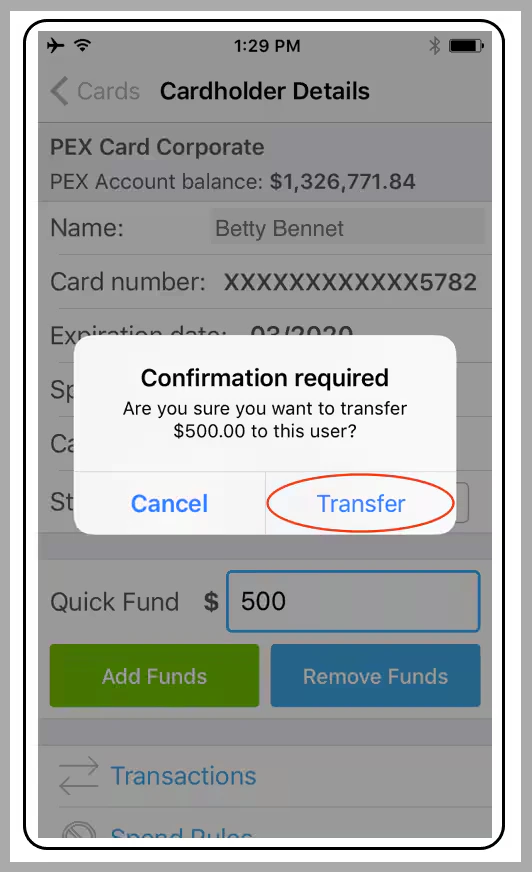
Click “Transfer” in the confirmation dialogue box to add funds to the card
Click “Transfer” in the confirmation dialogue box
To remove funds, enter the amount in the “Quick Fund” box, as a negative number, e.g., “-500” To learn how to fund multiple cards at once, see the article, “How to Fund Multiple PEX Cards at the Same Time You can schedule automatic funding for a card account. Please see “Scheduled Card Funding and Low-Balance Funding
Last modified on April 23, 2026