- If the merchant did not settle the transaction within 5 days of the purchase.
- If the transaction is cancelled, and you do not expect a settlement from the merchant, then the attached receipt can be deleted.
- You can contact the merchant and let them know that they did not settle the charge.
- If the merchant reversed the pending transaction and reprocessed it.
- You can download the receipt from the “Expired” tab, save it to your computer, and attach it to the new transaction in the cardholder’s transaction history.
- Type the transaction notes that were included with the receipt in the “Add a new note” field.
- This scenario is common with hotels.
- If the merchant settlement details do not match the pending transaction.
- You can download the receipt from the “Expired” tab, save it to your computer, and attach it to the correct transaction in the cardholder’s transaction history.
- Type the transaction notes that were included with the receipt in the “Add a new note” field.
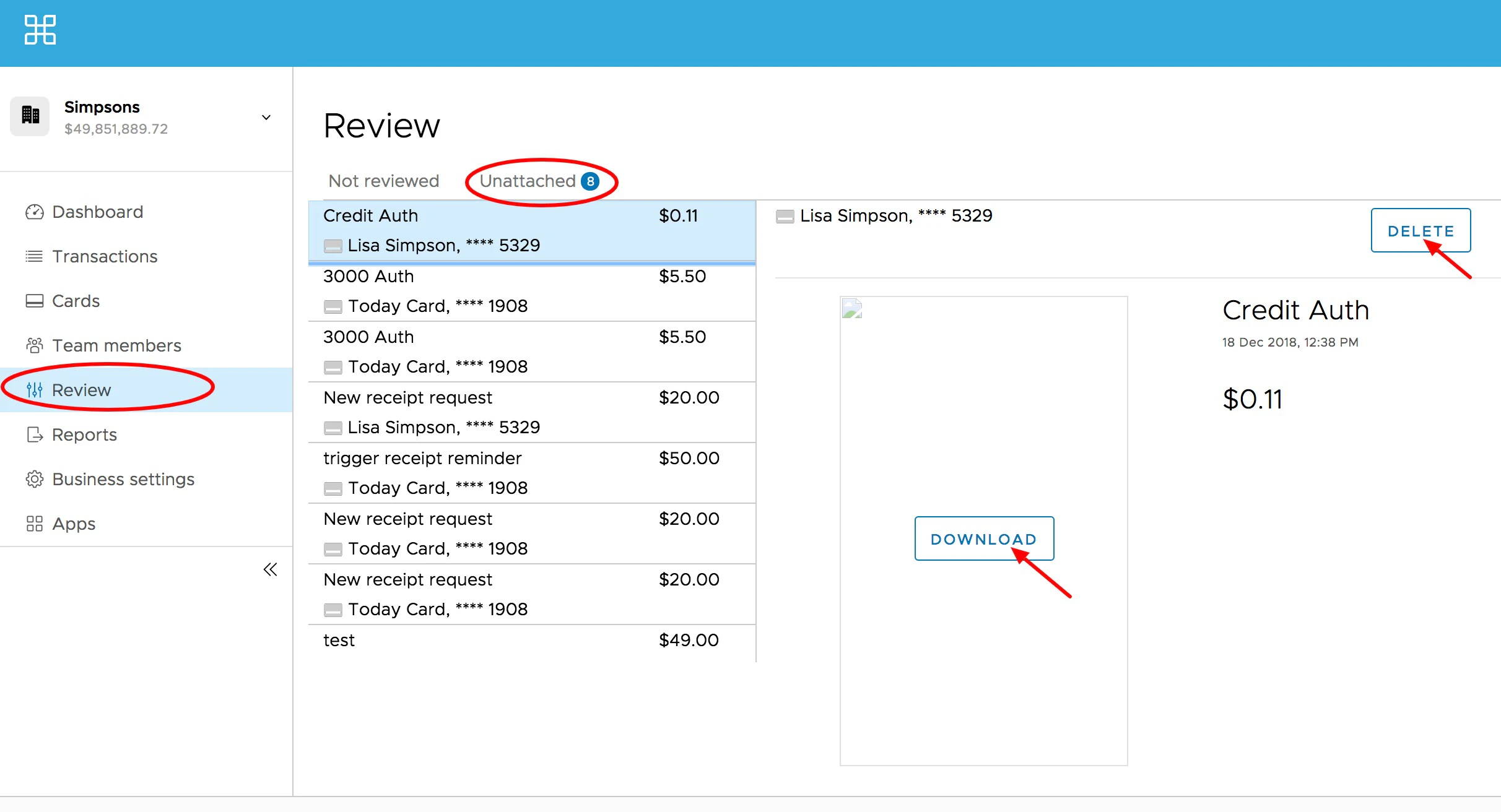
How to Review Expired Receipts
Log in to dashboard.pexcard.com.
Review, delete or download expired receipts.
- You can download the receipt from the “Expired” tab, save it to your computer, and attach it to the correct transaction in the cardholder’s transaction history. See How to Attach a Receipt to a Transaction (Administrator Website)