

- The .zip archive will contain a receipt.txt file with a summary of all the receipts included, as well as a JPEG or PDF for each receipt.
Click the button on the “Generate” tab, and select from the drop-down menu “Transaction Attachments”
Note: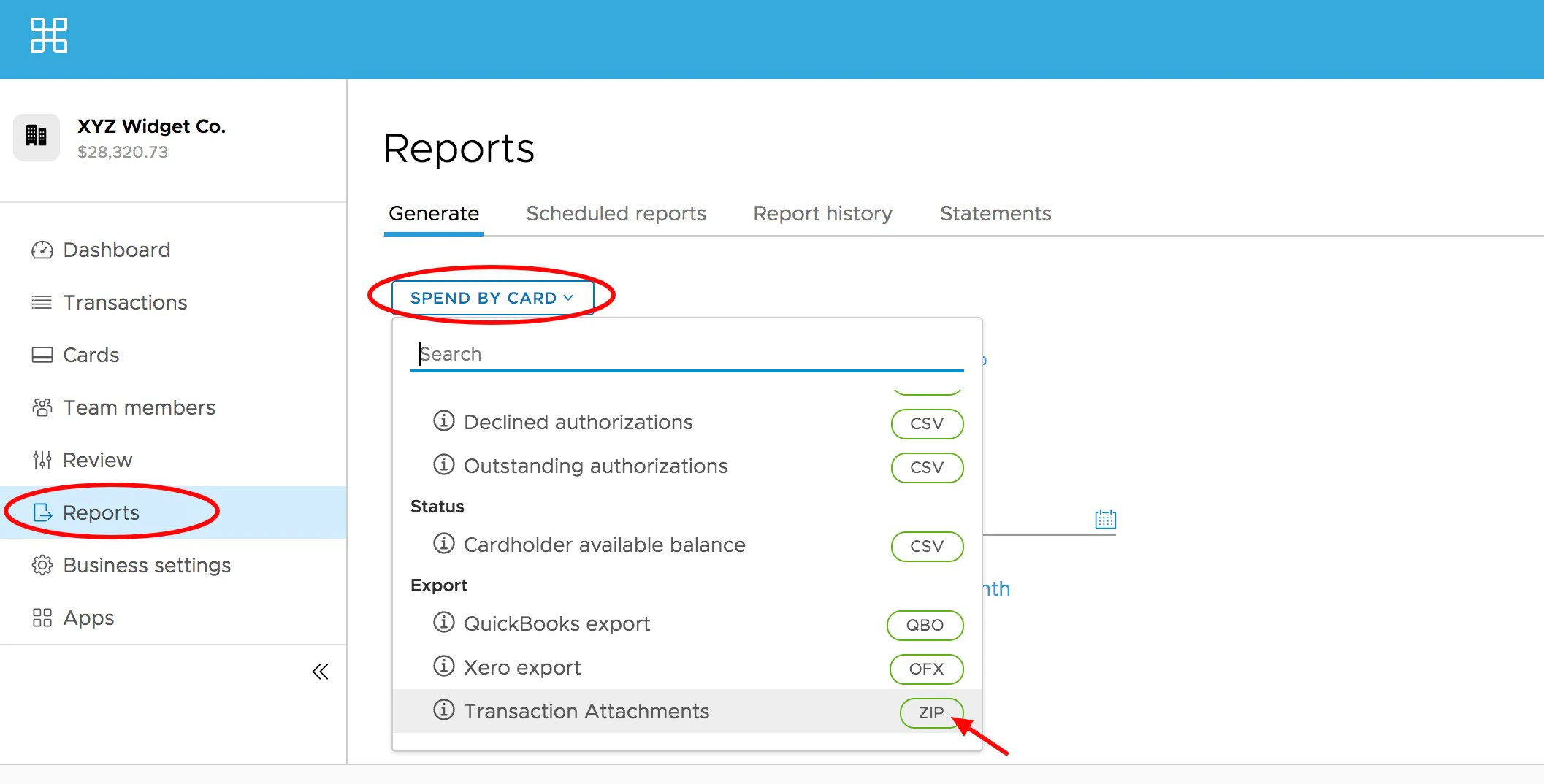
- The button will display the report type last used (from memory) or the first report type in the list (such as “Spend by Card”). Clicking the button will reveal other report types
- Each report or export type in the drop-down will display unique options for that specific report once it is selected
Select the “Start Date” and “End Date” – or select from a preset time parameter:
- Today
- This month
- Last month
- Since this time last month
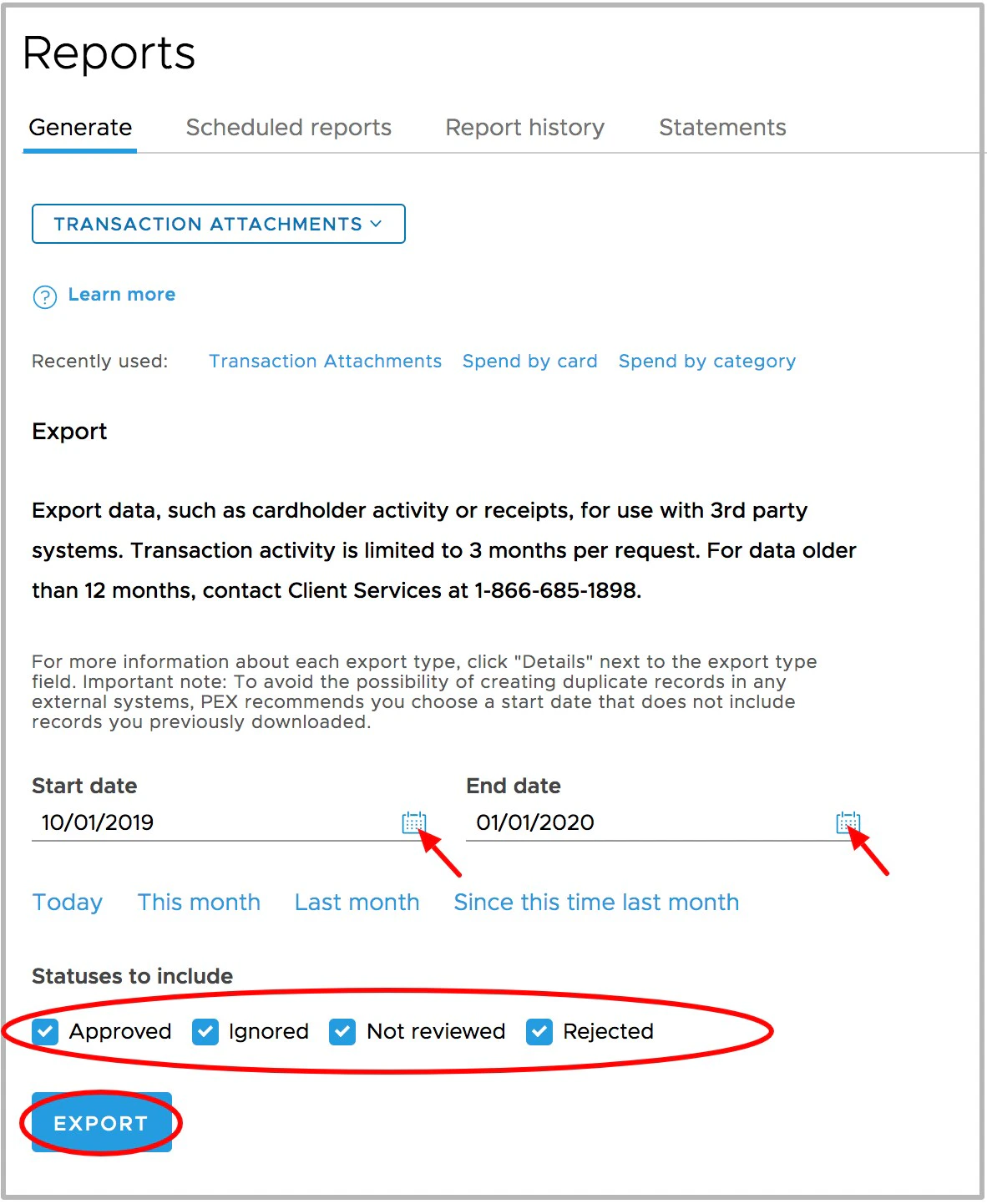
Click the “Report history” tab on the Reports page to download your file
Note: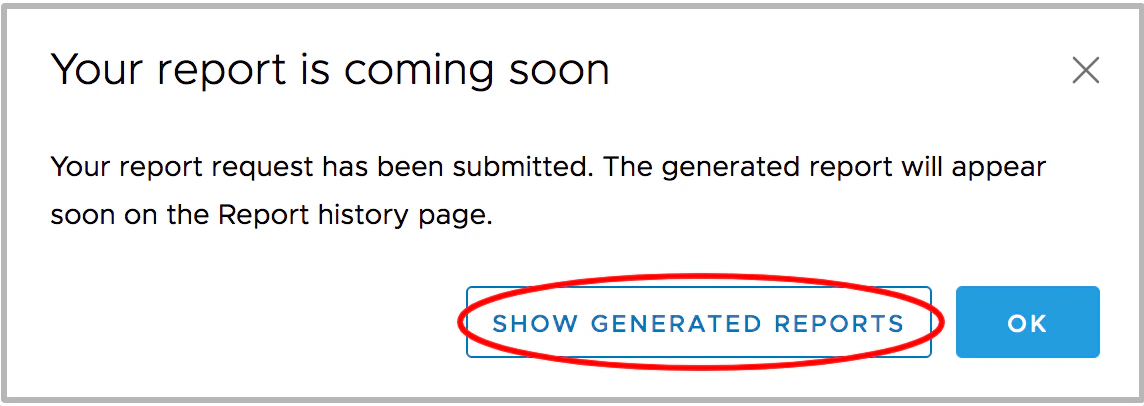
- A window will tell you “Your report is coming soon” with a button to “Show Generated Reports”. This button will take you to the Report History tab
- If Admin notifications are enabled, the Admin will also receive an email to the email address on their profile titled “PEX Card Export Request Complete”
Select the “Download” icon to the left of the correct row in the “Completed archives” table
- The archive will have a filename that contains PEX receipts and the date range of the export, as shown here: PEXattachments_20191001_to_20200102_5e6a6744ee23a80b78b56710
Once you have retrieved the archive, you can delete it from the list by clicking on the “X” to the right of the line item.
{cardholderFirstname}_{cardholderLastname}_{transactionReceiptId}_{transactionAmount}_{merchantName}.jpeg