Once an administrator approves a receipt, however, it becomes un-editable by the cardholder, who can no longer delete it or amend it. Administrators can delete any receipt, whether it’s been approved or not. Administrators can use the PEX Mobile App and the Administrator Site to delete receipts. Instructions for Mobile App | Instructions for the PEX 2020 site To download the PEX mobile app

How to Delete a Receipt Using the Mobile App
1
Log into the Mobile App
2
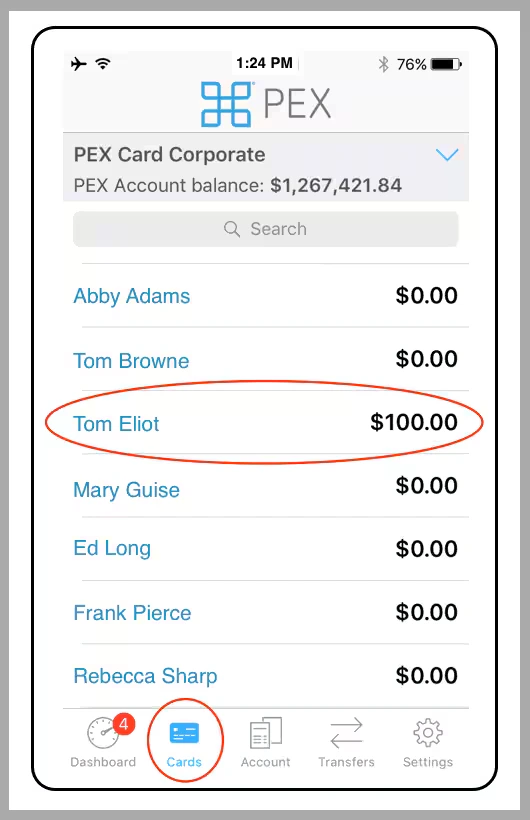
Click on the “Cards” icon
3
Click on the cardholder’s name
Click on the “Cards” icon. Click on the cardholder’s name.
4
Click on “Transactions”
5
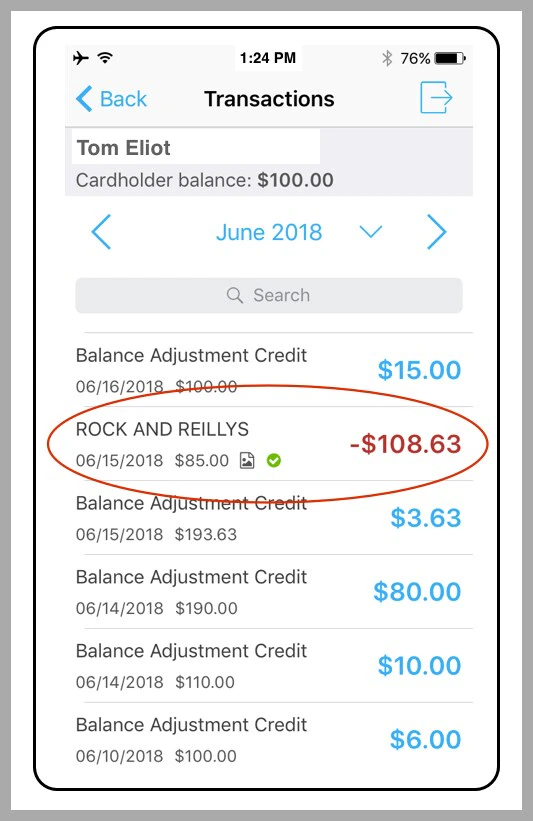
Navigate to the transaction
6
Click on the transaction
7
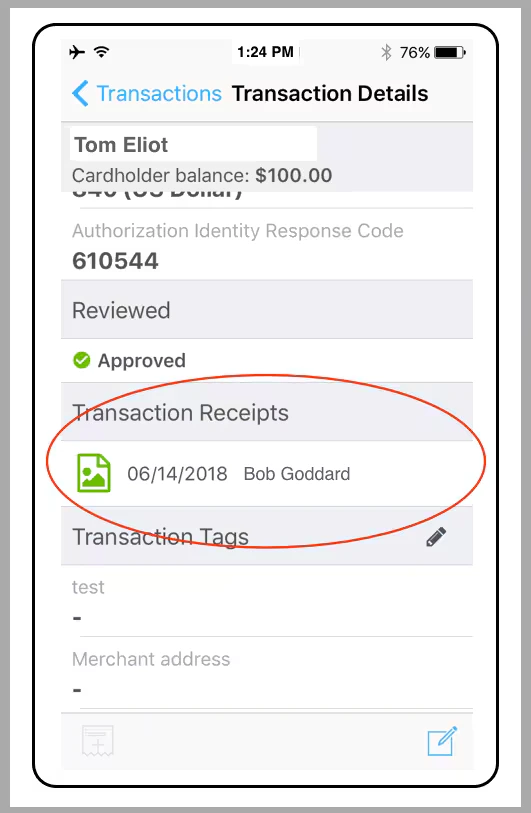
Click on the receipt icon in the Transaction Details
Click on the receipt icon
8
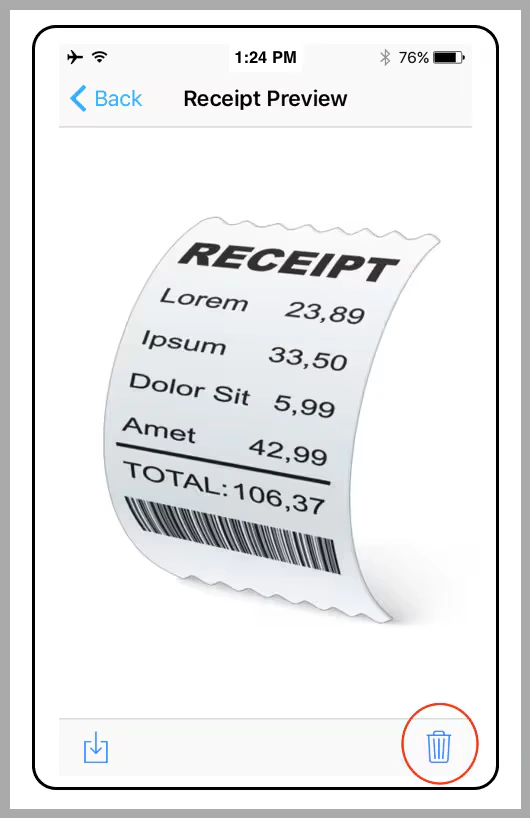
Click on the Trash Can icon at lower right
Click on the Trash Can icon
9
Click “Delete” in the confirmation dialogue box
Note:
  • Deleting a receipt does not delete any transaction Notes
  • Once you delete the receipt, you can attach a new file to the transaction

How to Delete a Receipt Using the PEX Site

2
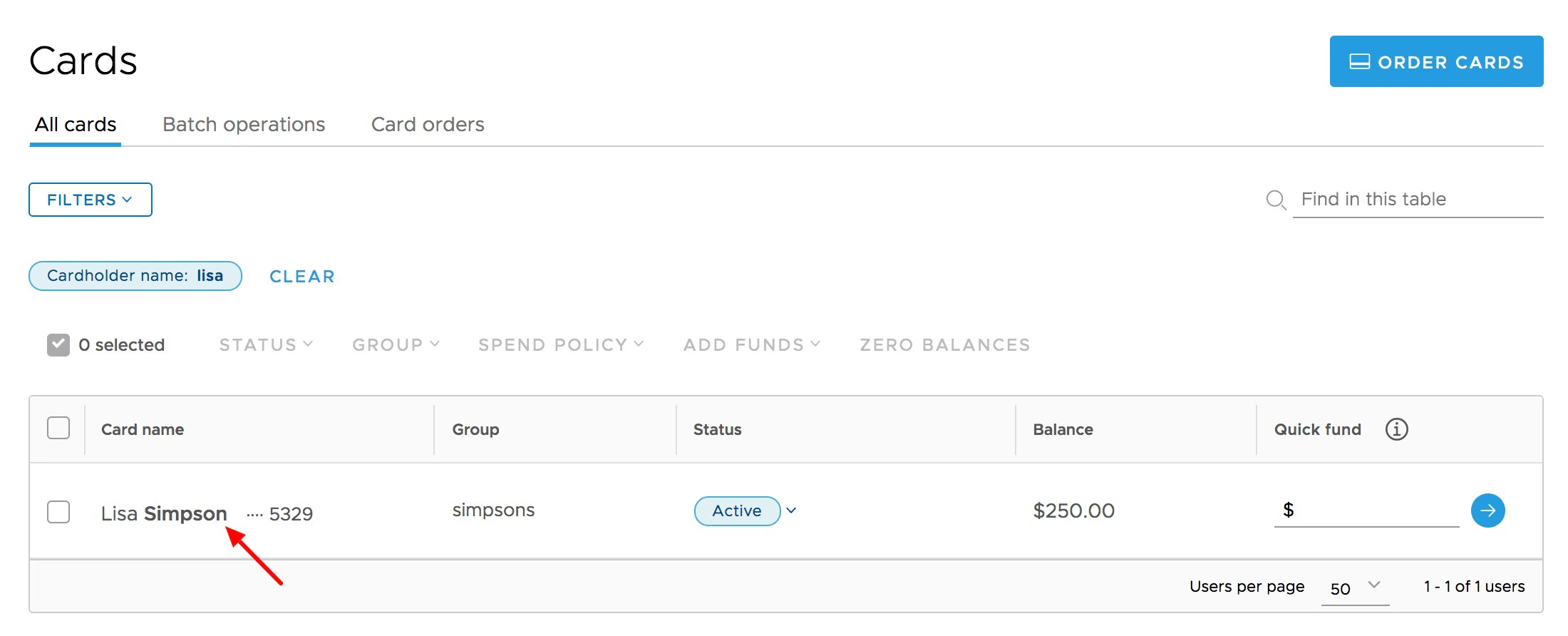
Click the Cards tab
3
Locate the name of the cardholder, and click on it
4
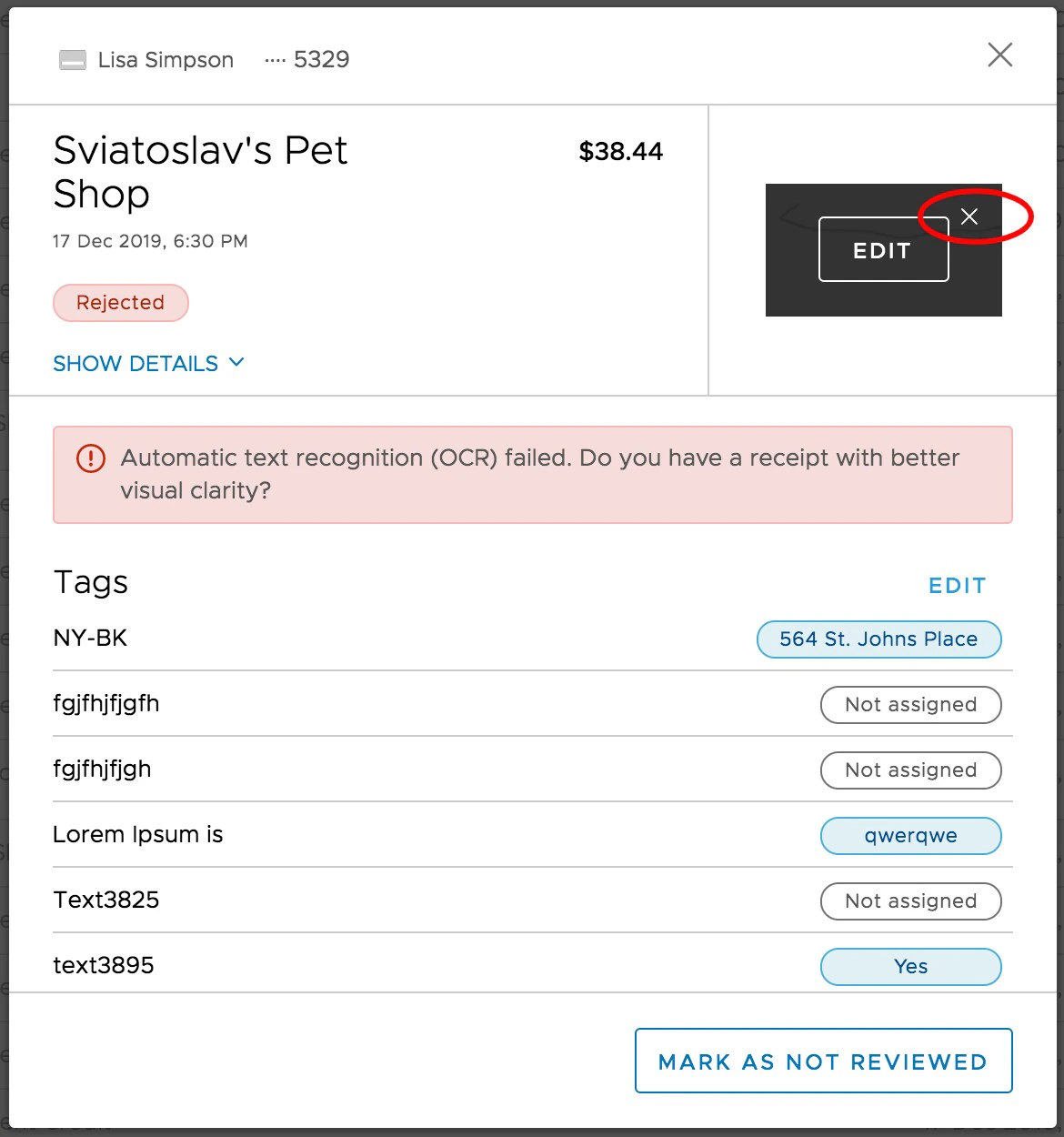
In the transaction list, Click on the transaction for which you wish to delete its attached receipt file
  • If a receipt is uploaded, it will be visible on the upper right side of the transaction window
5
Click the “X” in the upper right corner of the receipt image when you hover your cursor over the box to edit or delete
6
Click the “Delete” button on the confirmation screen
7
Alternatively, you can also open the receipt to edit it and click the “trash can” icon on the left of the receipt panel.
Note:
  • Deleting a receipt does not delete any transaction Notes
  • Once you delete the receipt, you can attach a new file to the transaction
Last modified on April 22, 2026