Important:You must have a registered PEX cardholder account to add your card to a digital wallet. To set up a PEX cardholder account, please visit https://dashboard.pexcard.com/registration
Adding a PEX Card to Google Pay
On November 18, 2020 Google Pay released a new Google Pay app . Use the steps below to add a card to your wallet if you are using the new Google Pay app on your Android mobile device. If you are using the old app (pre-Nov 2020), please use the steps on this support article, Adding a PEX Card to Google Pay (pre-Nov 2019).From the home screen, click on the card icon on the top right hand corner of the screen. If you already have an existing card setup you will see your card icon on the top right hand corner of the App.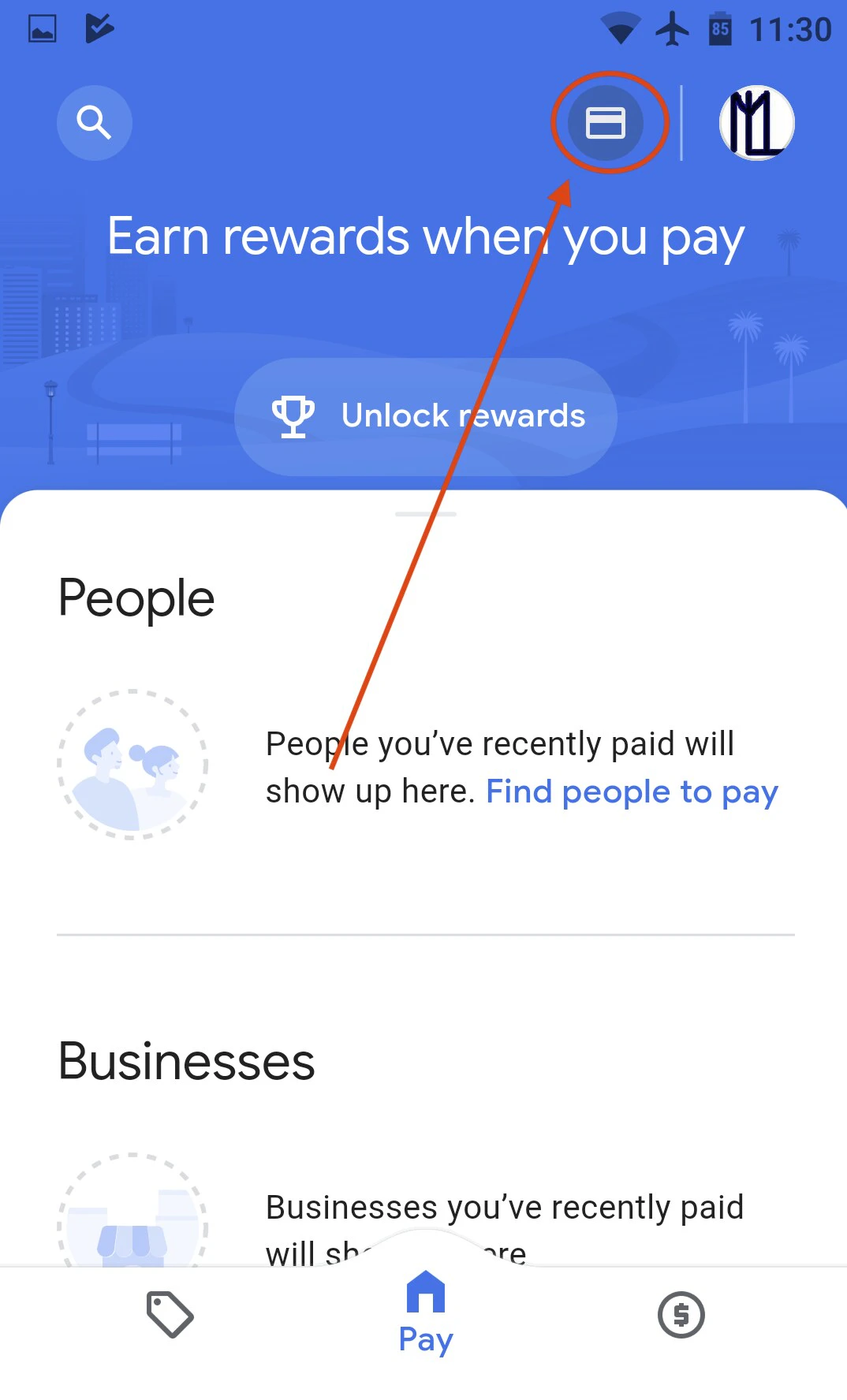
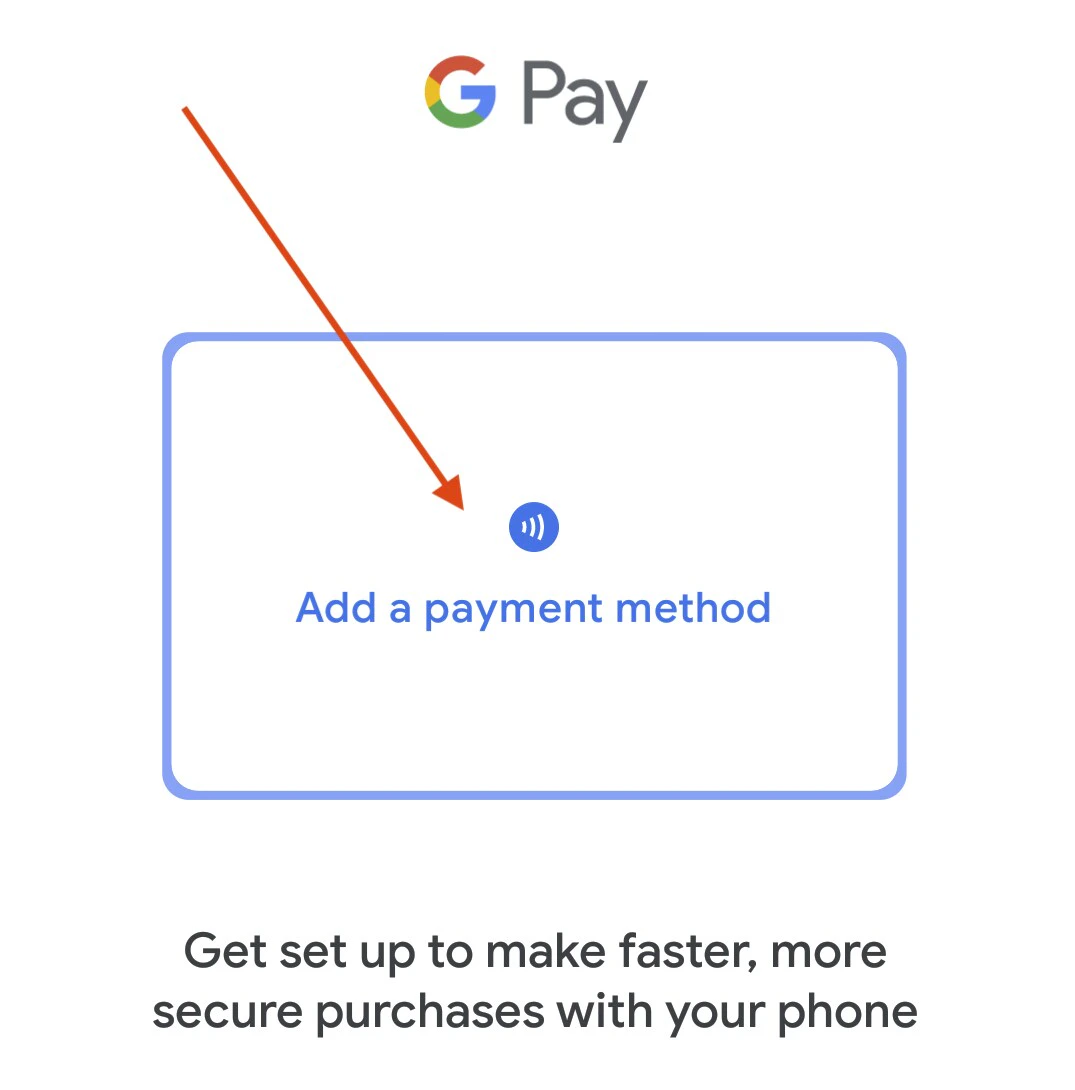
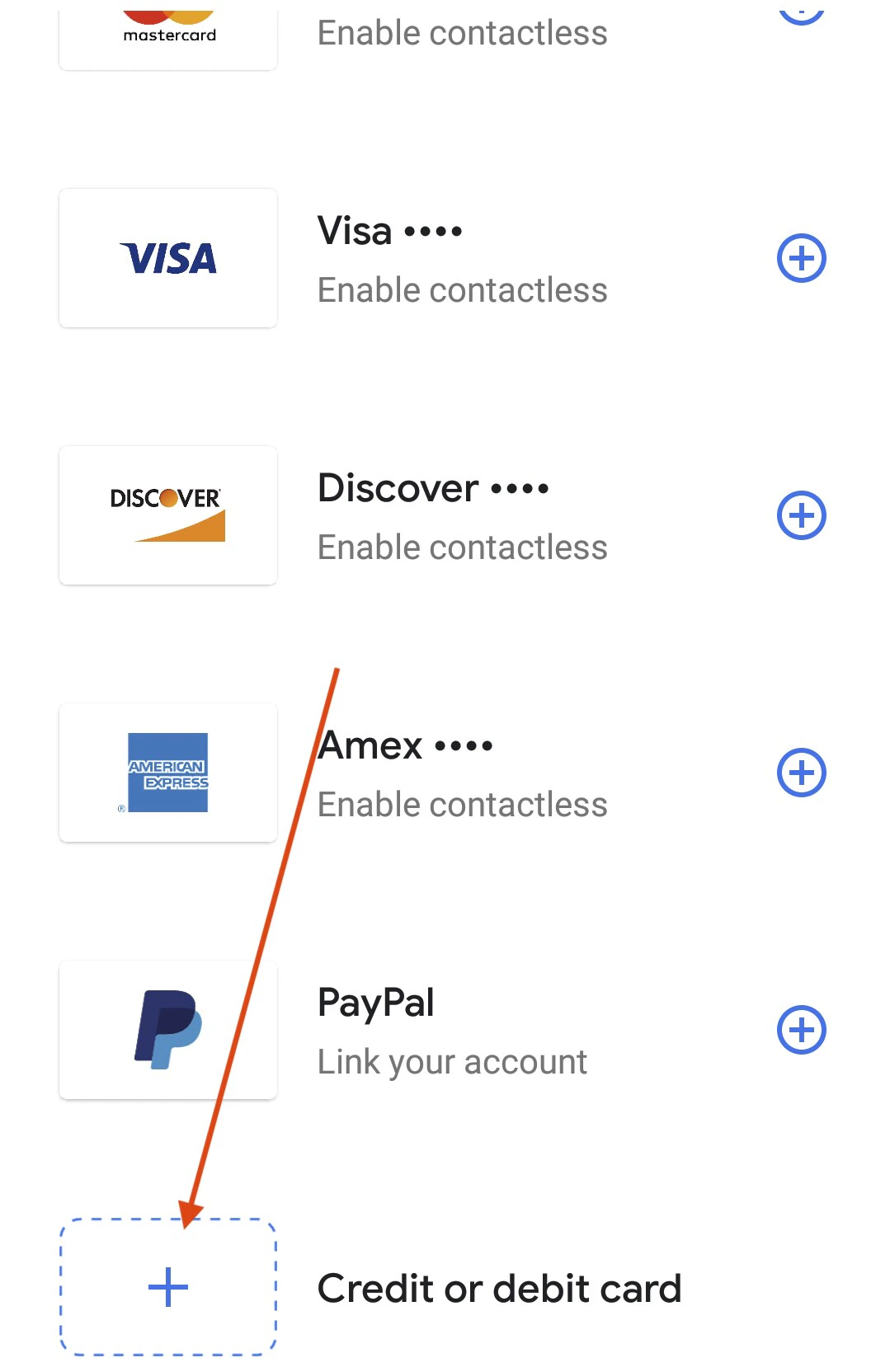
On the next screen, enter the “CVC and expiration date in the card details under the card number. Under the address, please make sure you use the same billing address as you have on your PEX cardholder profile.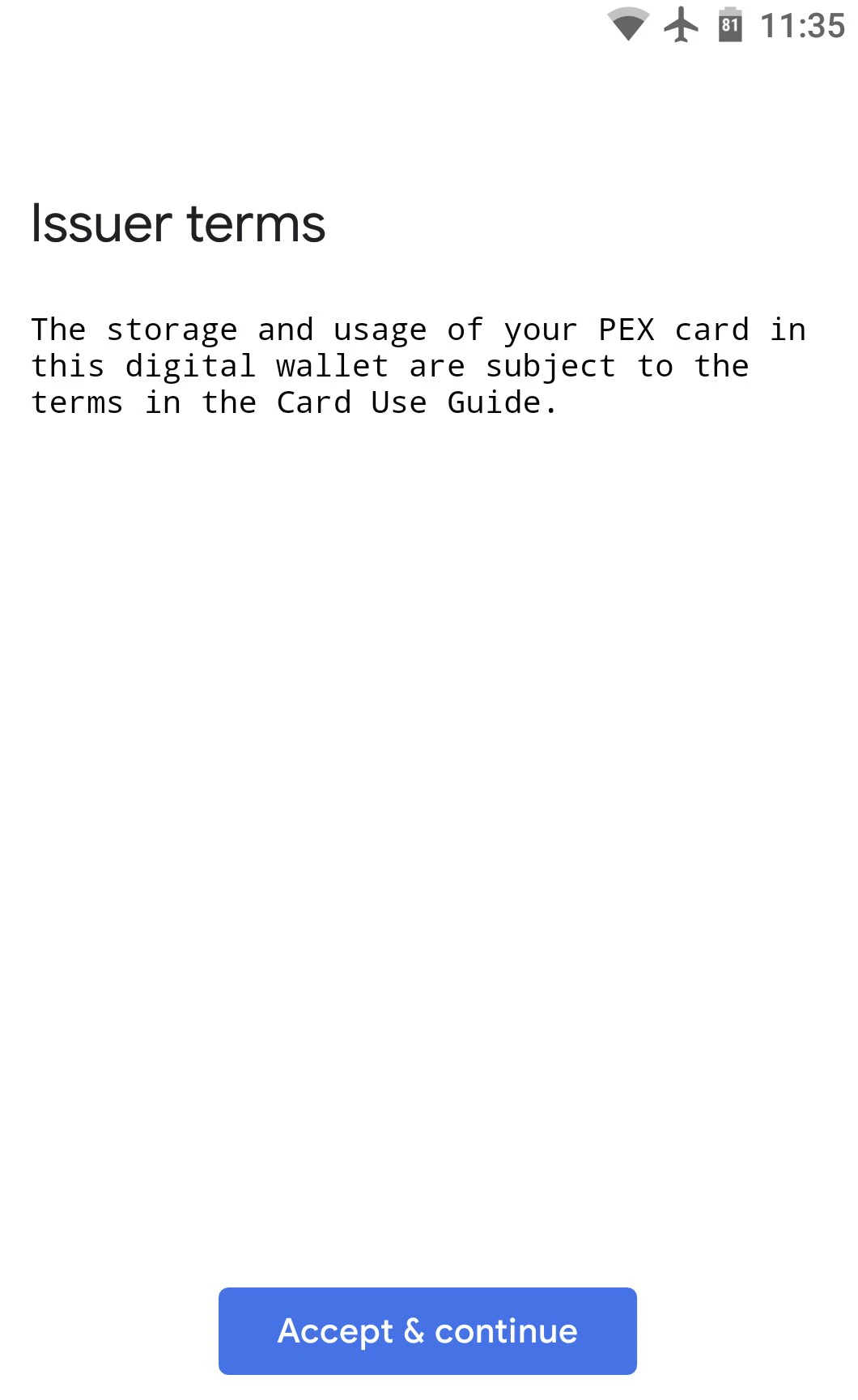
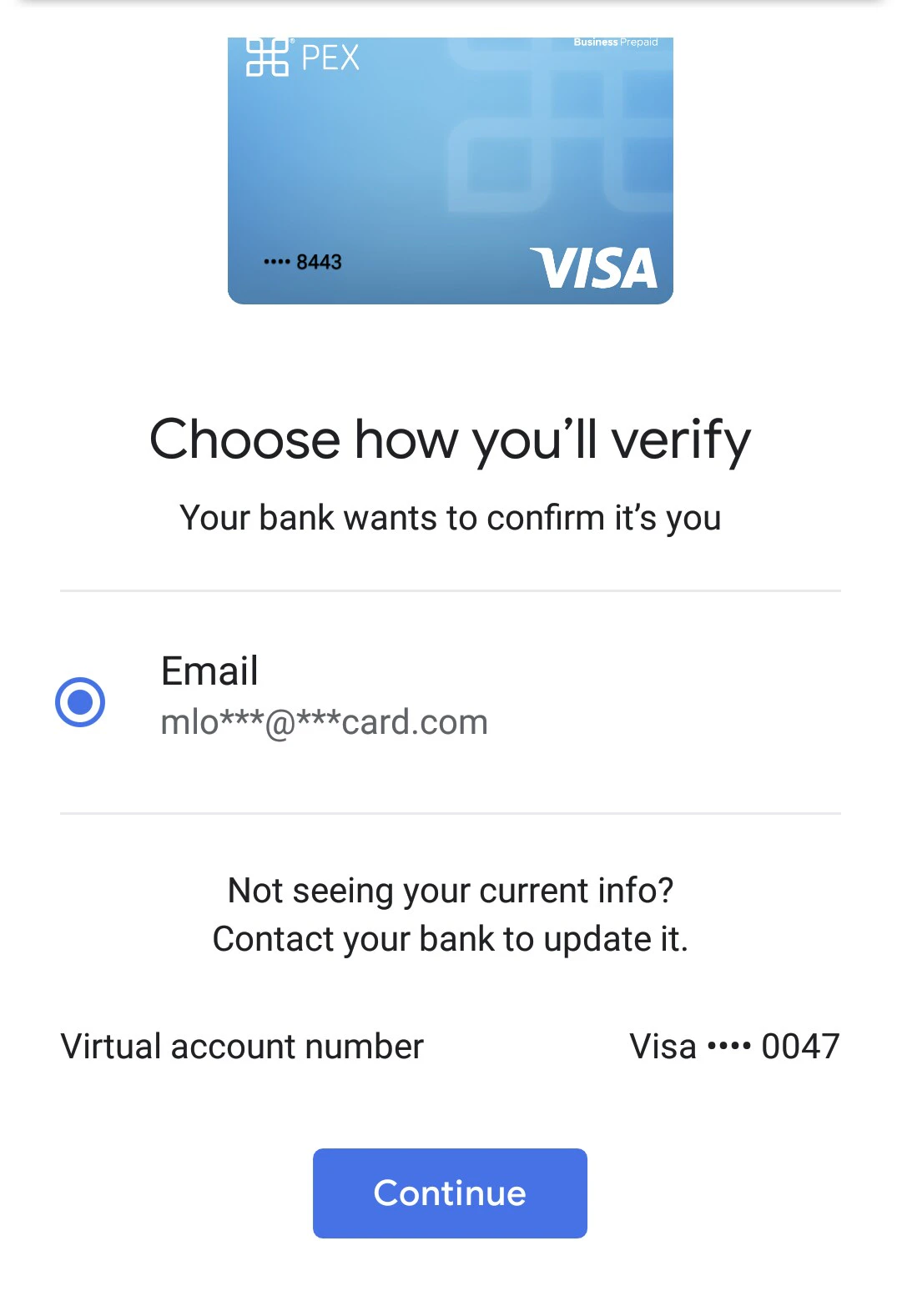
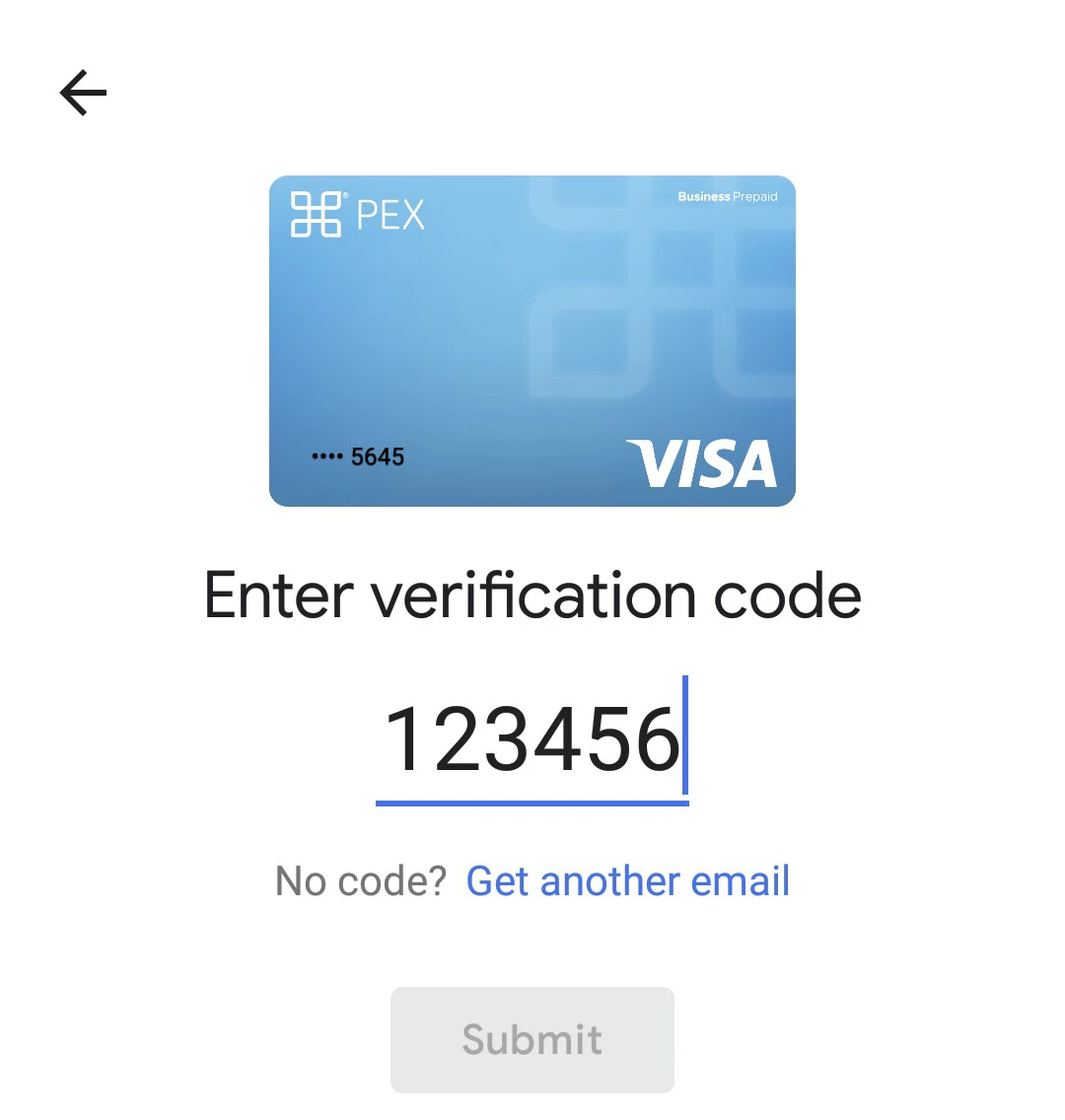
You will now be asked to confirm the addition of your card to your wallet. PEX will send a one-time six digit security code to the email on file.