

- Cardholder Activity Reports
- Cardholder Status Reports
- Business Account Activity Reports
If you need more than 3 months of exports please reach out to adminsupport@pexcard.com and they can assist with extension.
You can use additional filters for the reconciliation and cardholder transaction details reports.
- All report types may be sourced from the time the account was approved to present day in 3-month increments from the admin dashboard.
How To Run Reports
Log in to dashboard.pexcard.com
Select the “Run now” radio button if you to run your report now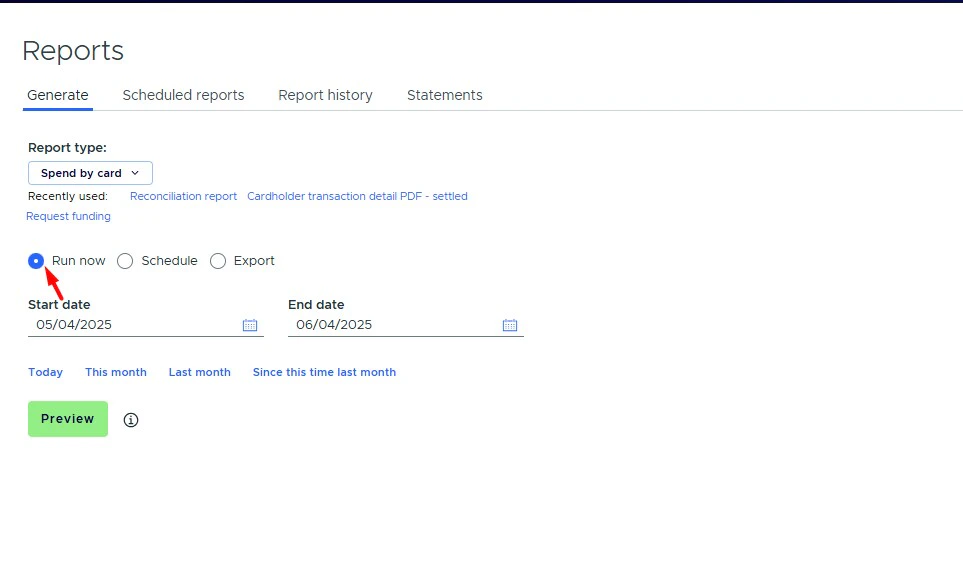
Or select from the following “Quick set” time parameters:
- Today
- This month
- Last month
- Since this time last month
Click on the “Additional filters (optional)” if you want to filter your reports by specific tag values.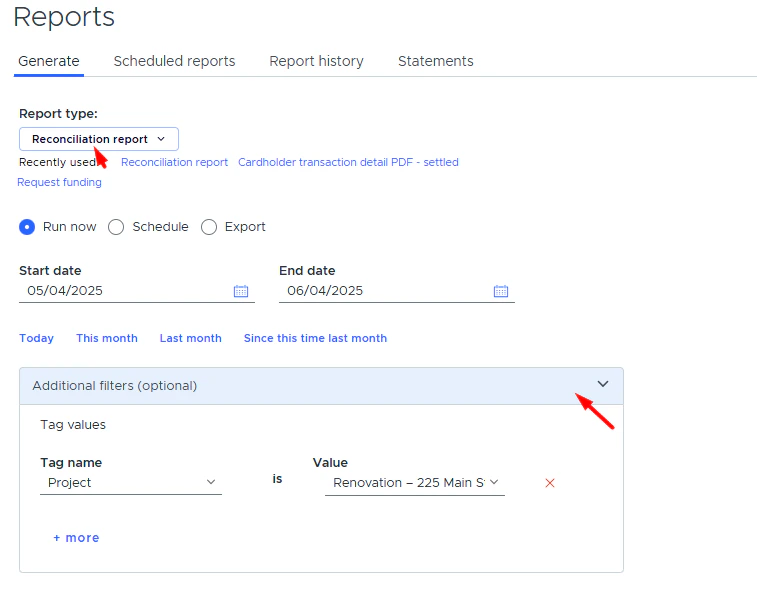
- Available for the Reconciliation and Cardholder Transaction Details PDF reports
- Filtering by all types of tags is available (dropdown, text, decimal, yes/no, sales tax).
- Available for Run now, Schedule, and Export
- Available for the Preview mode
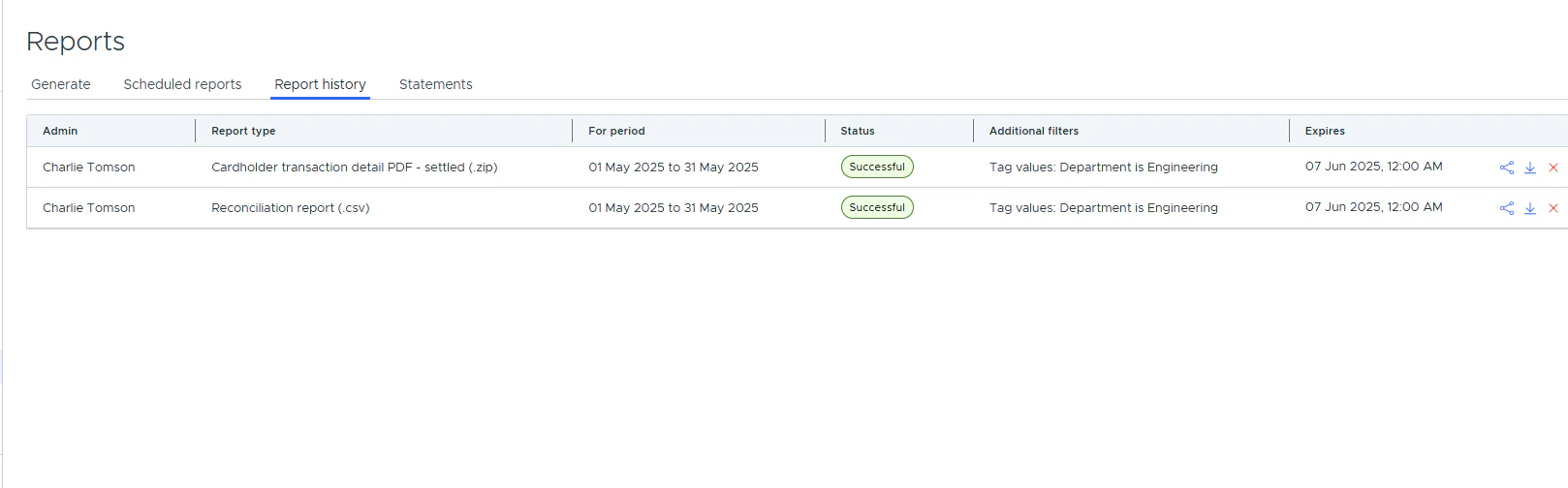
- Displayed on the “Scheduled reports” and “Report history” tabs
- Additional filters functionality is available if your business account has the ‘Tag Manager’ feature enabled.
How to Schedule a Report
Log in to dashboard.pexcard.com
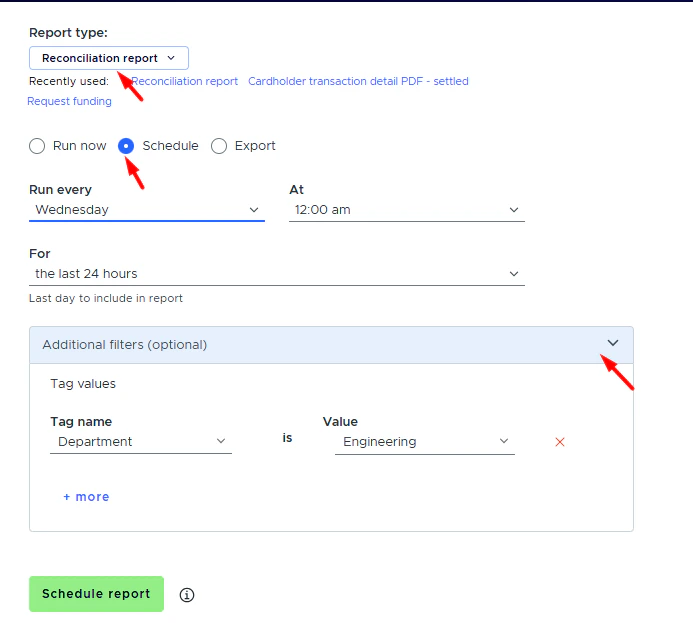
Click on the “Additional filters (optional)” if you want to filter your reports by specific tag values.
- Available for the Reconciliation and Cardholder Transaction Details PDF reports
- Filtering by all types of tags is available (dropdown, text, decimal, yes/no, sales tax).
- Available for Run now, Schedule, and Export
- Available for the Preview mode
- Displayed on the “Scheduled reports” and “Report history” tabs
- Additional filters functionality is available if your business account has the ‘Tag Manager’ feature enabled.
How to See Completed and Scheduled Reports
Log in to dashboard.pexcard.com
How to Customize Reports
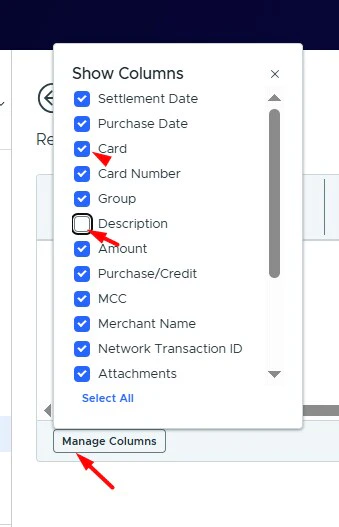
After you click the “Preview” button to generate a report:- Select which columns you want to see on the HTML report
- Click the [data table] icon at the left bottom corner of the report
- From the menu, choose which columns you want to display. The data fields will be added or removed instantly as you click the checkboxes
- Click the “X” to close the menu
- Spend by card - List transactions grouped by card
- Spend by category - List transactions grouped by spend category
- Spend by group - List all transactions by cardholder group
- Spend by transaction - List all transactions by date
- Settlement detail - List all transactions by date
- Authorized amount vs settled amount - Compare authorization amount and final settlement amount for all transactions
- Authorization detail - List all card-authorization transactions by date
- Declined authorizations - List all card-declined transactions by date
- Expired authorizations - Authorizations that expired without being settled
- Outstanding authorizations - Authorizations that have not yet been settled
- Business account funding transactions - List all business account fund transactions by date
- Card funding transactions - List all card funding transactions by date
- Cardholder available balance - List all cardholders and their available balance and status