

- All report types may be generated on the Administrator dashboard from the time the account was approved to present day in 3 month increments.
- In the Reports section of the Administrator dashboard, choose the report type and the desired dates of the data you want to view
- Cardholders can also generate an HTML report in up to 3-month intervals
To generate a report
Login as an administrator to https://dashboard.pexcard.com
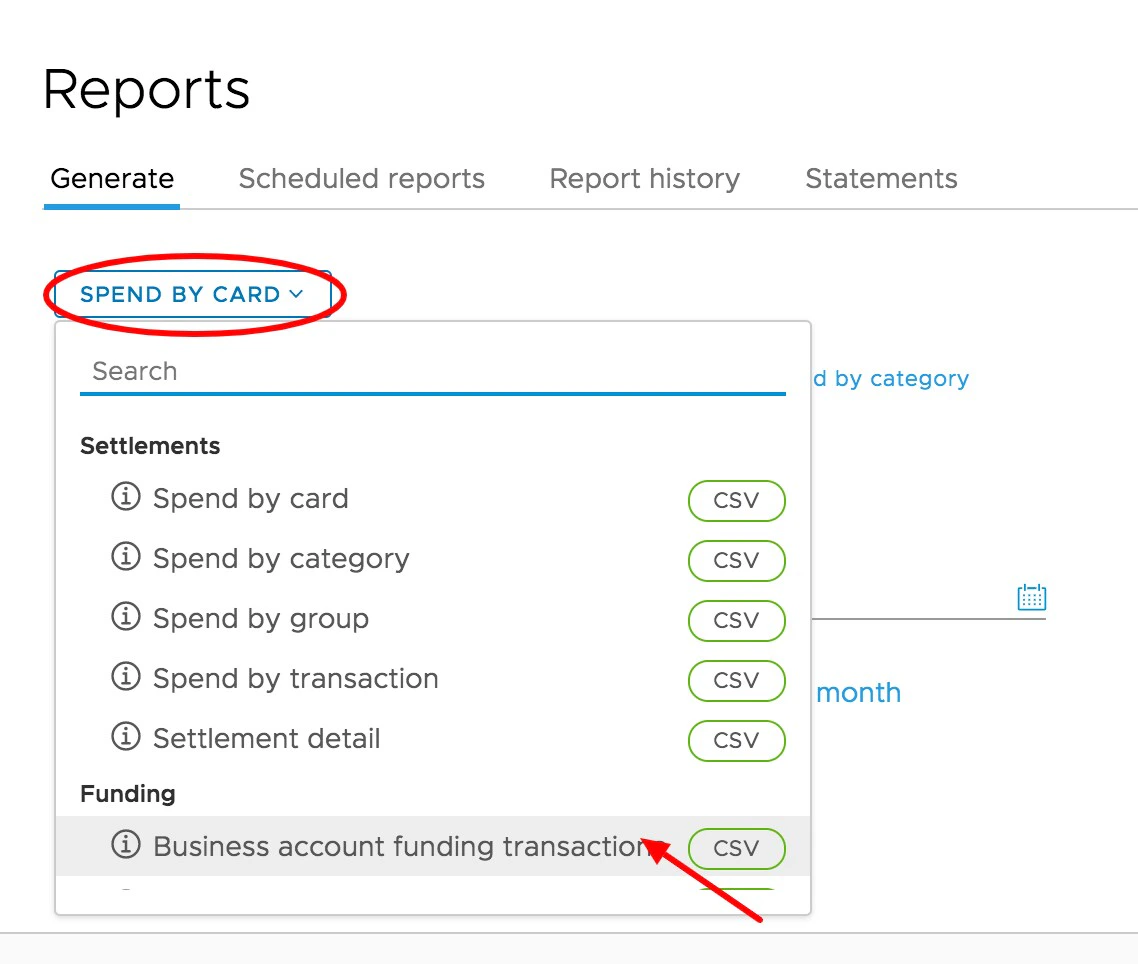
Choose the report you would like to view from the drop down list.
- A detailed description of each report is available by hovering the mouse over the (i) icon on the left of each report name.
- If the report is available for download, the download format is noted on the right of the dropdown in green.
Choose the timeframe for the report by selecting a start and end date.
- Common date ranges can be preselected by clicking the links for: Today, This month, Last month, or Since this time last month
After previewing a report, you can choose to download the report in CSV by clicking the button marked “Generate CSV” on the top right of the screen
- Previously generated CSV reports will also be available under the “Report History” tab
To view a monthly statement
Monthly statements are available as far back as the creation of the business account and 16-digit card number.To view statements:
Click on the [download icon] to the right of the statement you wish to download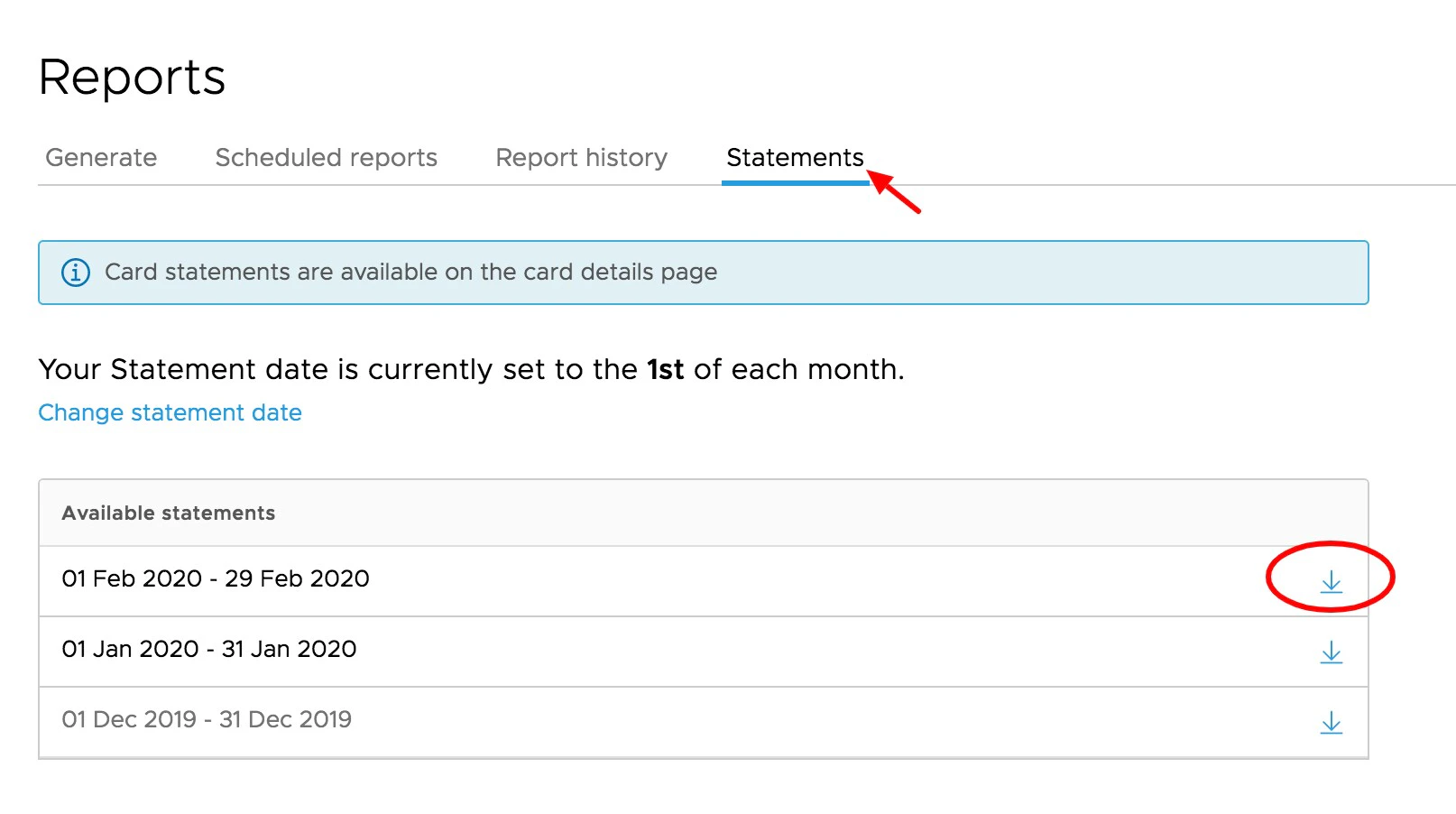
- Statements will be listed in a light grey font until a download request is made
- A requested statement will be available for download in a few minutes from the server
- Check back or refresh your browser to see the statement in bolder black font. Click the download link again and locate the file in the downloads section of your device. You can change the start date for monthly statements. Please see: Changing the Statement Start Date
FAQ
What permissions are needed to view reports/statements?
What permissions are needed to view reports/statements?
You need to have the “View Card Transactions” permission to view reports/statements.