

How to Delete a Tag
Log in to dashboard.pexcard.com
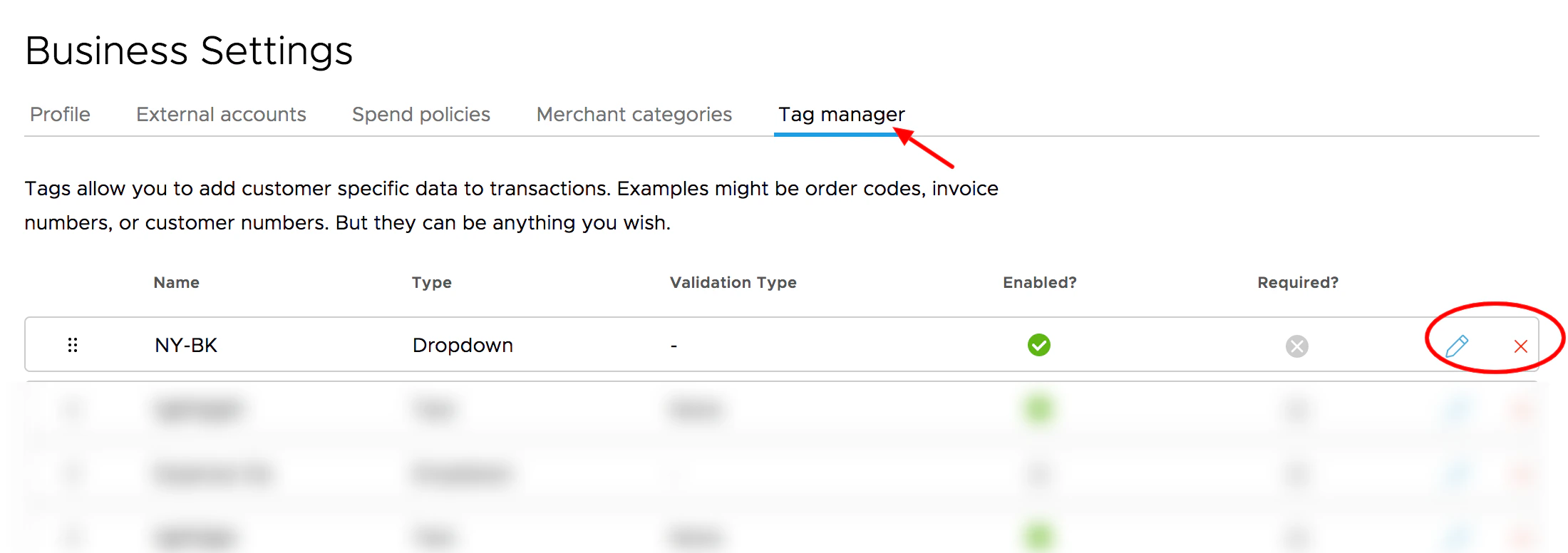
Click the “Delete” button in the confirmation dialog box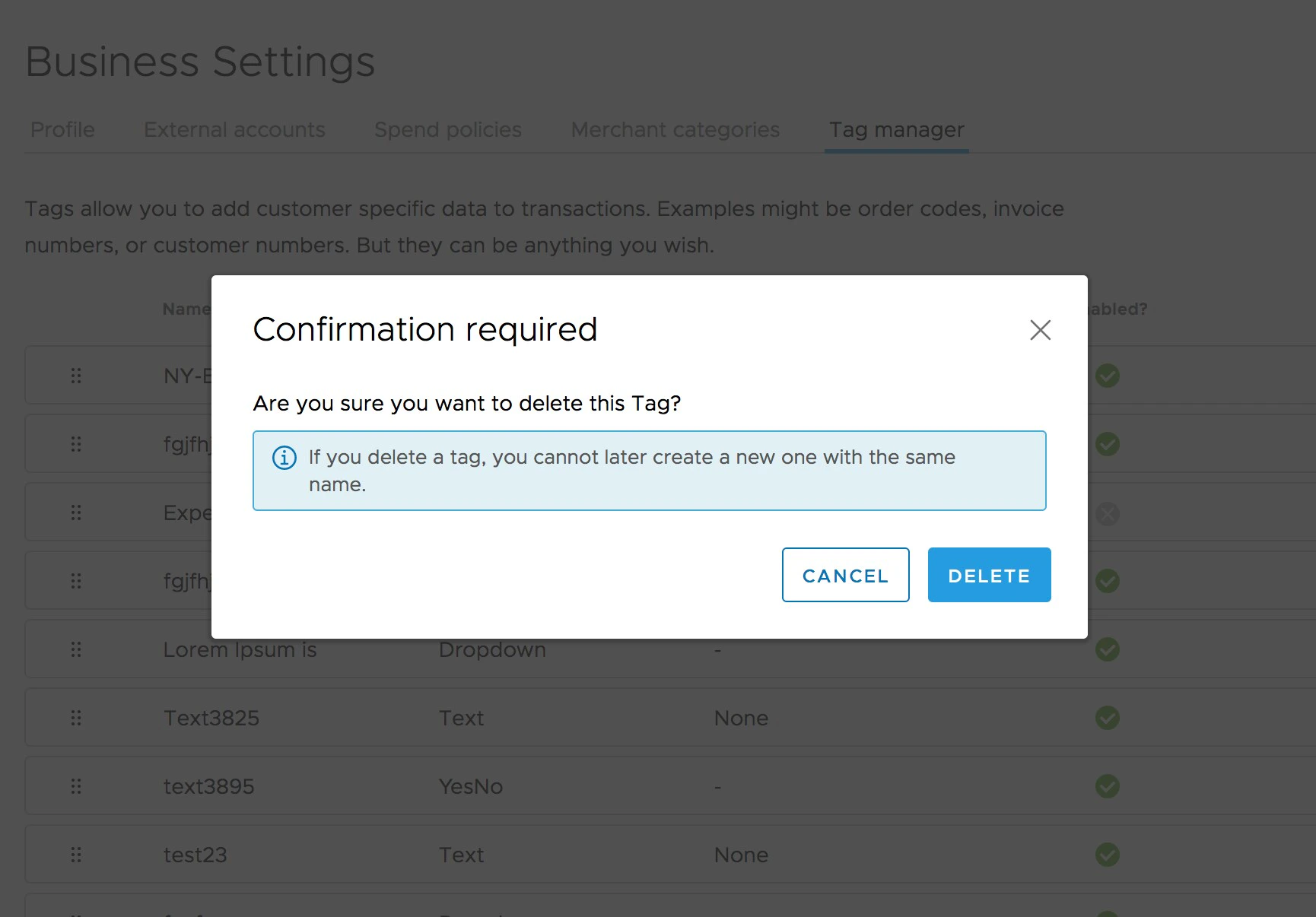
Note:
- Any previous transactions that have this tag assigned will still show the details for the tag
- Deleting a tag does not delete the tag information from historical transactions
- If a tag is deleted that is later needed, creating a new tag with the same name will not be allowed. Tags must all have unique names
- If you want to recover a deleted tag, reach out to adminsupport@pexcard.com