

Note:This setup process should be performed by an IT administrator.
Prerequisites
You have configured an enterprise workspace that supports SAML 2.0 SSO, and allows you to download a Base64 signing certificate. Common SSO providers include Okta, OneLogin, Auth0, Google Workspace, and Azure Active Directory.
How to configure SSO for your PEX account
Create a new application for PEX Dashboard on your identity provider. PEX is currently not available through identity provider application marketplaces, so you will need to create a custom application.
Add all cardholders as users or add a group containing all cardholders to the PEX Dashboard application on your identity provider.
Provide the below PEX URL as both the Identifier (Entity ID) and Reply URL (Assertion Consumer Service URL) on your identity provider SSO - SAML 2.0 configuration screen:
https://coreapi.pexcard.com/internal/v4/sso/saml/login
https://coreapi.pexcard.com/internal/v4/sso/saml/login
Download the SAML 2.0 Base64 signing certificate for the PEX application from your identity provider
Log in as an admin to dashboard.pexcard.com
Navigate to Business Settings - Security, https://dashboard.pexcard.com/business-settings/security
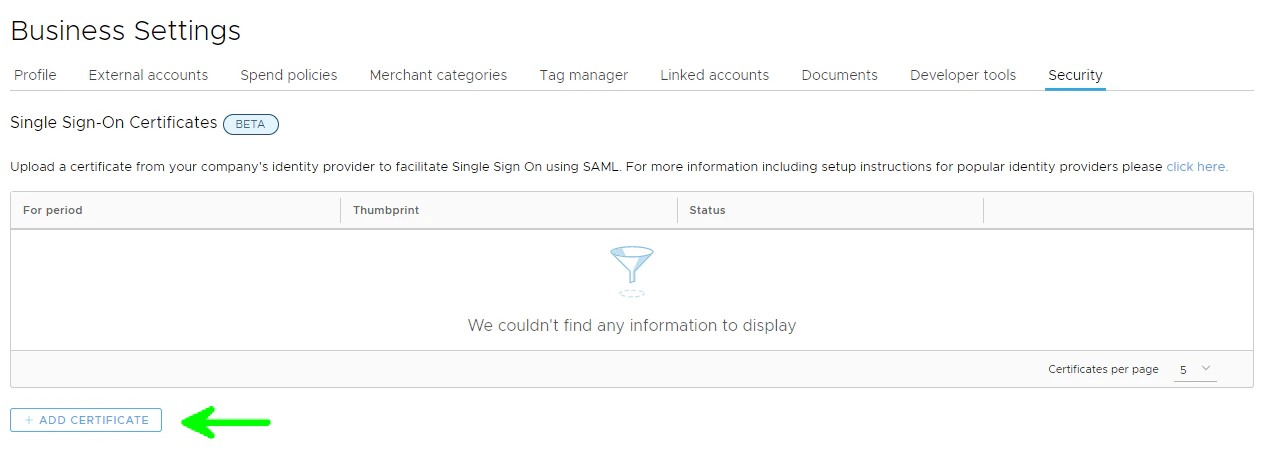
Your signing certificate should now be associated with your PEX business, and can be managed in the Business Settings - Security section.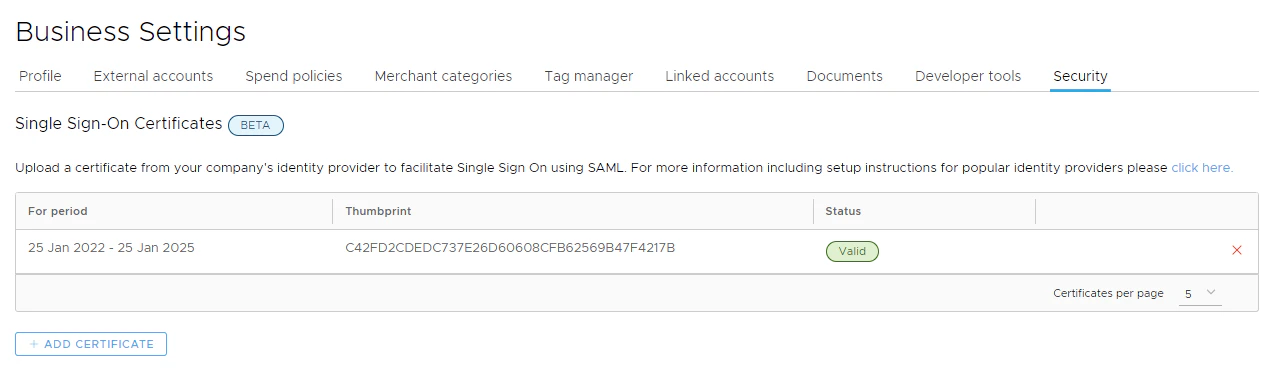
Frequently Asked Questions
Can I import my IdP metadata to configure SAML 2.0 SSO in PEX?
Can I import my IdP metadata to configure SAML 2.0 SSO in PEX?
This feature is not currently supported, but will likely be implemented in the future.
How does Multi-Program Access (MPA) work with SAML 2.0 SSO?
How does Multi-Program Access (MPA) work with SAML 2.0 SSO?
Businesses that use MPA/linked businesses should configure SSO in their “primary” PEX business where users should be set up with the same username as in their identity provider. They should use SSO to log into that business, and use MPA to access linked businesses.
Does PEX support Response Signing?
Does PEX support Response Signing?
No. PEX does not support Response Signing (Note: Okta turns this on by default).
Does PEX support Assertion Encryption?
Does PEX support Assertion Encryption?
No. PEX does not support Assertion Encryption.
Does PEX support SCIM Connector?
Does PEX support SCIM Connector?
No. PEX does not support SCIM Connector.