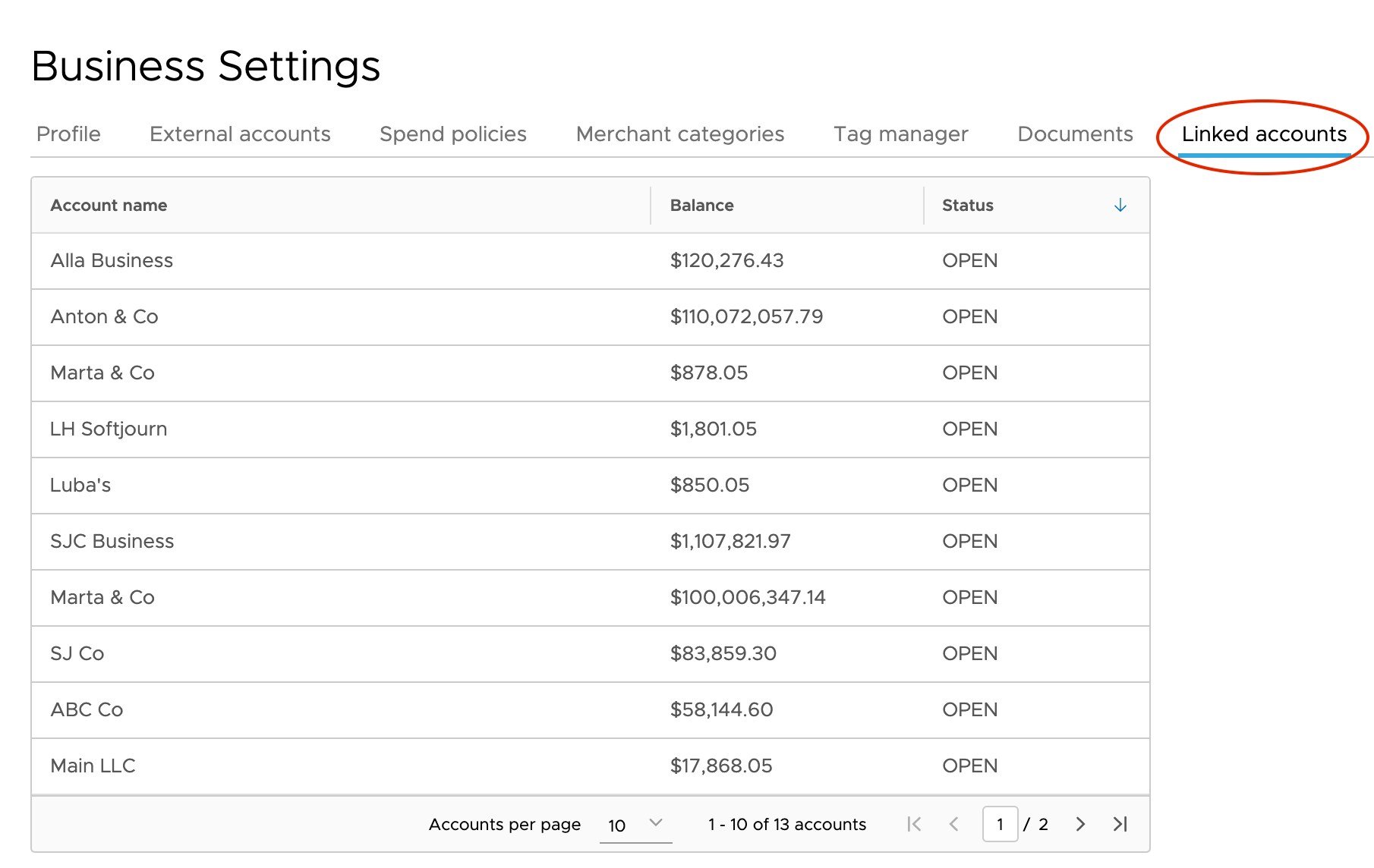
Linked Accounts enable administrators to view and manage multiple PEX accounts within an organization. Linked accounts may be program or departmental sub-accounts tied to specific budgets and priorities. Available for organizations on a Pro or Infinite plan. Please contact Administrator Support or your Customer Success Representative if you wish to open additional accounts with PEX.
How to Access Linked Accounts
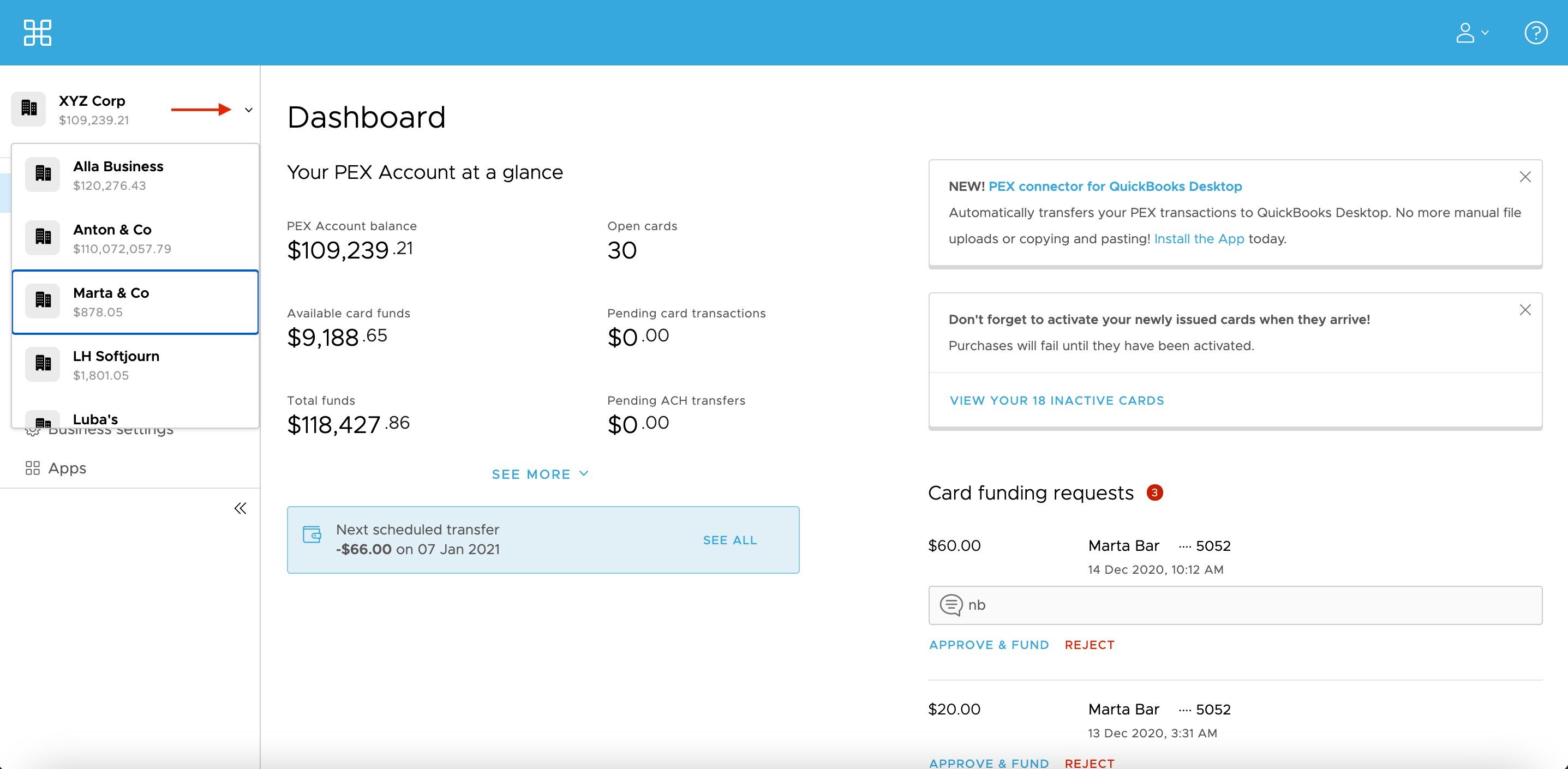
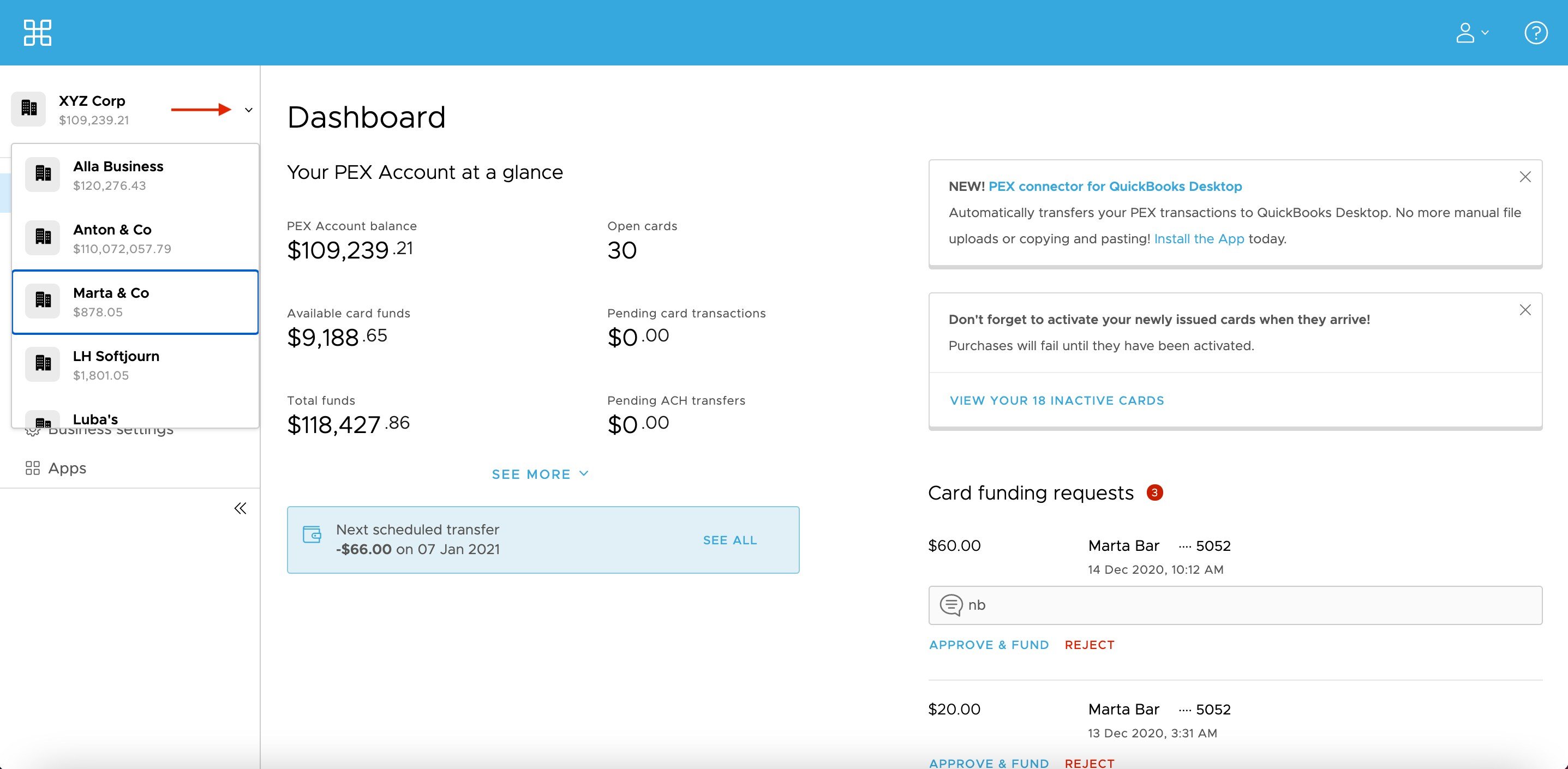
To switch between accounts, navigate to the sidebar dropdown under your company name. Scroll through all of your open accounts and select the account you wish to access.
Option 2: Via “Business Settings”
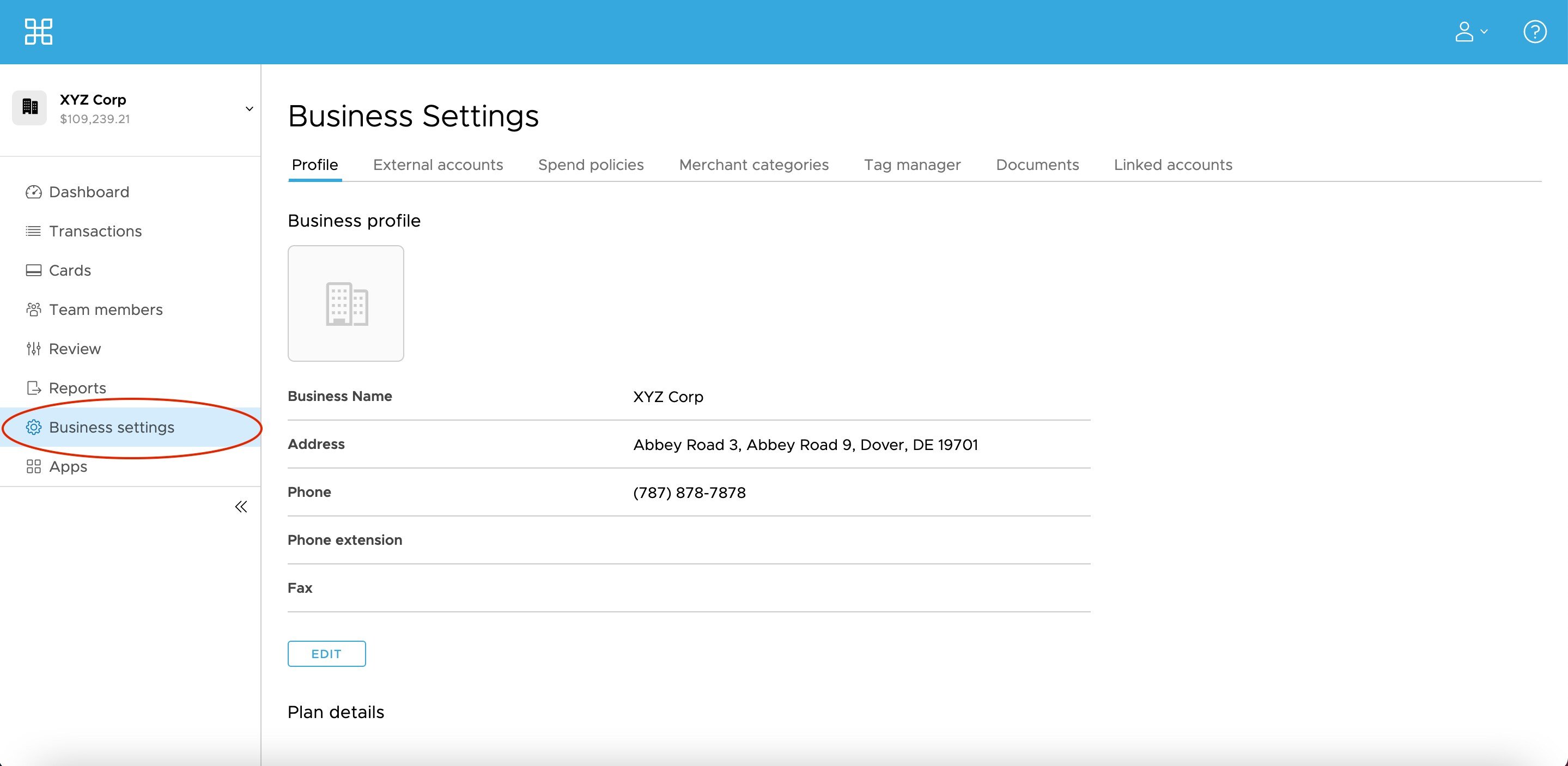
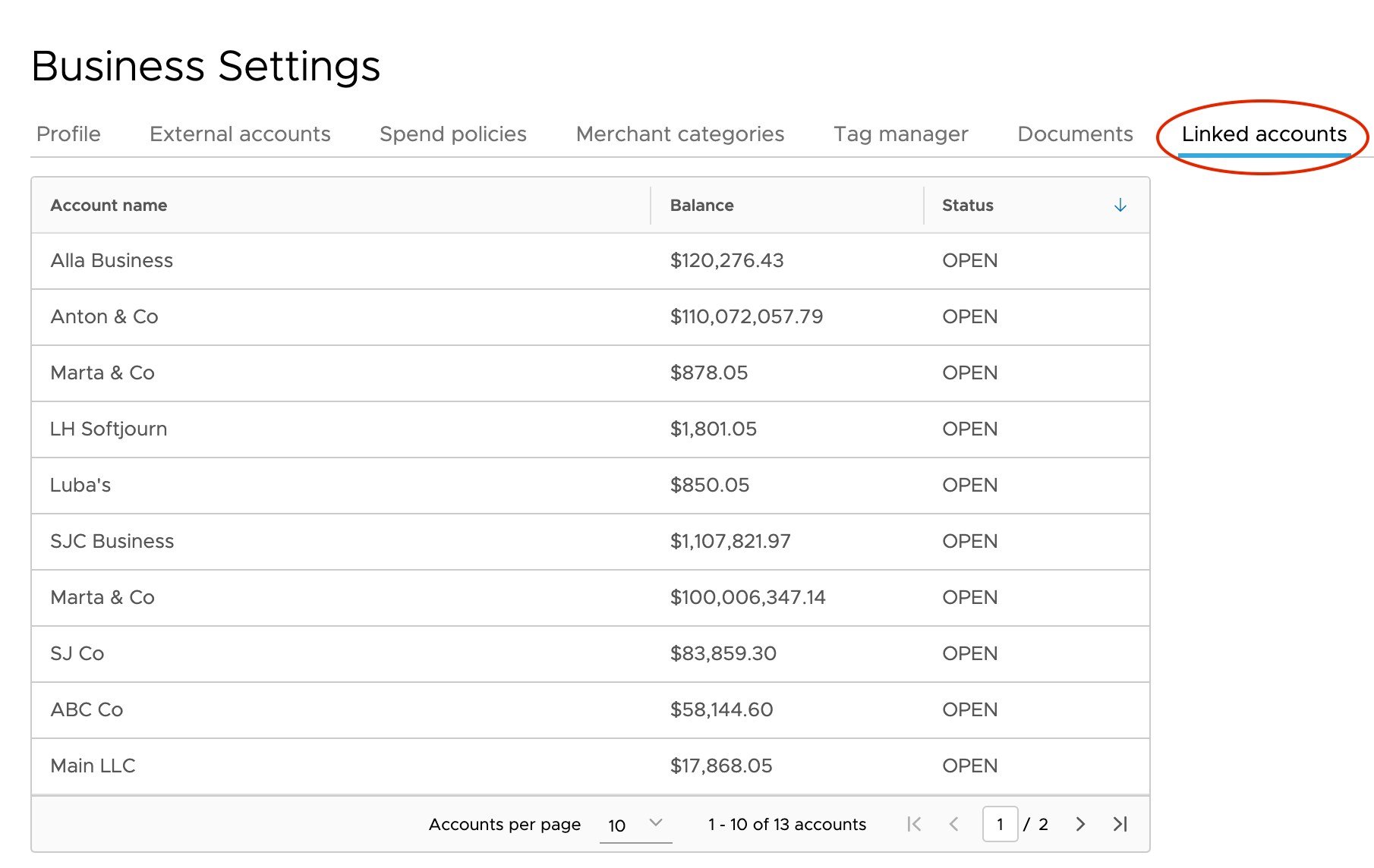
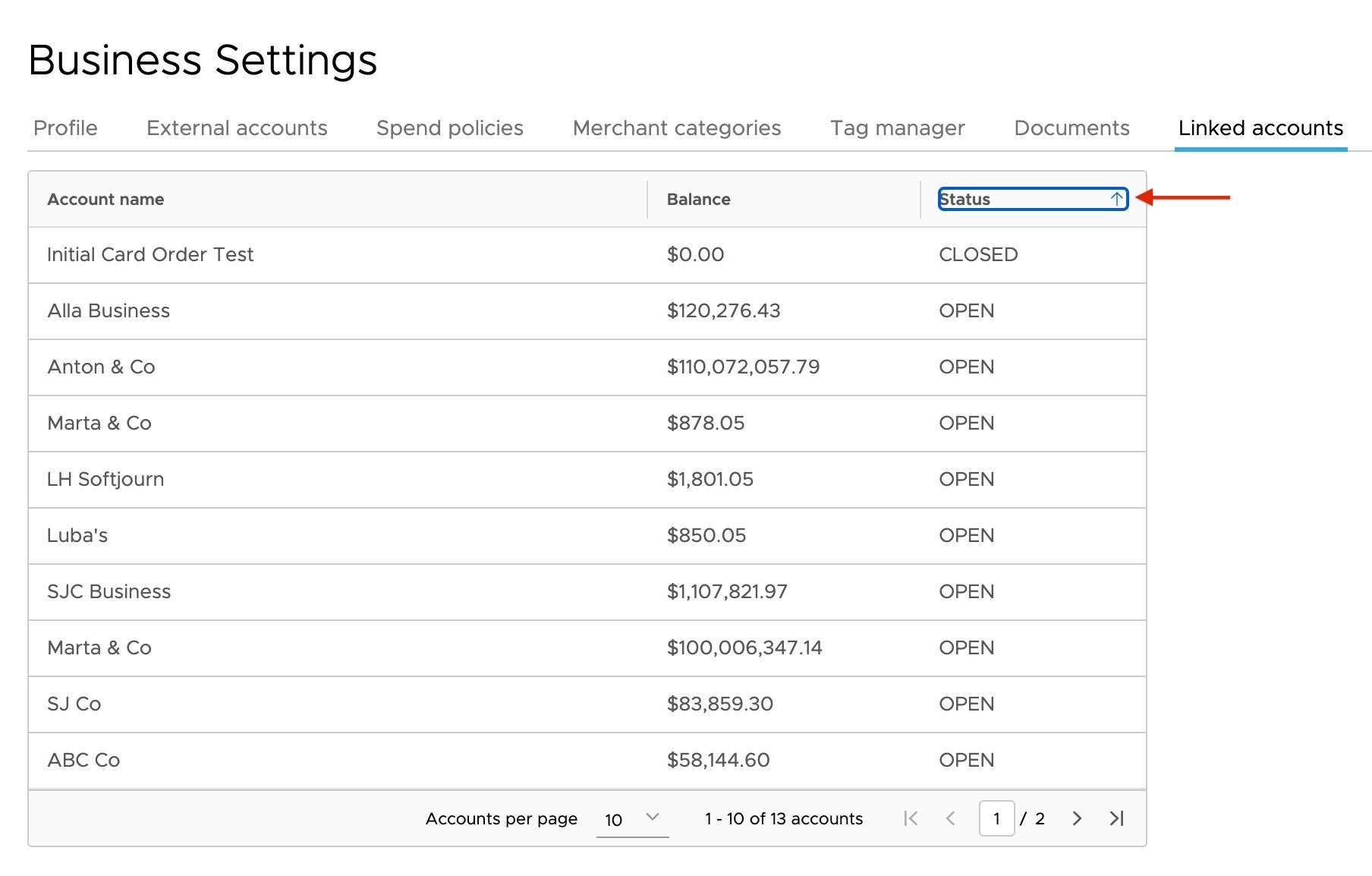
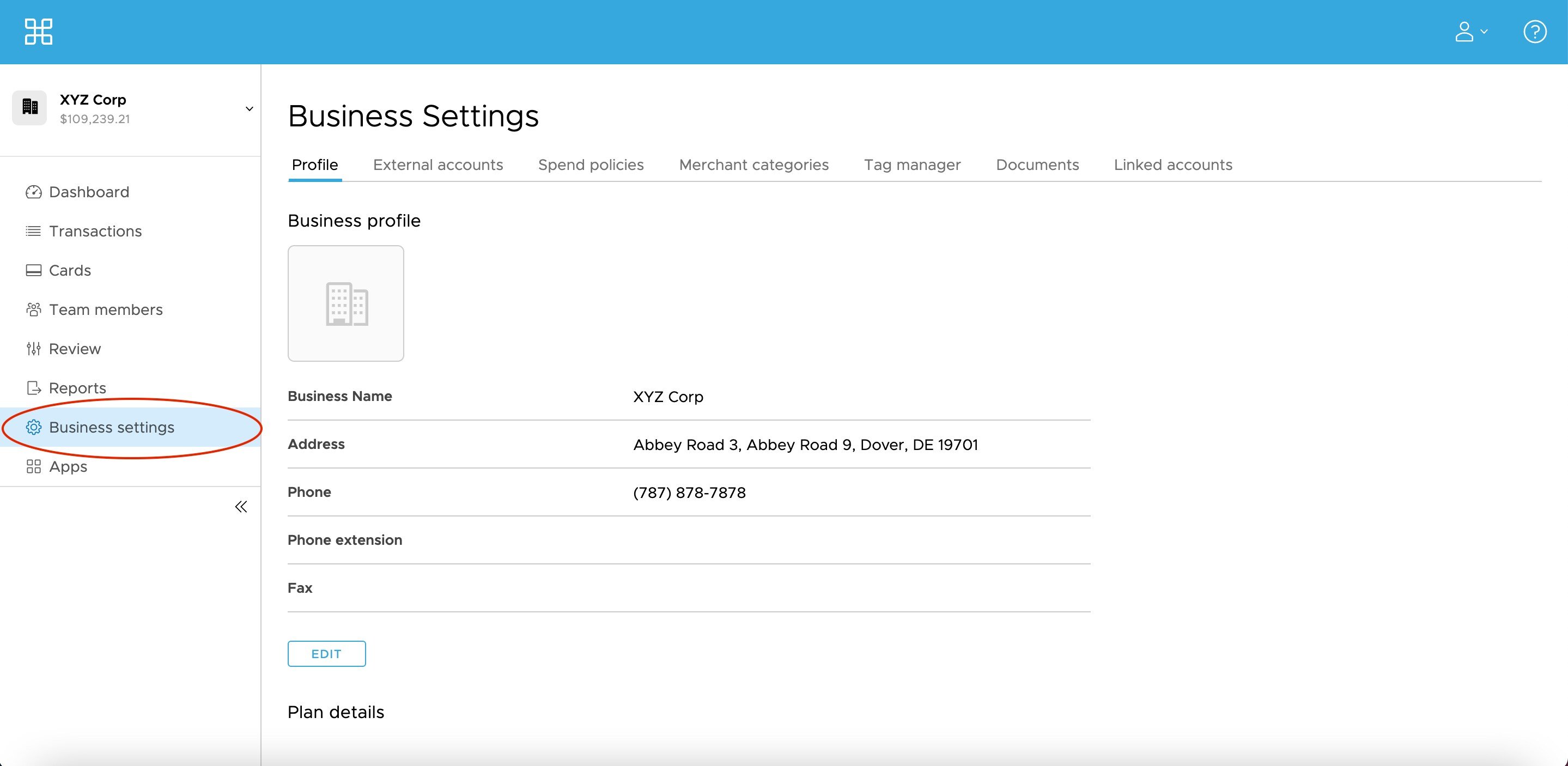
You may also access another account by visiting ‘Business Settings.’ Choose “Business Settings” from the left menu. Navigate to the ‘Linked accounts’ tab. Select the account you wish to access.
Option 3: Via the mobile app
Log in to the app and click ‘Settings.’
Your linked admin and cardholder accounts will appear at the top of the screen.
How to Add Admins
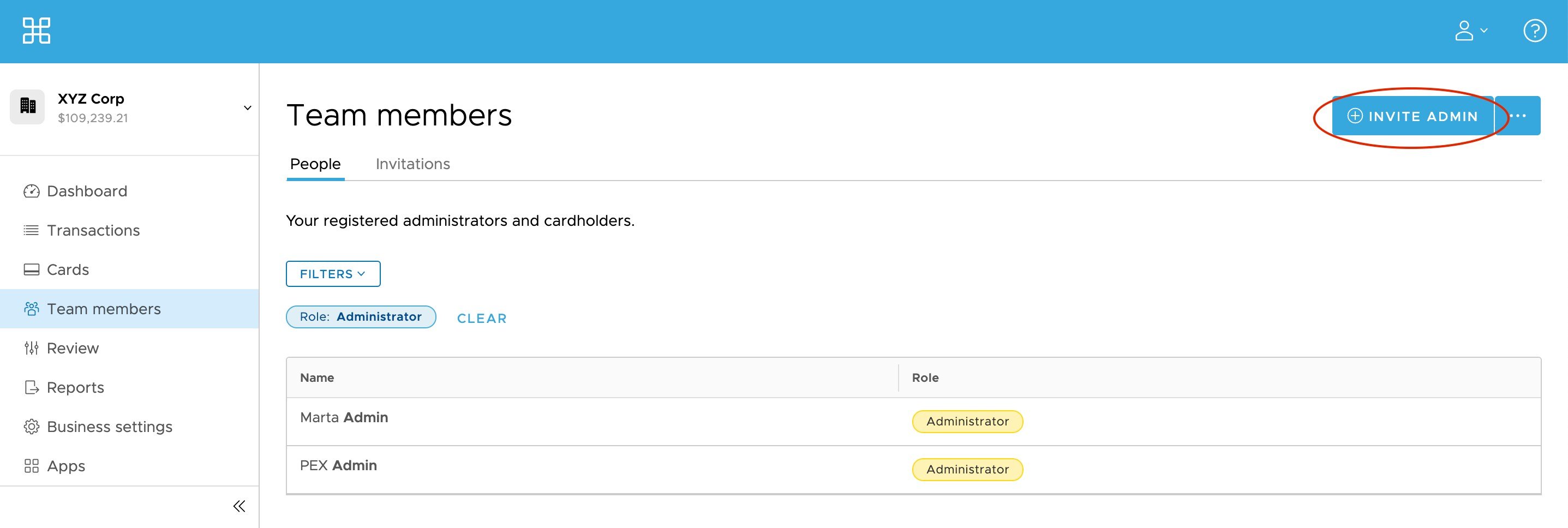
Navigate to the ‘Team Members’ page.
How to add a new admin
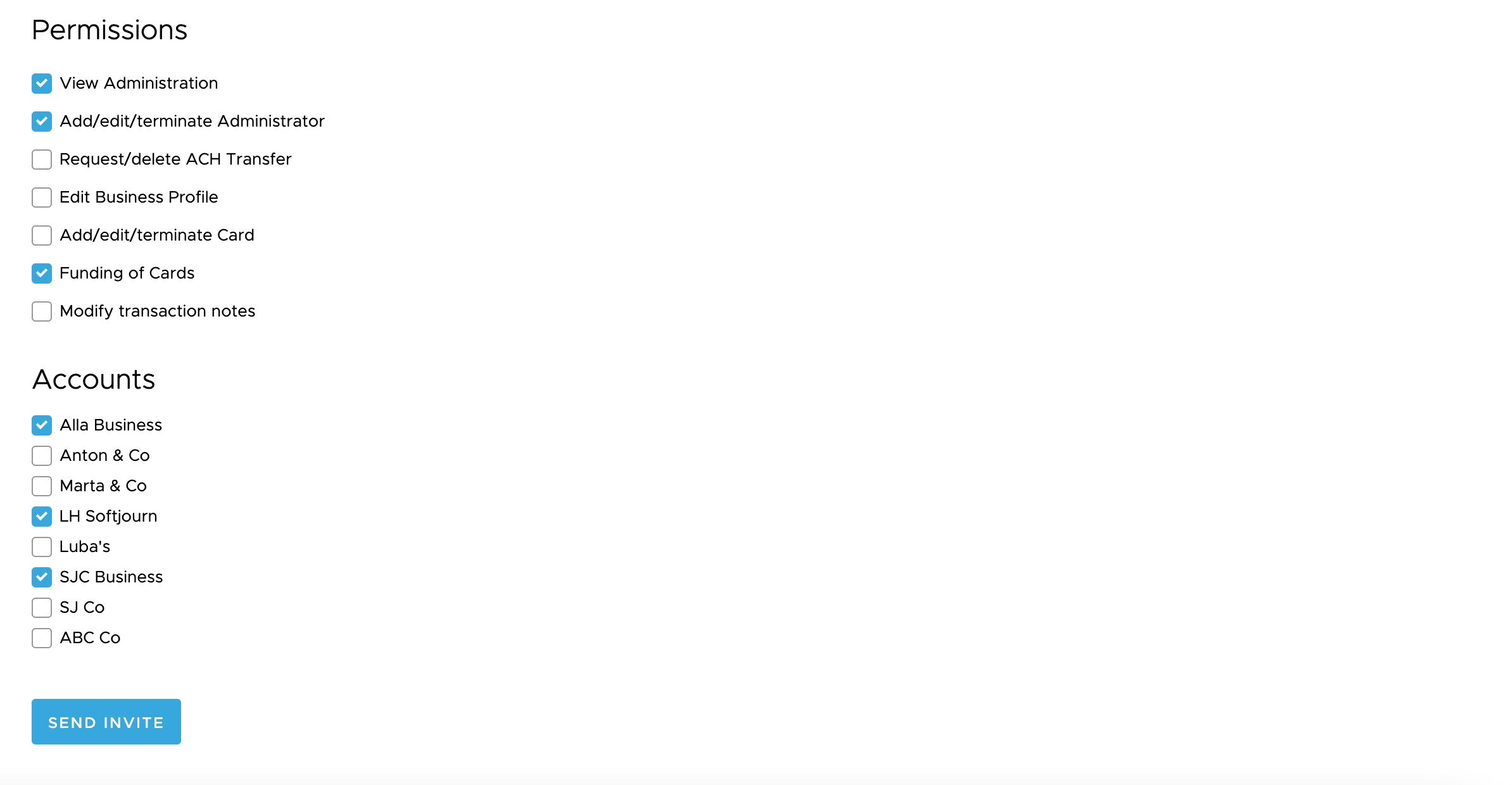
Fill out the required fields to send an invite. Enabling additional administrators to access linked accounts
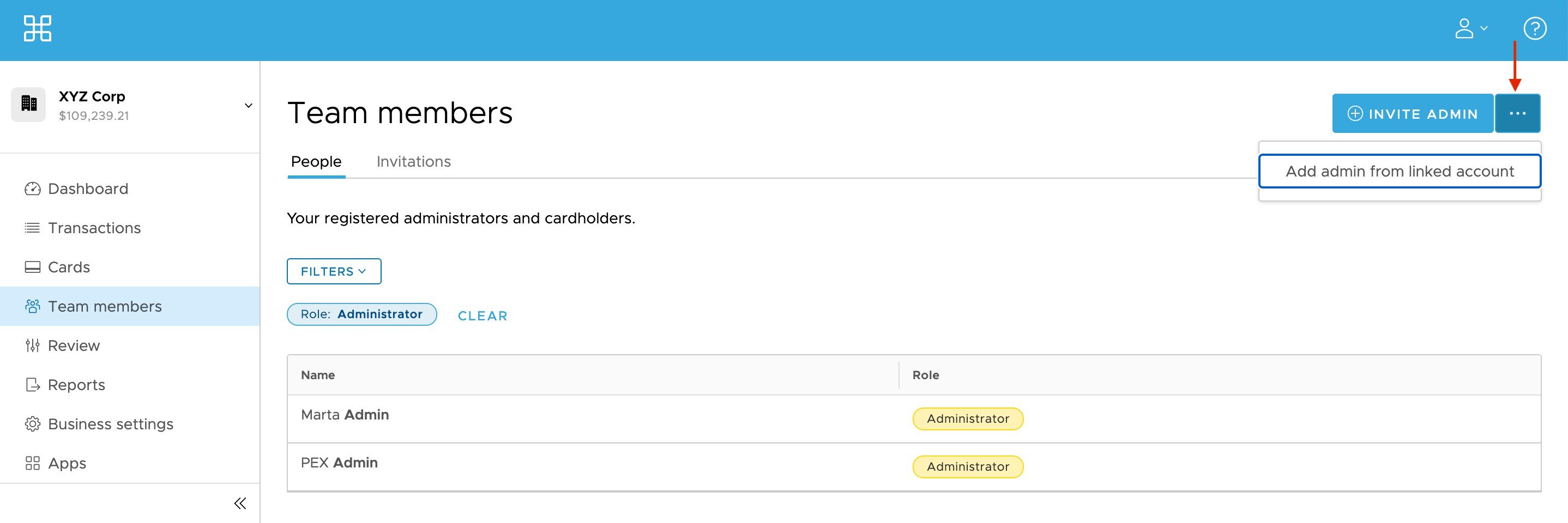
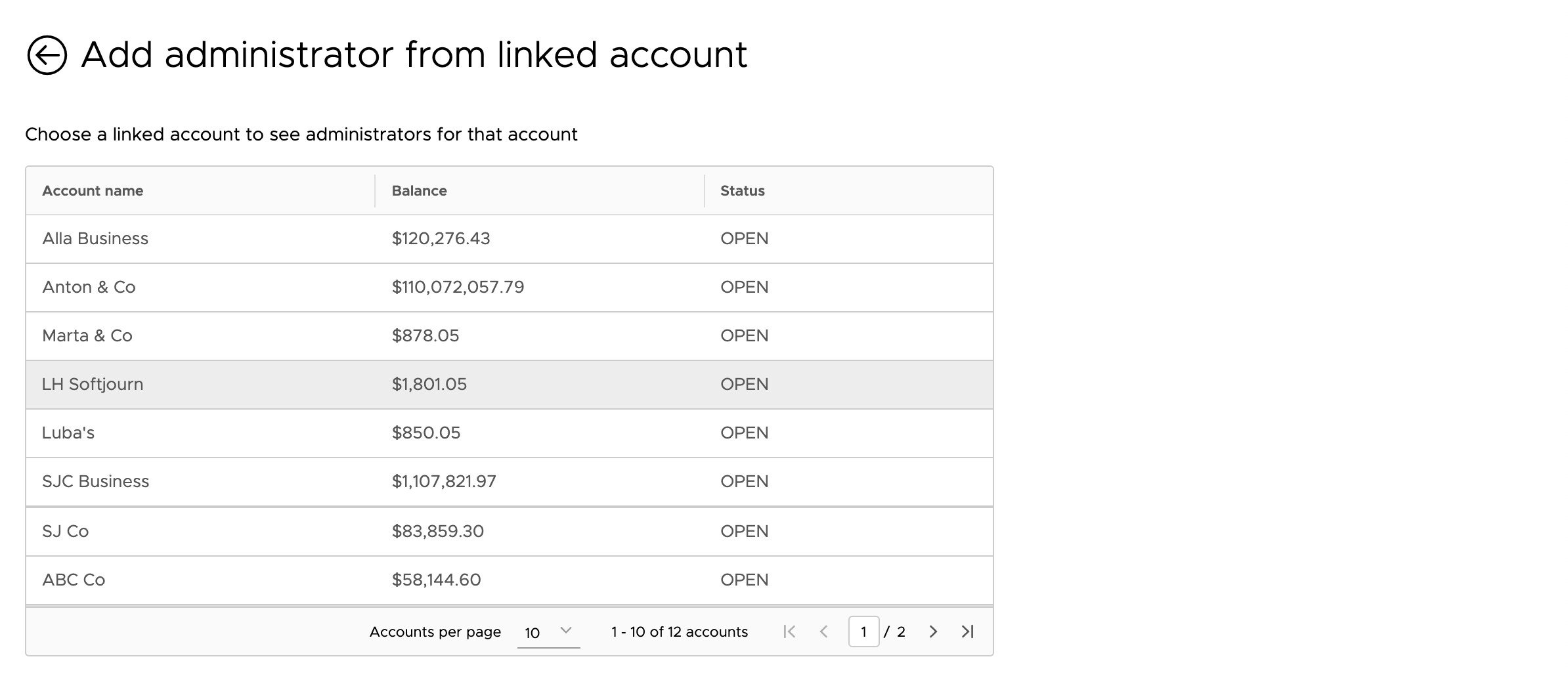
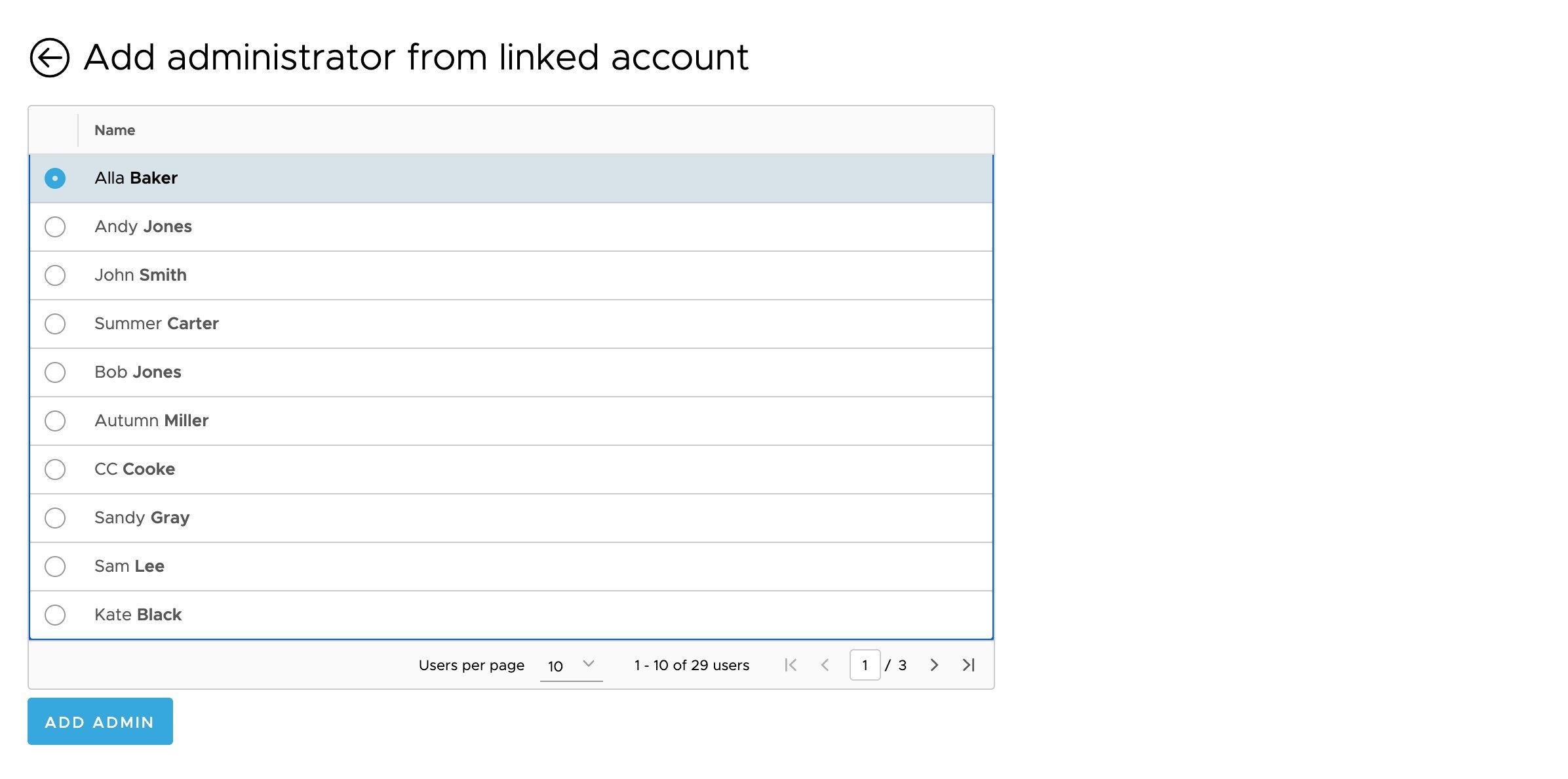
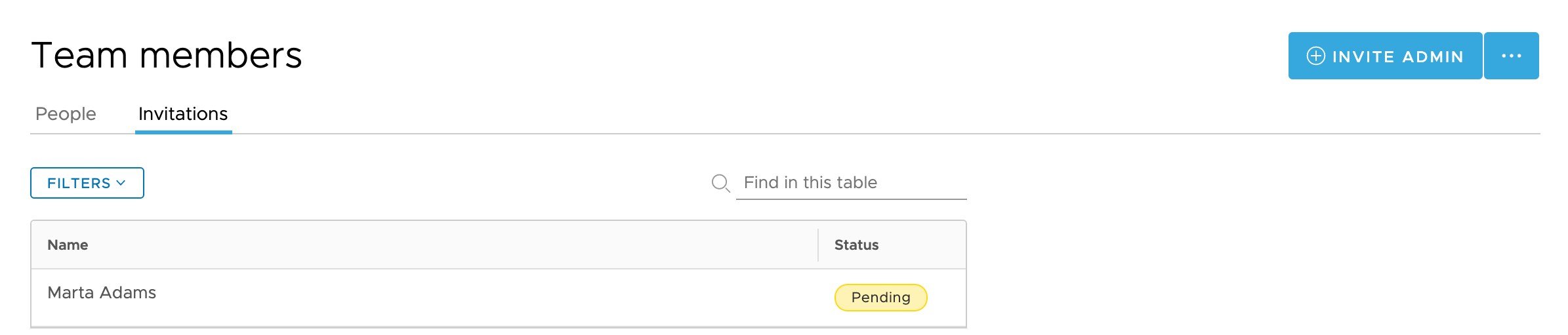
Click the icon next to ‘Invite Admin’ and select ‘Add admin from linked account.’ Select the account from which you are adding the admin. Select the admin you wish to add. The admin you added will now show under the ‘Invitations’ tab with a pending status until they accept their invitation. How to See Closed Accounts
Option 1: Via Side Menu
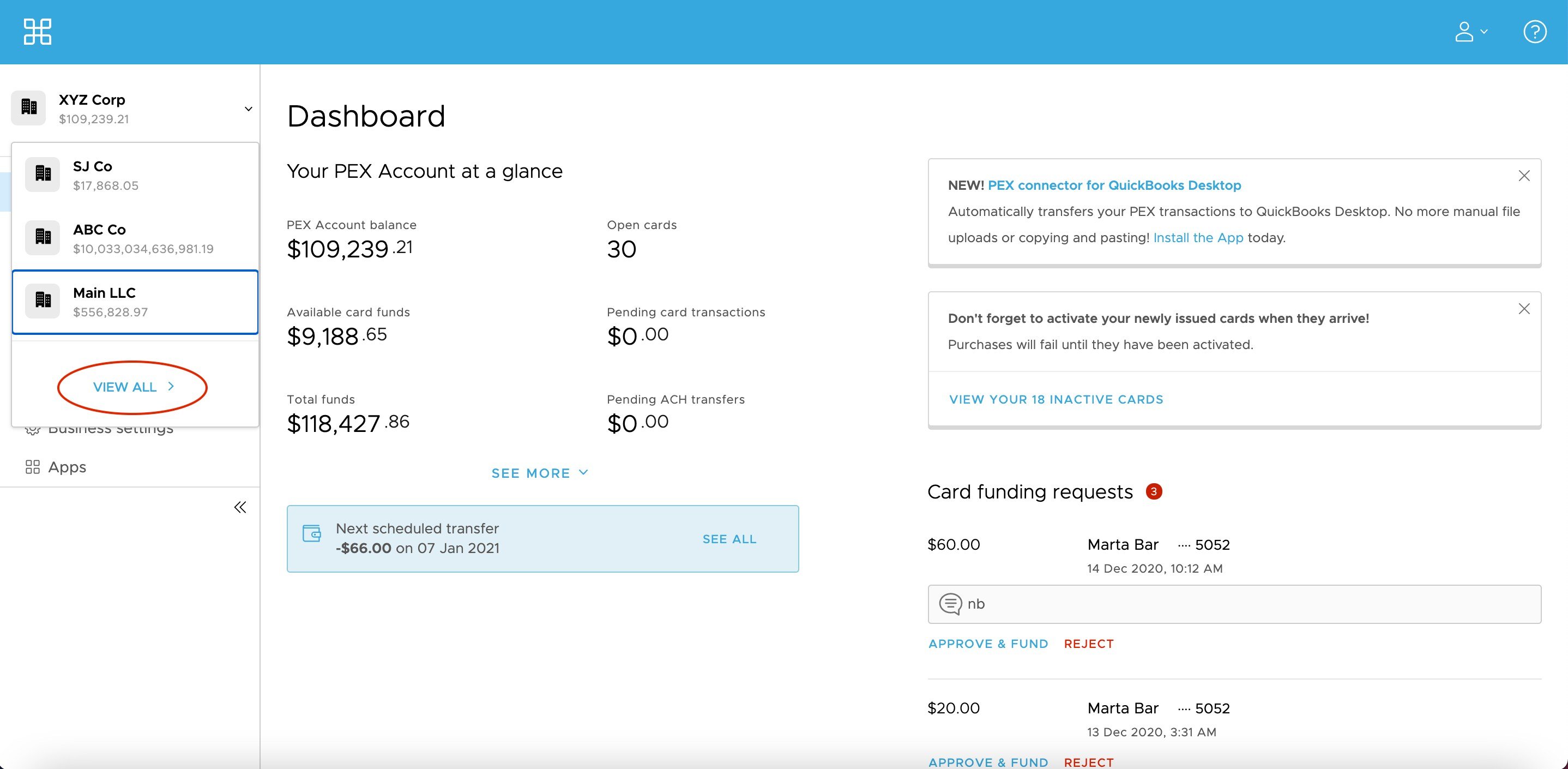
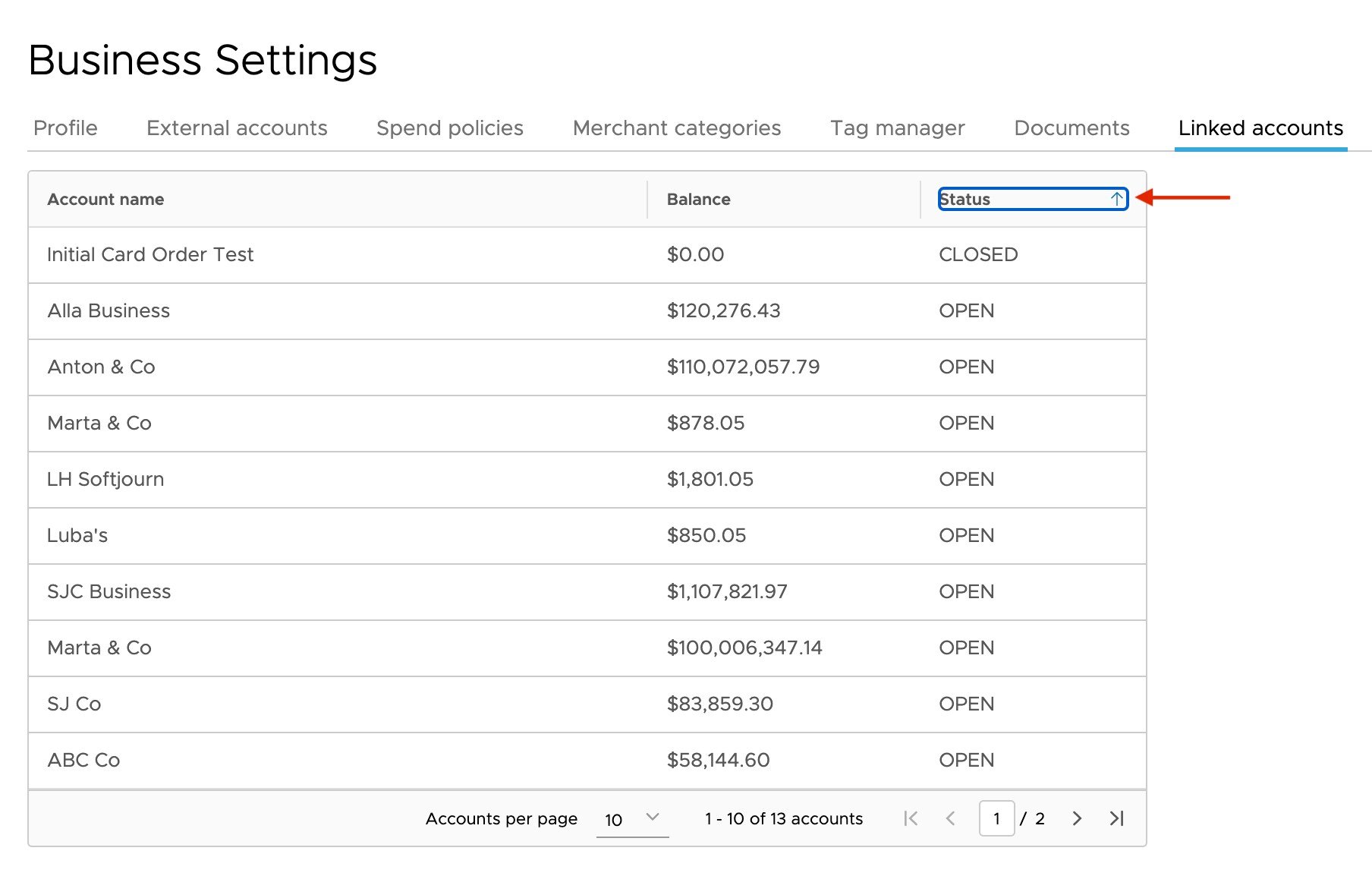
Navigate to the sidebar dropdown under your company name. Scroll to the bottom and select ‘View All.’ Sort by ‘Status’ to view closed accounts. Option 2: Via ‘Business Settings’
Select ‘Business Settings’ on the side menu. Select the ‘Linked accounts’ tab. Sort by ‘Status’ to view closed accounts. Last modified on April 22, 2026