

Note:
- Tag restrictions are available when the “Use Tag Option Group Restrictions” setting is enabled. Contact PEX support if you’re unable to create groups.
- Cardholder Groups are only available with selected plans.
- This feature applies to Dropdown tags only.
- To see the ‘Tag Manager’ tab and edit tags, you must have either the ‘Manage Cardholders’ or ‘Edit Business Settings & Apps’ permission.
Set tag availability
Follow the steps to determine which groups can view each tag:- Navigate to Business Settings -> Tag Manager.
- Add or edit an existing tag.
- Edit the “Available to” column.
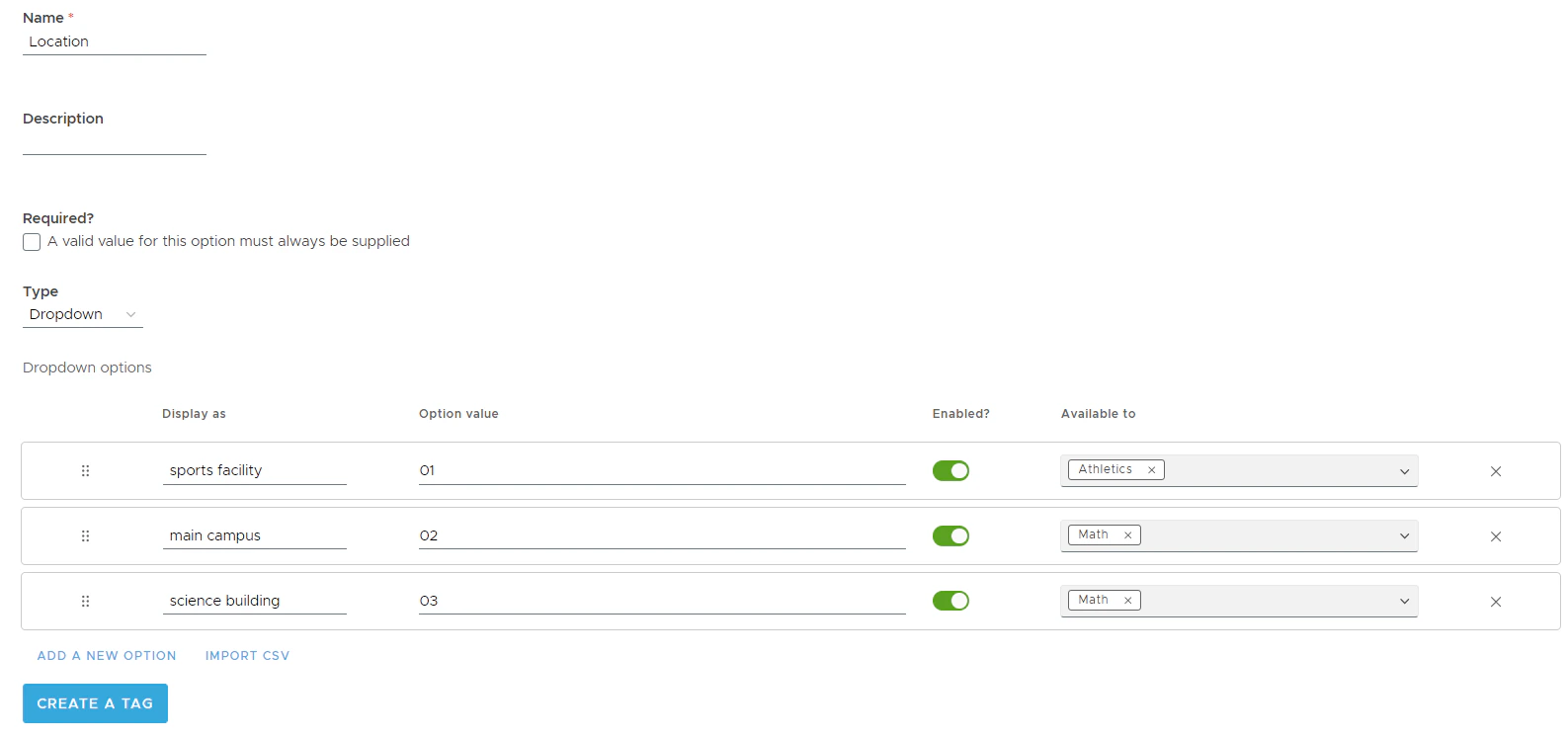
- Create two groups: Athletics and Science.
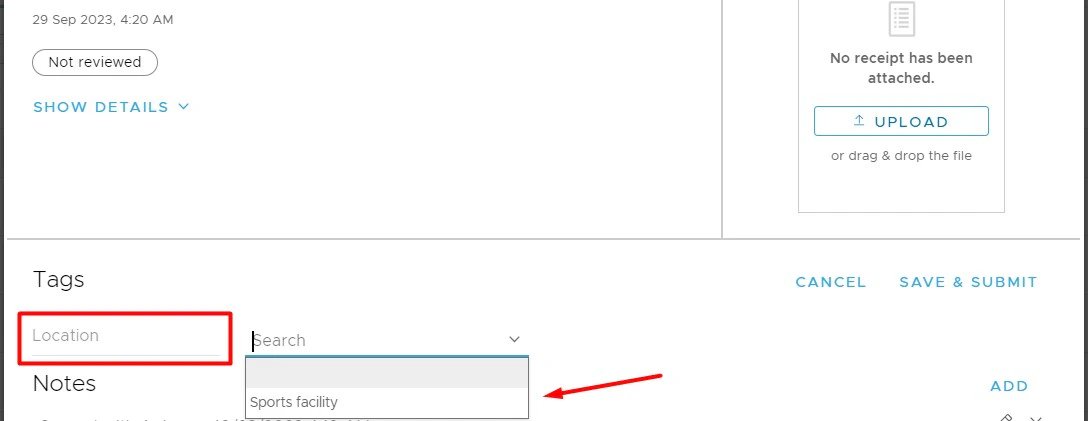
- Add Kennan to the Athletics group.
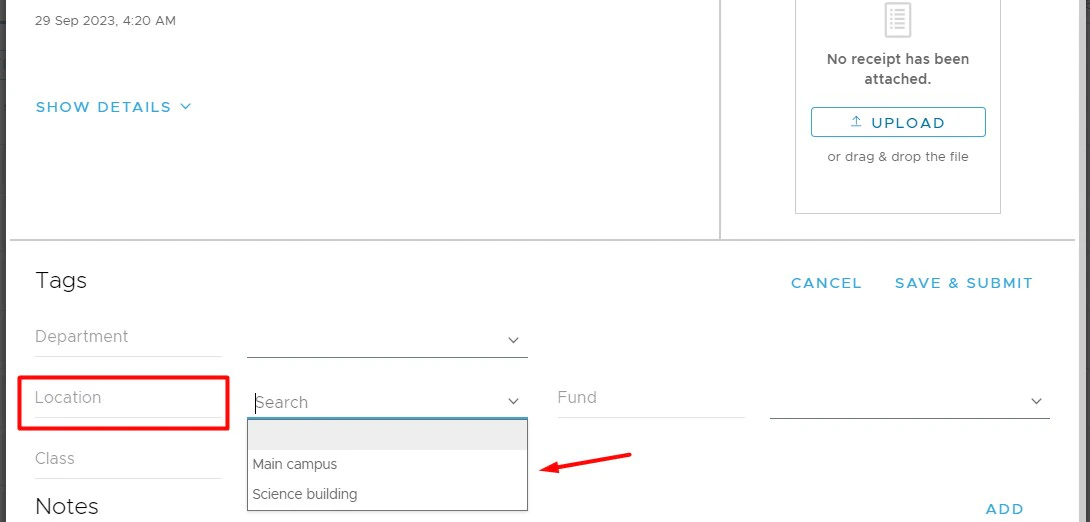
- Add John to the Science group.
- Update the location based on the department.
- Restrict “sports facility” to only the members of the Athletics group.
- Set the visibility of the “main campus” and “science building” tag options to only the members of the Science group.
Add user group
- More information on creating User groups can be found here.
CSV Import
Admins have the option to bulk upload their chart of accounts with set Tag Restrictions using a .CSV (Comma Separated Values) formatted file. Keep the following in mind the following:- By default, every tag value is available to all Admins and Cardholders.
- To restrict certain values, include the group name in the “AVAILABLE_TO” column.
- User or Cardholder group can be added in the “AVAILABLE_TO” column.
- Ensure the group name in the .csv file match exactly with the one in your PEX account. If the group name doesn’t match exactly, the tag option won’t be available to that group.
- To add multiple groups, use commas with no spaces. For example: Math,Athletics
FAQ
How does tag restrictions impact Admins?
How does tag restrictions impact Admins?
Tag restrictions do not impact Admins. Every Admin can view and use tag options, regardless of restrictions.
Who has access to the tag option if the group it's assigned to is empty?
Who has access to the tag option if the group it's assigned to is empty?
In this scenario, the tag option is available only to Admins:
- Create “Group A”.
- Add members to “Group A”.
- Create a tag.
- Add a tag option “B”.
- Assign tag option “B” to “Group A”.
- Remove all members from “Group A”.